
Zendesk Away Status: What It Routes and When Zendesk Sets It
In Zendesk's unified agent status, Away means only email tickets can be routed to you; messaging and voice stop. You set it from your profile icon, and Zendesk can set it for you after an idle timer your admin chooses, from 5 to 1,440 minutes without mouse or keyboard input in the Zendesk tab.
In Zendesk, Away is one of four unified agent statuses, and it means only email tickets can be routed to you; messaging and voice stop. To set it, click your profile icon in the top bar of the Agent Workspace and pick Away. Zendesk can also set it for you: if your admin turned on an idle timeout, you move to Away (or another chosen status) after 5 to 1,440 minutes with no mouse or keyboard input in the Zendesk browser tab. Closing the tab, putting the computer to sleep or losing the network can change your status too.
We build Slack Green, which keeps a Slack status green during your work hours, and we write about how work tools decide when you are away. The facts below come from Zendesk's help center articles on unified agent statuses and status timeouts.
Zendesk agent statuses: Online, Away, Transfer only, Offline
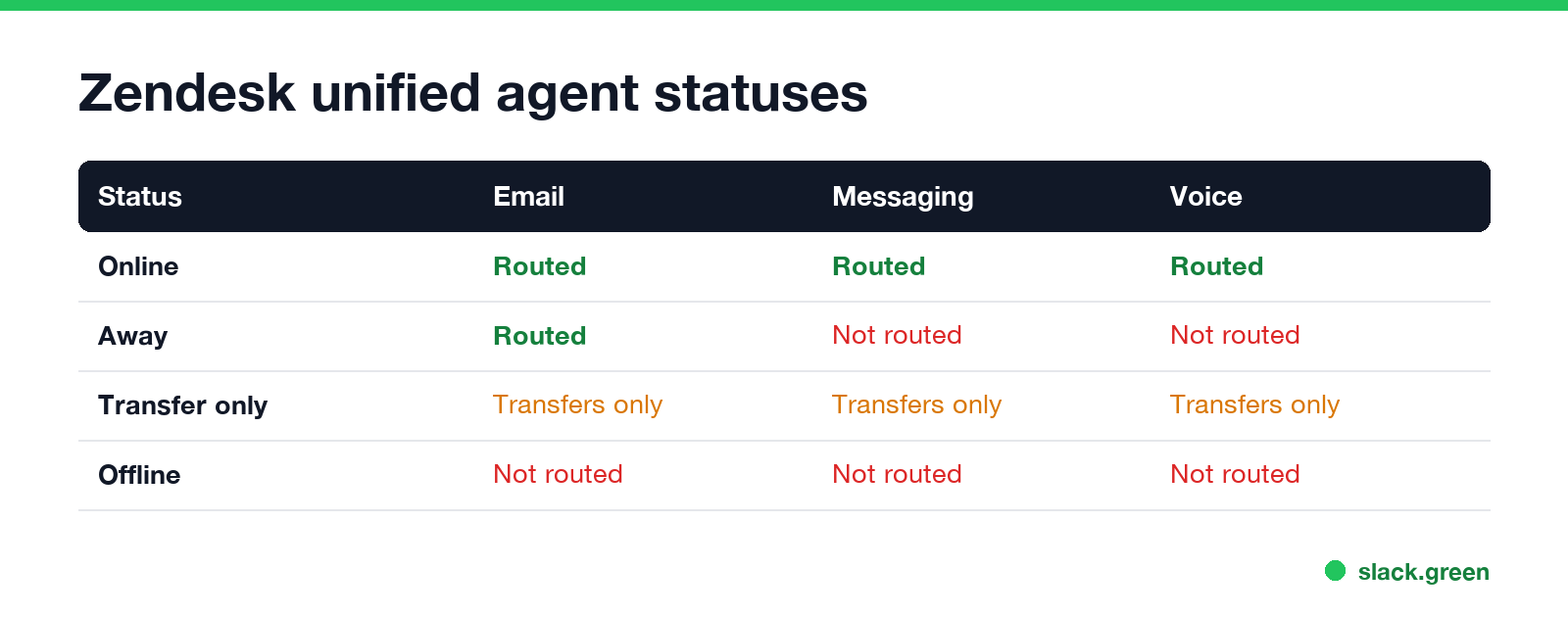
With omnichannel routing on, you set one status for email, messaging and voice:
| Status | What can be routed to you |
|---|---|
| Online | Email, messaging and voice |
| Away | Email only |
| Transfer only | Only tickets that were already reviewed and are being transferred to you |
| Offline | Nothing |
On Professional and Enterprise plans, admins can add custom statuses such as "In meeting" or "Lunch". Each custom status maps every channel to one of the standard ones; an "In meeting" status might keep email online and set messaging and voice to away. Ask your admin what each custom status routes before you use it. Light agents cannot use unified statuses.
If your account does not use omnichannel routing, messaging and Talk have separate status controls; Zendesk covers them in "Setting your status for messaging and live chat" and "Setting your agent state for Talk calls".
How to set your status to Away in Zendesk
- In the Agent Workspace, click your profile icon in the top bar.
- Pick Away, or a custom status your admin created for breaks.
- When you are back, open the same menu and pick Online.
- • Idle status and Idle timer. After the timer, from 5 to 1,440 minutes, Zendesk moves an inactive agent to the idle status: Away, Transfer only, or a custom status. Choosing Keep current status turns the timeout off.
- • Disconnection status. Used when you close the Agent Workspace without signing out, close the browser, put the computer to sleep, or lose your network. A disconnection overrides an idle status.
Zendesk's own advice is to set yourself Offline before any planned gap, such as the end of your shift. Chat operating hours do not change your messaging status once unified statuses are on, so a forgotten Online status keeps routing work to you after hours.
Zendesk idle timeout: when Zendesk sets Away for you
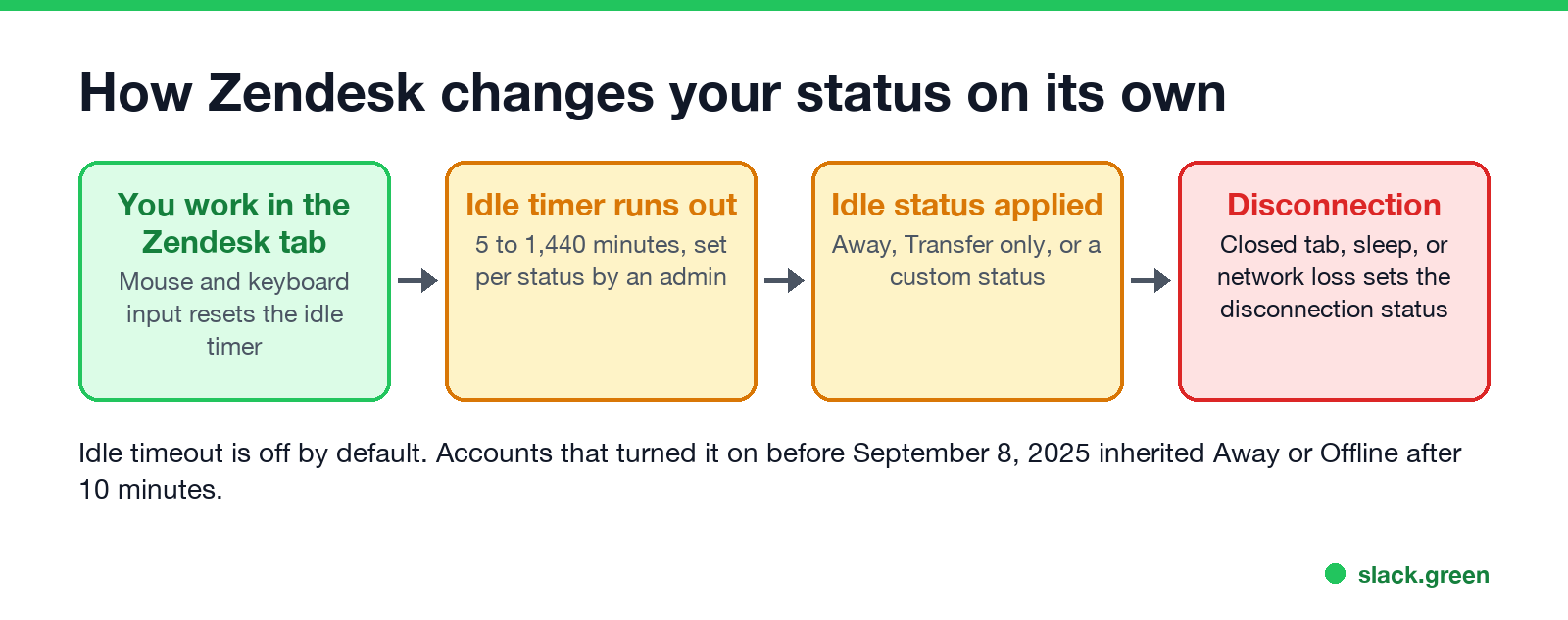
Admins configure this in Admin Center, Objects and rules, Omnichannel routing, Status timeouts. Each status has two settings:
What counts as idle matters. Zendesk defines inactivity as no mouse or keyboard input in the Zendesk tab of your browser. Reading a knowledge base in another tab, or typing in Slack, does not reset the timer. A status change sent through the Zendesk API does reset it.
Defaults changed in 2025. The idle timeout is off by default now. Accounts that turned it on before September 8, 2025 kept a default idle status of Away or Offline and a 10-minute timer, so "Zendesk sets me Away after 10 minutes" usually points to that older setting. An admin can raise the timer or switch it off per status. Changes reach agents who are working on tickets only after they refresh the page.
Never appear "away" on Slack again
Cloud-based. No downloads. Works 24/7 even when your laptop is off.
Why Zendesk keeps setting you to Away
| What you see | Likely cause | Fix |
|---|---|---|
| Away after a few minutes of reading | Idle timer counts only input in the Zendesk tab | Ask your admin for a longer timer for your status |
| Away or Offline after lunch | The computer slept, which counts as a disconnection | Keep the screen awake, or set Away before you leave |
| Offline after leaving a group | Your custom status was limited to that group, so idle or disconnect set Offline | Pick a status you still have access to |
| Online after your shift | Zendesk does not end your shift for you | Set Offline before you sign off |
Our online mouse jiggler keeps the screen awake while its tab is visible, which avoids the sleep disconnection. It sends no input to the Zendesk tab, so it does not reset the idle timer. The same limit applies to Slack, which counts only input in its own window; see does a YouTube video keep Slack active.
Zendesk, Genesys Cloud and Slack compared
| Tool | What away means | What sets it |
|---|---|---|
| Zendesk | Only email tickets reach you | You, or an idle timer of 5 to 1,440 minutes set by the admin |
| Genesys Cloud | Away from the computer; On Queue agents keep their status | You, or a locked screen in the desktop app |
| Slack | Hollow dot, no input | 10 minutes without input in the Slack window |
Genesys Cloud uses "Idle" for the opposite idea, an agent who is On Queue and free; see Genesys Cloud idle status. Support teams often run Slack next to Zendesk, where the away rules are in Slack away status meaning.
FAQ
What does Away mean in Zendesk? Only email tickets can be routed to you. Messaging and voice conversations go to other agents.
How long before Zendesk sets me to Away? Only if your admin turned on an idle timeout, after 5 to 1,440 minutes without input in the Zendesk tab. Older setups often use 10 minutes.
Can I turn off the Zendesk idle timeout? Agents cannot. An admin sets the idle status to Keep current status under Status timeouts.
Does Zendesk see activity in other tabs? No. Only mouse and keyboard input in the Zendesk tab counts.
Stop Jiggling Your Mouse.
Join hundreds of remote workers who never worry about their Slack status. Set it up once, stay green forever.
Related Articles
Webex Status Ideas: 35 Custom Statuses Under 75 Characters
35 Webex status ideas you can paste into Set a status: funny ones, meetings, focus time, lunch, out of office and time zones, each under Webex's 75-character limit. How to set a custom status, save five for reuse, and make it clear on its own.
How to Use Slack Block Kit Builder: Templates, Preview, Payload
Slack's Block Kit Builder at app.slack.com/block-kit-builder lets you pick a template, add blocks, preview the message on Desktop or Mobile, and copy the JSON payload for a webhook or chat.postMessage. A walk through the current builder, a working deploy message, and the steps to send it.
Wireless Mouse With a Jiggler: How the Built-in Mode Works
A wireless mouse with a jiggler is a normal mouse with a jiggle mode in its firmware: hold the DPI button for about 3 seconds and the cursor moves on its own. Two models in the top results, how they compare with a USB dongle and a mechanical mover, and what they do for Teams and Slack.