
Slack Canvas Formatting: Shortcuts That Work and Ones That Stay as Text
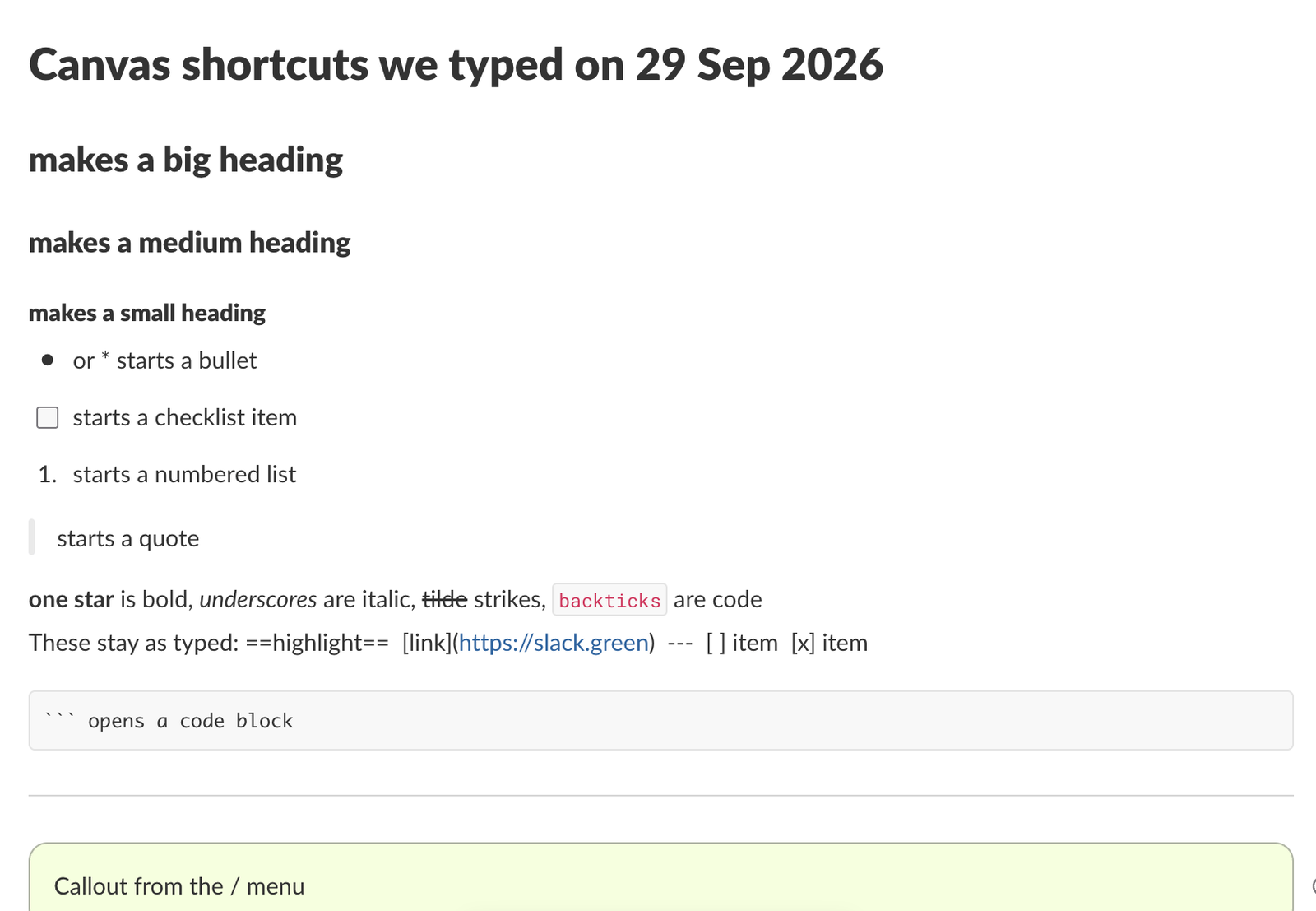
We typed every common markdown shortcut into a Slack canvas. Headings, lists, checklists, quotes and code convert as you type; a single *star* makes bold, not italic; links, dashes for a divider and ==highlight== stay as plain text.
A Slack canvas turns most markdown into formatting as you type: #, ## and ### plus a space make headings, - or * a bullet, [] a checklist box, 1. a numbered list, > a quote and three backticks a code block. Text styles follow Slack's message rules, so *one star* is bold and _underscores_ are italic. Three things stay as plain text: [text](url) links, ---, and ==highlight==. For those, use the toolbar or the / menu.
We typed each shortcut below into a new canvas in the Slack web app on 29 September 2026 and read the result back from the page. This is what that canvas looked like:
Shortcuts that convert as you type
Type these at the start of an empty line. The marker disappears once you press the space.
| You type | You get |
|---|---|
# | Big heading |
## | Medium heading |
### | Small heading |
- or * | Bulleted list |
[] | Checklist item with a checkbox |
1. | Numbered list |
> | Quote |
| three backticks | Code block |
/ | The insert menu (divider, callout, table, date, reminder, columns and more) |
Inside a line:
| You type | You get |
|---|---|
*text* | bold |
**text** | bold |
_text_ | italic |
~text~ or ~~text~~ | strikethrough |
| a backtick pair around text | inline code |
:tada: | the emoji |
The single star catches people who write standard markdown. In a canvas, as in a Slack message, one star is bold. For italic, use underscores or the italic button in the toolbar that appears over selected text.
What does not convert
- • Links.
[Slack Green](https://slack.green)stayed as brackets and parentheses, with only the URL turned into a link. Select the words and use the link icon in the toolbar that appears over the selection. - • Dividers.
---stayed as three dashes. Type/dividerand press Enter to get a line. - • Checked boxes.
[ ]with a space and[x]stayed as text. Only[]with no space makes a checkbox, and you tick it with a click. - • Highlight.
==text==stayed as typed. We found no highlighter or text color anywhere: the toolbar over selected text offers paragraph style, bold, italic, underline, strikethrough, quote, code, link and callout, and the Aa menu only switches between paragraph, headings, lists and code block.
Callouts: the closest thing to a highlight
A callout is a boxed paragraph, green in our canvas, meant for warnings, decisions or the one line people must not miss. Type /callout and press Enter. The toolbar that appears over selected text also has a callout button. The API calls the same element callout too, if you build canvases from code.
Never appear "away" on Slack again
Cloud-based. No downloads. Works 24/7 even when your laptop is off.
Getting out of a quote
After > , pressing Enter keeps you in the quote, and pressing it twice more still did in our test: the next three lines, a code block included, all ended up inside the quote bar. Press Backspace on an empty line inside the quote to go back to normal text.
Canvases made through the API
The shortcuts above are editor behaviour. When an app creates a canvas with canvases.create, Slack reads real markdown instead, and its developer docs list dividers, markdown tables, links, callouts and checklists among the supported elements. We could not run that call with our test login (not_allowed_token_type), so check it against the canvas your app produces. Tables in a canvas, typed or from the API, are covered in how to make a table in Slack.
Messages follow different rules from canvases. If you are pasting markdown from ChatGPT or a README into a message rather than a canvas, our markdown to Slack converter rewrites it into something Slack formats.
FAQ
Can I paste markdown into a Slack canvas?
We did not test pasting. Typing the shortcuts above works, and so does building the canvas through the API.
Do canvases work on the free plan?
A channel or DM can have a canvas tab on the free plan; our test workspace is on it. Creating a standalone canvas from Create new is marked Pro.
Can I change the font or text size?
Only through the three heading sizes. We found no font picker or size control in the canvas toolbar or the Aa menu.
Stop Jiggling Your Mouse.
Join hundreds of remote workers who never worry about their Slack status. Set it up once, stay green forever.
Related Articles
Slack Headphones Icon: What It Means in Each Spot, and Huddling Alone
The headphones icon in Slack means huddles: the button that starts one, a live huddle next to a channel, the bar you are in. We started a huddle alone to show every spot, and checked whether you can huddle in your own DM.
Slack Huddle Background: Blur, Pictures, Uploads and Themes
A Slack huddle has two backgrounds: the one behind you on camera, and the theme behind the whole huddle window. Where each one is, what you can pick, and why many people see no upload button.
Slack "Remind me about this": What Happens When the Time Comes
Set a reminder on a Slack message from its three-dot menu, then watch where it goes. We tested it on 29 September 2026: the message waits in Later and fires as a card in Activity, with no Slackbot DM.