
How to Make a Table in Slack: Code Block, Canvas or Block Kit
Slack messages have no table format. For a quick table, put padded columns in a code block. For a real, editable table, insert one in a canvas. Apps can send a native table with the Block Kit table block. Steps, a CSV-to-Slack script and the limits of each.
To make a table in Slack, pick where it will live. A Slack message has no table format: the formatting toolbar offers bold, italics, underline, strikethrough, code, block quote, code block and lists, and nothing for rows and columns. So for a quick table in a message, type the columns inside a code block (three backticks), where the fixed-width font keeps them lined up. For a real table with cells you can edit, open a canvas and insert a table from its toolbar. Apps and bots can send a native table in a message with the Block Kit table block.
The toolbar options above are from Slack's help article "Format your messages in Slack", and the canvas and Block Kit limits are from Slack's developer docs, all checked on 27 September.
One thing none of these change is your status dot. Slack marks you away after about 10 minutes without input in the Slack window, however long you spend building a table somewhere else. Slack Green keeps your status green from a server during the hours you set.
Which table method to use
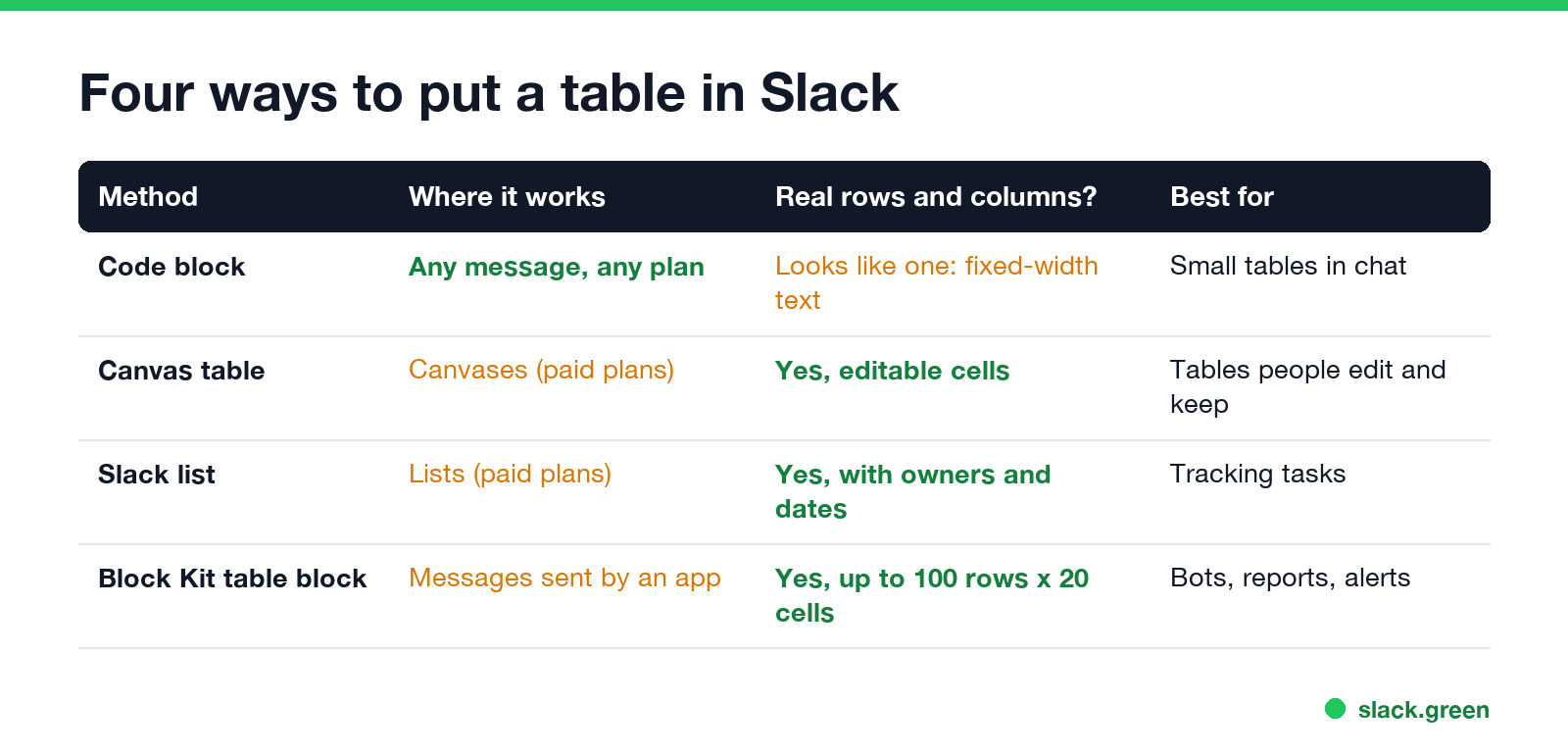
| Method | Where it works | What you get | Use it for |
|---|---|---|---|
| Code block | Any message, any plan | Text that lines up like a table | A few rows in a chat |
| Canvas table | Canvases (paid plans) | Real, editable cells | Tables people update and keep |
| Slack list | Lists (paid plans) | Rows with owners, dates and status | Tracking tasks |
| Block Kit table block | Messages sent by an app | Real rows and columns, up to 100 x 20 | Bot reports and alerts |
If the table is a to-do list with owners and due dates, a Slack list fits better than either; see Slack canvas vs lists.
How to make a table in a Slack message with a code block
- Type or paste your rows, with spaces between the columns so each column starts at the same position.
- Select the text and click Code block in the formatting toolbar, or press Cmd+Option+Shift+C on a Mac (Ctrl+Alt+Shift+C on Windows). You can also type three backticks before and after the text.
- Check the preview in the message box, then send.
Slack shows code blocks in a fixed-width font, so every character takes the same space and the columns stay in line:
Name  Task         Status
----  -----------  ---------
Jane  Launch post  Done
Sam   QA           In review
Mira  Design       Waiting
Keep the table narrow, about 60 characters at most, or it will not fit a phone screen. Bold, links and mentions do not work inside a code block.
To skip the spacing work, paste a markdown table into our markdown to Slack converter. It pads the columns, keeps the alignment from the :---: row, and gives you a code block to paste.
Why a markdown table does not work in a Slack message
Never appear "away" on Slack again
Cloud-based. No downloads. Works 24/7 even when your laptop is off.
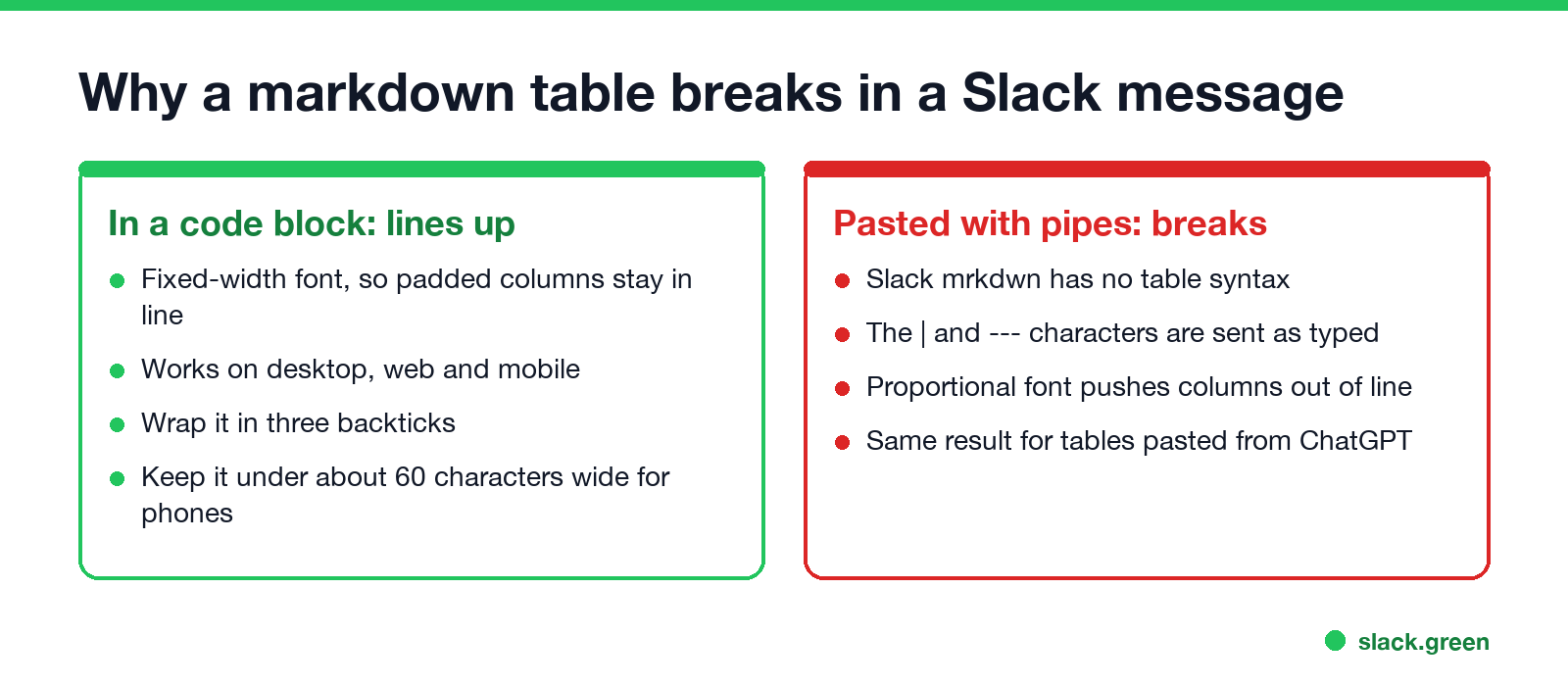
Slack messages use Slack's own markup, which Slack calls mrkdwn. It covers bold (*text*), italic (_text_), strikethrough (~text~), code, quotes and links, and it has no table syntax. A table written with | and ---, including one copied from ChatGPT, arrives as the characters you typed, in a font where the columns do not line up.
The same goes for cells pasted from Excel or Google Sheets. The message box has no table element, so the grid does not survive. Put the cells in a canvas table, share the sheet link, or turn them into a code block.
How to make a real table in a Slack canvas
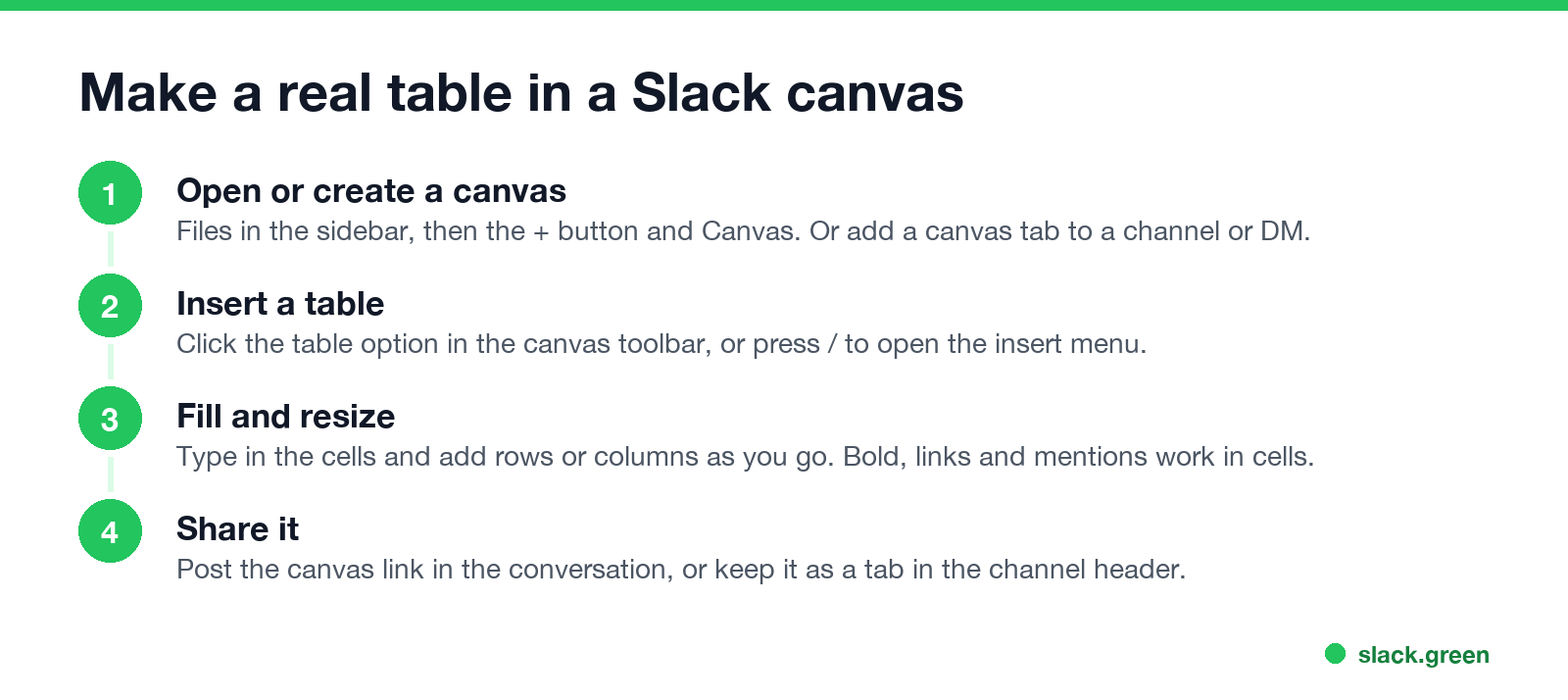
A canvas is Slack's document inside a channel or DM, and its toolbar has a table option.
Slack's developer docs set a limit of 300 cells per canvas table, in any mix of rows and columns. Canvases are a paid-plan feature: when a workspace drops to the free plan, existing canvases become read-only. Canvas tables are the one place in Slack where a markdown table works: an app that creates a canvas with the canvases.create API can send the table as markdown and Slack builds the grid.
Turn a CSV file into a Slack table
For a spreadsheet you export often, a short script does the padding. Save this as csv_to_slack.py and run python3 csv_to_slack.py team.csv. It prints a code block you can paste into any Slack message:
import csv
import sys

FENCE = "`" * 3

with open(sys.argv[1], newline="") as f:
    rows = list(csv.reader(f))

ncols = max(len(r) for r in rows)
rows = [r + [""] * (ncols - len(r)) for r in rows]
widths = [max(len(r[i]) for r in rows) for i in range(ncols)]

lines = ["  ".join(c.ljust(w) for c, w in zip(r, widths)).rstrip() for r in rows]
lines.insert(1, "  ".join("-" * w for w in widths))
print("\n".join([FENCE, *lines, FENCE]))
For the team.csv file behind the example above, the output is the table shown in the code block section, with a dashed line under the header. For a CSV with more than five or six columns, a canvas table is easier to read.
Send a table from a Slack app with the Block Kit table block
Never appear "away" on Slack again
Cloud-based. No downloads. Works 24/7 even when your laptop is off.
Apps can post a real table in a message. Slack's Block Kit has a table block: up to 100 rows, up to 20 cells per row, and at most 10,000 characters across all cells in a message. Cells are raw_text, raw_number or rich_text (for bold, links and mentions), and column_settings sets wrapping and alignment per column.
Save the message as table.json:
{
  "channel": "C0123456789",
  "text": "Launch status: 3 tasks",
  "blocks": [
    {
      "type": "table",
      "column_settings": [{"is_wrapped": true}, null, {"align": "right"}],
      "rows": [
        [{"type": "raw_text", "text": "Task"}, {"type": "raw_text", "text": "Owner"}, {"type": "raw_text", "text": "Hours"}],
        [{"type": "raw_text", "text": "Launch post"}, {"type": "raw_text", "text": "Jane"}, {"type": "raw_text", "text": "6"}],
        [{"type": "raw_text", "text": "QA pass"}, {"type": "raw_text", "text": "Sam"}, {"type": "raw_text", "text": "12"}]
      ]
    }
  ]
}
Then post it with chat.postMessage and your bot token:
curl -X POST https://slack.com/api/chat.postMessage \
  -H "Authorization: Bearer $SLACK_BOT_TOKEN" \
  -H "Content-type: application/json; charset=utf-8" \
  --data @table.json
The text field is the fallback that shows in notifications. For longer tables, Slack's docs say to split them across messages.
A shorter route for apps that already produce markdown, such as an LLM answer: Slack's Block Kit markdown block ("type": "markdown") takes standard markdown, and Slack's docs say a pipe table in it "renders as a formatted table". All markdown blocks in one message share a 12,000-character limit.
{
  "channel": "C0123456789",
  "text": "Launch status",
  "blocks": [
    {"type": "markdown", "text": "| Task | Owner |\n| --- | --- |\n| Launch post | Jane |\n| QA pass | Sam |"}
  ]
}
``` For text a bot posts outside a table, the [Slack message formatter](/en/tools/slack-message-formatter) previews the mrkdwn before you send it.

## Tables on Slack mobile

On the Slack app for iPhone and Android, a wide code block does not fit the screen. If most readers are on phones, keep code-block tables to two or three short columns, or use a [bulleted list](/en/blog/how-to-make-bullet-points-in-slack) or a canvas instead. The [Slack keyboard shortcuts](/en/blog/slack-keyboard-shortcuts) for code blocks and lists only apply on desktop.

## FAQ

**Does Slack markdown support tables?**

Not in messages you type. Slack's mrkdwn has no table syntax, so `|` and `---` show as typed. Markdown tables do work in canvases created through the Slack API and in the Block Kit markdown block that apps send, and canvases have a table option in their toolbar.

**How do I paste a table from Excel into Slack?**

A message cannot hold a grid, so the cells lose their layout. Paste them into a canvas table, share a link to the spreadsheet, or line them up in a code block.

**How do I format a Slack message as a table?**

Put the rows in a code block with spaces between the columns. The fixed-width font keeps the columns aligned. Our [markdown to Slack converter](/en/tools/markdown-to-slack) does the spacing for you.

**Can a Slack bot send a table?**

Yes. Use the Block Kit `table` block in `chat.postMessage`: up to 100 rows, 20 cells per row, and 10,000 characters per message.

**Is there a table button in Slack messages?**

No. The message toolbar has bold, italics, underline, strikethrough, code, block quote, code block and lists. The table button is in canvases.Stop Jiggling Your Mouse.
Join hundreds of remote workers who never worry about their Slack status. Set it up once, stay green forever.
Related Articles
Slack Status for Limited Availability: 30 Statuses to Copy
A Slack status for limited availability says you are around but slow, until when, and how to reach you if it is urgent, such as ⏳ 'Limited availability today, replies after 3 PM. Urgent: @mention me.' 30 statuses for busy days, slow replies and catching up, the emoji to use, and when to pause notifications too.
Slack Emoji for Thank You (and You're Welcome)
The usual Slack emoji for thank you are 🙏 :pray:, 🙌 :raised_hands: and ❤️ :heart:. For you're welcome, 😊 :blush: or 🤗 :hugging_face:. What each one says, which ones read wrong, and custom :ty:, :np: and :welcome: emoji your team can add in a minute.
Slack Emoji for Condolences: What to React With, and What to Say
The right Slack emoji for condolences are ❤️ :heart:, 🙏 :pray:, 🤗 :hugging_face:, 💐 :bouquet:, 🕯️ :candle: and 🕊️ :dove_of_peace:. Avoid 👍, ✅ and 👀, which read as 'noted'. Add a few words in the thread or a DM. Short condolence messages, get-well emoji, and custom 'thinking of you' emoji.