
Slack Keyboard Shortcuts Cheat Sheet for Mac and Windows
The Slack keyboard shortcuts worth learning, for Mac and Windows, from Slack's own list: Cmd/Ctrl+K to jump, Shift+Esc to mark all read, Cmd/Ctrl+Shift+Y to set a status, formatting, huddles and one-key message actions. Press Cmd/Ctrl+/ in Slack to see them all.
The most useful Slack keyboard shortcuts are Cmd+K (Mac) or Ctrl+K (Windows and Linux) to jump to any conversation, Shift+Esc to mark everything as read, Cmd/Ctrl+Shift+A to open All unreads, Cmd/Ctrl+Shift+Y to set your status, and Cmd/Ctrl+Shift+H to start or join a huddle. Press Cmd+/ or Ctrl+/ in Slack to see the full list. Slack does not let you change or add shortcuts.
Everything below comes from the Slack help center's shortcut list, grouped by what you do most. None of them keep your dot green, which turns grey 10 minutes after your last input in Slack; Slack Green keeps it active during the working hours you set, from the cloud.
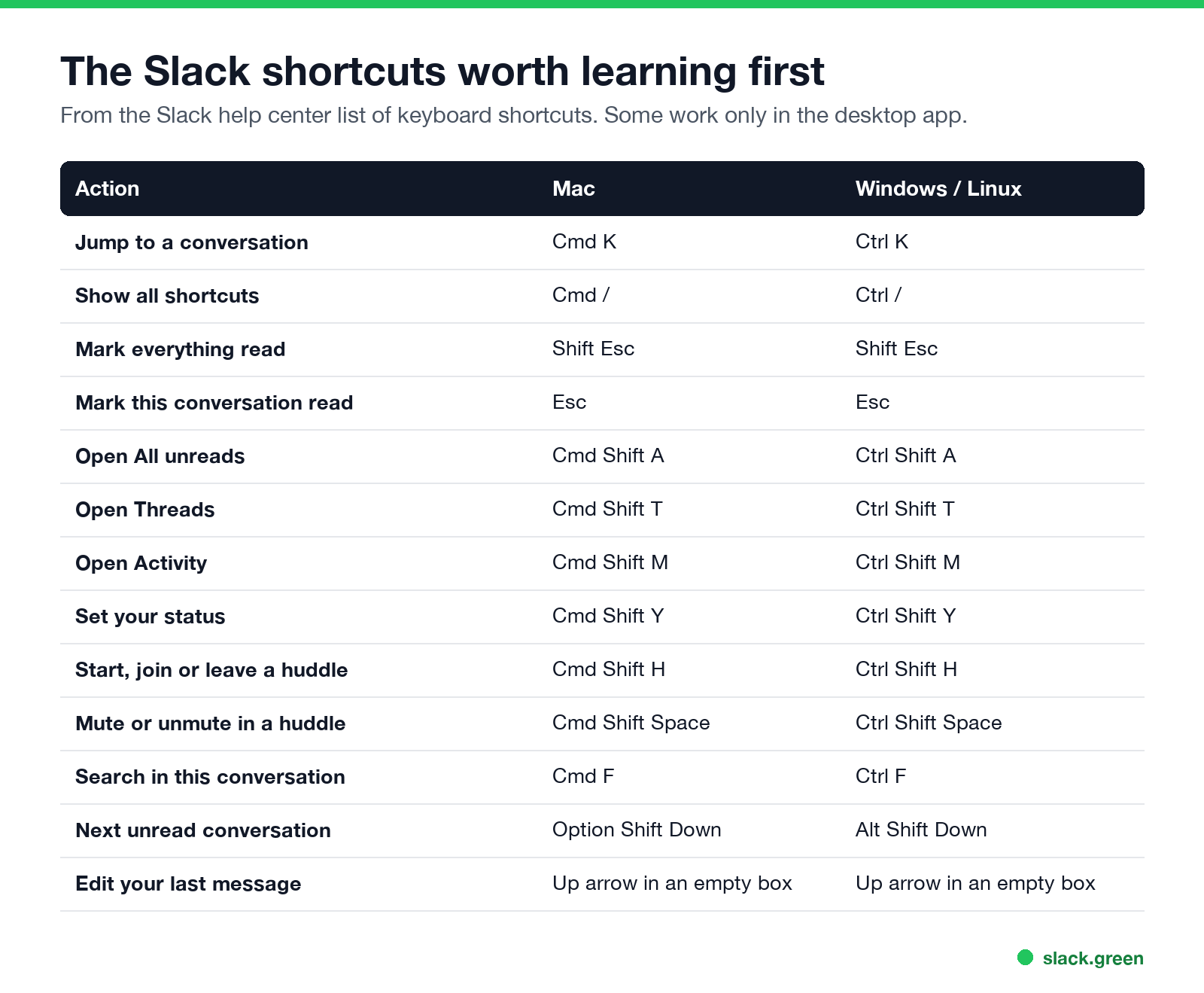
The Slack shortcuts worth learning first
| Action | Mac | Windows / Linux |
|---|---|---|
| Jump to a conversation | Cmd+K | Ctrl+K |
| Show all shortcuts | Cmd+/ | Ctrl+/ |
| Compose a new message | Cmd+N | Ctrl+N |
| Search | Cmd+G | Ctrl+G |
| Search in this conversation | Cmd+F | Ctrl+F |
| Set your status | Cmd+Shift+Y | Ctrl+Shift+Y |
| Unsend a message | Cmd+Z | Ctrl+Z |
| Open preferences (desktop app) | Cmd+, | Ctrl+, |
| Hide the right sidebar | Cmd+. | Ctrl+. |
Shortcuts to read and catch up
| Action | Mac | Windows / Linux |
|---|---|---|
| Mark everything as read | Shift+Esc | Shift+Esc |
| Mark this conversation as read | Esc | Esc |
| Mark a message as unread | Option+click | Alt+click |
| Open All unreads | Cmd+Shift+A | Ctrl+Shift+A |
| Open Threads (desktop app) | Cmd+Shift+T | Ctrl+Shift+T |
| Open Activity (desktop app) | Cmd+Shift+M | Ctrl+Shift+M |
| Next unread conversation | Option+Shift+Down | Alt+Shift+Down |
| Previous unread conversation | Option+Shift+Up | Alt+Shift+Up |
| Jump to the latest unread in a conversation (desktop app) | Cmd+J | Ctrl+J |
| Go back / forward in history | Cmd+[ / Cmd+] | Alt+Left / Alt+Right |
If a badge still will not clear after Shift+Esc, see Slack keeps showing unread messages. To narrow a search with from:, in: and dates, see Slack search operators.
Huddle and workspace shortcuts
Never appear "away" on Slack again
Cloud-based. No downloads. Works 24/7 even when your laptop is off.
| Action | Mac | Windows / Linux |
|---|---|---|
| Start, join, leave or end a huddle | Cmd+Shift+H | Ctrl+Shift+H |
| Mute or unmute in a huddle | Cmd+Shift+Space | Ctrl+Shift+Space |
| Next workspace | Ctrl+Tab | Ctrl+Tab |
| Previous workspace | Ctrl+Shift+Tab | Ctrl+Shift+Tab |
| Switch to workspace number | Cmd+1, 2, 3... | Ctrl+1, 2, 3... |
Formatting shortcuts
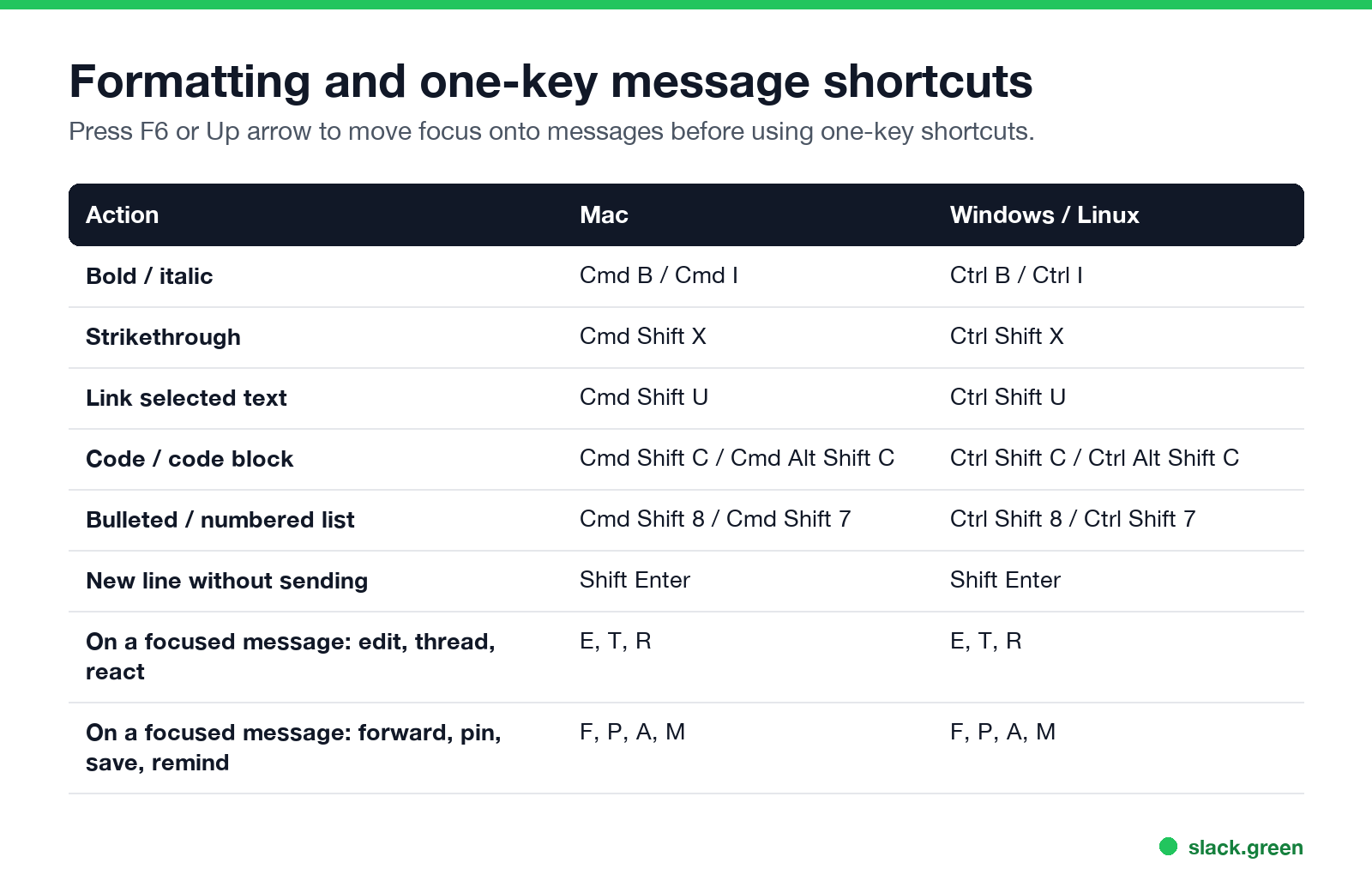
| Action | Mac | Windows / Linux |
|---|---|---|
| Bold | Cmd+B | Ctrl+B |
| Italic | Cmd+I | Ctrl+I |
| Strikethrough | Cmd+Shift+X | Ctrl+Shift+X |
| Link selected text | Cmd+Shift+U | Ctrl+Shift+U |
| Inline code | Cmd+Shift+C | Ctrl+Shift+C |
| Code block | Cmd+Alt+Shift+C | Ctrl+Alt+Shift+C |
| Quote | Cmd+Shift+9 | Ctrl+Shift+9 |
| Bulleted list | Cmd+Shift+8 | Ctrl+Shift+8 |
| Numbered list | Cmd+Shift+7 | Ctrl+Shift+7 |
| New line without sending | Shift+Enter | Shift+Enter |
With a link copied, select text and paste (Cmd+V or Ctrl+V) to turn it into a link. To preview formatting before you post, try the Slack message formatter.
One-key shortcuts on a message
Move focus onto a message first (press the Up arrow from an empty message box, or F6 to move between sections). Then:
- • E edit your message
- • T or Right arrow open or reply in the thread
- • R add a reaction (what reactions mean is in what does the eyes emoji mean in Slack)
- • F forward
- • P pin or unpin
- • A save for later (see Slack saved for later)
- • M set a reminder about the message
- • U mark everything above as unread
- • Delete delete your message
By default, the Up arrow in an empty message box edits your last message. You can change that in preferences so it moves focus to the last message instead.
Slack keyboard shortcuts not working
Never appear "away" on Slack again
Cloud-based. No downloads. Works 24/7 even when your laptop is off.
Can you customize Slack keyboard shortcuts?
No. Slack's help center says it is not currently possible to set custom keyboard shortcuts. On a Mac you can remap menu items for Slack under System Settings, Keyboard, Keyboard Shortcuts, App Shortcuts, which works for commands in the Slack menu bar.
FAQ
How do I see all Slack keyboard shortcuts?
Press Cmd+/ on a Mac or Ctrl+/ on Windows and Linux. For commands you type in the message box, see the Slack slash commands list.
What is the shortcut to mark all as read in Slack?
Shift+Esc.
What is the Slack shortcut to set my status?
Cmd+Shift+Y on Mac, Ctrl+Shift+Y on Windows. To schedule one ahead, see how to schedule a Slack status.
How do I start a huddle with the keyboard?
Cmd+Shift+H on Mac, Ctrl+Shift+H on Windows, in the conversation you want to huddle in.
Does pressing shortcuts keep me active on Slack?
Yes, while the Slack window is in focus, because it is input in Slack. Your dot still goes grey 10 minutes after your last input; see how long does Slack stay active.
Stop Jiggling Your Mouse.
Join hundreds of remote workers who never worry about their Slack status. Set it up once, stay green forever.
Related Articles
Slack Workflow Builder Examples: 12 Workflows to Copy, With Triggers and Steps
Twelve Slack Workflow Builder examples with the exact trigger and steps for each: daily standups, channel welcomes, time-off approvals, help desk requests, emoji escalations, keyword routing, incidents, list updates and webhooks from other tools. Plus where Workflow Builder lives, what it costs and how branches work.
Slack Timer: How to Set a Countdown, Pomodoro or Focus Timer in Slack
Slack has no built-in timer, but four built-in tools act like one: /remind me to ... in 25 minutes, a status that clears itself, /dnd for a focus block, and Workflow Builder for dated countdowns. For a live countdown in a channel, use a Marketplace app or a 15-line bot script.
Slack Red Dot Won't Go Away? What It Counts and How to Clear It
A red dot on the Slack icon means unread activity somewhere; a red number means DMs, mentions, keywords or followed thread replies. Press Shift+Esc to mark all read, check Threads, Activity, Later and other workspaces, then clear the cache or reset the OS badge.