
Slack Threads Keep Showing Unread? Where the Badge Comes From
When Slack keeps showing unread messages but there are none, the badge usually comes from Threads, another workspace, the Activity or Later tabs, or a stale cache. Press Shift+Esc to mark everything read, open Threads, and clear the cache if the badge stays.
When Slack keeps showing unread messages but you cannot find any, the badge is coming from a place you are not looking. The usual sources are the Threads view (new replies in threads you follow), another workspace, the Activity tab (mentions), the Later tab (due reminders), or a stale local cache on the desktop app. On desktop, press Shift+Esc to mark every message as read, open Threads and scroll through each thread with a new reply, then check Activity and Later. If a badge still shows with nothing behind it, use Help, Troubleshooting, Clear Cache and Restart.
A cleared badge does not mean you look present. Your dot turns grey 10 minutes after your last input in Slack, however many messages you have read. Slack Green keeps it green during the working hours you set, from the cloud.
Where the unread badge comes from
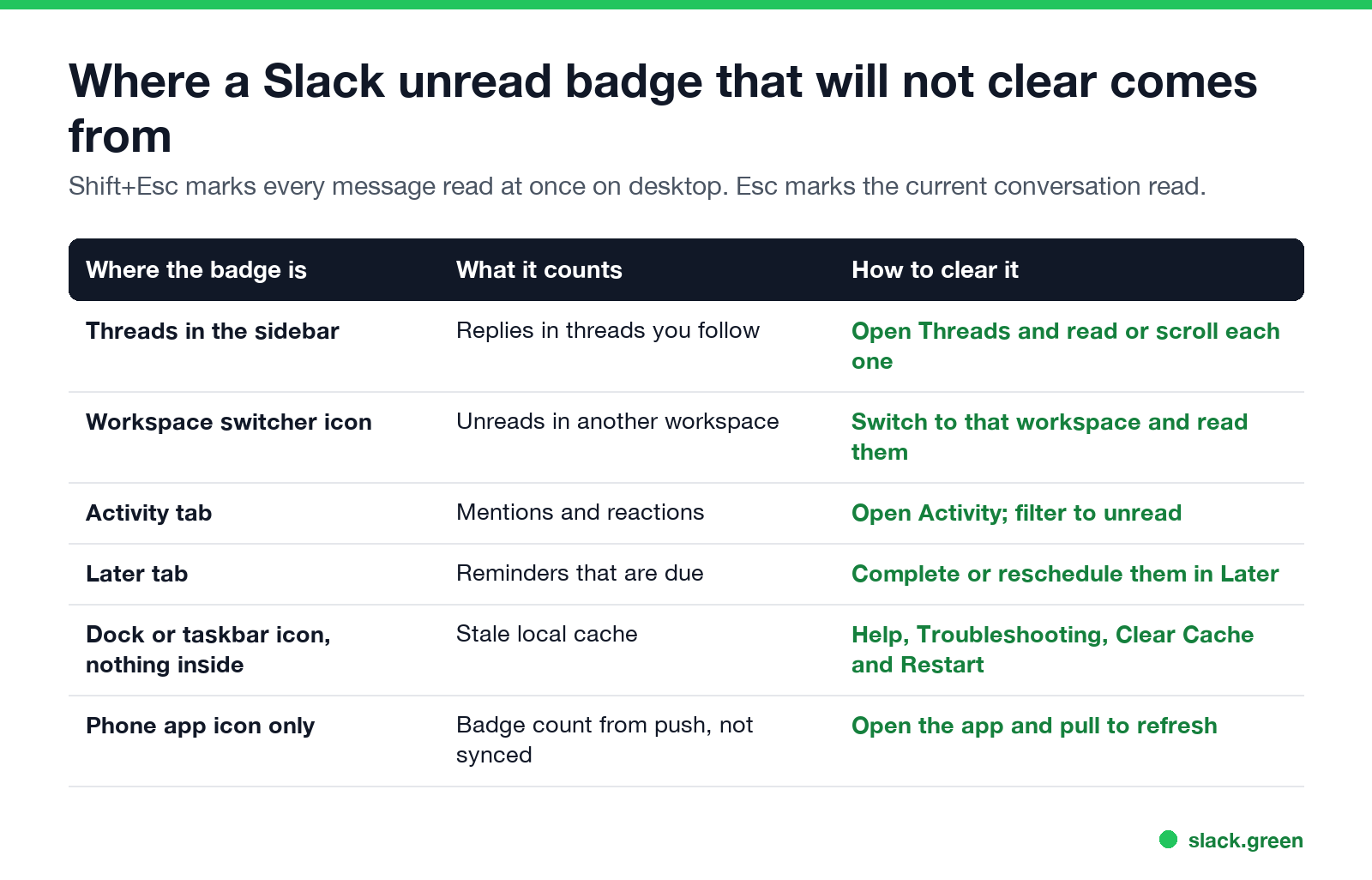
| Where you see the badge | What it counts | How to clear it |
|---|---|---|
| Threads in the sidebar | New replies in threads you follow | Open Threads and read each one |
| Workspace switcher icon | Unreads in another workspace | Switch to it and read them |
| Activity tab | Mentions and reactions | Open Activity and filter to unread |
| Later tab | Reminders that are due | Complete or reschedule them |
| Dock or taskbar only | Stale local cache | Clear Cache and Restart |
| Phone app icon only | Push badge not yet synced | Open the app and refresh |
Muted channels do not count as unread, but a mention inside a muted channel still does.
Slack threads keep showing unread
A thread counts as unread when someone replies in a thread you follow. You follow a thread when you start it, reply in it, are mentioned in it, or choose to follow it. The replies do not show in the channel, only in Threads and inside the thread itself, so people look for them in the wrong place.
To clear them:
- Click Threads at the top of your sidebar.
- Scroll through each thread with new replies until you reach the bottom.
- For threads you no longer care about, open the message menu and choose Turn off notifications for replies (unfollow). They stop coming back. Missing thread notifications have their own guide: Slack thread notifications not working.
If a thread keeps showing as unread after you read it, reload the app with Ctrl+R or Cmd+R; the read marker may not have synced.
How to mark all Slack messages as read
Never appear "away" on Slack again
Cloud-based. No downloads. Works 24/7 even when your laptop is off.
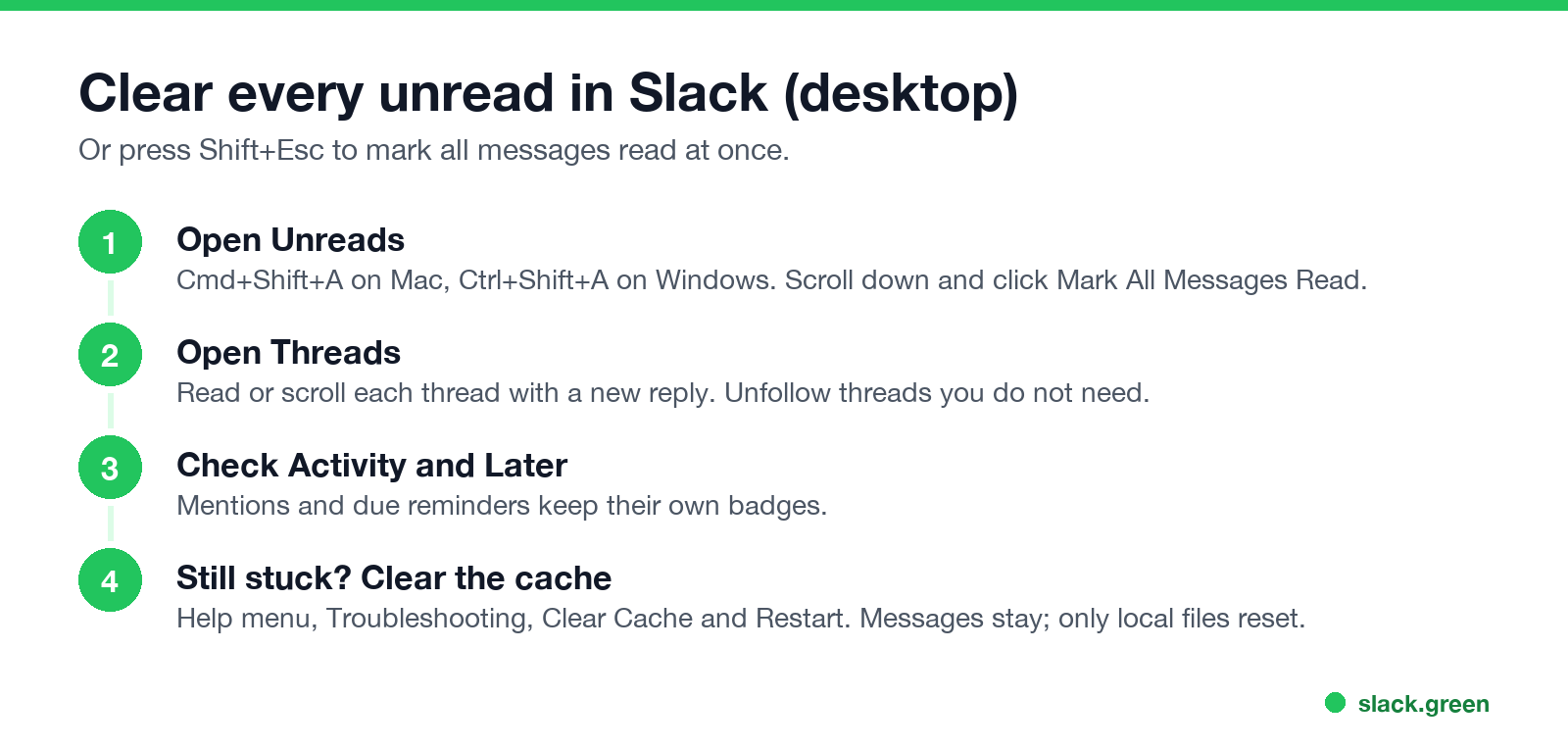
To mark a message unread again on purpose, hold Option (Mac) or Alt (Windows) and click it. Every other shortcut is in our Slack keyboard shortcuts cheat sheet.
Slack showing unread messages but there are none
When every view is empty and the badge stays:
If the badge is on your phone only, open Slack and let it sync. The icon badge comes from push notifications and updates when the app refreshes.
Why is my Slack activity notification not going away?
The Activity tab keeps its own unread state for mentions, reactions and thread replies. Open it and clear the unread items, or filter it to unread only to find the one left. If you get alerts for everything, adjust what counts under Preferences, Notifications; our guide to Slack notifications not working walks through each setting.
Related fixes
Never appear "away" on Slack again
Cloud-based. No downloads. Works 24/7 even when your laptop is off.
FAQ
Why does Slack keep showing unread messages?
The badge comes from Threads, another workspace, Activity, Later, or a stale cache. Check each, or press Shift+Esc to mark everything read.
How do I clear unread threads in Slack?
Open Threads in the sidebar and scroll through each thread with new replies. Unfollow threads you do not need.
Is there a mark all as read in Slack?
Yes. Press Shift+Esc on desktop, or click Mark All Messages Read at the bottom of the Unreads view.
How do I mark a Slack message as unread?
Hold Option (Mac) or Alt (Windows) and click the message.
Does clearing the Slack cache delete messages?
No. Messages stay on Slack's servers. Clearing the cache resets local files and restarts the app.
Stop Jiggling Your Mouse.
Join hundreds of remote workers who never worry about their Slack status. Set it up once, stay green forever.
Related Articles
How to Keep Your Outlook Status Green (It Comes From Teams)
Your Outlook status shows your Microsoft Teams presence, so to keep Outlook green you keep Teams Available: Teams signed in and running, input on the computer, no lock or sleep, and no leftover status. What sets you Away, and what you can change.
Does Microsoft Teams Track Your Activity? What Admins Can See
Teams admins can see activity counts per person: messages in channels and chats, meetings, 1:1 calls, audio, video and screen share time, and your last activity date. Your status follows keyboard and mouse activity on the whole computer. Teams does not log keystrokes, your screen, or other apps.
Slack Desktop App Blank or White Screen? Fix It in This Order
A blank, white or black Slack window is usually a failed load, a corrupt cache, a blocked connection or a graphics driver issue. Reload with Cmd or Ctrl+R, use Help, Troubleshooting, Clear Cache and Restart, test Slack in a browser, update, then reinstall cleanly. Steps for Windows and Mac.