
Slack Thread Notifications Not Working? How Following Works
Slack only notifies you about thread replies when you follow the thread: you started it, replied, or were mentioned, or it is in a one-to-one DM. Follow any thread from its menu, or get every reply in a channel from its notification options. The other settings that silence threads.
Slack thread notifications usually "stop working" because you are not following the thread. According to Slack's help center, you are notified of new replies in threads in one-to-one DMs, and, in channels or group DMs, only in threads you started, replied to, or were mentioned in. To follow any other thread, hover over it, click the three dots, and choose Get notified about new replies. To get every reply in a channel, click the channel name, open the notifications menu, choose More notification options, check Get notified about all replies and show them in your Threads view, and save. If you follow the thread and still get nothing, check Do Not Disturb, muted channels and your device's notification settings.
Notifications reach you only if you check them. Your presence dot is separate: it turns grey 10 minutes after your last input in Slack, which also decides whether @here reaches you. Slack Green keeps the dot active during the working hours you set, from the cloud.
When Slack notifies you about thread replies
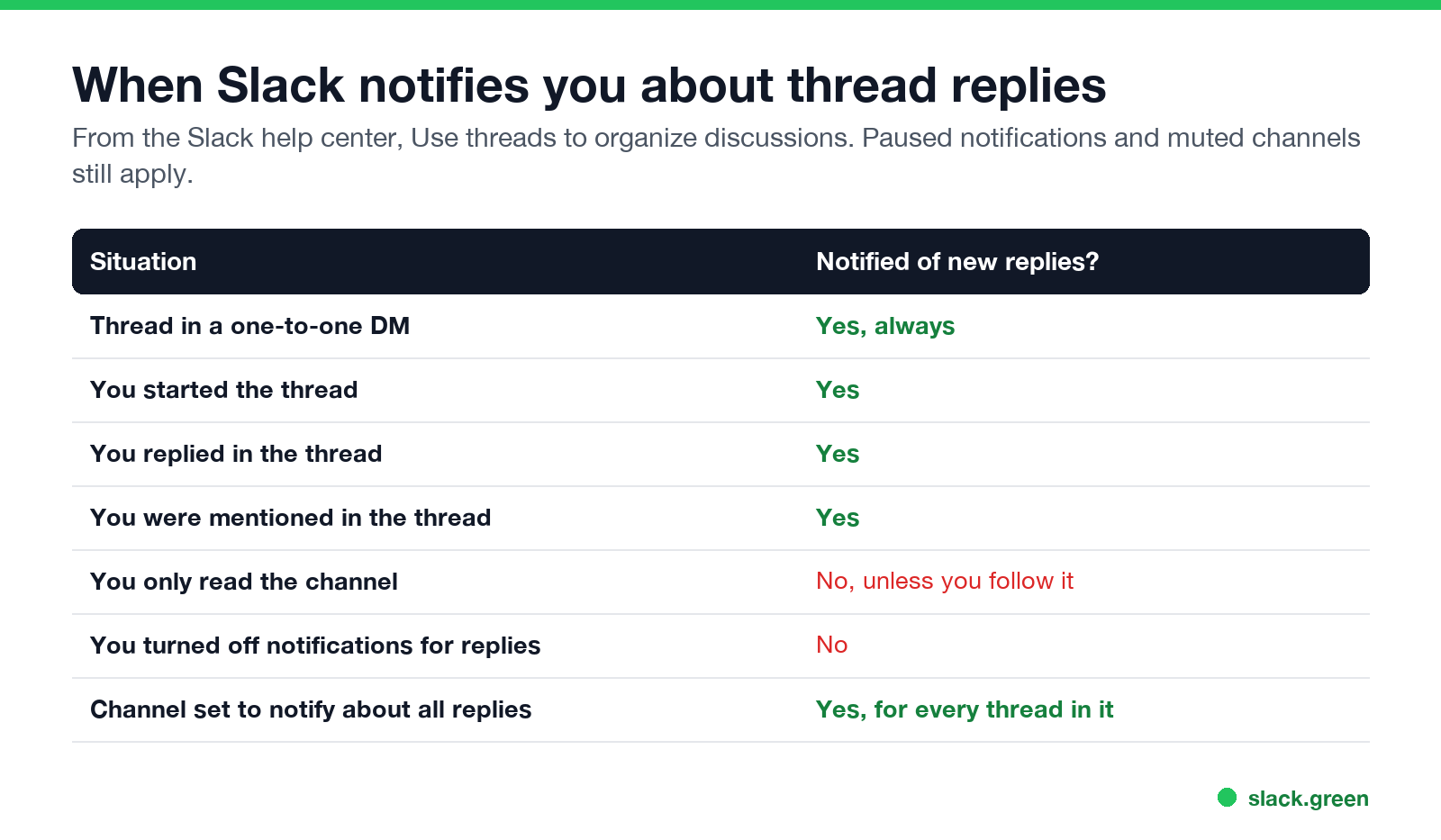
| Situation | Notified of new replies? |
|---|---|
| Thread in a one-to-one DM | Yes |
| You started the thread | Yes |
| You replied in the thread | Yes |
| You were mentioned in the thread | Yes |
| You only read the channel | No, unless you follow it |
| You turned off notifications for replies | No |
| Channel set to notify about all replies | Yes, every thread |
@channel, @here and @everyone do not notify anyone when used inside a thread, per Slack's help center; see @here vs @channel vs @everyone.
How to follow a Slack thread
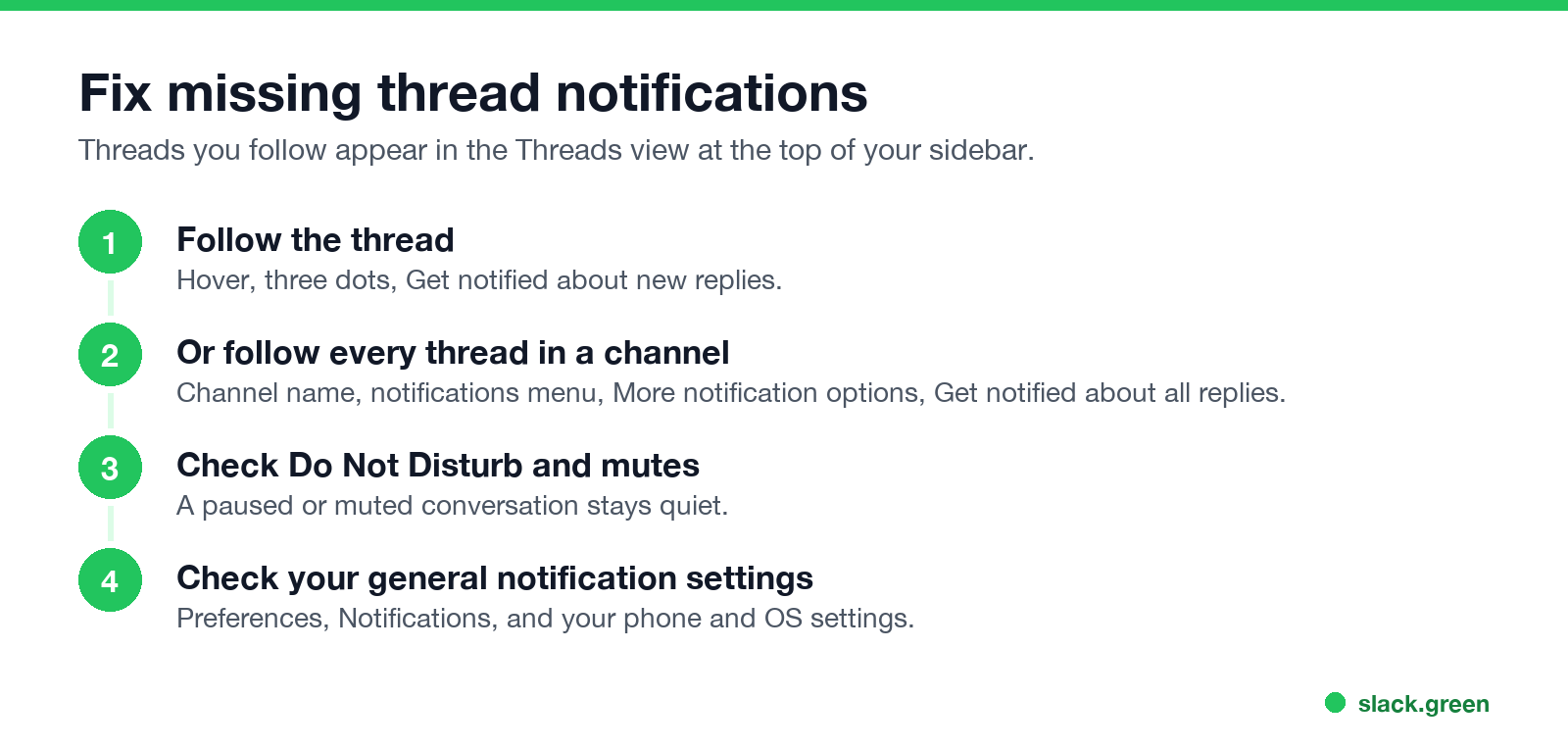
Desktop: hover over the thread, click the three dots icon, and select Get notified about new replies. To stop, select Turn off notifications for replies.
Mobile: tap the thread, tap the three dots icon below the original message, and select Get Notified about New Replies.
Followed threads appear in the Threads view at the top of your sidebar, with unread ones first.
Get notified about every thread in a channel
Never appear "away" on Slack again
Cloud-based. No downloads. Works 24/7 even when your laptop is off.
- On desktop, open the channel and click the channel name in the header.
- Click the notifications menu below the channel name.
- Select More notification options.
- Check Get notified about all replies and show them in your Threads view.
- Click Save Changes.
- • Do Not Disturb is on, or a notification schedule paused you; see Slack Do Not Disturb.
- • The channel is muted. Muted channels only notify you of direct mentions.
- • Your default is "Nothing" or mentions only, under Preferences, Notifications.
- • Phone or computer settings block Slack's notifications, or the mobile timing setting delays them.
Use it for small, important channels. In busy ones it produces a lot of notifications.
Still no thread notifications?
The full checklist is in Slack notifications not working. If threads show unread but you cannot clear them, see Slack keeps showing unread messages.
FAQ
Why am I not getting notifications for thread replies in Slack?
You are not following the thread. Slack notifies you only if you started it, replied, were mentioned, or chose to follow it.
How do I follow a thread in Slack without replying?
Three dots on the thread, then Get notified about new replies.
How do I stop notifications from a Slack thread?
Three dots on the thread, then Turn off notifications for replies.
Can I get notified about all threads in a channel?
Yes. Channel name, notifications menu, More notification options, Get notified about all replies.
Do thread replies show in the channel?
Only if the person ticked Also send to #channel when replying.
Stop Jiggling Your Mouse.
Join hundreds of remote workers who never worry about their Slack status. Set it up once, stay green forever.
Related Articles
Slack Red Dot Won't Go Away? What It Counts and How to Clear It
A red dot on the Slack icon means unread activity somewhere; a red number means DMs, mentions, keywords or followed thread replies. Press Shift+Esc to mark all read, check Threads, Activity, Later and other workspaces, then clear the cache or reset the OS badge.
How to Keep Your Outlook Status Green (It Comes From Teams)
Your Outlook status shows your Microsoft Teams presence, so to keep Outlook green you keep Teams Available: Teams signed in and running, input on the computer, no lock or sleep, and no leftover status. What sets you Away, and what you can change.
Does Microsoft Teams Track Your Activity? What Admins Can See
Teams admins can see activity counts per person: messages in channels and chats, meetings, 1:1 calls, audio, video and screen share time, and your last activity date. Your status follows keyboard and mouse activity on the whole computer. Teams does not log keystrokes, your screen, or other apps.