
Slack Red Dot Won't Go Away? What It Counts and How to Clear It
A red dot on the Slack icon means unread activity somewhere; a red number means DMs, mentions, keywords or followed thread replies. Press Shift+Esc to mark all read, check Threads, Activity, Later and other workspaces, then clear the cache or reset the OS badge.
If the red dot on the Slack icon will not go away, press Shift+Esc in the Slack app to mark every message as read. That clears most stuck badges. If it comes back, the unread is somewhere the channel list does not show in bold: a reply in a thread you follow, a mention inside a muted channel, a due reminder in Later, or a message in another workspace you are signed in to. If you have checked all of those and the badge is still there, the count is out of sync: clear Slack's cache, then reset the badge in your operating system. To remove the red dot for good, turn off the badge in Slack's notification preferences or in your system's notification settings.
A clear badge says nothing about how you look to your team. Your presence dot goes grey 10 minutes after your last input in Slack, however many messages you have read. Slack Green keeps it green during the working hours you set, from the cloud, with no app left open on your machine.
What the red dot and the number mean
Slack puts two kinds of badge on its icon, and they count different things. Slack's own Guide to Slack notifications spells it out per system:
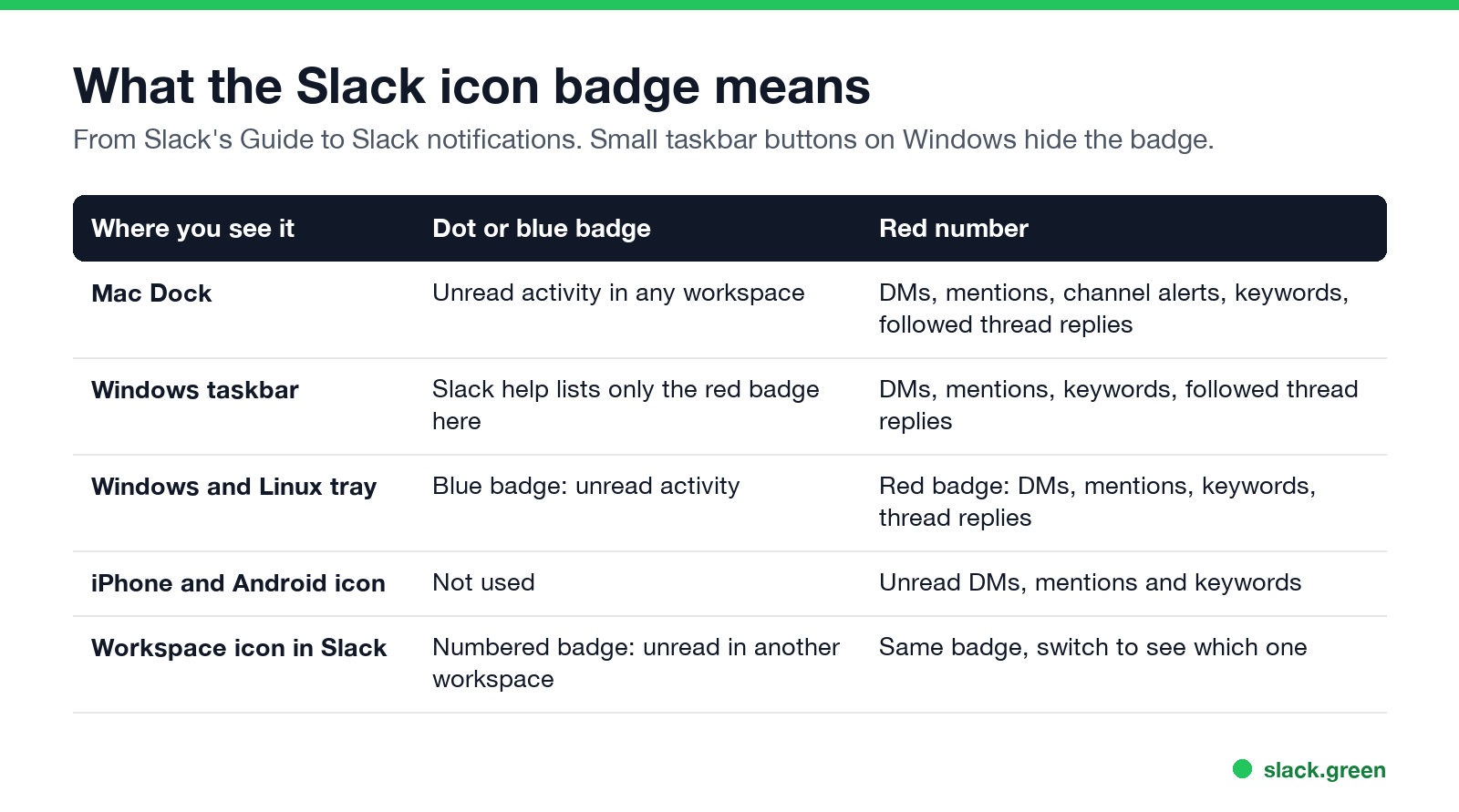
| Where you see it | Dot or blue badge | Red number |
|---|---|---|
| Mac Dock | Unread activity in any of your workspaces | A DM, a mention, a channel-wide alert, one of your keywords, or a reply in a thread you follow |
| Windows taskbar | Slack help lists only the red badge | DMs, mentions, keywords, followed thread replies |
| Windows and Linux notification area | Blue badge: unread activity | Red badge: DMs, mentions, keywords, thread replies |
| iPhone and Android app icon | Not used | Unread DMs, mentions and keywords |
| Workspace icon inside Slack | Numbered badge: unread activity in another workspace | Click it to see which one |
So a plain dot with no number on a Mac is ordinary unread channel traffic. It clears when you read those channels or press Shift+Esc. A number means something was addressed to you, and it usually hides in one of the places below.
Why the Slack red dot stays after you read everything
These are the places that keep the badge alive while every channel in your sidebar looks read:
- • Threads. Replies in a thread you follow count toward the number but never appear in the channel. Open Threads at the top of the sidebar and scroll through each one. The full walk-through is in Slack keeps showing unread messages.
- • Mentions in muted channels. Muting stops channel traffic from counting, but an @mention of you inside a muted channel still does. Open Activity and filter to unread.
- • Due reminders. A reminder that has come due puts a badge on Later and on Activity. Complete or reschedule it; see Slack Saved for later.
- • Another workspace. On desktop, the badge on the Dock or taskbar covers every workspace you are signed in to. Look for the numbered badge on a workspace icon and switch to it. Managing several at once is covered in using multiple Slack workspaces.
- • Collapsed sidebar sections. A collapsed section can hide a bold DM. Expand every section once, or switch the sidebar to show unreads only.
How to clear a stuck Slack badge
Never appear "away" on Slack again
Cloud-based. No downloads. Works 24/7 even when your laptop is off.
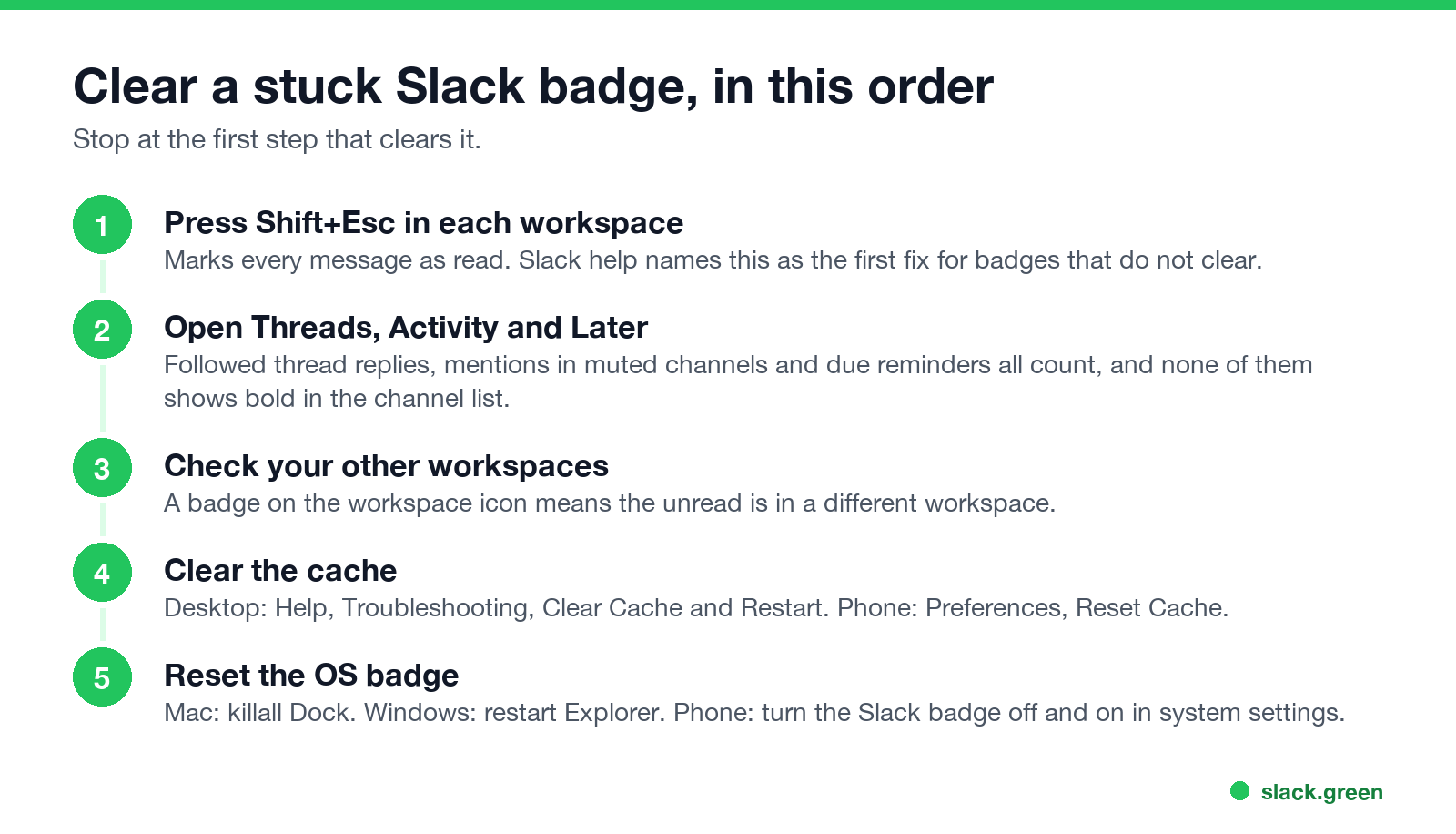
Slack's troubleshooting article says a badge that stays after you have caught up means "something might be out of sync on our end". Work down this list and stop when the dot is gone.
If none of this clears it, Slack asks you to contact support with a short summary, your workspace URL and your email address.
Slack badge stuck on Mac, Windows, iPhone or Android
Mac. The Dock sometimes keeps the last badge after Slack has cleared it, or after you quit Slack. Restart the Dock from Terminal. Your windows and apps stay open:
killall DockWindows. Restart Windows Explorer, which redraws the taskbar and the notification area. From Command Prompt:
taskkill /f /im explorer.exe && start explorer.exeOr open Task Manager, find Windows Explorer, and choose Restart.
iPhone. The number on the home screen icon comes from push notifications. Open Slack and let it load so it can send a fresh count. If it still sticks, turn Badges off and on again under Settings, Notifications, Slack.
Android. Notification dots belong to your launcher. Open Slack, clear any Slack notifications in the shade, then turn the app icon badge off and on in the phone's notification settings. The menu path differs by maker.
How to turn off the red dot in Slack
If you would rather not see the badge at all:
| Device | Where to turn it off |
|---|---|
| Mac, in Slack | Preferences, Notifications, clear the option that shows a badge on Slack's icon for new activity |
| Mac, in macOS | System Settings, Notifications, Slack, turn off Badge application icon |
| Windows 11 | Settings, Personalization, Taskbar, Taskbar behaviors, clear Show badges on taskbar apps |
| iPhone | Settings, Notifications, Slack, turn off Badges |
| Android | App notification settings for Slack, turn off the icon badge or notification dot |
Two limits. The Windows setting removes badges from every taskbar app, and the Slack icon in the notification area still shows its blue or red badge. You can drag that icon into the hidden icons tray. On phones, setting mobile notifications to Nothing in Slack also stops new badges, but it stops the push notifications with them. If you only want quiet time, pause notifications instead.
Red dot vs the green or grey presence dot
Never appear "away" on Slack again
Cloud-based. No downloads. Works 24/7 even when your laptop is off.
The red badge sits on the app icon and counts unread items. The small dot next to your name inside Slack is your presence: green when Slack sees you as active, grey or hollow when you are away. They are unrelated. Clearing every badge does not make you active, and staying active does not clear badges. What each presence icon means is in Slack status icons meaning.
FAQ
Why does Slack show a red dot but no unread messages?
The unread is in Threads, Activity, Later or another workspace, or the count is out of sync. Press Shift+Esc, check those four places, then clear the cache.
What is the shortcut to mark all as read in Slack?
Shift+Esc marks every message in the current workspace as read. Esc alone marks the open conversation as read. More are in the Slack keyboard shortcuts cheat sheet.
Why is the Slack badge count wrong?
The number counts DMs, mentions, keywords and followed thread replies across every signed-in workspace, not only the one on screen. If it is higher than what you can find, check other workspaces, then clear the cache.
Does muting a channel stop the red dot?
It stops ordinary messages in that channel from counting. A direct @mention of you still counts.
Why do I not get the notifications behind the badge?
That is a separate problem with its own fixes: Slack notifications not working.
Stop Jiggling Your Mouse.
Join hundreds of remote workers who never worry about their Slack status. Set it up once, stay green forever.
Related Articles
Does Slack Notify When You Leave a Channel? Leave, Edit, Delete and More
Slack does not ping anyone when you leave a channel, but it posts a line saying you left, unless an admin turned join and leave messages off. Edits show (edited), deletes leave no alert, forwards do not tell the author, and removing someone does notify them. What each action shows, and how to leave quietly.
How to Share Audio in a Slack Huddle (Screen Share With Sound)
To share audio in a Slack huddle, click the share screen icon, pick a screen or window, check Share system audio, then click Share. Everyone hears what your computer plays. Where the option is missing, how Chrome differs, why a Mac needs a permission, and how to stop echo.
Slack Huddle Not Working? Fixes for No Sound, Mic, Camera and Connection
When a Slack huddle will not connect, has no sound, or others cannot hear you, run Slack's audio and video test, check the microphone and speaker in Preferences, re-grant Slack mic and camera access in your OS, and try Chrome or your phone to find a network block. Fixes by symptom for Mac, Windows, browser and mobile.