
Slack Multiple Workspaces: Use, Switch and Stay Active in Each
You can sign in to several Slack workspaces in one app and switch with Ctrl+Tab or Cmd/Ctrl plus a number. Each workspace has its own account, status, presence and Do Not Disturb, so you can be active in one and away in another. How to add, switch and manage them.
You can use several Slack workspaces at once in one desktop or mobile app. Add another workspace from the workspace switcher, then move between them with Ctrl+Tab or Cmd/Ctrl plus a number. Each workspace is separate: you have a separate account in each (even with the same email), and your custom status, presence dot and Do Not Disturb are set per workspace. That means you can be green in one workspace and away in another. Slack has no way to merge accounts from different workspaces into one; Enterprise organizations are the exception, where one account spans the org's workspaces.
Staying active in two workspaces is harder than in one, because Slack counts input only in the workspace you are using. Slack Green keeps presence active on a schedule from the cloud, and the self-hosted Slack Green CLI supports unlimited workspaces on your own machine.
How to add another workspace
- • Desktop: click the workspace name or the plus in the workspace switcher, choose to add or sign in to a workspace, and sign in.
- • Mobile: tap the workspace icon or Home, then the workspace list, and add a workspace.
If the switcher is hidden, press Cmd+Shift+S or Ctrl+Shift+S to show it.
What is separate in each workspace
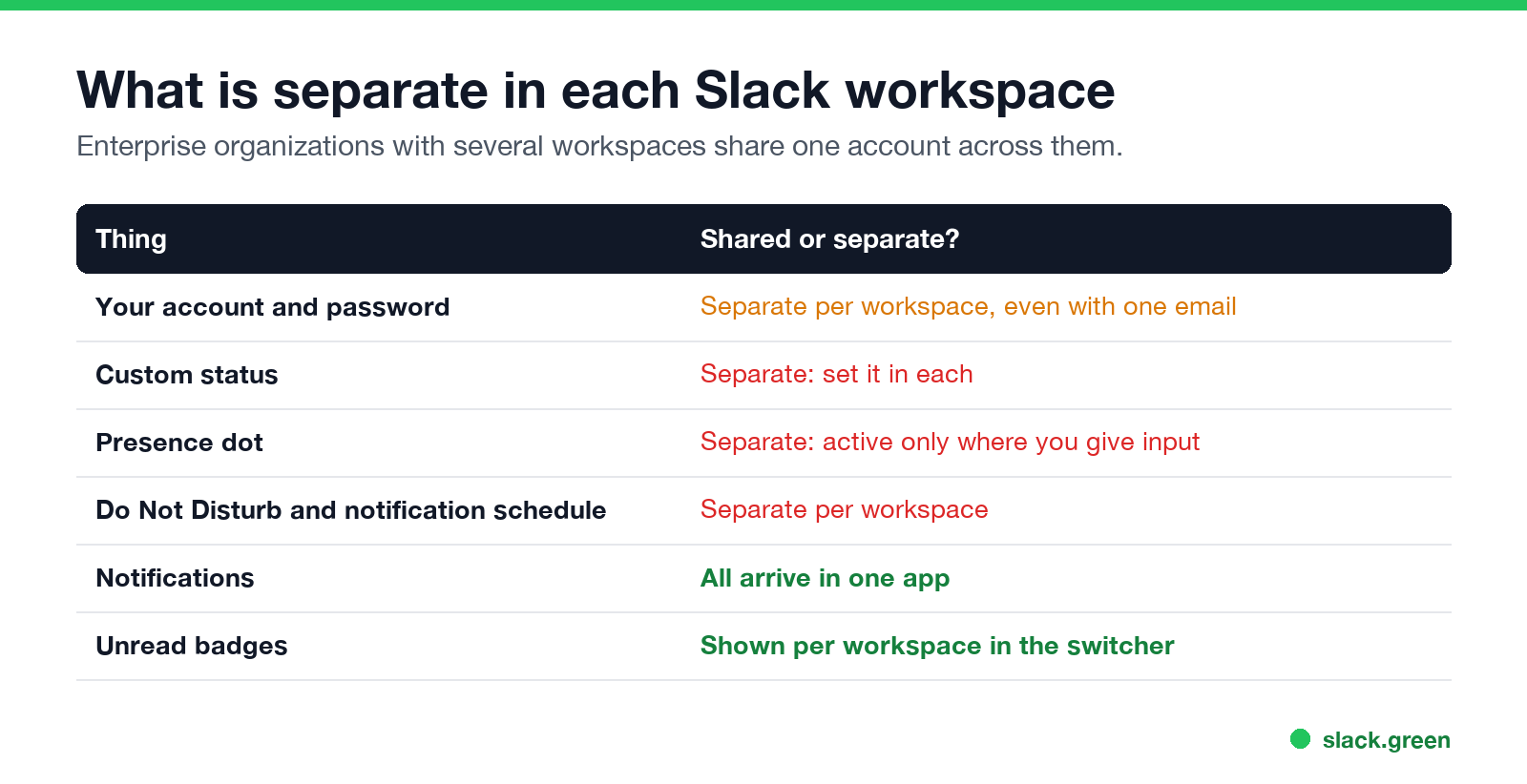
| Thing | Shared or separate? |
|---|---|
| Account and password | Separate per workspace |
| Custom status | Separate: set it in each |
| Presence dot | Separate: active only where you give input |
| Do Not Disturb and schedule | Separate |
| Notifications | All arrive in one app |
| Unread badges | Per workspace in the switcher |
Switching between workspaces
Never appear "away" on Slack again
Cloud-based. No downloads. Works 24/7 even when your laptop is off.
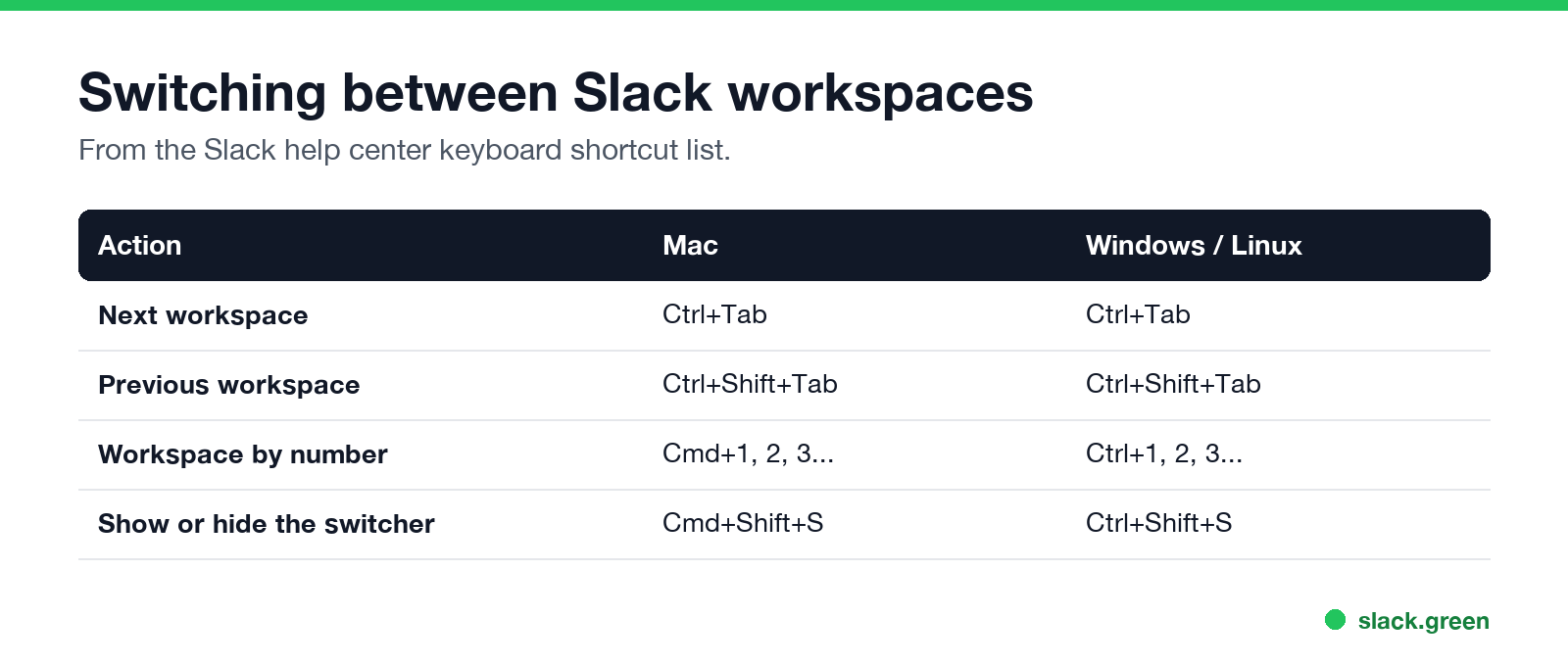
| Action | Mac | Windows / Linux |
|---|---|---|
| Next workspace | Ctrl+Tab | Ctrl+Tab |
| Previous workspace | Ctrl+Shift+Tab | Ctrl+Shift+Tab |
| Workspace by number | Cmd+1, 2, 3 | Ctrl+1, 2, 3 |
| Show or hide the switcher | Cmd+Shift+S | Ctrl+Shift+S |
More shortcuts are in the Slack keyboard shortcuts cheat sheet.
Slack status on every workspace
Status is per workspace. Set it in each one: switch workspace, press Cmd+Shift+Y or Ctrl+Shift+Y, set the status and a clear time; see Slack status clear after. The same goes for Do Not Disturb and an out-of-office status; see Slack out of office.
Keep two Slack workspaces active
Presence follows input in each workspace. On a computer, you stay active in a workspace for 10 minutes after your last input in it; switching to the other workspace starts that workspace's clock and lets the first one run out. So with two busy workspaces you are usually green in one and grey in the other. The rules are in how long does Slack stay active.
A server-side schedule solves this for every workspace you connect: Slack Green keeps presence active during the hours you set in each, and the CLI does the same locally for unlimited workspaces. Using several jobs' workspaces raises its own policy questions; see will I get caught using Slack Green.
Can you combine Slack accounts?
Never appear "away" on Slack again
Cloud-based. No downloads. Works 24/7 even when your laptop is off.
Not across separate workspaces. Each has its own account and data, and Slack does not merge them. You can connect two companies' channels with Slack Connect, which shares a channel between organizations without merging accounts.
FAQ
Can I be logged into two Slack workspaces at once?
Yes. Add both in the same app and switch between them.
Is my Slack status the same in every workspace?
No. Set it in each workspace.
Can I be active in two Slack workspaces at the same time?
Only if each gets input within 10 minutes, or a server-side tool keeps both active.
Do I get notifications from all workspaces?
Yes, in the same app, according to each workspace's notification settings.
How do I switch Slack workspaces quickly?
Ctrl+Tab for the next one, or Cmd/Ctrl plus its number.
Stop Jiggling Your Mouse.
Join hundreds of remote workers who never worry about their Slack status. Set it up once, stay green forever.
Related Articles
Slack Workflow Builder Examples: 12 Workflows to Copy, With Triggers and Steps
Twelve Slack Workflow Builder examples with the exact trigger and steps for each: daily standups, channel welcomes, time-off approvals, help desk requests, emoji escalations, keyword routing, incidents, list updates and webhooks from other tools. Plus where Workflow Builder lives, what it costs and how branches work.
Slack Timer: How to Set a Countdown, Pomodoro or Focus Timer in Slack
Slack has no built-in timer, but four built-in tools act like one: /remind me to ... in 25 minutes, a status that clears itself, /dnd for a focus block, and Workflow Builder for dated countdowns. For a live countdown in a channel, use a Marketplace app or a 15-line bot script.
Slack Red Dot Won't Go Away? What It Counts and How to Clear It
A red dot on the Slack icon means unread activity somewhere; a red number means DMs, mentions, keywords or followed thread replies. Press Shift+Esc to mark all read, check Threads, Activity, Later and other workspaces, then clear the cache or reset the OS badge.