
Slack Out of Office: Status, Auto-Reply and Message Examples
To set out of office in Slack, click your profile picture, choose Update your status, pick Out of office (Enterprise) or a custom status such as a palm tree, and set when it clears. Enterprise plans also send your OOO message to anyone who mentions you. Steps, auto-reply options and examples.
To set out of office in Slack, click your profile picture, click Update your status, type your status, set Duration to Choose a start and end time with your return date, tick Pause notifications until status is cleared, and click Save. On Enterprise plans, choose ⛔ Out of office and add an out of office message: anyone who @mentions you in a channel then gets your message privately, and it shows above the message box in your DMs. On Free, Pro and Business+ plans, use a custom status such as 🌴 with your return date and a contact. Slack has no plan where a DM gets an automatic reply.
We scheduled an out of office status in a Free Slack workspace on 30 September 2026 and watched it start. The screenshots below are from that test.
Presence is the part people forget. A status does not change your dot, so if you open Slack on holiday, your dot turns green next to "OOO". And on your first day back, your dot goes grey every time you spend 10 minutes in email.
Slack out of office options by plan
| Option | Plans | Auto-reply | Starts on its own |
|---|---|---|---|
| ⛔ Out of office status with a message | Enterprise | Private reply when someone @mentions you in a channel | With a calendar OOO event |
| Custom status, such as 🌴, with an end date | All plans | No | Yes, with a start and end time |
| Google Calendar or Outlook Calendar app sync | Where the app is installed | No, it sets the status | Yes, from OOO or PTO events |
| Pause notifications for the whole leave | All plans | No | You start it; it ends on its own |
| Workflow Builder message | Paid plans | In channels only | Yes, on its trigger |
How to set out of office in Slack (Enterprise)
Slack's help center describes an Out of office status on Enterprise plans:
- Click your profile picture in the sidebar.
- Click the Update your status field.
- Choose ⛔ Out of office from the list.
- Open the Duration drop-down and choose when it clears.
- Optional: check Pause notifications to turn off notifications until the status clears.
- Optional: add an Out of office message. It shows on your profile and goes to people who mention you.
- Click Save.
- Click your profile picture, then Update your status.
- Type your message, such as "OOO until Monday. Urgent: Dana". Check the emoji Slack picked, and change it if you want 🌴 instead.
- Open Duration and choose Choose a start and end time. Set the start to your last evening and the end to your return. Start times come in 30-minute steps.
- Tick Pause notifications until status is cleared.
- Click Save.
- • OOO until Mon Jan 12. Urgent: @maria
- • Vacation, back Aug 18. Slower replies until then.
- • Parental leave until March. Ask #team-platform for anything.
- • At a conference this week, checking Slack evenings only.
- • Working from Lisbon this week, online 9 to 12 CET.
- • Out sick today. @jun covers standup.
- • I am out until the 12th with no Slack access. @maria owns incidents and @jun owns reviews. I will read DMs when I am back.
- • On leave until 3 March. For billing questions post in #billing-help, for anything else ask @sam.
Coworkers then see ⛔ next to your name everywhere, the full status on hover or in your profile, and your message above the message box when they open a DM with you. People in external organizations may see the status, but only people in your organization see the message.
How to set out of office in Slack on Free, Pro and Business+
Our test workspace is on the Free plan. Its status box offers no Out of office status, but typing "OOO" or "Out of office" made Slack fill in ⛔ by itself, so the result looks the same:
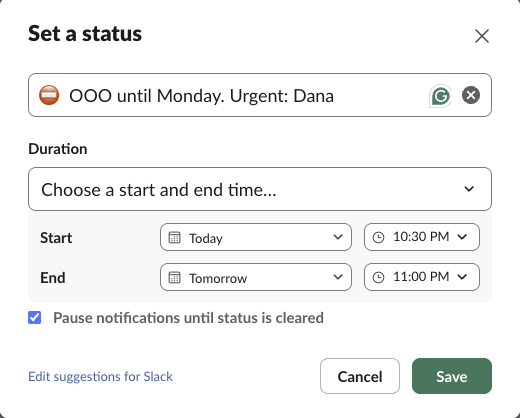
We saved it at 22:26 with a 22:30 start. Until then the status sat under Scheduled in the status box, and nothing showed on our profile. At 22:30 the status appeared, and Slack's dnd.info showed notifications paused until the status end, 23:00 the next day.
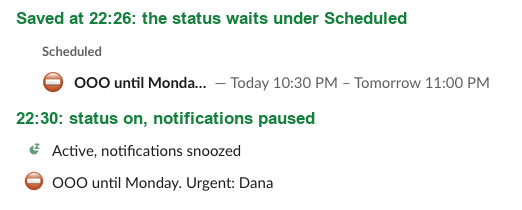
So you can set it on your last afternoon and leave. Setting a start in the future also lets you put the pause and the status on the same timer. More ways to schedule are in how to schedule a Slack status.
Let your calendar do it
If your workspace has the Google Calendar app, your status changes to Out of Office when an accepted event with OOO or PTO in its title starts. The event must show you as busy. The Outlook Calendar app syncs out of office the same way. Book the time off in your calendar and Slack follows. Setup and troubleshooting are in sync your Slack status with Google Calendar.
Slack out of office message examples
A status is cut short in most places, so put the return date and the contact first:
For the longer Enterprise out of office message, or a pinned note in your team channel:
More lines by situation are in Slack status examples.
Never appear "away" on Slack again
Cloud-based. No downloads. Works 24/7 even when your laptop is off.
Slack away message and auto-reply options
"Slack away message" usually means one of two things.
A reply when people message you. On Enterprise, the out of office message is the closest thing: it goes to anyone who @mentions you, and it shows above the DM box. On other plans nothing replies to DMs. Workflow Builder (paid plans) can post a message in a channel you manage, on a trigger such as a new member or a reaction, which fits a support or team channel. Apps cannot reply to your DMs as you.
The grey away dot. That is presence, set by Slack when you stop using it, and a separate system from your status. What it means to others is in Slack away status meaning. If you want to look away on purpose while you peek at Slack on holiday, see how to appear offline on Slack.
Pause notifications for the whole leave
The status stops the questions. Pausing notifications stops the phone buzzing. If you did not tick the box in the status, click your profile picture and hover over Notifications:
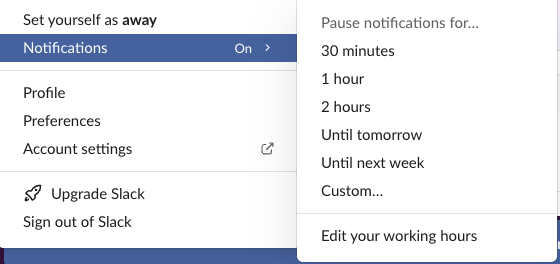
In our test, Until next week paused notifications until 09:00 on the next Monday, the start of our working hours. For a longer leave, choose Custom… and pick the end date.
Messages still arrive and wait in your unreads. A sender can choose to notify you anyway, once per day, and people on your VIP list (paid plans) get through. The details are in Slack Do Not Disturb.
Several workspaces
Status and paused notifications apply per workspace. Set them in each one. There is no single out of office switch across workspaces. More on running several workspaces in Slack multiple workspaces.
Your first day back
If you would rather your dot follow your working hours from the first morning back, Slack Green keeps it green on its side through the hours you pick, so the backlog of email does not keep turning you grey, and it stops when your schedule ends. Every method is compared in how to keep Slack active.
FAQ
What is the Slack out of office emoji?
On Enterprise plans, Slack's Out of office status uses ⛔. On other plans, typing "OOO" or "Out of office" in the status box made Slack pick ⛔ for us; people also use 🌴 for vacation.
Does out of office hide my online status?
No. If you open Slack, your dot turns green next to your OOO status. Stay out of the app or appear offline.
Does Slack have an out of office auto-reply for DMs?
No plan replies to a DM automatically. On Enterprise, the out of office message goes to people who @mention you in a channel and shows above the message box in DMs.
Stop Jiggling Your Mouse.
Join hundreds of remote workers who never worry about their Slack status. Set it up once, stay green forever.
Related Articles
How to Keep Slack Active All Day, Hour by Hour
A normal workday has about five moments where Slack flips you to away. Here's each one, in order, and the cheapest fix for it.
Set Your Slack Status From Apple Shortcuts: A Working Shortcut, Tested
Apple Shortcuts has no Slack status action, but its Get Contents of URL action can call Slack's API. We built a shortcut that sets a 60-minute status, ran it on macOS 26.5.2, and added a second one that posts a message through a webhook.
Automatic Slack Status Updates: 3 Triggers We Built and Timed on a Mac
Slack's own automatic statuses cover huddles, focus mode and working hours. For anything else you need users.profile.set and a trigger. We built a schedule, a file and an app-launch trigger on macOS and timed each one.