
How Long Does Slack Stay Active? 10 Minutes on Desktop, Seconds on Phone
Slack stays active for 10 minutes after your last keyboard or mouse input on a computer, and only while the app is on screen on a phone. Sleep or screen lock sets you away at once. Every timer, what resets it, and how long a status lasts.
Slack stays active, with a green dot, for 10 minutes after your last keyboard or mouse input on a computer. In the desktop app, input in any app restarts the 10 minutes, because the app reads the computer's idle time every 10 seconds (Slack desktop 4.52.178 code, checked 7 Oct 2026). On a phone there is no timer: you are active while the Slack app is open on screen, and you go away within seconds of leaving it or locking the phone. If your computer sleeps or locks, you go away almost at once.
This page covers the numbers: how long, on which device, and what resets them. If you want a countdown or Pomodoro timer inside Slack, that is Slack timer. Why Slack works this way, and which signals it reads, is in how Slack decides when you are away.
Ten minutes is short if you spend most of the day in other apps. Reading a spec or sitting in a Zoom call turns the dot grey.
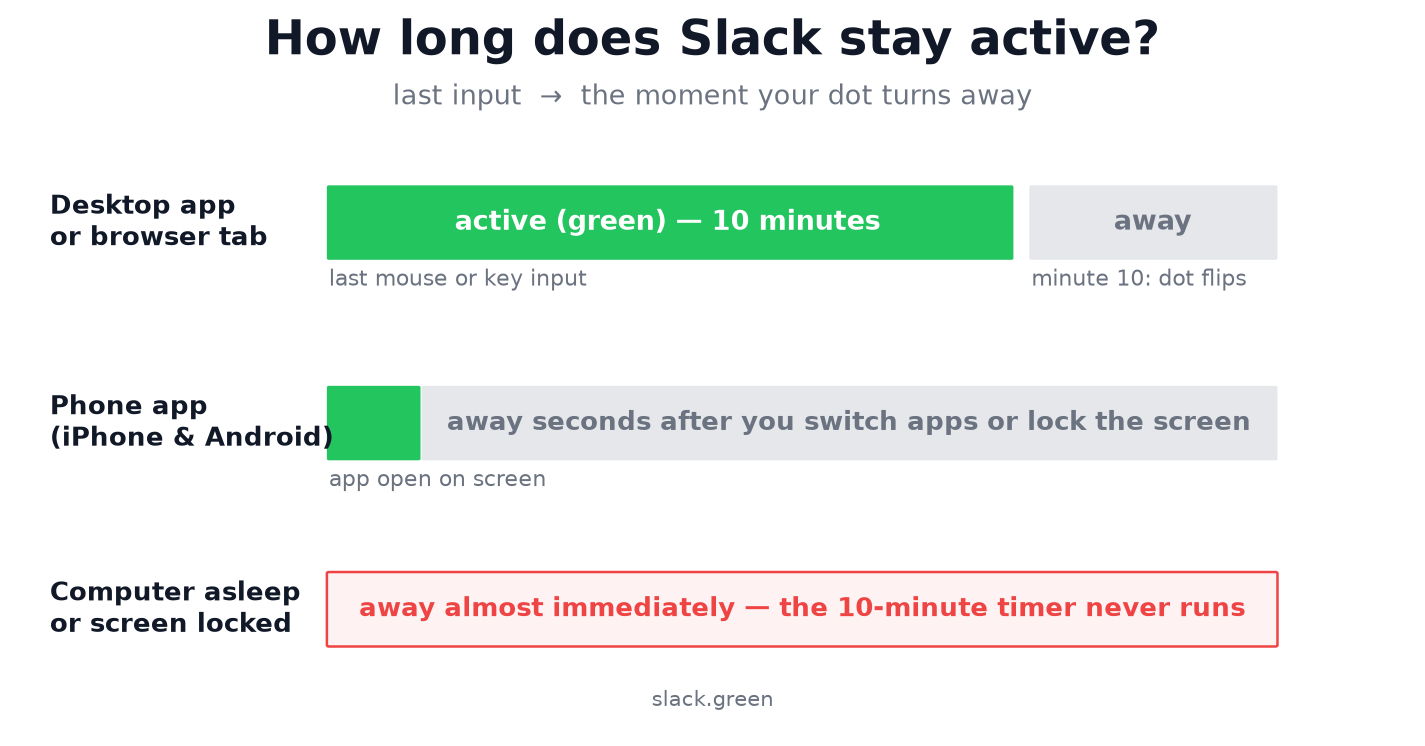
How long Slack stays active on each device
| Where Slack runs | Stays active for | What sets you away |
|---|---|---|
| Desktop app (Mac, Windows, Linux) | 10 minutes after your last input on the computer | 10 minutes without keyboard or mouse input in any app |
| Browser tab | 10 minutes after your last input in the tab | The same 10-minute timer |
| Computer asleep, locked, or lid closed | Seconds | Sleep or lock, at once |
| Phone app on screen | As long as it stays on screen | Leaving the app or locking the phone |
| Phone app in the background | Seconds | It happens on its own |
| "Set yourself as away" | Until you switch back | You |
Slack's help center describes the same rule: you are set to away after 10 minutes of desktop inactivity, or if you navigate away or close the app on your mobile device.
How long does Slack stay active on desktop?
10 minutes from your last click, keystroke or mouse move on the computer. Each input restarts the count, including typing an email or scrolling a spreadsheet in another app. You show away when nobody touches the computer for 10 minutes, such as on a long call or while reading.
The timer runs only while the computer is awake. If you go grey after two minutes, the timer did not do it. Your display went to sleep or the screen locked, and Slack set you away right then. The fix for that is in why Slack goes idle so quickly, and desktop methods to stay active are in how to keep Slack always active on desktop.
How long does Slack stay active on your phone?
Only while the app is open and on screen. The moment you switch apps, go to the home screen or lock the phone, iOS and Android suspend Slack, and your dot goes grey within seconds. iPhone and Android behave the same way here.
Notifications still arrive, which confuses people. Push notifications come through Apple's and Google's push services while Slack is suspended. A buzzing phone has nothing to do with a green dot.
Will Slack show me as active if I have the app open on my phone? Yes, while it stays on screen. Once the screen locks, no. What works from a phone, and the battery cost, is in keep Slack active on mobile.
Never appear "away" on Slack again
Cloud-based. No downloads. Works 24/7 even when your laptop is off.
How long does Slack stay green with several devices signed in?
You stay green as long as any one signed-in device is inside its active window. A laptop within its 10 minutes keeps you green even if your phone has been locked for hours. When the last active device stops, you go away for everyone.
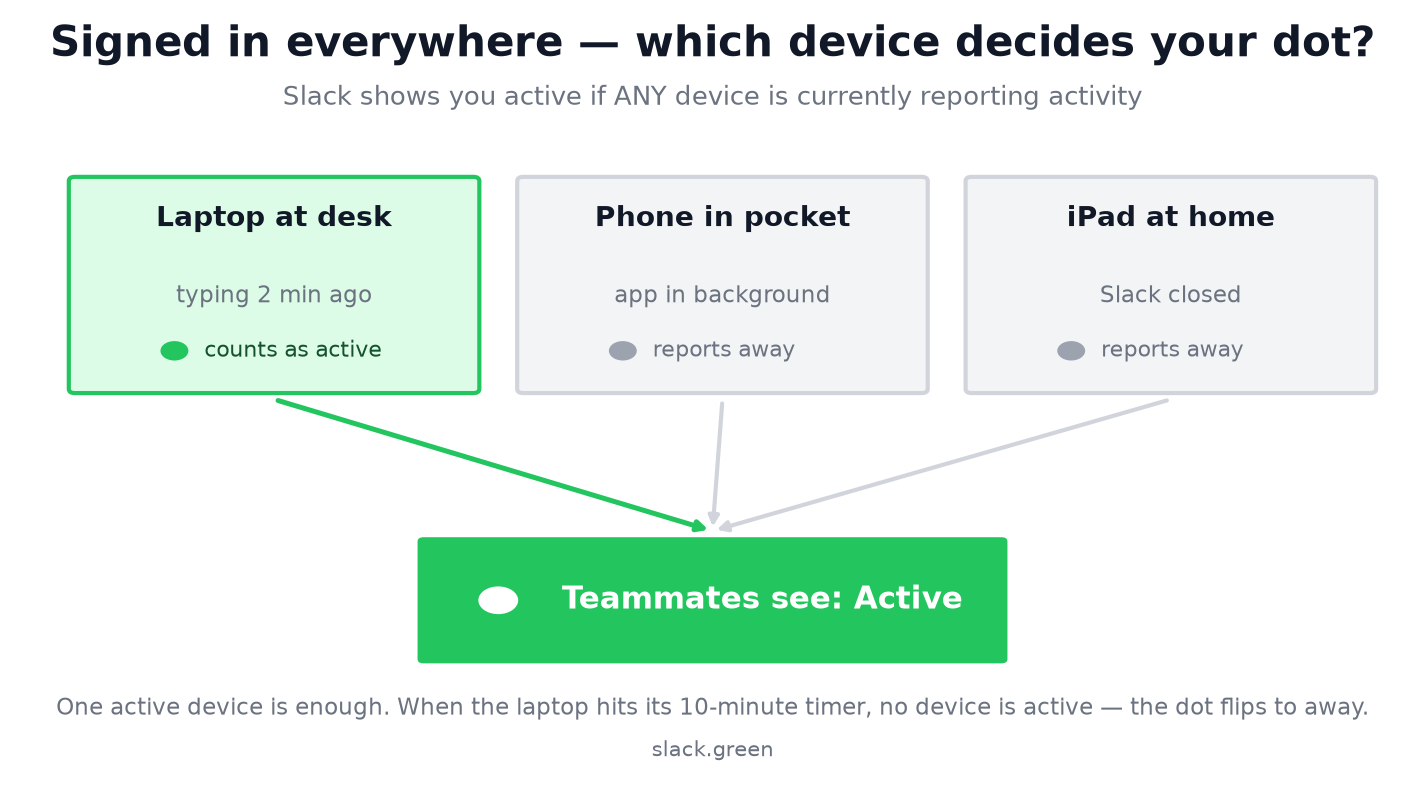
How Slack combines devices, and why the dot can look random, is in how Slack decides when you are away.
How long does a Slack status stay on?
The status text, such as "In a meeting" with an emoji, has its own timer, and it is the one you choose. When you set a status, pick when it clears: 30 minutes, 1 hour, 4 hours, today, this week, a date you choose, or never. The status stays that long, whether your dot is green or grey.
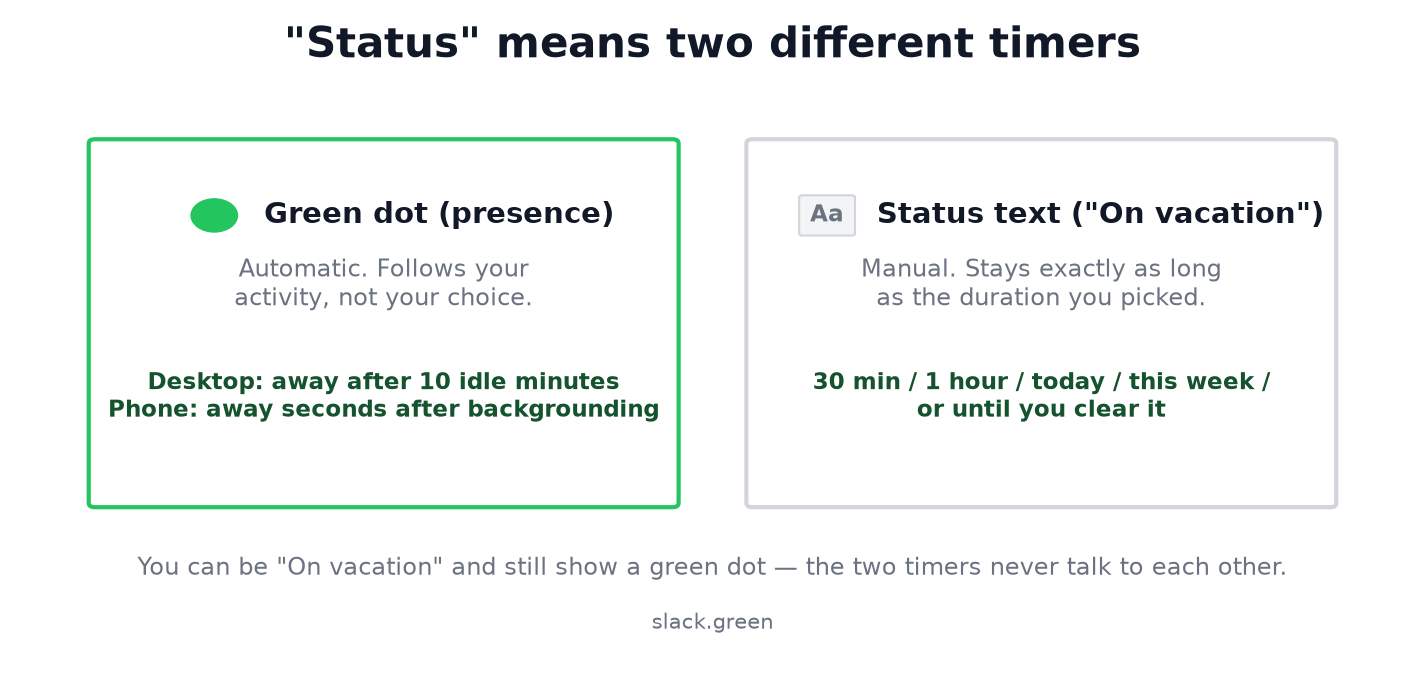
The two timers never affect each other. You can show "Vacationing" with a green dot, or no status and a grey dot, because the dot and the text are separate systems. To set a status ahead of time, see how to schedule a Slack status.
Can you make Slack stay active longer?
No. There is no user setting and no admin setting for the 10 minutes, on any plan. What you, an admin and the API can and cannot set is in can you change Slack's away time.
"Stay active longer" always means changing what Slack sees:
- • Give Slack input before minute 10. Click a channel between tasks. Free, and it breaks your focus.
- • Keep the computer awake. This stops the instant away on sleep. It does not stop the 10-minute timer.
- • Keep Slack on screen on a spare phone. It works and it burns the screen all day.
- • Keep presence active from a server. Slack Green keeps your presence active on its side through the working hours you choose, so the 10-minute timer never runs out while your laptop is closed and your phone is in your pocket. It stops when your schedule ends.
Every method is compared, with failure modes, in how to keep Slack active. For step-by-step fixes by trigger, see how to stop Slack from showing you as away.
Working across time zones? The Slack timezone converter shows when teammates' working hours end in your local time.
FAQ
How long until Slack goes inactive?
10 minutes after your last input on a computer. Seconds after you leave the app on a phone. At once when the computer sleeps or locks.
How long does it take for Slack to show you as away?
The same: 10 minutes on a computer, seconds on a phone. Your dot turns hollow and grey for everyone at that point.
How long does Slack stay active on iPhone?
Only while the Slack app is open and the screen is on. A locked iPhone shows you away, even with an always-on display.
Does Slack stay online on your phone overnight?
No. A locked phone reports away. If you show active overnight, another device, usually an awake computer, is reporting activity.
Does Slack set you away after inactivity even if you set yourself active?
Yes. "Set yourself as active" undoes a manual away. The 10-minute timer applies again right away.
Is the 10 minutes the same on every Slack plan?
Yes. Free, Pro, Business+ and Enterprise all use the same 10 minutes, and admins cannot change it.
Stop Jiggling Your Mouse.
Join hundreds of remote workers who never worry about their Slack status. Set it up once, stay green forever.
Related Articles
Slack Yellow Dot: Slack Has No Yellow Status
Slack only has two availability states, and neither one is yellow. If you see a yellow dot, it's a theme, an emoji, or a different app.
Slack Inactive vs Deactivated vs Away: What Each One Means
Away is the grey dot, inactive is a billing status after 28 days without Slack, and deactivated is an account an admin turned off. We checked where each one shows in a real workspace admin page.
Can You See Slack Status History? No, Here Is What Exists
No. Slack shows your active or away dot and your custom status only as they are right now, and keeps no history of either that coworkers or admins can open. Admins on paid plans see a last active date and sign-in logs. How to keep your own status log with the Slack API, from today on.