
How to Keep Slack Active on Your Phone (iPhone and Android)
The Slack app keeps you active only while it is open on screen, and you go away seconds after you lock the phone or switch apps. How to keep it on screen for hours on iPhone and Android, why notifications do not count, and how to stay green with the app closed.
To keep Slack active on your phone, keep the Slack app open on an unlocked screen. Slack's mobile app shows you as active only while it is in the foreground. Lock the phone or switch apps and you go away within seconds, even with notifications on. Coworkers see the same green dot as on a computer, with no phone icon. On iPhone, set Auto-Lock to Never and pin Slack with Guided Access. On Android, turn on App pinning and keep the screen awake while charging. To stay active with the app closed or the phone in your pocket, presence has to come from somewhere else: an awake computer with Slack in use, or a server.
Why Slack goes away so fast on a phone
On a computer you get 10 minutes after your last keyboard or mouse input, in any app, while the Slack desktop app is open. On a phone you get nothing after the app leaves the screen. iOS and Android suspend apps in the background to save battery, and a suspended Slack app cannot report that you are active. Slack's help center says the same: you are set to away if you navigate away or close the app on your mobile device.
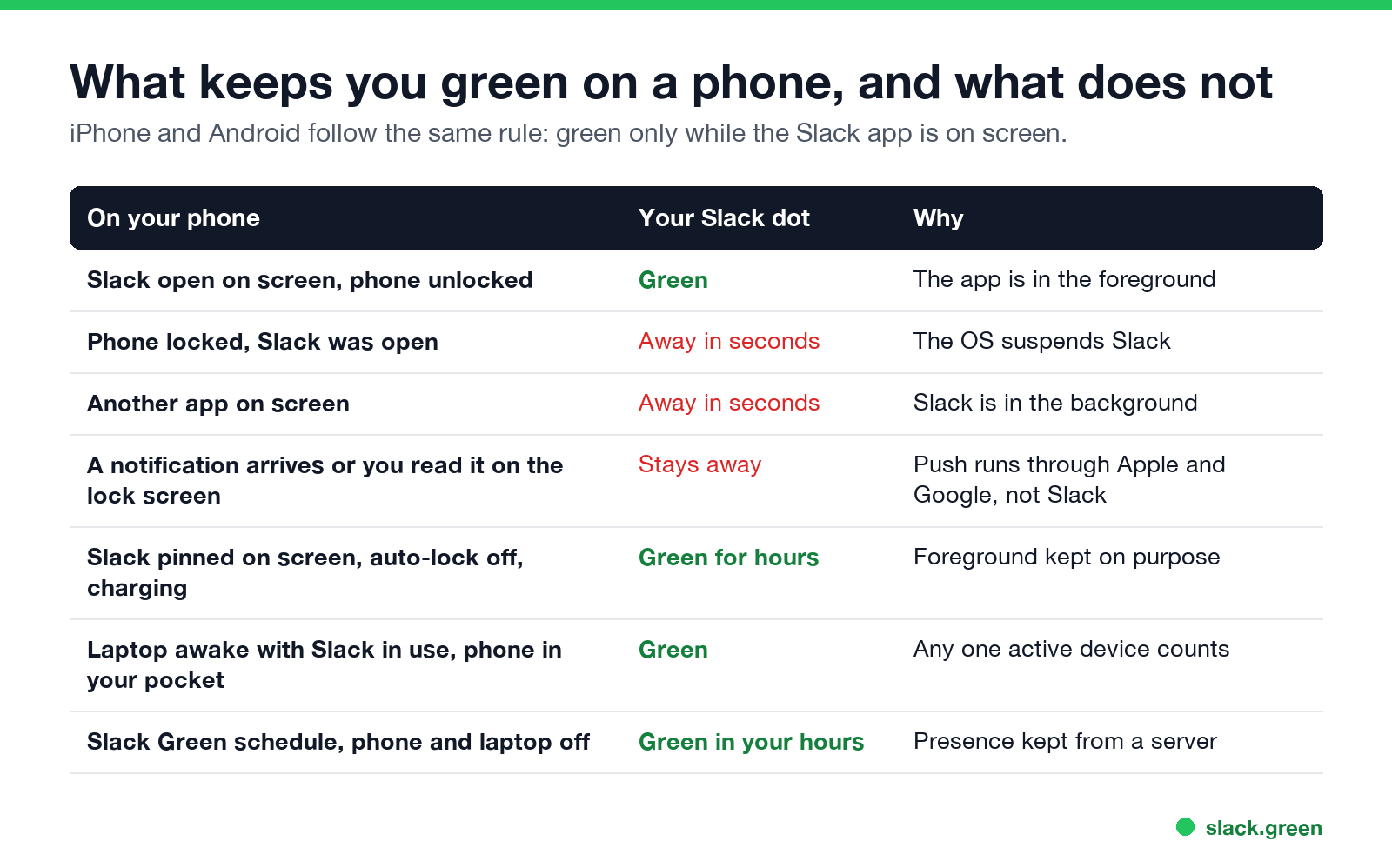
Notifications do not change this. They arrive through Apple's and Google's push services while Slack is suspended, so your phone buzzes while your dot stays grey. Exact timings for every device are in how long does Slack stay active.
Coworkers cannot tell you are on your phone. The dot looks the same on every device, as we tested in does Slack show when you are on mobile.
How to keep Slack active on iPhone
- Turn off Auto-Lock. Open Settings, then Display & Brightness, then Auto-Lock, and choose Never.
- Pin Slack on screen with Guided Access. Open Settings, then Accessibility, then Guided Access, and turn it on. Set a passcode. In the Guided Access settings, set Display Auto-Lock to Never as well.
- Start it in Slack. Open Slack, then triple-click the side button (or the Home button) and tap Start. Now an accidental swipe cannot move Slack off the screen.
- Plug the phone in. A lit screen for hours drains the battery fast.
- Undo it afterwards. Triple-click and enter your passcode to end Guided Access, and set Auto-Lock back.
- Keep the screen on while charging. Turn on Developer options (tap Build number seven times in Settings, About phone), then in Developer options turn on Stay awake. The screen stays on while the phone charges. This matters because many phones cap Screen timeout at 10 or 30 minutes.
- Pin Slack. Turn on App pinning in Settings, Security & privacy (or Security), then open recent apps, tap the Slack icon and choose Pin.
- Exclude Slack from battery saving. In Settings, Apps, Slack, Battery, choose Unrestricted, and keep Battery Saver off while you do this.
- Undo it afterwards. Unpin Slack and turn Stay awake off.
Low Power Mode works against you: it forces Auto-Lock to 30 seconds. Turn it off while you do this. More iPhone detail is in keep Slack active on iPhone.
How to keep Slack active on Android
Menu names differ by brand. These are the Pixel and stock Android names; Samsung puts the same switches under slightly different menus.
More Android detail is in keep Slack active on Android.
Never appear "away" on Slack again
Cloud-based. No downloads. Works 24/7 even when your laptop is off.
How to stay active on Slack when the phone app is closed
The phone cannot do this by itself. Once Slack is closed or in the background, it reports nothing. You stay green only if another session is active, because Slack shows you as active if any one signed-in device is:
How devices combine is in how Slack decides when you are away.
What does not keep Slack active on a phone
Which option fits your day
| Your situation | What works |
|---|---|
| Out for an hour, want to answer from the phone | Answer normally; you are green while Slack is open. Set a status for the gaps |
| Desk nearby, laptop on | Keep using Slack on the laptop; the phone does not matter |
| Spare phone or tablet at your desk | Pinned Slack, screen on, charging |
| Away from every device, want to stay green during work hours | A server-side schedule, as described above |
For every method on every device, see how to keep Slack active. To set a status that clears on its own, see how to schedule a Slack status.
FAQ
How do I keep Slack always active on mobile?
Keep the Slack app on an unlocked screen: Auto-Lock off and Guided Access on iPhone, App pinning and Stay awake on Android. To stay active with the app closed, you need another active session, such as a laptop or a server-side tool.
Is there a way to stay active on the Slack phone app when the app closes?
Not from the phone. A closed or background app reports nothing, so you go away in seconds. Only another active session, on a computer or a server, keeps you green.
Does Slack stay active if I lock my phone?
No. Locking the phone suspends Slack, and you go away within seconds.
Will Slack show me as active if I have the app open on my phone?
Yes, while it is open on screen and the phone is unlocked.
Do push notifications keep me green on Slack?
No. They arrive through Apple's and Google's push services while Slack is suspended.
Is iPhone or Android better for staying active?
Neither. Both suspend Slack in the background. Android lets you keep the screen on while charging from Developer options; iPhone lets you pin Slack with Guided Access. Both end when the screen locks.
Stop Jiggling Your Mouse.
Join hundreds of remote workers who never worry about their Slack status. Set it up once, stay green forever.
Related Articles
How to See All Your DMs in Slack, Including the Hidden Ones
The DMs tab lists your direct messages with people. App DMs, Slackbot and DMs with deleted accounts sit elsewhere. We compared the tab with the full list the Slack API returned.
Slack Images Not Showing? 5 Causes We Reproduced
We uploaded images to a Slack test channel and then switched each image setting off, ran /collapse, and posted from a bot that was not in the channel. Five causes, each reproduced.
How to Message Yourself on Slack (and What It Notifies)
Your own name under Direct messages opens a private DM with yourself. We sent it a note, a file, a scheduled message and a reminder, and checked which ones raised a badge.