ブログに戻る
Tutorial

How to manage Slack's Out of Office Message

Learn how to set a Slack out of office message to notify teammates when you're away. Learn how it works with a step-by-step guide covering status updates, automatic replies, and best practices.

Sieun
January 10, 2026
5 min read
Share:
slack tips
out of office
remote work
productivity

Taking time off shouldn't mean leaving your team in the dark. A well-crafted Slack out of office message ensures colleagues know when you're unavailable, prevents unnecessary delays, and helps maintain smooth team communication while you're away.

Whether you're heading on vacation, attending a conference, or simply taking a personal day, this guide walks you through every option Slack offers for managing your availability—from quick status updates to automated workflows.

Slack workspace sidebar showing a user profile with green active status dot, displaying status message 'OOO until Jan 15 - @Sarah for urgent' next to the username in a channel member list

How Slack Handles Out of Office Communication

Unlike traditional email, Slack doesn't have a built-in "out of office auto-reply" feature in the classic sense. Instead, it offers several tools that work together to communicate your availability:

  • Custom status messages that display next to your name
  • Pause notifications to avoid disturbances during time off
  • Status scheduling to automate when your status changes
  • Workflow Builder for automated responses (on paid plans)
  • Third-party integrations that add auto-reply functionality
  • Understanding these options helps you choose the right approach for your situation.

    Setting Your Slack Status to Out of Office

    The simplest way to indicate you're away is by setting a custom status. This message appears next to your name throughout Slack, giving teammates immediate context about your availability.

    Slack profile dropdown menu showing options: Set yourself as active, Update your status (highlighted), Pause notifications, Set yourself as away, Profile, Preferences, and Sign out of workspace

    Step-by-Step Instructions

  • Click your profile picture in the top-right corner of Slack
  • Select Update your status
  • Choose a preset like "Vacationing" or create a custom message
  • Pick an emoji that represents your situation (🌴, 🏖️, or ✈️ work well)
  • Set a Clear after time so your status resets automatically
  • Click Save
  • Slack status editor modal with emoji picker showing palm tree selected, text field containing 'On vacation - back Jan 20, ping @Mike for urgent', and Clear after dropdown expanded showing options

    Writing an Effective Status Message

    Your status has limited space, so make every character count. A good out of office status includes:

  • Your return date: "Back Jan 15"
  • Who to contact: "Ping @Sarah for urgent items"
  • Brief context: "On vacation - limited access"
  • Examples of effective status messages:

    StatusWhen to Use
    🏖️ OOO until Jan 20 - @Mike for urgentVacation with backup coverage
    🏥 Medical leave - back next weekHealth-related absence
    ✈️ At conference - slow repliesPartially available
    🔕 Focus time until 3pmShort-term unavailability

    Pausing Slack Notifications

Slackで「離席中」と表示されなくなります

クラウドベース。ダウンロード不要。ノートPCがオフでも24時間稼働。

Setting a status is visible to others, but you'll still receive notifications unless you actively pause them. This step is essential for truly disconnecting during time off.

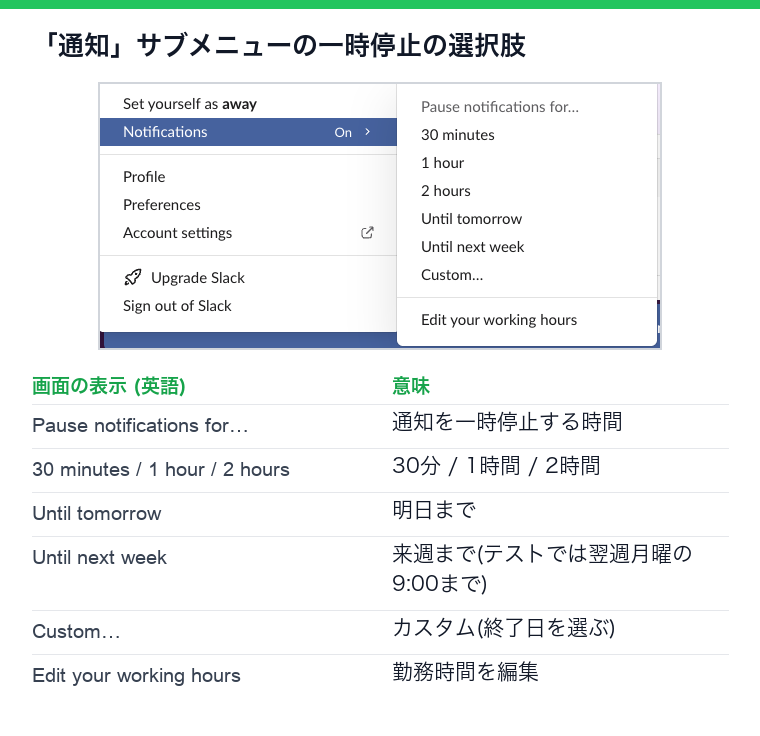
Slack Pause notifications submenu showing: For 30 minutes, For 1 hour, For 2 hours, Until tomorrow at 9:00 AM, Until Monday at 9:00 AM, Custom with a small clock icon, and Set a notification schedule link at bottom

How to Pause Notifications

  • Click your profile picture
  • Select Pause notifications
  • Choose a duration: 30 minutes, 1 hour, 2 hours, or until a specific time
  • For extended absences, select Custom and set an end date
  • When notifications are paused, Slack displays a "Notifications paused" indicator on your profile. Direct messages will show senders that you have notifications paused, prompting them to find alternative help if urgent.

    Slack direct message view showing a banner at top: This person has notifications paused. They will be notified of new messages when notifications resume, with a small sleep icon

    Scheduling Do Not Disturb Hours

    For regular out-of-office hours (like evenings and weekends), set up a recurring Do Not Disturb schedule:

  • Go to Preferences > Notifications
  • Under Notification schedule, define your working hours
  • Slack automatically pauses notifications outside these times
  • Slack Preferences Notifications panel showing Notification schedule section with toggle Allow notifications: Weekdays, 8:00 AM to 6:00 PM enabled, and timezone set to Pacific Time

    This ensures you're not disturbed during personal hours without manually pausing notifications each day.

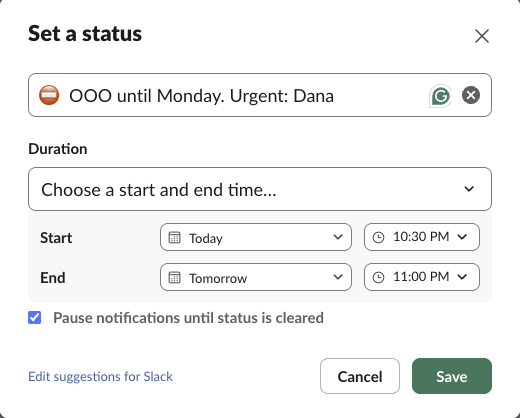
    Scheduling Status Changes in Advance

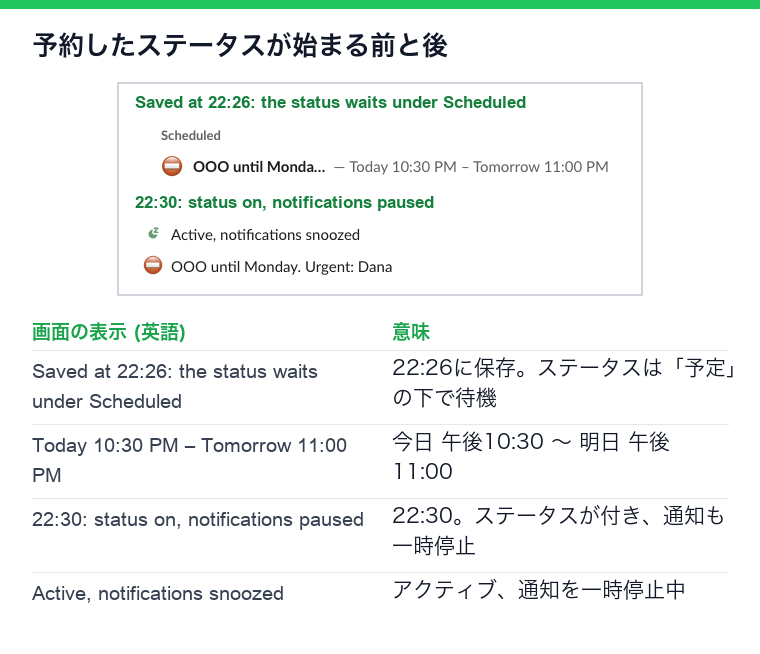
    Planning ahead? Slack allows you to schedule status changes so your out of office message activates automatically when your time off begins.

    Using Slack's Built-in Scheduling

    Currently, Slack's native status scheduling is limited to the "Clear after" option, which removes your status after a set time. For more advanced scheduling, consider these approaches:

    Option 1: Set your status the night before Update your status before leaving and set "Clear after" to your return date.

    Option 2: Use Slack's Workflow Builder (Paid plans) Create a workflow triggered by a specific date/time that updates your status automatically.

    Option 3: Third-party scheduling tools Apps like Clockwise or Reclaim can sync your calendar with Slack status, automatically showing you as out of office during blocked calendar events.

    Slack Workflow Builder canvas showing a workflow named Vacation Auto-Status with trigger Scheduled date and time: Jan 15, 2025 at 5:00 PM connected to action step Update user status: On vacation until Jan 22

    Creating Automated Out of Office Replies

    For teams that need true auto-reply functionality—where Slack automatically responds to direct messages—there are several solutions available.

    Using Workflow Builder for Auto-Replies

    Slack's Workflow Builder (available on Pro, Business+, and Enterprise plans) can create automated responses:

  • Open Tools > Workflow Builder
  • Click Create Workflow
  • Choose From a link in Slack or When a message is posted
  • Add a Send a message step with your out of office response
  • Publish the workflow
  • Limitations: Standard workflow triggers don't automatically respond to all DMs. This approach works best for channel-based notifications or when you share a workflow link.

    Third-Party Auto-Reply Apps

    Several Slack apps provide genuine auto-reply functionality:

    Slack App Directory page showing search results for out of office with app cards: Out of Office by Kyber, OOO Bot, and Status Hero with ratings and descriptions

    Popular options include:

  • Out of Office Assistant: Sends automatic replies to DMs
  • Vacation Responder: Schedules OOO periods with custom messages
  • Slack Status Tools: Syncs calendar events with auto-responses
  • To install, visit the Slack App Directory, search for "out of office," and follow the setup instructions for your chosen app.

    Best Practices for Slack Out of Office Messages

    Slackで「離席中」と表示されなくなります

    クラウドベース。ダウンロード不要。ノートPCがオフでも24時間稼働。

    A thoughtful out of office setup prevents confusion and helps your team operate smoothly in your absence.

    Before You Leave

  • Update your status with return date and emergency contact
  • Pause notifications for your entire absence
  • Inform key stakeholders directly about your time off
  • Set up auto-replies if available and appropriate for your role
  • Update your calendar so Slack integrations reflect your availability
  • Comparison showing two Slack profiles side by side - LEFT labeled Good OOO Setup: status shows Vacation Jan 15-22, @Lisa for urgent, notifications paused indicator visible, gray away dot. RIGHT labeled Poor Setup: no status message, green active dot, no indication of absence

    Crafting Your Message

    Keep your out of office message professional yet approachable:

  • Be specific about dates: "Out Dec 23-Jan 2" beats "on holiday"
  • Provide alternatives: Name a colleague who can help with urgent matters
  • Set expectations: Clarify if you'll have limited access or none at all
  • Keep it brief: Long messages get skimmed or ignored
  • What to Avoid

  • Vague return times: "Back soon" leaves teammates guessing
  • No backup contact: Forces people to wait or guess who to ask
  • Overly detailed explanations: No one needs your full itinerary
  • Forgetting to clear the status: An outdated OOO message confuses everyone
  • Managing Out of Office Across Multiple Workspaces

    If you belong to several Slack workspaces, remember that status updates are workspace-specific. You'll need to update each workspace individually unless you use tools that sync across workspaces.

    Slack workspace switcher showing three workspaces stacked vertically: Acme Corp with status OOO until Jan 20, Design Team with no status set, Freelance Clients with no status set - illustrating that status must be set per workspace

    Tips for Multi-Workspace Users

  • Use consistent messaging across workspaces for clarity
  • Prioritize workspaces where your absence has the biggest impact
  • Consider workspace-specific contacts for backup coverage
  • Some Enterprise Grid organizations can sync statuses across workspaces within the same organization—check with your Slack admin about available options.

    Returning from Out of Office

    Coming back to work involves more than clearing your status. A smooth return prevents the post-vacation message avalanche.

    Slack interface showing Catch up view with sections: Mentions and reactions showing 23 new, Threads showing 8 unread replies, Saved items showing 3 items, and DMs showing 12 conversations

    Steps for a Clean Return

  • Clear your status or let the automatic clearing handle it
  • Resume notifications if manually paused
  • Review important channels for mentions and key updates
  • Check direct messages and prioritize responses
  • Disable any auto-reply workflows you set up
  • Catching Up Efficiently

    Use Slack's built-in features to catch up quickly:

  • Threads view: See all conversations where you're mentioned
  • Saved items: Review anything colleagues saved for your return
  • Search filters: Find messages during your absence with "during:last_week"
  • Channel summaries: Some paid plans offer AI-powered catch-up summaries
  • Slack search bar with query from:@team in:#project-alpha during:january-15-to-january-22 showing filtered results of messages sent while user was away

    Alternatives When Standard Options Aren't Enough

    Slackで「離席中」と表示されなくなります

    クラウドベース。ダウンロード不要。ノートPCがオフでも24時間稼働。

    Sometimes teams need more sophisticated out of office solutions than Slack provides natively.

    Integrating with Calendar Apps

    Connecting Google Calendar or Outlook to Slack provides automatic status updates based on your calendar events. When you block time for vacation, your Slack status reflects it automatically.

    Google Calendar Slack app settings showing Automatically update your status toggle enabled, with options: During meetings: In a meeting, During Focus Time: Focus time, During OOO events: Out of office each with checkboxes

    To connect your calendar:

  • Visit the Slack App Directory
  • Search for "Google Calendar" or "Outlook Calendar"
  • Install and authorize the app
  • Configure automatic status sync in the app settings
  • Custom Slackbot Responses

    Workspace admins can configure Slackbot to respond to specific keywords. While not a true out of office solution, it can help direct people to resources when someone is away.

    Enterprise Solutions

    Larger organizations might consider:

  • Custom integrations via Slack's API
  • Third-party workforce management tools that sync with Slack
  • SSO-connected status management for organization-wide visibility
  • Conclusion

    While Slack doesn't offer a traditional out of office auto-reply like email, combining status updates, notification pausing, and available integrations creates an effective system for communicating your availability. The key is choosing the right combination of tools for your situation—a quick status update might suffice for a half-day absence, while extended leave might warrant automated replies and calendar integration.

    Set your out of office message before you leave, clearly communicate your return date and backup contacts, and enjoy your time away knowing your team has the information they need.

    Always Active

    マウスを動かす必要はもうありません。

    何百人ものリモートワーカーがSlackのステータスを気にしなくなりました。一度設定すれば、永遠にグリーン。

    Related Articles

    Guide

    Slack ステータスを偽装する方法 (バレずに)

    Slack のステータスを偽装したいですか?人々がそれを行う理由とそれに伴うリスクを学び、実際に機能する正当な代替手段を見つけてください。

    Sieun5 min read
    Tutorial

    Slack で常にアクティブな状態を保つにはどうすればよいですか?

    Slack が非アクティブをどのように検出するかを学び、マウスを絶えず小刻みに動かさずにアクティブな状態を維持するための信頼できる方法を見つけてください。

    Sieun5 min read
    Comparison

    Slack のステータスをグリーンに保つためのトップ 5 ツール (比較)

    マウスジグラーからクラウドソリューションまで、Slack のアクティブ状態を維持するための最適なツールを包括的に比較します。

    Sieun5 min read
      How to manage Slack's Out of Office Message