
Slack Connect vs Guest Accounts: Cost, Access and Which to Use
A guest joins your Slack workspace and your company pays for Multi-Channel Guests. Slack Connect links two workspaces and each company pays for its own people. Costs, limits, permissions, and which one to pick.
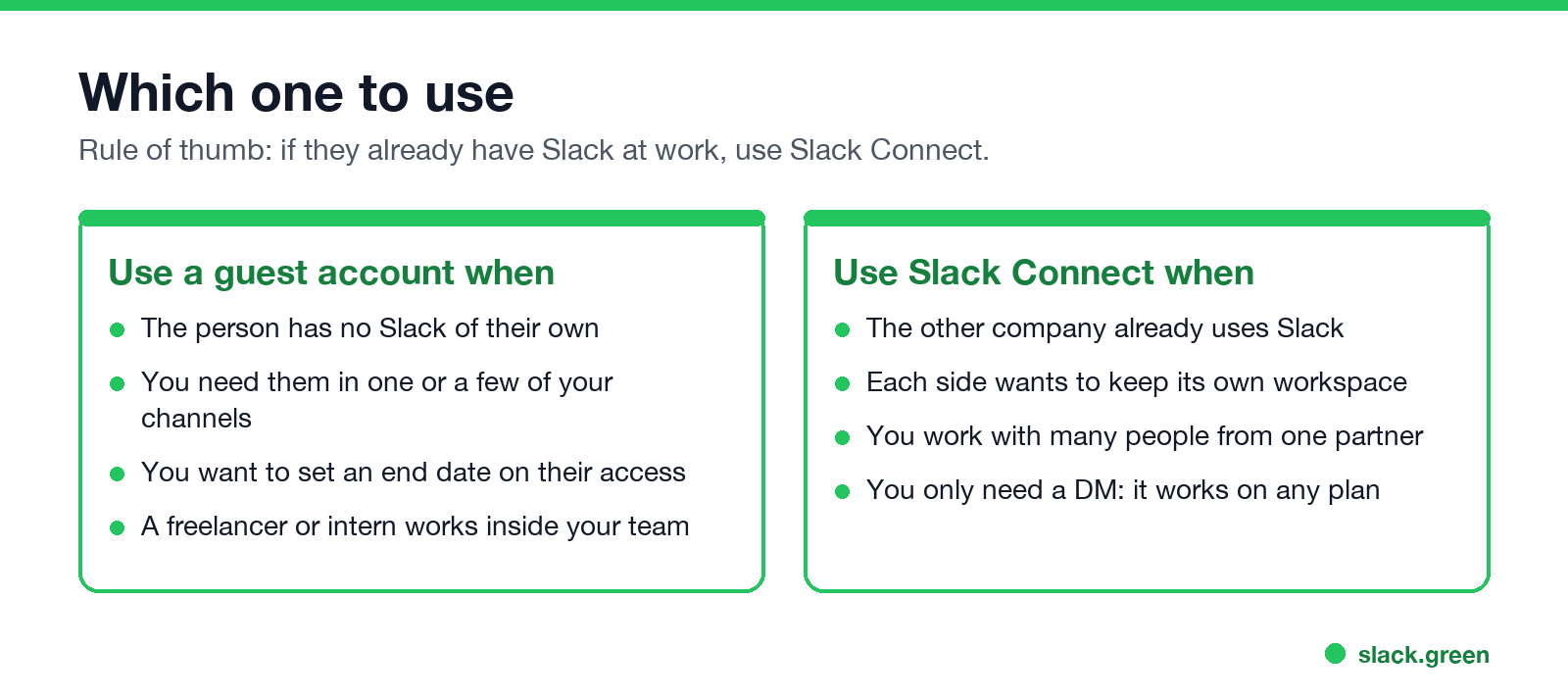
The difference between Slack Connect and a guest account is where the person works and who pays. A guest gets an account inside your workspace, limited to the channels you choose, and your company pays for Multi-Channel Guests at the regular member price. Single-Channel Guests are free, up to 5 for each paid active member. Slack Connect links your workspace to another company's workspace. Each person stays in their own company's Slack, and each company pays for its own people. Use a guest account for a contractor who has no Slack. Use Slack Connect when the other side already uses Slack at work.
Everything below comes from Slack's help articles on guest roles and on Slack Connect. We build Slack Green, a tool for Slack presence, and a lot of our users work across companies, which is why the presence section at the end matters.
Slack Connect vs guests at a glance
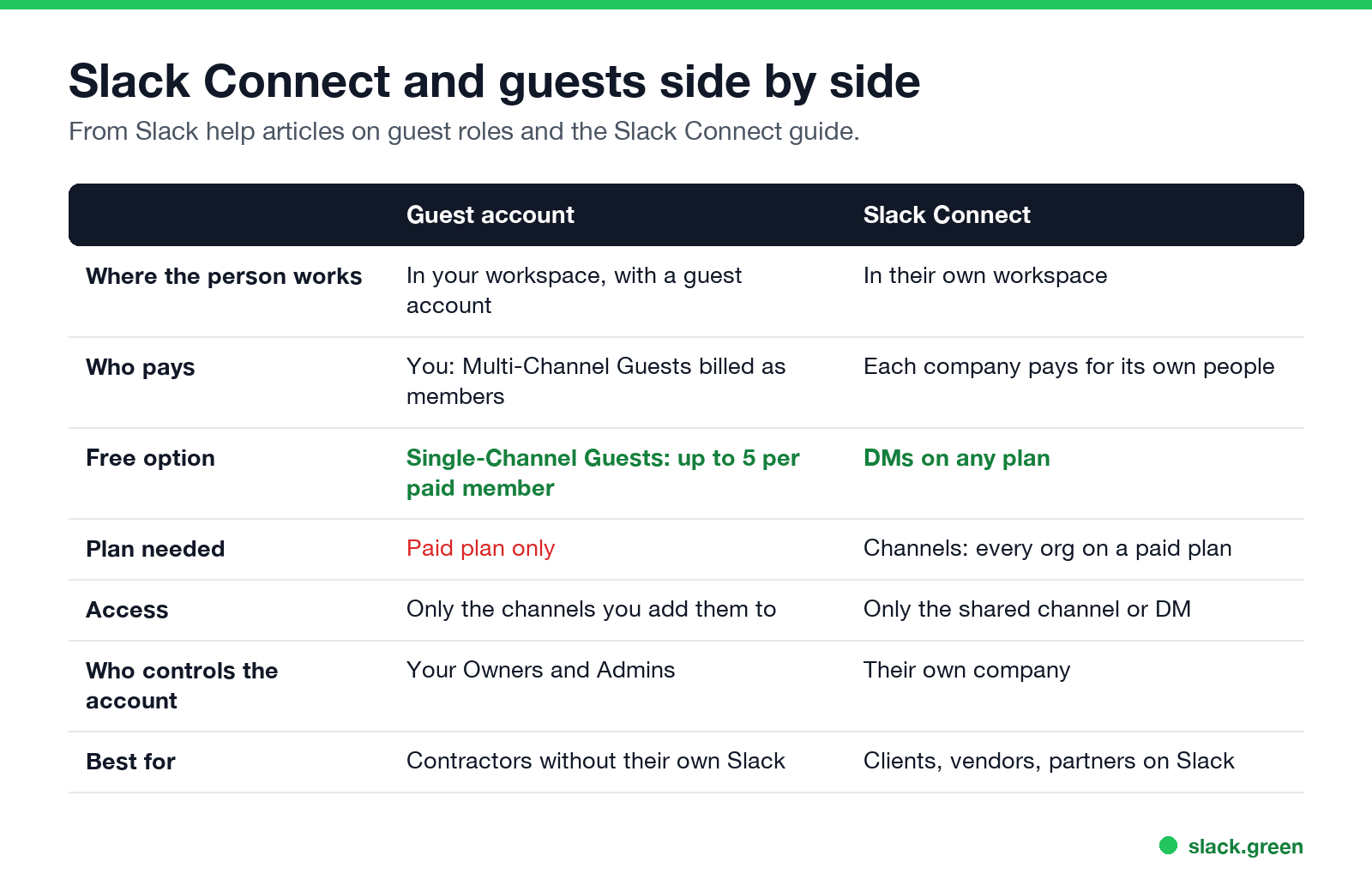
| Guest account | Slack Connect | |
|---|---|---|
| Where the person works | In your workspace, with a guest account | In their own company's workspace |
| Who pays | Your company, for Multi-Channel Guests | Each company pays for its own people |
| Free option | Single-Channel Guests, up to 5 per paid active member | DMs, on any plan |
| Plan needed | A paid plan | Channels: every organization on a paid plan |
| Access | Only the channels you add them to | Only the shared channel or DM |
| Who manages the account | Your Owners and Admins | Their own company |
| Scale | One person at a time | Up to 250 organizations in one channel |
Guest accounts: the two types and what they cost
Guests exist only on paid plans. Slack has two types:
- • Multi-Channel Guests can be added to any number of channels you choose. They are billed as regular members. A guest with an end date is still billed like a member, with prorated credits if they are active for only part of the billing cycle.
- • Single-Channel Guests are free and can access one channel. For every paid active member you can add up to 5. A workspace with 10 members can invite up to 50.
- • create public channels, or rename, archive or delete channels
- • install or remove apps
- • make @channel, @here or @everyone announcements, unless the workspace settings allow it
- • DM people outside the channels they share
Owners and Admins invite guests, and members can request an invite. The difference between those two admin roles is in Slack workspace Owner vs Admin. Owners and Admins can also set a guest to deactivate after a set time or on a set date, and both the guest and the admin get a reminder five days before. In the member list, Multi-Channel Guests have a square next to their name and Single-Channel Guests a triangle.
Guest account limitations
Guests see only the channels they are in, and the message history in those channels. They cannot:
Multi-Channel Guests can accept invites to private channels and start group DMs with people in their channels. Single-Channel Guests cannot. The full permission table is in Slack's "Understand guest roles in Slack" article.
Slack Connect: channels and DMs with other companies
Never appear "away" on Slack again
Cloud-based. No downloads. Works 24/7 even when your laptop is off.
Slack Connect lets two or more companies work in one channel or DM while each stays in its own workspace.
Slack Connect conversations show a banner and appear in the External Connections section of your sidebar. External people's profile photos carry their company's Slack icon. You manage invitations under Directories, then External.
Which one should you use?
If you work for two companies yourself, neither option merges your accounts. You keep one account per workspace, as covered in using several Slack workspaces at once.
What external people can see about you
In a Slack Connect channel, each organization chooses which profile details other organizations can see: basic details such as name and photo, or more, such as statuses and time zones. So a client may see your custom status and your presence dot. A guest in your workspace sees your profile like any member of the channels they share with you.
That makes presence part of how clients read you. Slack sets you away 10 minutes after your last input in its window, and no setting changes that. Slack Green keeps your dot green during the working hours you set, from a cloud server. What admins, rather than clients, can see is in can Slack admins see what you search and can Slack admins see your DMs.
FAQ
Never appear "away" on Slack again
Cloud-based. No downloads. Works 24/7 even when your laptop is off.
Do you have to pay for guests on Slack?
For Multi-Channel Guests, yes: they are billed as regular members. Single-Channel Guests are free, up to 5 per paid active member. Guests need a paid plan.
Can I use Slack Connect for free?
Slack Connect DMs work on any plan, including Free. Slack Connect channels need every organization on a paid plan, though the channel owner can invite the other company to try it for free.
What is the difference between a Single-Channel Guest and Slack Connect?
A Single-Channel Guest has an account in your workspace and sees one channel. With Slack Connect, the person stays in their own company's workspace and joins a shared channel from there.
What is the difference between a Multi-Channel Guest and a member?
Both are billed the same. A Multi-Channel Guest only sees the channels you add them to and has fewer permissions, such as no public channel creation and no app installs.
Can guests see other channels?
No. Guests see only the channels they are added to, and they cannot browse other channels.
Stop Jiggling Your Mouse.
Join hundreds of remote workers who never worry about their Slack status. Set it up once, stay green forever.
Related Articles
Slack Lists Tutorial: Create, Organize and Share a List
Slack lists are tables of tasks inside Slack, with fields, assignees, due dates, a board view and a comment thread on every item. How to create a list from scratch or a template, set up fields, turn it into a kanban board, add messages to it, share it, and what the plan limits are.
Slack Jira Integration: Setup, /jira Commands and Notifications
Install the Jira Cloud for Slack app, type /jira connect in a channel to send a Jira space's updates there, /jira notify for personal notifications as DMs, and create work items from any message with More actions. Every /jira command, Jira automation to Slack, and fixes when previews or notifications stop.
How to Create a Slack Workspace, on Desktop or Phone
Go to slack.com/get-started, enter your email, type the confirmation code, and click Create a Workspace. It is free to start, you become the Primary Owner, and it takes about five minutes. Steps for desktop, iPhone and Android, and what to set up next.