
How to Turn Off Link Previews in Slack, for You or Everyone
To turn off link previews in Slack for yourself, open Preferences, Messages & media and uncheck Show images and files from linked websites and Show text previews of linked websites. To remove one preview, hover over it and click the x. How admins block a website, how bots send links without previews, and why a preview does not show.
To turn off link previews in Slack for yourself, click your profile picture, choose Preferences, then Messages & media. Under Inline media & links, uncheck Show images and files from linked websites and Show text previews of linked websites. Previews then stop showing on your screen, while everyone else still sees them. To remove the preview from one message you sent, hover over the preview and click the x. On a phone, long press the link and tap Remove Link Preview.
Owners and admins can also block previews from one website for the whole workspace, and apps can send links with no preview at all. Every option is below, with the reasons a preview sometimes does not show.
We build Slack Green, which keeps your Slack status green from our servers during the hours you set. We also make a free Slack message formatter for drafting links and formatting before you post.
Four ways to stop Slack link previews
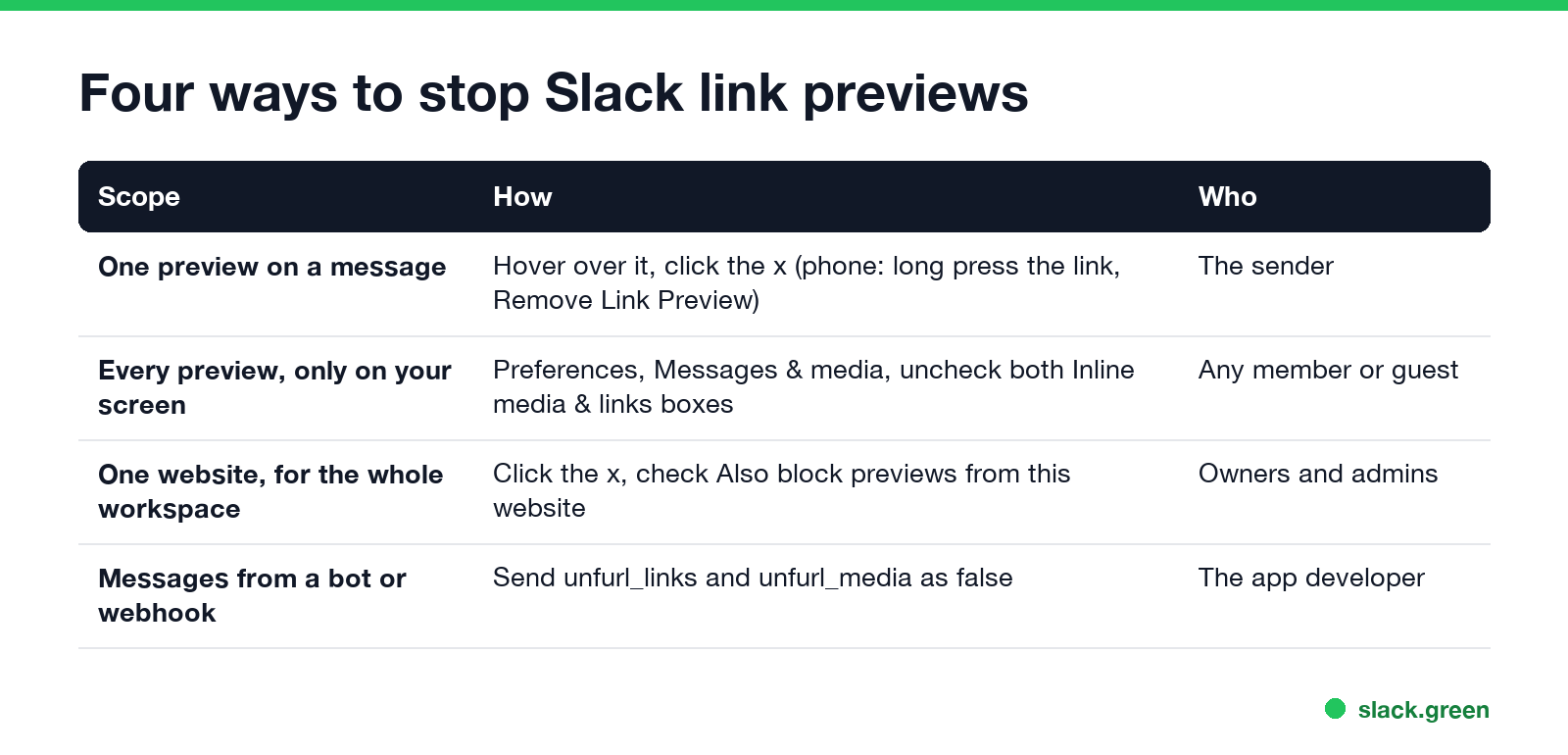
| Scope | How | Who can |
|---|---|---|
| One preview on a message | Hover over it and click the x; on a phone, long press the link, Remove Link Preview | The sender |
| Every preview, on your screen only | Preferences, Messages & media, uncheck both boxes under Inline media & links | Any member or guest |
| One website, for the whole workspace | Click the x, check Also block previews from this website in the future | Owners and admins |
| Messages from a bot or webhook | Send unfurl_links and unfurl_media as false | The app's developer |
Turn off link previews for yourself
Slack's help center gives these steps:
- Click your profile picture in the sidebar.
- Select Preferences.
- Click Messages & media.
- Below Inline media & links, uncheck Show images and files from linked websites and Show text previews of linked websites.
The first box controls image and video previews, the second controls the title and description card. Uncheck one or both. The change is only for you; your coworkers keep seeing previews. Slack notes that previews for some third-party app links, such as work objects from connected apps, are not turned off by these boxes.
Remove a link preview from one message
Never appear "away" on Slack again
Cloud-based. No downloads. Works 24/7 even when your laptop is off.
On desktop, hover over the preview under your message and click the x that appears on its left. On iPhone or Android, long press the link in the message and tap Remove Link Preview. Removing a preview from a message you sent takes it off the message, so the conversation shows only the link text.
To send a link that never shows a preview:
Block previews from a website for the whole workspace
Workspace owners and admins can stop one website's previews for everyone:
To see or undo blocks on Free, Pro and Business+ plans, click Admin in the sidebar, choose Workspace settings, open the Attachments tab, and look under Blocked previews. Click the x next to a site to allow its previews again. On Enterprise plans the same list is under your organization name, Tools & settings, Workspace settings. Previews for connected apps like Jira or Google Drive are set separately under Work object previews.
There is no switch to turn off website previews for one channel only.
Send bot and webhook messages without previews
When an app, a script or an incoming webhook posts a link, set two fields to false:
{
  "channel": "C0123456789",
  "text": "Release notes: https://example.com/changelog",
  "unfurl_links": false,
  "unfurl_media": false
}
unfurl_links controls text previews of web pages, and unfurl_media controls image and video previews. They work in chat.postMessage and in incoming webhooks. For a GitHub Actions workflow, add the same fields to the payload; see how to send a Slack message from GitHub Actions.
Why a Slack link preview does not show
Never appear "away" on Slack again
Cloud-based. No downloads. Works 24/7 even when your laptop is off.
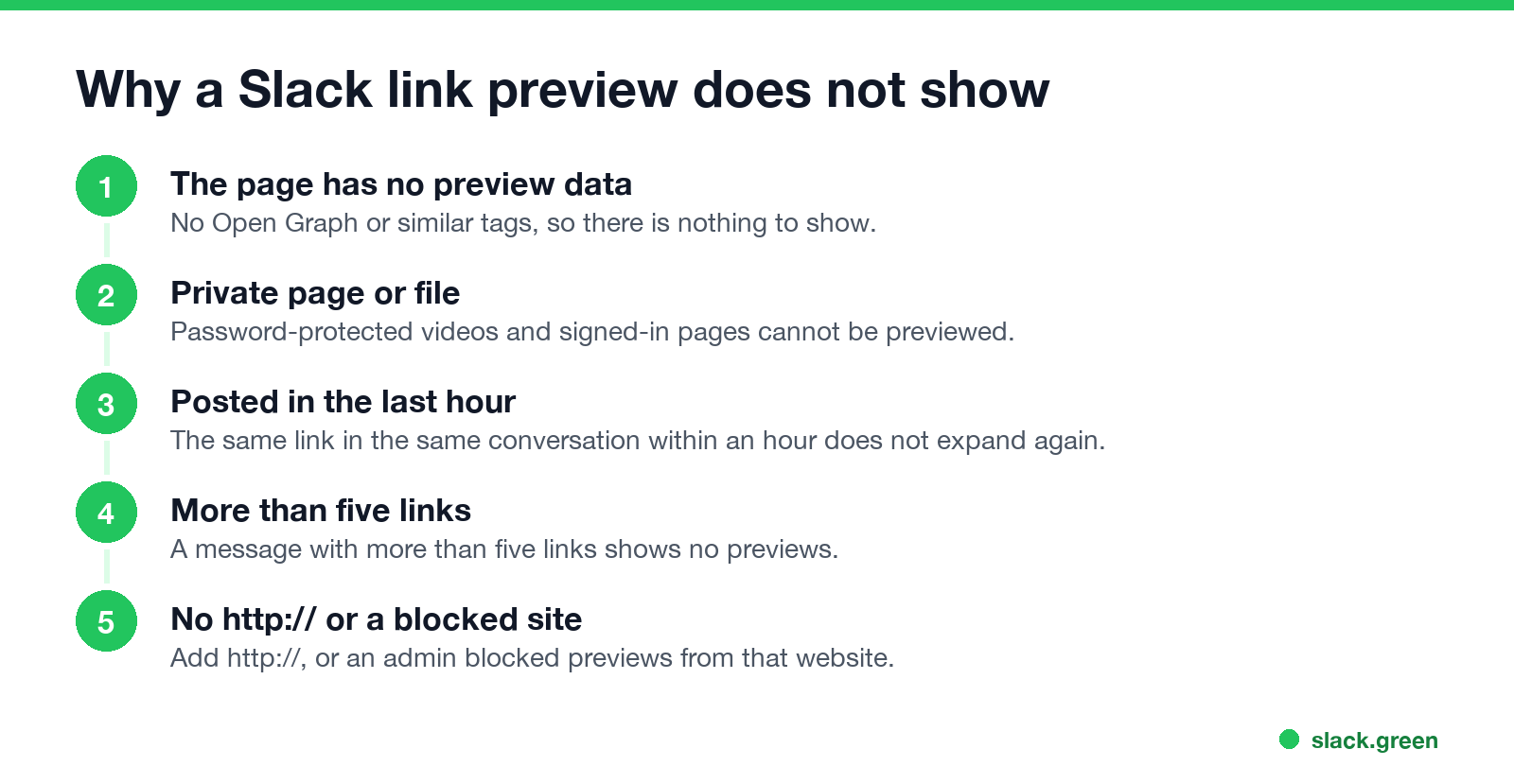
Slack's help center lists these reasons a link does not expand:
Two more causes are on your side: your own Inline media & links boxes are unchecked, or an admin blocked that website. If you run the website, Slack's unfurl debugger at api.slack.com/tools/unfurl-debugger shows what Slack reads from the page.
To turn words into a link instead of pasting a bare URL, see how to add a hyperlink in Slack.
FAQ
How do I stop Slack from showing link previews? Preferences, Messages & media, and uncheck both boxes under Inline media & links. It changes only your view.
Can I remove a link preview for everyone? Yes, on a message you sent: hover over the preview and click the x.
How do I send a link in Slack without a preview? Remove the preview after sending, or wrap the URL in inline code.
Can I turn off link previews in one channel? No. Previews are set per person or blocked per website by an admin.
Why is my Slack link preview not showing? The page has no preview data, it is private, it was posted in the last hour, the message has more than five links, or previews are off.
Stop Jiggling Your Mouse.
Join hundreds of remote workers who never worry about their Slack status. Set it up once, stay green forever.
Related Articles
Slack Status for Limited Availability: 30 Statuses to Copy
A Slack status for limited availability says you are around but slow, until when, and how to reach you if it is urgent, such as ⏳ 'Limited availability today, replies after 3 PM. Urgent: @mention me.' 30 statuses for busy days, slow replies and catching up, the emoji to use, and when to pause notifications too.
Slack Emoji for Thank You (and You're Welcome)
The usual Slack emoji for thank you are 🙏 :pray:, 🙌 :raised_hands: and ❤️ :heart:. For you're welcome, 😊 :blush: or 🤗 :hugging_face:. What each one says, which ones read wrong, and custom :ty:, :np: and :welcome: emoji your team can add in a minute.
Slack Emoji for Condolences: What to React With, and What to Say
The right Slack emoji for condolences are ❤️ :heart:, 🙏 :pray:, 🤗 :hugging_face:, 💐 :bouquet:, 🕯️ :candle: and 🕊️ :dove_of_peace:. Avoid 👍, ✅ and 👀, which read as 'noted'. Add a few words in the thread or a DM. Short condolence messages, get-well emoji, and custom 'thinking of you' emoji.