
Slack og:image Not Showing? What Slackbot Fetches, Tested on 13 Pages
We served 13 test pages through a public tunnel, posted each link in Slack and logged every request Slackbot made. SVG images and broken image URLs give a grey box, a cached card stayed old for over 10 minutes, and Slack's Unfurl Debugger or a ?v=2 query refreshes it at once.
If your og:image is not showing in Slack, the usual causes are an image format Slack will not draw (SVG), an image URL that does not return the file, or a cached card from before you fixed the tags. Slack caches the card per URL, so reposting the same link shows the old card, and running the URL through Slack's Unfurl Debugger or adding a query string such as ?v=2 makes Slack fetch the page again at once. We tested this on 2 November 2026: we served 13 test pages from our own server through a public tunnel, posted each link in a Slack test workspace, and logged every request Slack's crawlers made. Below are the logs, the cards they produced, and a checklist in the order we would debug.
What Slack fetches when you post a link
Posting one link and then viewing it made three different crawlers hit our server. This is the log for our first test page, which had og:title, og:description and a 1200 x 630 PNG og:image:
| Time (UTC) | User agent | Request | Notes |
|---|---|---|---|
| 07:16:39 | Slackbot-LinkExpanding 1.0 | GET /p/a | sent Range: bytes=0-32768 |
| 07:16:39 | Slackbot 1.0 | GET /static/a.png | the og:image, full file |
| 07:16:40 | Slackbot 1.0 | GET /favicon.ico | our 404 did not stop the card |
| 07:17:59 | Slack-ImgProxy | GET /static/a.png | again, when a browser first showed the card |
The page fetch came within a second of the post. The image proxy fetch came 80 seconds later, at the moment we opened the conversation in a browser, so Slack fetches your image at least twice: once to build the card and once to serve it to people. A firewall, bot filter or hotlink rule that blocks either user agent gives you a card with no image. The requests came from Amazon addresses that changed from one fetch to the next, so allow by user agent, not by IP.
The image cases we tested
Every page had the same title and description. Only the image changed:
| Test page | What Slack showed |
|---|---|
| PNG, 1200 x 630, absolute URL | Card with image |
| No og:image tag | Card with a grey placeholder |
| SVG og:image | Card with a grey placeholder, even though Slackbot downloaded the SVG |
| PNG of 5,078,017 bytes (5 MB) | Card with image |
| WebP | Card with image |
Relative URL (/static/rel.png) | Card with image; Slack resolved it against the page |
| 1 x 1 px PNG | Card with the pixel stretched into a green square |
Only twitter:image, no og tags for the image | Card with image |
| og:image URL that returns 404 | Card with no image |
| Tags after 20 KB of HTML | Card with image |
| Tags after 40 KB, server ignores Range | Card with image |
Here are three of them as Slack drew them. The grey box is what you see both with no og:image and with an SVG one:
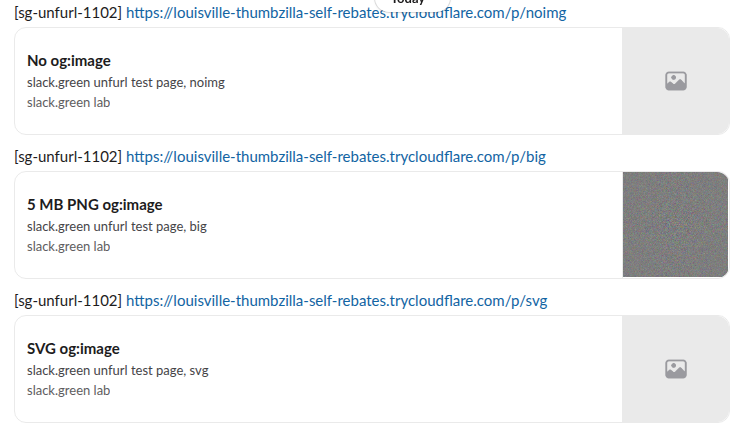
So convert SVG artwork to PNG or JPEG. Size was not the problem in our test: the 5 MB PNG went through. The relative URL and the twitter:image fallback also worked, so those are rarely the cause on their own.
Slack shows your image as a small cropped square
In the Slack web app we used, the card puts the image in a small square on the right and crops the middle of it. Our 1200 x 630 test image said "og:image test A" across its width, and the card showed only "ge test A". A wider window did not change it: at 1800 pixels the square stayed the same size.
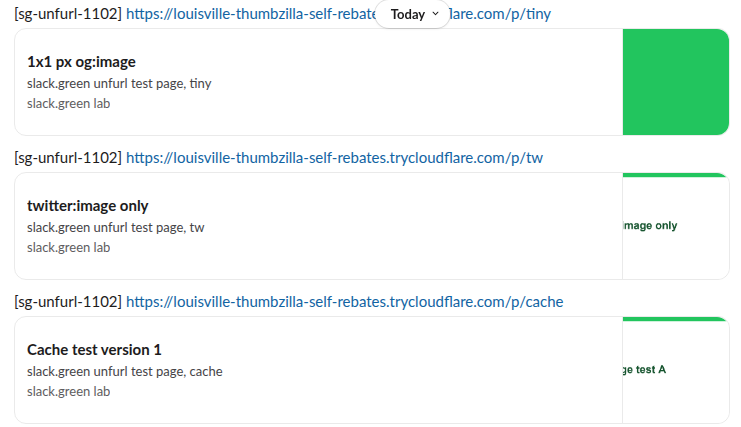
If your og:image has text near the edges, Slack readers will not see it. Keep the logo or the key words in the centre square of the image.
The cache: why a fixed og:image still does not show
After the first post we changed our test page: a new title ("Cache test version 2") and a new image. Then we posted the same URL again at several times, and once with ?v=2 added:
| Post | Time after the first post | Slackbot request? | Card showed |
|---|---|---|---|
| Same URL | 36 seconds | none | Version 1 (old) |
Same URL with ?v=2 | 37 seconds | page and new image | Version 2 |
| Same URL | 10 minutes 49 seconds | none | Version 1 (old) |
| Same URL | 30 minutes 23 seconds | page and new image | Version 2 |
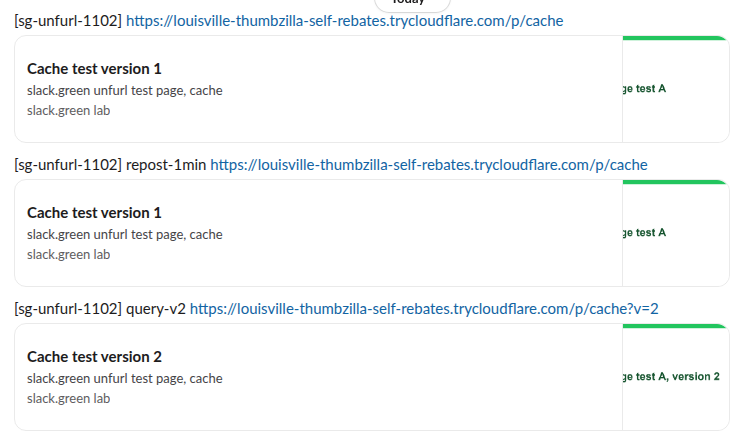
So after about half an hour the same URL picks up your changes by itself, and before that it does not. The server log explains it. For the early reposts of the same URL, Slackbot made no request at all, so Slack answered from its own cache and never saw the new tags. The ?v=2 link was a new URL to Slack, so Slackbot fetched the page and the new image within a second.
Never appear "away" on Slack again
Cloud-based. No downloads. Works 24/7 even when your laptop is off.
Refresh the cached card with Slack's Unfurl Debugger
Slack has a debugger for this, and in our test it also refreshed the cache. While signed in to Slack, open api.slack.com/tools/unfurl-debugger, pick the workspace, paste the URL and click Submit. We changed our test page to "Cache test version 3" and ran it at 07:49 UTC. Slackbot fetched the page and the image within a second, and the debugger showed the new title and the image size it read:
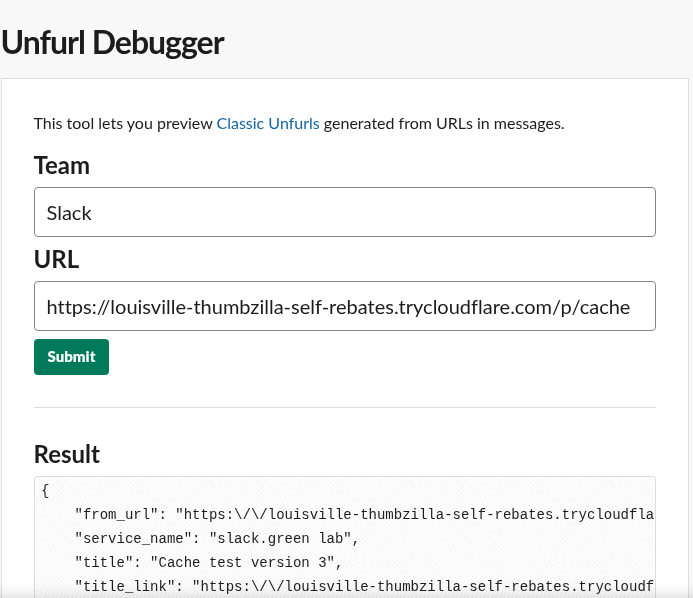
We did not click Save Changes. Then we posted the plain URL again 38 seconds later, and Slack showed version 3 with no new request to our server. The debugger's fetch had replaced the cached card, so the repost used it. Its Log section also tells you why a page fails, line by line ("returned HTTP 200", "Type of resource is text or HTML", "Found data in meta tags"). We tested this in one workspace.
If you cannot use the debugger, change the URL instead. Add a harmless query string to the page (?v=2), and if you replaced the image file, give the image a new URL too (og.png?v=2). Our Slack link preview checker reads a page the way Slackbot does, so you can check the tags before you post.
The 32 KB Range request
Slackbot asks for the page with Range: bytes=0-32768, the first 32 KB. Our server ignored the header and sent the whole page, and tags placed after 40 KB of HTML still worked. When we made the server honour the Range header, Slackbot asked next for bytes=65536-131071, skipping 32 KB to 64 KB. On a server that honours Range, such as many static hosts and CDNs, tags in that gap are never read, which our unfurl_links and unfurl_media tests also found. Put the og tags near the top of <head>, before big inline scripts or styles.
Checklist, in order
- Fetch the page as Slackbot and read the tags:
curl -s -A "Slackbot-LinkExpanding 1.0 (+https://api.slack.com/robots)" -r 0-32768 https://your.page | grep -i "og:". If nothing prints, the tags are missing, are added by JavaScript after load, or sit past 32 KB. - Open the og:image URL by itself. It must return the image with a 200, not a login page, a redirect to HTML or a 404.
- Check the format. Use PNG, JPEG or WebP, not SVG.
- Check bot rules. Allow
Slackbot-LinkExpanding,SlackbotandSlack-ImgProxyin your firewall, CDN bot protection and hotlink settings. - Run the URL through
api.slack.com/tools/unfurl-debuggerwhile signed in, which refreshed the cached card in our test, or post it again with?v=2. - If the card shows text but the image is cropped oddly, move the important part to the centre of the image.
If the preview shows but you want it gone, that is a different setting, covered in how to turn off link previews in Slack.
FAQ
How long does Slack cache a link preview?
In our test, a repost 10 minutes 49 seconds after the first post still showed the old card with no request to our server, and a repost at 30 minutes 23 seconds made Slackbot fetch the page again. So the cache lasted somewhere between 11 and 30 minutes. To skip the wait, run the URL through Slack's Unfurl Debugger or post it with a new query string.
Does Slack support WebP and large og:images?
In our test, yes. A WebP og:image and a 5 MB PNG both showed in the card.
Does Slack run JavaScript when it builds a preview?
Slackbot made one plain HTTP request for the page and then fetched the files named in the tags. Tags that a script adds after load are not in that response, so put them in the HTML the server sends.
Stop Jiggling Your Mouse.
Join hundreds of remote workers who never worry about their Slack status. Set it up once, stay green forever.
Related Articles
How to Resolve or Close a Slack Thread (and Who Can Lock One)
Slack has no Resolve or Close button for threads. We checked every thread menu as a member, found the admin-only lock in Slack's code, and tested the workarounds that do work: a checkmark, a to-do you mark complete, and muting replies.
How to Search for Images in Slack, Including Text Inside Them
To find an image in Slack, search, switch the results from Messages to Files and set File type to Images, or type type:images. We tested 6 images: Slack also found words written inside PNGs, but not inside JPGs.
Lock Icon Next to a Slack Channel? What the Lock and Grey Text Mean
A padlock next to a Slack channel means it is private. Grey text with a crossed-out bell means you muted it. We made a private, muted, archived and unread channel and screenshot each one in the sidebar.