
Windows 11 Keeps Going to Sleep? Find the Reason, Then Fix It
When Windows 11 keeps going to sleep, the System event log records why: Kernel-Power event 42 names the sleep reason, and powercfg /systemsleepdiagnostics lists every sleep and wake. Most cases are a short timer, the hidden 2-minute unattended sleep rule after a wake, the 1-minute lock screen display timeout, presence sensing, or a company policy. How to read the log, then the fix for each.
When Windows 11 keeps going to sleep, first find out why, because Windows writes it down. Open Event Viewer > Windows Logs > System, filter by source Kernel-Power and event ID 42, and each entry says "The system is entering sleep" with a Sleep Reason, such as System Idle, Button or Lid, or Application API. For a full timeline, run powercfg /systemsleepdiagnostics in Terminal. The usual causes are a short sleep timer or Energy saver; a hidden rule that puts the PC back to sleep 2 minutes after it wakes by itself; the lock screen turning the display off after 1 minute, which looks like sleep but is not; presence sensing on newer laptops; and a company policy that overrides your settings.
To change the plain timers, open Settings > System > Power & battery (on desktops, Power) and set Screen, sleep, & hibernate timeouts. The rest of this page covers what to do when that is not enough.
If the PC stays awake so that Slack or Teams stay green, it does not help much: Slack counts input only in its own window, so an awake PC still shows you away after 10 minutes. Slack Green keeps your Slack status green from a server during the hours you set, with the computer asleep.
Find out why Windows went to sleep
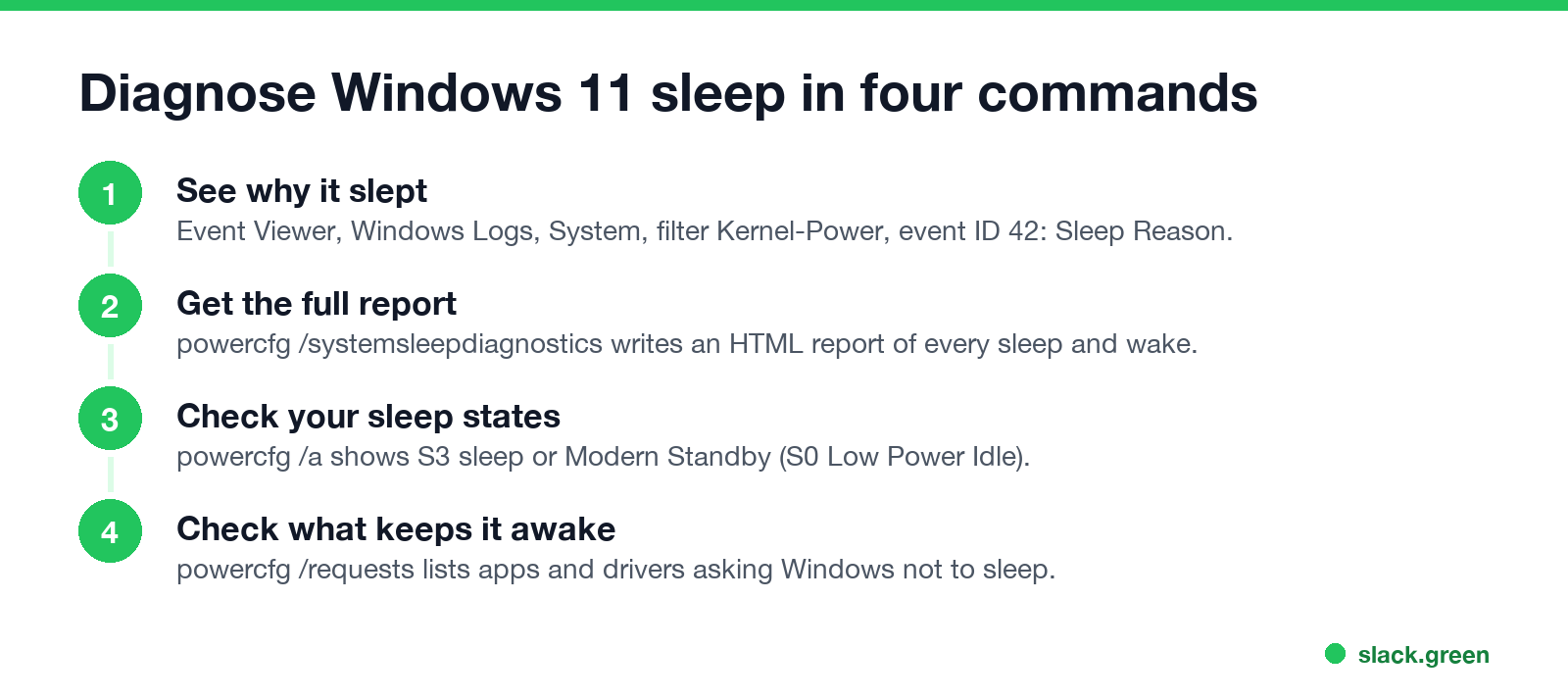
In Event Viewer. Press Windows + X, choose Event Viewer, open Windows Logs > System, click Filter Current Log, and enter 42 as the event ID. Each Kernel-Power 42 event is one sleep, with its reason. Kernel-Power 107 marks the resume, and Power-Troubleshooter event 1 says what woke the PC.
In PowerShell. The same list in one command:
# the last 10 times Windows went to sleep, with the reason
Get-WinEvent -FilterHashtable @{LogName='System'; ProviderName='Microsoft-Windows-Kernel-Power'; Id=42} -MaxEvents 10 |
  Format-List TimeCreated, Message
With powercfg. These are built into Windows; run them in Terminal (Admin):
powercfg /systemsleepdiagnostics
powercfg /a
powercfg /requests
powercfg /lastwake- •
/systemsleepdiagnosticswritessystem-sleep-diagnostics.htmlto the current folder, with every sleep and wake in the last few days. - •
/alists the sleep states your PC supports. "Standby (S0 Low Power Idle)" means Modern Standby, where sleep is a low-power on state, like a phone. - •
/requestslists apps and drivers that are asking Windows to stay awake right now. An empty list during a download means the download app is not asking. - •
/lastwakeshows what woke the PC last.
Causes and fixes
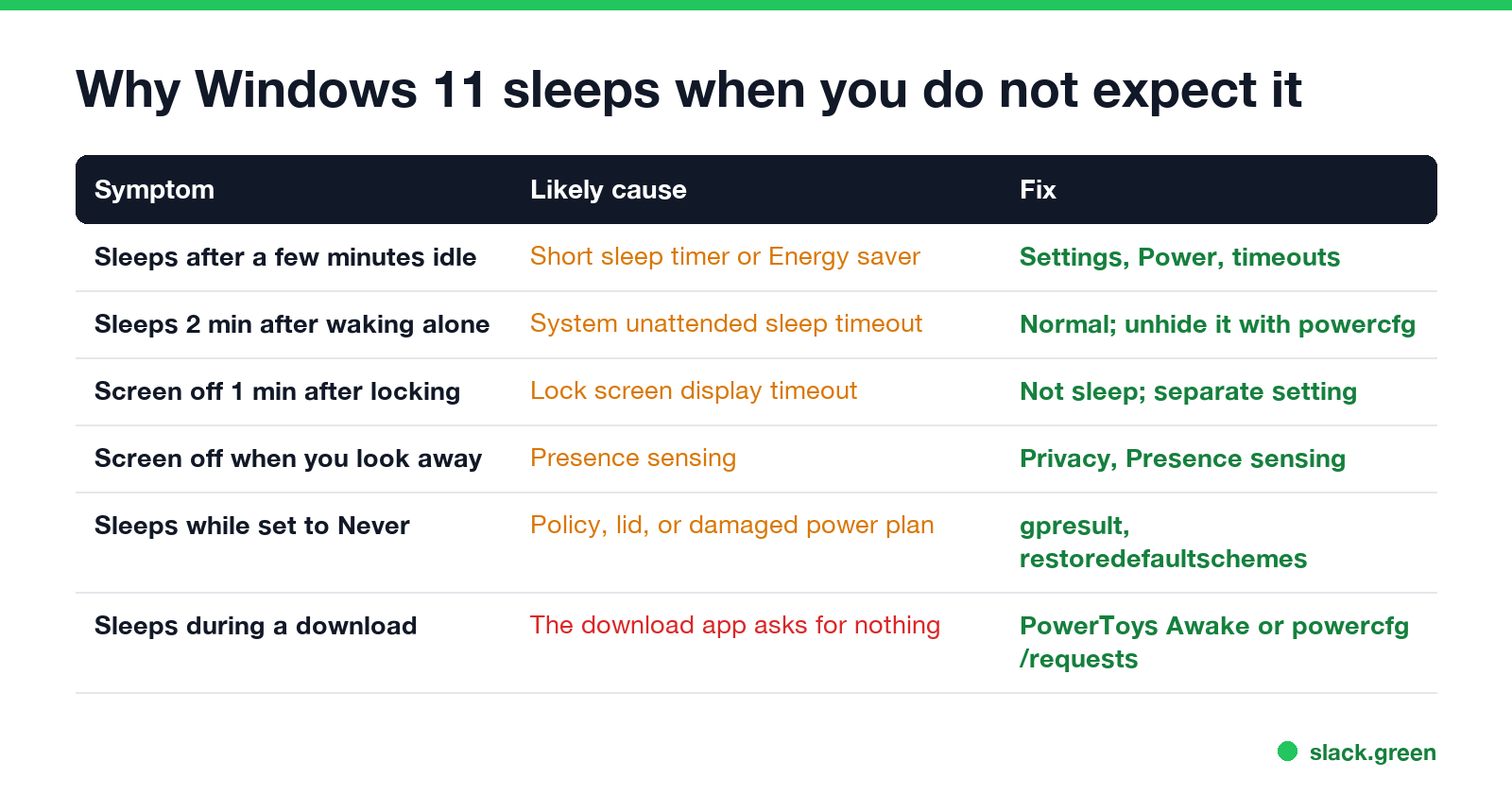
| Symptom | Likely cause | Fix |
|---|---|---|
| Sleeps after a few minutes without input | A short sleep timer, or Energy saver on battery | Settings > System > Power & battery, change the timeouts |
| Sleeps about 2 minutes after it woke by itself | System unattended sleep timeout | Expected; you can unhide the setting |
| Screen goes off 1 minute after you lock | The lock screen's own display timeout | Not sleep; change it separately |
| Screen goes off when you look away | Presence sensing on laptops with a presence sensor | Settings > Privacy & security > Presence sensing |
| Sleeps even with sleep set to Never | A company policy, the lid, or a damaged power plan | Check policy, lid action, restore the default plans |
| Sleeps during a long download or render | The app does not ask Windows to stay awake | A keep-awake tool for the task |
Sleeps 2 minutes after waking by itself
When Windows wakes without you, for an update, a scheduled task or a network request, it goes back to sleep after the System unattended sleep timeout, 2 minutes by default. If you walk up during those 2 minutes and use the PC, it stays awake. If you do not touch the keyboard or mouse, it sleeps again, which looks like "Windows sleeps after 2 minutes". The setting is hidden. To show it under Power Options > Advanced settings > Sleep, run in Terminal (Admin):
powercfg -attributes SUB_SLEEP 7bc4a2f9-d8fc-4469-b07b-33eb785aaca0 -ATTRIB_HIDEScreen off 1 minute after you lock
Locking the PC starts a separate, shorter timer for the display, about 1 minute. The PC is still awake; only the screen is off. If what you want is to stop the lock itself, see how to stop Windows 11 from locking, and for the normal screen timer, how to change the screen timeout on Windows 11.
Presence sensing turns the screen off
Laptops with a human presence sensor can turn the screen off and lock when you look away or leave. Open Settings > Privacy & security > Presence sensing (on some PCs Settings > System > Power & battery > Presence sensing) and turn off Turn off my screen when I leave or adjust the timeout.
Sleeps even when set to Never
gpresult /r in Terminal. On a managed laptop, Group Policy or Intune can set sleep and lock timers that override Settings; the lock side is explained in why your computer locks after 15 minutes.powercfg -restoredefaultschemesKeep Windows awake for one task
Never appear "away" on Slack again
Cloud-based. No downloads. Works 24/7 even when your laptop is off.
For a download, a render or a presentation, a keep-awake tool is simpler than changing timers. PowerToys Awake and Caffeine for Windows ask Windows to stay awake while they run, the same way a video player does, and they show up in powercfg /requests. On a locked-down work laptop, see keep a work computer awake without admin rights.
The settings route for Windows and Mac together is in how to stop your computer from sleeping. If you use a Mac too, the same diagnosis for macOS is in Mac keeps going to sleep.
FAQ
Why does Windows 11 go to sleep after 1 minute? Usually the screen is turning off at the lock screen, which has a 1-minute display timeout. The PC is still awake. If Event Viewer shows a Kernel-Power 42 event, it really slept; check the reason.
Why does my PC go to sleep after 2 minutes? It woke up by itself and nobody used it, so the 2-minute unattended sleep timeout sent it back to sleep.
Why does my PC sleep while I am using it? Look at the Sleep Reason in event 42. "Button or Lid" means the power button or lid; "System Idle" means Windows saw no input; "Application API" means an app requested it.
How do I stop Windows 11 from sleeping completely? Set When plugged in, put my device to sleep after to Never in Settings > System > Power & battery. On a work laptop a policy may still override it.
Stop Jiggling Your Mouse.
Join hundreds of remote workers who never worry about their Slack status. Set it up once, stay green forever.
Related Articles
How to Change Sleep Settings on a Mac (Ventura to Tahoe)
On macOS Ventura and newer, the Mac's sleep timer is its display timer: set it in System Settings > Lock Screen, under Turn display off on battery and on power adapter when inactive. The Mac sleeps about a minute after the display turns off, unless you turn on Prevent automatic sleeping in Battery > Options, or in Energy on a desktop Mac. Every setting, where it lives by macOS version, and the pmset commands.
Teams Status Stuck on Busy? 6 Causes and How to Fix Each
A Teams status stuck on Busy, In a meeting or In a call usually has one of four causes: a Busy you set by hand, which lasts a full day; an Outlook event marked Show as Busy; a call still running on your phone or in a browser tab; or a meeting window you never left. How to find which one, the fix for each, and what to try when nothing works.
Teams Status Message Not Showing? Check These Five Things
A Teams status message that others cannot see usually has one of five causes: Show when people message me is off, the message cleared itself, it is hiding your Outlook out-of-office reply, a scheduled out of office has not started, or the Teams app shows an old copy. Where the message appears, and how to fix each case.