
How to Stop Windows 11 From Locking Itself
Windows 11 locks itself for one of six reasons: the sign-in-on-wake setting, a short screen timeout, Dynamic lock, presence sensing, a secure screen saver, or a company policy. How to find which one it is, turn it off, and what to do when the setting is greyed out.
To stop Windows 11 from locking itself, open Settings, Accounts, Sign-in options and set "If you've been away, when should Windows require you to sign in again?" to Never. Then raise the screen and sleep times under Settings, System, Power & battery (step by step in how to stop your computer from sleeping), and turn off Dynamic lock. Those three settings cause most self-locks. If your PC still locks after a fixed number of minutes, the cause is usually a policy your company set, and the checks below show you which one it is.
A PC that stays unlocked does not keep you active in chat apps. Slack sets you away after about 10 minutes without input in the Slack window, even if Windows never locks. If that is the real problem, Slack Green keeps your Slack status active from its own servers during the hours you set, with nothing installed on your work computer.
Why Windows 11 locks itself: six causes
Windows has six separate things that can lock the screen. Turning off one of them does nothing if another is still on, which is why "I set it to Never and it still locks" is so common.
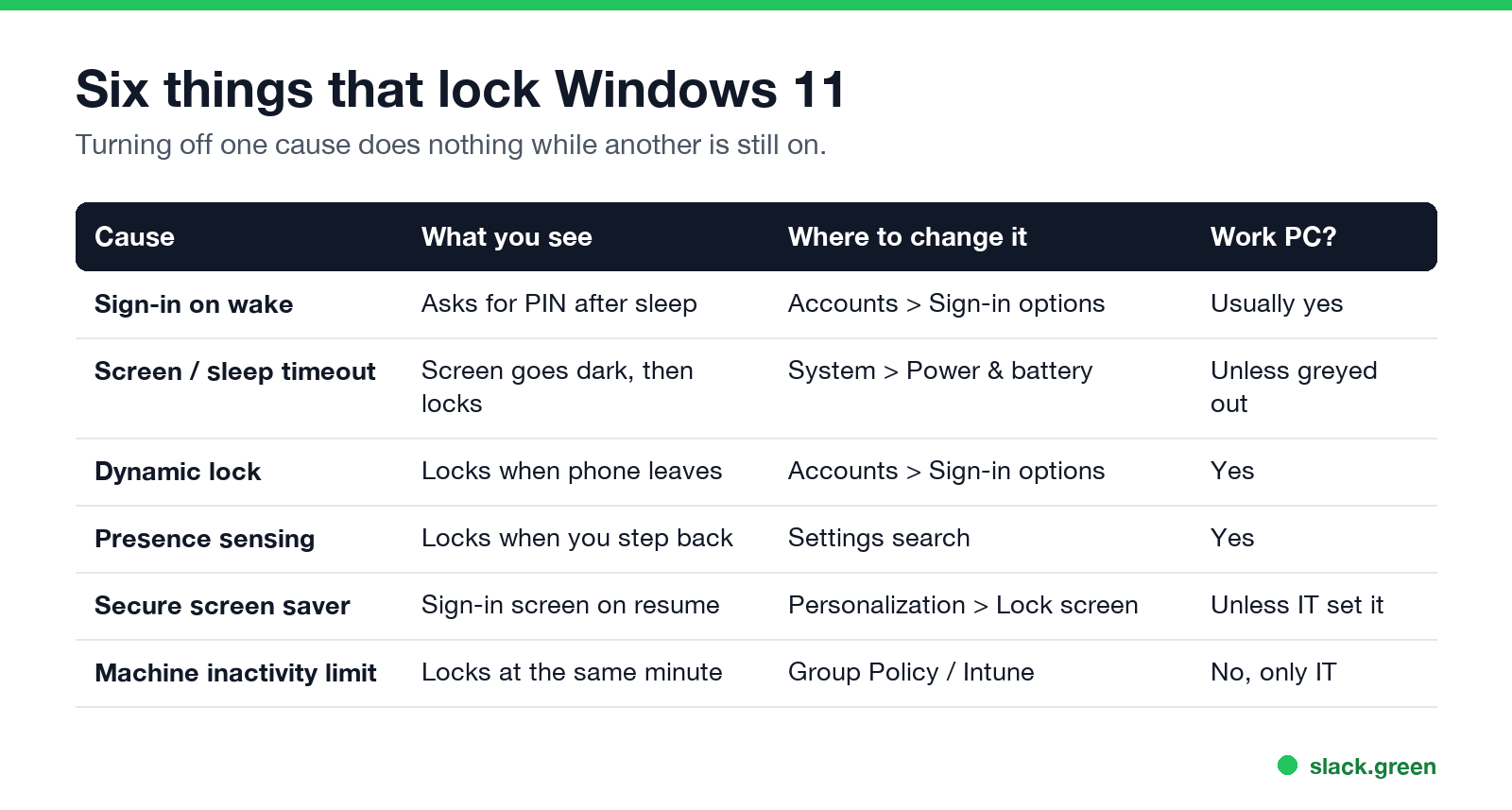
| Cause | What you see | Where to change it | Can you change it on a work PC? |
|---|---|---|---|
| Sign-in required on wake | PC sleeps, asks for PIN when you return | Accounts, Sign-in options | Usually yes |
| Short screen or sleep timeout | Screen goes dark after 3 to 5 minutes, then locks | System, Power & battery | Unless greyed out |
| Dynamic lock | Locks soon after your phone leaves the desk | Accounts, Sign-in options | Yes |
| Presence sensing | Laptop locks when you look away or step back | Search Settings for "presence sensing" | Yes |
| Secure screen saver | Screen saver starts, sign-in screen on resume | Personalization, Lock screen | Unless IT set it |
| Machine inactivity limit (policy) | Locks at the same minute every time, even while a video plays | Group Policy or Intune | No, only IT |
Fix 1: set "If you've been away" to Never
- Press Win+I to open Settings.
- Go to Accounts, then Sign-in options.
- Under Additional settings, find "If you've been away, when should Windows require you to sign in again?"
- Pick Never.
This setting decides whether Windows asks for your PIN or password when the PC wakes from sleep. On some laptops the list also has minute options, such as 1, 3, 5 or 15 minutes. Pick Never, or the longest time you are comfortable with. If the menu is missing or greyed out, your organisation manages it.
The same setting from a command prompt, for the current power plan:
:: 0 = never ask for a password on wake, plugged in and on battery
powercfg /SETACVALUEINDEX SCHEME_CURRENT SUB_NONE CONSOLELOCK 0
powercfg /SETDCVALUEINDEX SCHEME_CURRENT SUB_NONE CONSOLELOCK 0
powercfg /SETACTIVE SCHEME_CURRENT
Fix 2: raise the screen and sleep timeout
Never appear "away" on Slack again
Cloud-based. No downloads. Works 24/7 even when your laptop is off.
A PC that sleeps comes back to the lock screen. On many newer laptops, turning off the screen also puts the laptop into Modern Standby, so the screen timeout acts as a lock timer.
From a command prompt, with no admin rights needed for your own power plan:
:: 0 = never. Times are in minutes.
powercfg /change monitor-timeout-ac 0
powercfg /change standby-timeout-ac 0
powercfg /change monitor-timeout-dc 30
powercfg /change standby-timeout-dc 60
If the dropdowns are greyed out with a line that says "Some of these settings are managed by your organization", IT set them. Skip to the policy section.
Fix 3: turn off Dynamic lock and presence sensing
Dynamic lock pairs with your phone over Bluetooth and locks the PC shortly after the phone leaves range. It also fires when Bluetooth drops for no reason, which looks like a random lock while you sit at the desk.
Presence sensing exists on laptops with a presence sensor, many of them sold as Copilot+ PCs. It can lock the laptop when you step away or dim the screen when you look away. Search Settings for "presence sensing", open it, and turn off the option that locks the device when you leave. The exact label differs by maker.
Fix 4: turn off the screen saver sign-in
Windows 11 ships with the screen saver off, but an old profile or an IT policy may have turned it on with a sign-in on resume.
Still locks? Check for a company lock policy
Never appear "away" on Slack again
Cloud-based. No downloads. Works 24/7 even when your laptop is off.
If the PC locks after the same number of minutes every time, and it does so while you read or watch a video, look for the Interactive logon: Machine inactivity limit policy. It locks the PC after a set number of seconds without keyboard or mouse input, no matter what your power settings say. Security baselines such as the CIS benchmark ask for 900 seconds or less, which is why so many work laptops lock at 15 minutes.
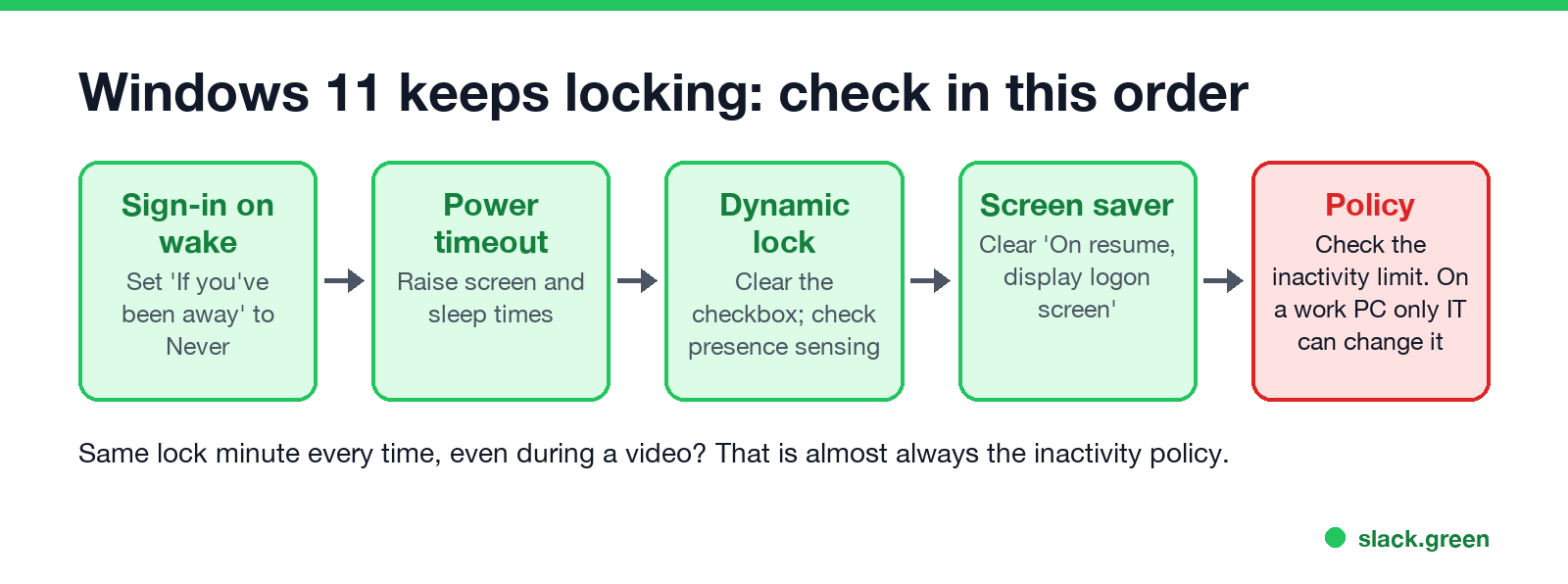
Open Command Prompt and run:
:: Machine inactivity limit, in seconds (set by Group Policy or Intune)
reg query "HKLM\SOFTWARE\Microsoft\Windows\CurrentVersion\Policies\System" /v InactivityTimeoutSecs

:: Screen saver forced by policy
reg query "HKCU\Software\Policies\Microsoft\Windows\Control Panel\Desktop"
Read the results like this:
InactivityTimeoutSecs with a value such as 0x384 means 900 seconds, so a lock after 15 minutes. ERROR: The system was unable to find the specified registry key or value means no such policy.ScreenSaverIsSecure REG_SZ 1 together with ScreenSaveTimeOut means IT forces a screen saver that locks.On your own PC with Windows 11 Pro, you can change the first one in the Local Group Policy Editor. Press Win+R, run gpedit.msc, and go to Computer Configuration, Windows Settings, Security Settings, Local Policies, Security Options, Interactive logon: Machine inactivity limit. Set it to 0 to turn it off. Windows 11 Home has no Group Policy Editor.
On a work PC, leave it alone. Domain or Intune policy overwrites a local change at the next refresh, which runs about every 90 minutes, and editing security settings on a managed laptop can break your company's rules. Ask IT for a longer limit if 15 minutes does not fit how you work.
What does not stop the lock
A few common tips only work against some of the causes above.
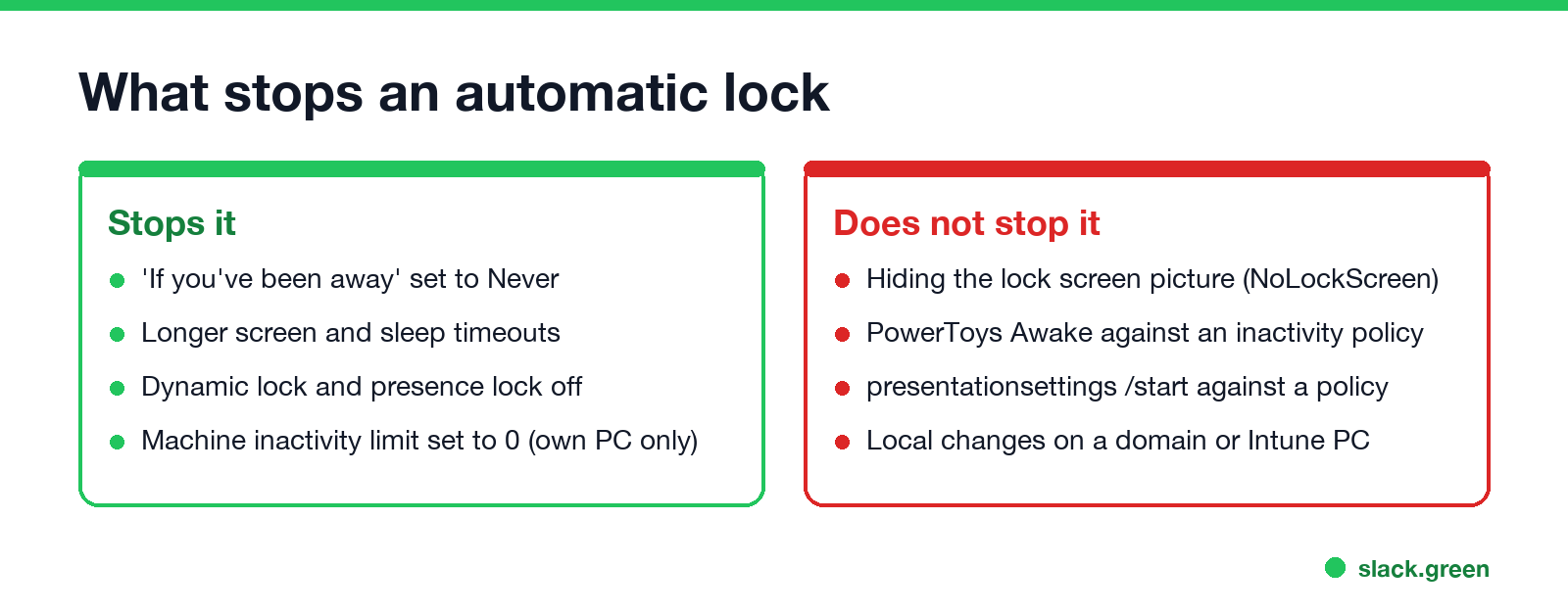
NoLockScreen registry value only removes the picture you see before the sign-in box. The PC still locks and still asks for your PIN.presentationsettings /start stop sleep and screen timeouts. They do not count as input, so a machine inactivity limit still locks the PC on time. More in does PowerToys Awake keep Slack active.For every no-admin way to keep the machine awake, see how to keep a work computer awake without admin rights and the PowerShell keep-awake scripts.
Windows 10: the same fixes, different menus
The powercfg and reg query commands above work the same on Windows 10.
An unlocked PC does not keep Slack or Teams active
Never appear "away" on Slack again
Cloud-based. No downloads. Works 24/7 even when your laptop is off.
Windows locking and chat apps going away are two separate timers. Slack sets you away after about 10 minutes with no input in the Slack window, and Teams shows you away after about 5 minutes of inactivity. A PC that never locks can still show you as away in both. The details are in how long does Slack stay active and how long before Teams shows away.
To keep Slack active without touching the work laptop, Slack Green sets your Slack presence to active from its own servers during your working hours. Nothing runs on your PC, so the lock policy and endpoint monitoring never see it. The Windows-specific options are in how to keep Slack active on Windows. On Linux, the lock settings are in how to stop Ubuntu from locking the screen.
FAQ
Why does Windows 11 lock after 1 minute? The most common cause is a laptop with Modern Standby whose screen timeout is 1 minute on battery, together with "If you've been away" set to Every Time. Raise the battery screen timeout and set the sign-in option to Never.
Why does my PC lock even though every setting says Never? A machine inactivity limit or a forced screen saver set by IT overrides your settings. Run the two reg query commands above to see which.
Does Win+L still work after these changes? Yes. These changes only stop automatic locking. Press Win+L to lock the PC yourself when you walk away.
Is it safe to turn off auto lock? On a home PC in a private room, usually. On a laptop you carry, or any work PC, an unlocked screen lets anyone at the desk read your mail and chats. Lock it by hand with Win+L when you step away.
Stop Jiggling Your Mouse.
Join hundreds of remote workers who never worry about their Slack status. Set it up once, stay green forever.
Related Articles
How to Keep Skype Status Active: Skype for Business Idle Timers
To keep your Skype for Business status active, open Options, Status, and raise both idle timers, Inactive and then Away, from 5 minutes to as much as 360 minutes each. Consumer Skype shut down on May 5, 2025 and Skype for Business Online in 2021, so for most people the real question is now Teams. What still works, status icons, Outlook, and status not updating.
Is It Legal for My Employer to Monitor Me? US, EU and UK Rules
In the US it is mostly legal for an employer to monitor company devices, accounts and premises, often without asking. The limits are state notice laws in New York, Connecticut and Delaware, consent rules for audio recording and biometrics, bans on cameras in restrooms, and your personal devices. The EU, UK and parts of Canada and Australia add notice and proportionality rules.
Can My Employer See My Personal Email on My Work Computer?
Your employer cannot sign in to your Gmail, and doing so without permission can break the Stored Communications Act. But on a work computer, screenshot and keystroke monitoring, browser history, HTTPS inspection and Outlook's local cache can all expose personal email. Work email is fully visible, deleted messages included. Case by case, with what to do.