
Keep a Windows PC Awake With PowerShell: Two Tested Scripts
Keep Windows awake from PowerShell without admin rights: call SetThreadExecutionState to block sleep and screen-off, or press F15 every minute to reset the idle timer. The scripts, how to run and stop them, a powercfg one-liner, and what each does for Teams and Slack.
You can keep a Windows PC awake from PowerShell without admin rights in two ways. The clean one calls the Windows API SetThreadExecutionState to tell Windows the system and display are needed, which blocks sleep and screen-off while the script runs and sends no input. The other presses the F15 key every minute with SendKeys, which resets the idle timer, so it also keeps Microsoft Teams green. Neither keeps Slack green: Slack counts only input inside its own window, so an F15 press helps only while Slack is the focused window.
If a green Slack dot is the goal, a script on the PC is the wrong tool. Slack Green keeps your Slack presence active from its own servers during the working hours you set, and the PC can sleep.
Script 1: block sleep with SetThreadExecutionState
This asks Windows to keep the system and display on, the same mechanism video players use. It creates no keyboard or mouse input.
# keepawake.ps1 - keeps Windows and the display awake until you press Ctrl+C
$sig = '[DllImport("kernel32.dll")] public static extern uint SetThreadExecutionState(uint esFlags);'
$power = Add-Type -MemberDefinition $sig -Name 'Power' -Namespace 'Win32' -PassThru

# ES_CONTINUOUS (0x80000000) | ES_SYSTEM_REQUIRED (0x1) | ES_DISPLAY_REQUIRED (0x2)
$null = $power::SetThreadExecutionState([uint32]2147483651)
Write-Host "Keeping this PC awake. Press Ctrl+C to stop."
try {
    while ($true) { Start-Sleep -Seconds 60 }
} finally {
    $null = $power::SetThreadExecutionState([uint32]2147483648)   # ES_CONTINUOUS: back to normal
}
Check it works: in a second PowerShell window run powercfg /requests. PowerShell appears under DISPLAY and SYSTEM while the script runs.
Script 2: press F15 every minute
F15 is a key no keyboard has, so most apps ignore it, but Windows counts it as input.
# f15.ps1 - presses F15 once a minute until you press Ctrl+C
$shell = New-Object -ComObject WScript.Shell
while ($true) {
    $shell.SendKeys('{F15}')
    Start-Sleep -Seconds 60
}
Because it is input, it resets the idle timer that Teams uses, so Teams usually stays Available. It sends the key to whatever window is in focus. Software input like this is marked as injected by Windows and can be seen by monitoring tools; see can a mouse jiggler be detected.
How to run and stop a PowerShell keep-awake script
Never appear "away" on Slack again
Cloud-based. No downloads. Works 24/7 even when your laptop is off.
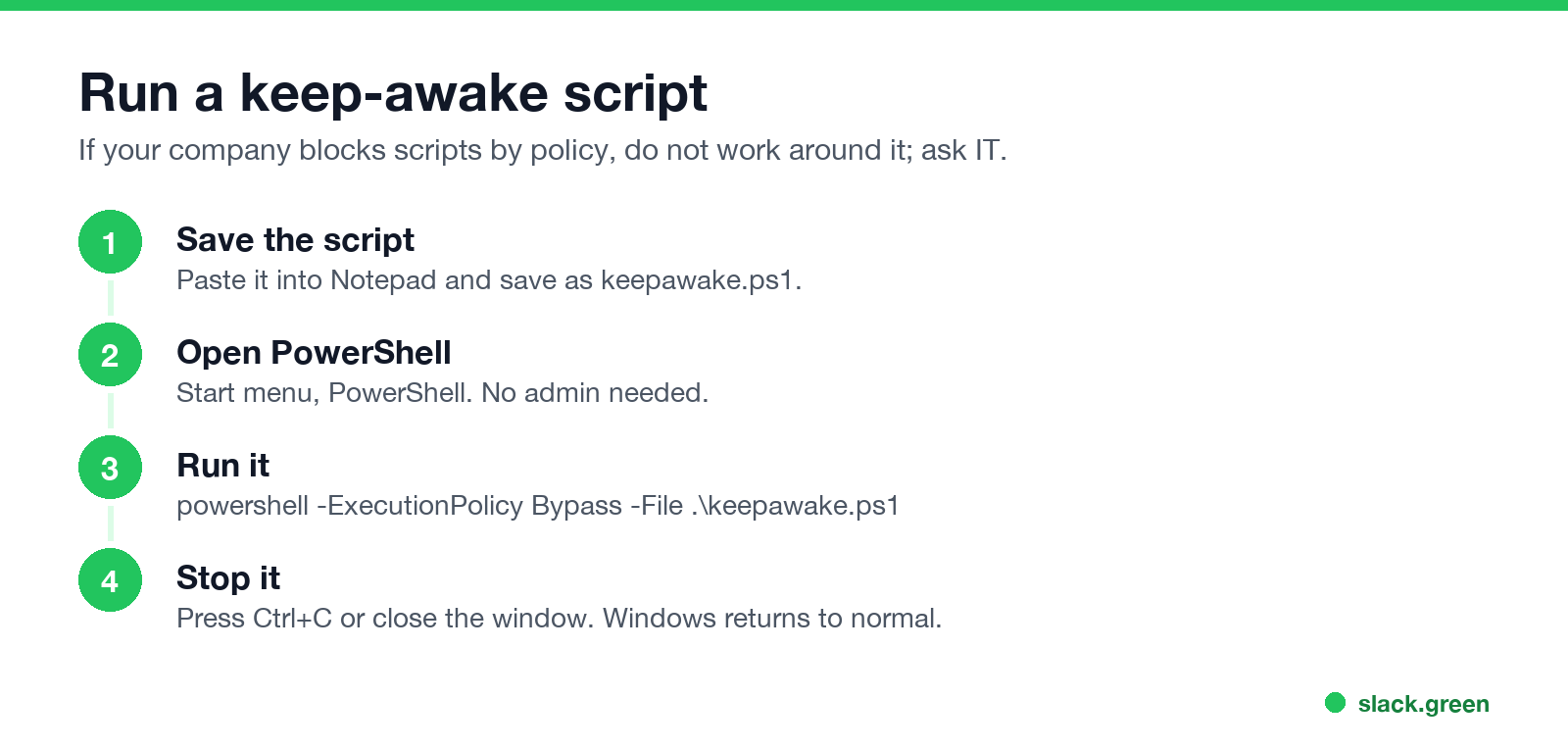
- Paste a script into Notepad and save it as
keepawake.ps1. - Open PowerShell (no admin needed) and go to the folder.
- Run:
powershell -ExecutionPolicy Bypass -File .\keepawake.ps1 - Press Ctrl+C or close the window to stop. Windows goes back to its normal power settings.
If your company blocks PowerShell scripts, do not work around the policy. Use the settings or tools in keep a work computer awake without admin rights instead.
Batch and cmd: change the timeouts instead
To stop sleep while plugged in, without a running script:
powercfg /change standby-timeout-ac 0
powercfg /change monitor-timeout-ac 0
0 means never. Set them back later with the minutes you want, for example powercfg /change standby-timeout-ac 30. On a managed PC these may be locked by policy.
Which script to use
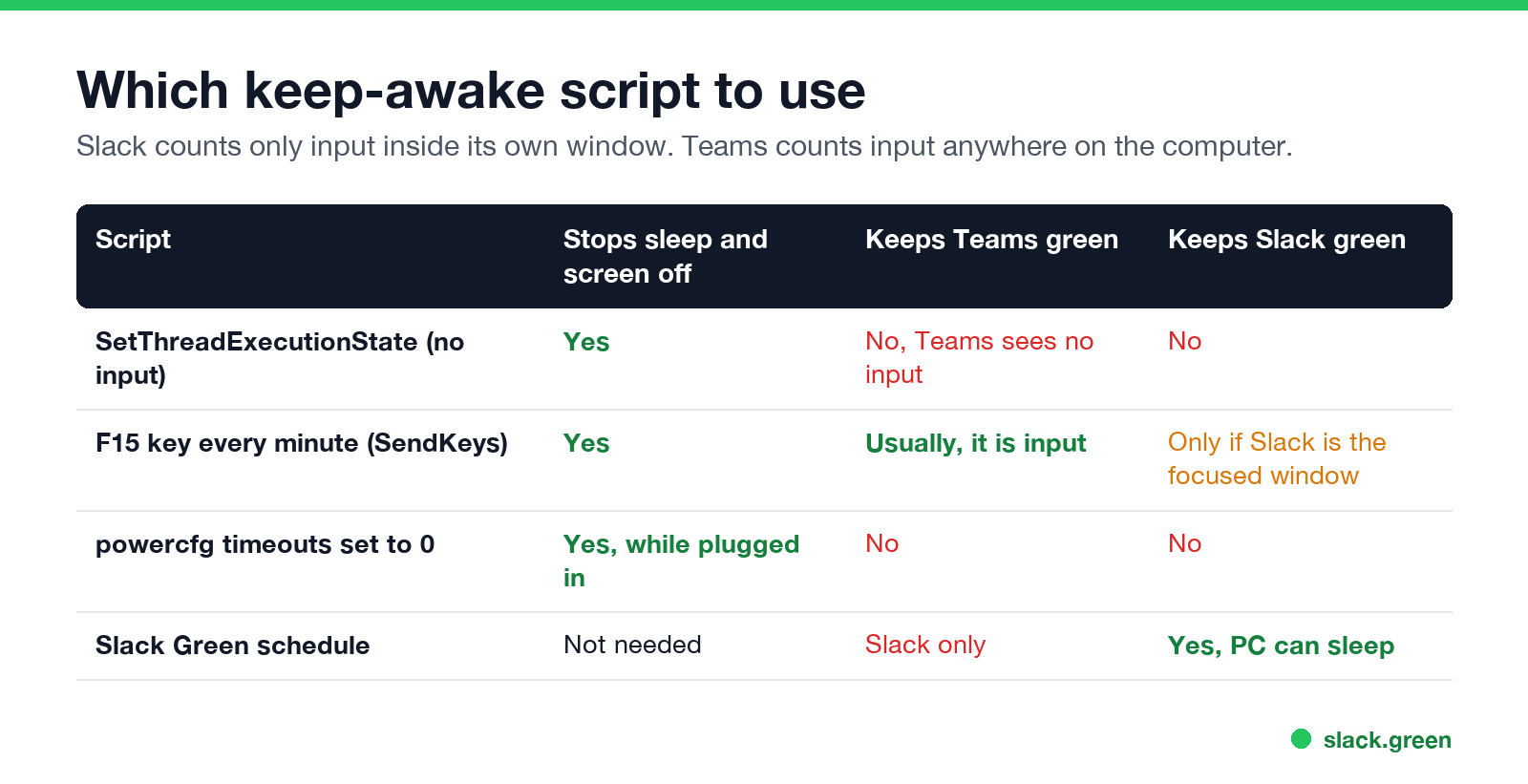
| Script | Stops sleep | Teams green | Slack green |
|---|---|---|---|
| SetThreadExecutionState | Yes | No | No |
| F15 every minute | Yes | Usually | Only with Slack focused |
| powercfg timeouts | Yes, plugged in | No | No |
| Slack Green schedule | Not needed | No, Slack only | Yes |
For Teams timings see how long before Teams shows you as Away. For Slack, the rules are in how long does Slack stay active, and Windows options in keep Slack active on Windows. The ready-made app equivalent of script 1 is PowerToys Awake; see does PowerToys Awake keep Slack active.
FAQ
Never appear "away" on Slack again
Cloud-based. No downloads. Works 24/7 even when your laptop is off.
How do I keep my computer awake with PowerShell?
Run a script that calls SetThreadExecutionState with the system and display flags, or one that presses F15 every minute.
Does a PowerShell script keep Teams green?
The F15 script usually does, because it is input. The SetThreadExecutionState script does not.
Does a PowerShell script keep Slack active?
No, unless the Slack window is focused and receives the keypress. Slack counts only input in its own window.
Do I need admin rights?
No, unless your company blocks PowerShell scripts.
How do I stop the script?
Press Ctrl+C or close the PowerShell window.
Stop Jiggling Your Mouse.
Join hundreds of remote workers who never worry about their Slack status. Set it up once, stay green forever.
Related Articles
Slack Workflow Builder Examples: 12 Workflows to Copy, With Triggers and Steps
Twelve Slack Workflow Builder examples with the exact trigger and steps for each: daily standups, channel welcomes, time-off approvals, help desk requests, emoji escalations, keyword routing, incidents, list updates and webhooks from other tools. Plus where Workflow Builder lives, what it costs and how branches work.
Slack Timer: How to Set a Countdown, Pomodoro or Focus Timer in Slack
Slack has no built-in timer, but four built-in tools act like one: /remind me to ... in 25 minutes, a status that clears itself, /dnd for a focus block, and Workflow Builder for dated countdowns. For a live countdown in a channel, use a Marketplace app or a 15-line bot script.
Slack Saved for Later: Where the Later Tab Is and How It Works
Saved messages in Slack live in the Later tab, which replaced stars and Saved items in 2023. Hover a message and click Save for later, or press A. Add a reminder, mark items complete, and find them with is:saved. Where Later is on desktop and mobile, and what changed.