Back to Blog
Guide

Can a Mouse Jiggler Be Detected? What IT and Monitoring Tools See

Yes, in most setups. Software jigglers show up as a running app and as injected input. USB jigglers show up as a second mouse in device logs. All of them leave an activity pattern. What each tool sees, with the queries IT uses.

Slack Green Team
September 23, 2026
October 7, 2026
16 min read
Share:
mouse jiggler
employee monitoring
slack presence

Yes, a mouse jiggler can be detected, and how depends on the type. A software jiggler shows up as a running app, and on Windows its cursor movement carries an "injected" flag that any monitoring agent can read. A USB jiggler shows up as a second mouse in the device logs of a managed laptop. A mechanical platform that moves your real mouse leaves no device trace, but it still produces a pattern: a cursor that moves on a timer while the keyboard stays silent. No type hides the last signal, which is the work itself.

This is not a theory. In May 2024 Wells Fargo fired more than a dozen employees in its wealth and investment management unit. Its filings with FINRA, reported by Bloomberg, gave the reason as "simulation of keyboard activity creating impression of active work".

Most people who search this want one thing: a green dot in Slack or Teams while they read, think, or step away. A jiggler is a risky way to get it, and it covers less than people expect. More on that at the end.

Can a mouse jiggler be detected: software, USB and mechanical jigglers each leave a different trace

The three kinds of mouse jiggler, and the trace each leaves

TypeHow it worksMain trace
Software jigglerAn app that moves the cursor with system callsA running process, and input marked as injected
USB jigglerA dongle that tells the computer it is a mouseA second mouse in the device list and endpoint logs
Mechanical platformA small turntable or arm that moves your real mouseNo device trace, only the activity pattern
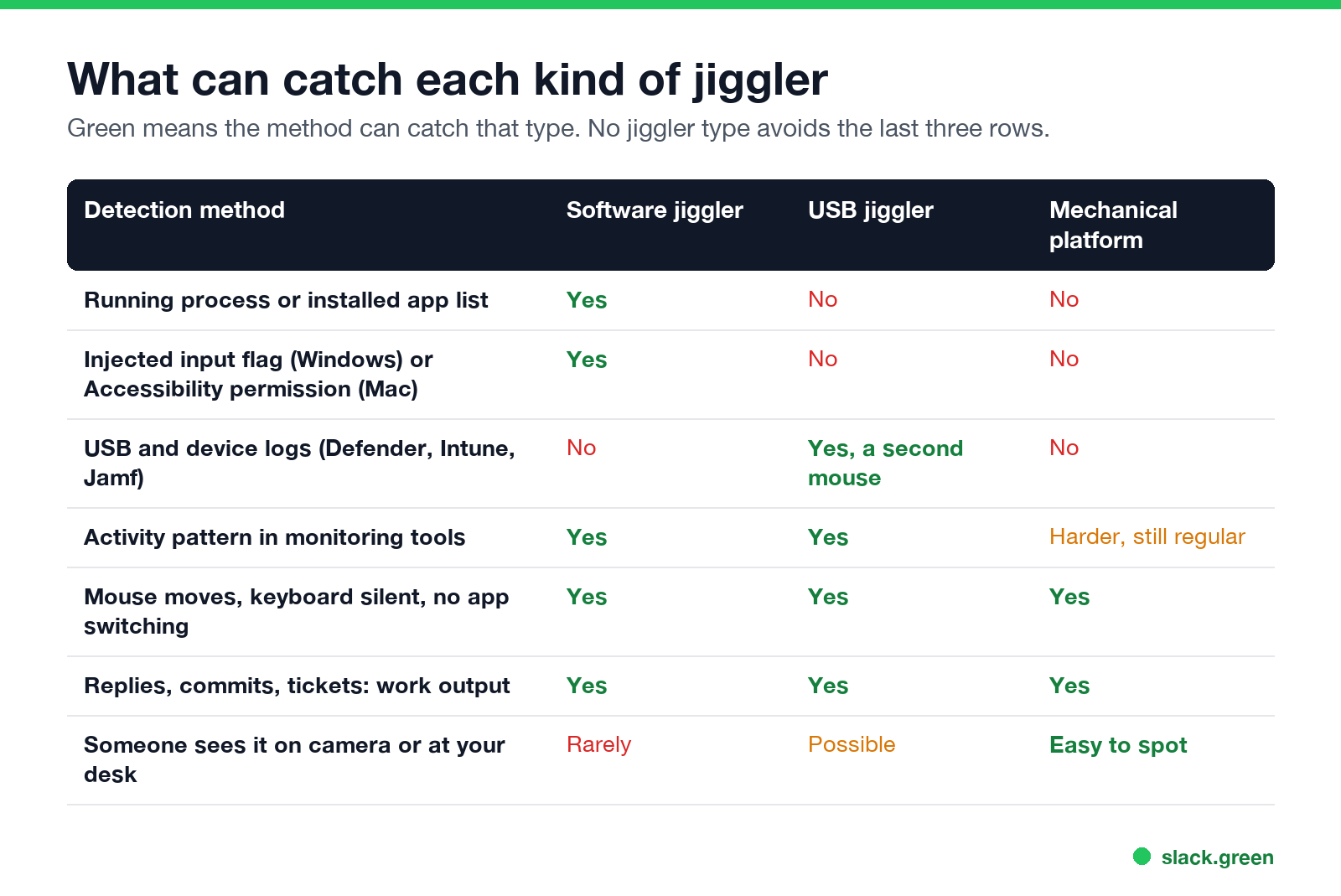
What can catch each kind of mouse jiggler: process lists, injected input, USB logs, patterns, output

The table shows the pattern. Hardware beats the checks that look at the computer. It does not beat the checks that look at behavior, and those are the ones monitoring products sell. The same checks from the IT side, with a script that flags tiny moves on a fixed timer, are in how to detect a mouse jiggler.

Can a software mouse jiggler be detected?

Yes, and it is the easiest type to catch. Three separate checks find it.

The app list. A managed laptop reports its installed apps and running processes to IT through tools such as Microsoft Intune, Jamf, or an endpoint security agent. A process called Mouse Jiggler, Move Mouse or Caffeine stands out. The Arkane Mouse Jiggler README itself says it is easily detectable; see Mouse Jiggler for Windows. In a Microsoft community thread, an admin running Defender for Endpoint wrote that they had seen apps like Caffeine detected and asked how to catch the physical kind.

The injected input flag. On Windows, software creates mouse movement with the SendInput call. Windows marks every such event as injected. Any program with a low-level mouse hook, which is what monitoring agents use, can read the mark:

LRESULT CALLBACK LowLevelMouseProc(int nCode, WPARAM wParam, LPARAM lParam) {
    MSLLHOOKSTRUCT *m = (MSLLHOOKSTRUCT *)lParam;
    if (m->flags & LLMHF_INJECTED) {
        /* this movement came from software, not from a mouse */
    }
    return CallNextHookEx(NULL, nCode, wParam, lParam);
}

The permission on a Mac. On macOS, an app that moves the cursor needs Accessibility access. The app is listed in System Settings, under Privacy & Security, then Accessibility, and MDM tools can report that list.

Browser extensions that claim to keep you active sit in the same bucket. Managed browsers report installed extensions, and the best-known Slack ones were removed from the Chrome Web Store in 2024. The details are in Slack Chrome extensions.

Can a USB mouse jiggler be detected?

Yes, on a managed computer. A USB jiggler works because it tells the computer it is a mouse. That is also how it is found: the computer now has a mouse it keeps a record of.
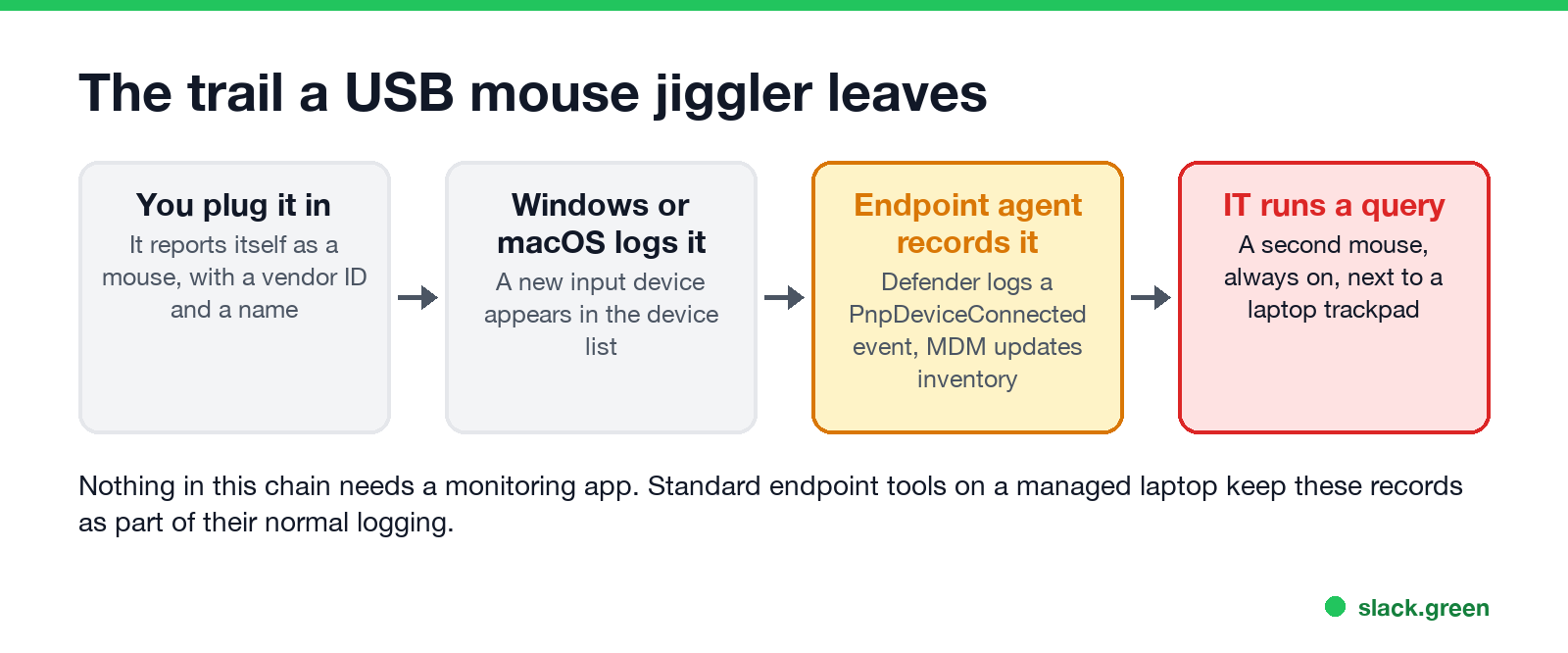
The trail a USB mouse jiggler leaves: device list, endpoint log, IT query

You can see what your own computer reports. On Windows, in PowerShell:

Get-PnpDevice -Class Mouse -PresentOnly | Format-Table FriendlyName, InstanceId

On a Mac, in Terminal:

system_profiler SPUSBDataType

Each line of the output is a device with a name and a vendor ID (the VID_ part of the Windows InstanceId). A laptop with a trackpad and one extra mouse that never stops moving is easy to spot in that list.

On company laptops with Microsoft Defender for Endpoint, every new device is logged as an event. Security teams search those events with a query like this one:

DeviceEvents
| where ActionType == "PnpDeviceConnected"
| extend DeviceDescription = tostring(parse_json(AdditionalFields).DeviceDescription),
         VendorIds = tostring(parse_json(AdditionalFields).VendorIds)
| project Timestamp, DeviceName, DeviceDescription, VendorIds

Sellers call some models "undetectable" because they report a generic mouse name or copy the vendor ID of a common mouse maker. That hides what the device is. It does not hide that a device was plugged in, and the pattern checks below still apply.

Two limits apply. First, nobody reads these logs by hand every day. They are pulled when a manager or HR asks IT to look at one person. Second, a personal computer with no company software reports nothing to anyone. Every other way a company watches remote staff is in how do employers monitor remote workers.

Can a mechanical mouse mover be detected?

Not from the computer. A platform that spins your real mouse, or an arm that nudges it, sends normal input from a normal mouse. No new device, no injected flag, no app.

It is still found in two ways. The movement is regular, often a small circle every few seconds, and it comes with no keyboard input at all. And it is easy to see: on a video call, at a hot desk, or when a coworker walks by.

Can monitoring software like Teams or Time Doctor detect a mouse jiggler?
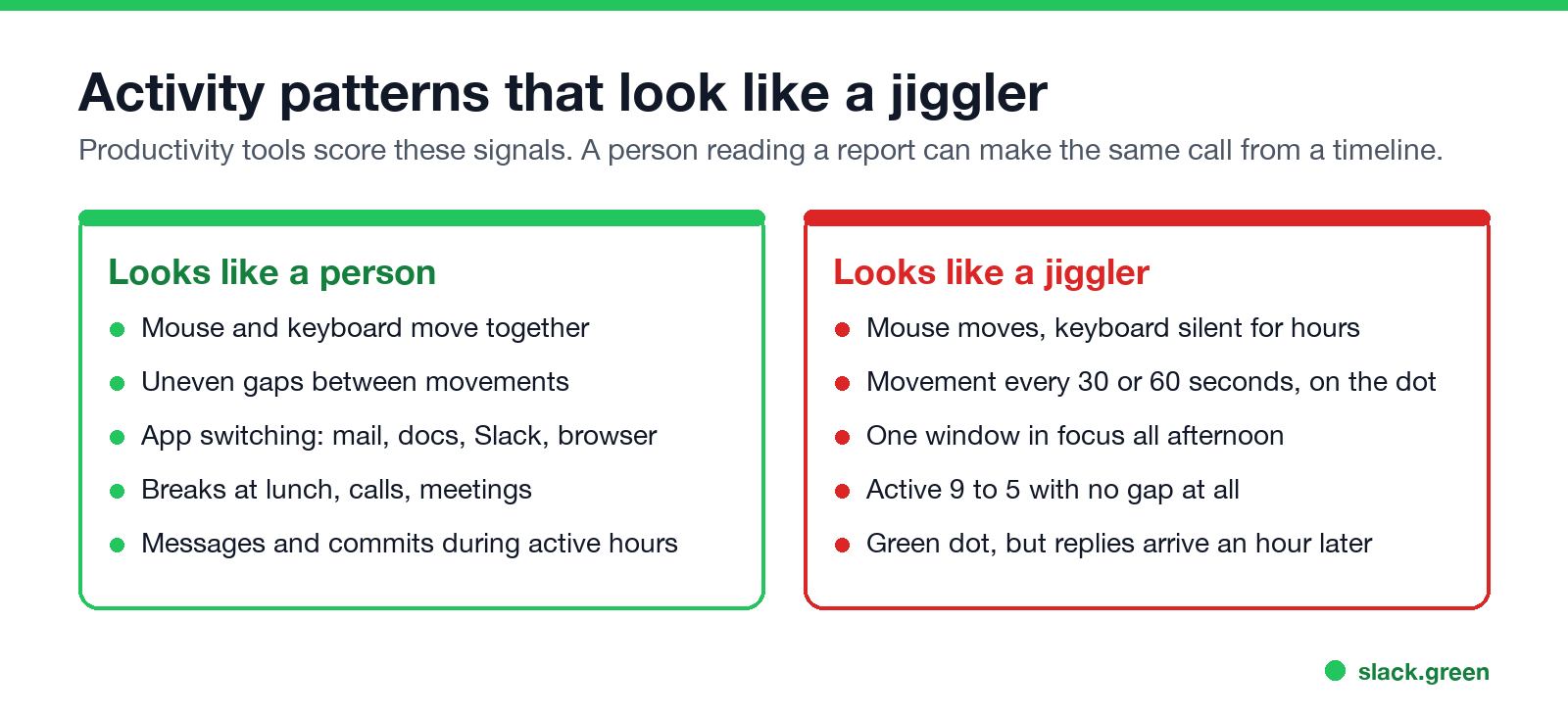
Activity patterns that look like a person and patterns that look like a mouse jiggler

Microsoft Teams and Slack do not look for jigglers. They only decide whether you are active. Teams sets you to away after 5 minutes of inactivity. Slack sets you to away after 10 minutes with no keyboard or mouse input on the computer. Neither app reports a jiggler to your manager. The risk sits in the rest of the Microsoft 365 or security stack your company runs, such as Defender, Intune, and sign-in logs. CrowdStrike works the same way; see can CrowdStrike detect a mouse jiggler.

Monitoring tools such as Time Doctor, Hubstaff, ActivTrak and Teramind record activity over time. They log which app is in focus, how much keyboard and mouse input there was, and, depending on setup, screenshots. ActivTrak goes further and documents three built-in jiggler checks, covered in can ActivTrak detect a mouse jiggler; how it splits your time into Active, Passive and Inactive is in ActivTrak idle time below. Some tools keep a middle ground: Sapience logs time-stamped mouse and keyboard use with the app and window title, but no keystrokes or screenshots; see does Sapience track mouse movement below. Plain timesheet apps are different: Harvest records only the hours you log and an idle prompt that goes to you, as covered in does Harvest track mouse movement below. DeskTime sits in between, with an idle timer, an app timeline and optional screenshots; see can DeskTime detect a mouse jiggler. From a monitoring tool's record a jiggler looks like the right-hand column above:

  • • The mouse moves and the keyboard is silent for hours.
  • • The movement comes every 30 or 60 seconds, on the dot.
  • • One window stays in focus all afternoon.
  • • The day has no breaks at all.

Hubstaff publishes its exact thresholds, such as mouse use with the keyboard near 0% for over 50 minutes; they are listed in can Hubstaff detect a mouse jiggler. Teramind flags inorganic input with its OMNI feature and keeps screen recordings; see can Teramind detect a mouse jiggler below. On Upwork, the Work Diary screenshots do the same job, as shown in can Upwork detect a mouse jiggler.

Screenshots taken on a timer make it simpler: the same screen, with the cursor in a slightly different place, forty times in a row.

ToolDetects jigglers?How
TeramindYesOMNI input anomalies, screen recordings
ActivTrakYesKnown jiggler apps, repetitive input, 45+ minutes on one screen
HubstaffYesKnown jiggler apps, automated-looking input, 50+ minutes of mouse with no keyboard
InsightfulSoftware jigglers onlyKnown apps and repetitive input; its FAQ says USB jigglers are not detected
DeskTimeNo documented detectorNone; the app timeline and random screenshots show one unchanged window
HarvestNoRecords no mouse or app data; only an idle prompt to you

Your manager needs none of this. A green dot and a reply an hour later tells them what a log would. Most "fired for a mouse jiggler" stories on Reddit start with a question about slow replies, not with an IT alert.

Can Insightful detect a mouse jiggler?

For software, yes. Insightful, the monitoring tool formerly called Workpuls, has an Irregular Behavior Alert that checks each finished shift against "a maintained list of known activity-simulation software, plus behavioral signals like unusually precise or repetitive input", in Insightful's words. Its FAQ is just as plain about hardware: the alert "doesn't detect physical or hardware jiggler devices, since those register as ordinary mouse movement."

Jiggler typeIrregular Behavior AlertWhat else Insightful records
Software app (Mouse Jiggler, Move Mouse)Yes, from the known-app listThe app in App and Website Usage
Script (PowerShell, AutoHotkey, Python)Likely, from the repetitive-input signalThe script host running as an app
Auto-clickerYes, named in Insightful's FAQClicks at fixed intervals
USB dongle or mechanical platformNo, per Insightful's FAQMouse-only activity, one window for hours, the same screenshot if screenshots are on

The alert does not fire while you work. Insightful compiles results "starting about two hours after midnight" in the company's time zone and sends managers one digest at 8 AM for the day before. From the alert the manager opens the Logs view: the activity timeline, the activity logs, and screenshots if they are enabled. Insightful calls a flagged case "a starting point, not a verdict". In June 2025 it also announced Activity Verification, which it says tells real input from simulated input "with 99% accuracy"; that figure is Insightful's own claim.

Does Sapience track mouse movement?

Yes, as activity, not as a path. Sapience's privacy page says its desktop collector records "time-stamped physical device interactions (including keyboard and mouse engagement)" with the active app's name, the website's top-level domain and the window title. The same page says it does not collect individual keystrokes, mouse click data, screenshots, screen scraping, or camera and video captures. Employees often call the desktop agent "Sapience Buddy".

Sapience's employee help center defines what managers see. Idle time between your first and last activity that is not a meeting is Unaccounted Time, and a continuous idle stretch of 3 hours or more is left out. If you are away from the computer for 5 minutes during an accepted meeting, that time counts as the meeting. Apps and sites your company did not map to work count as Private. Managers get a daily timeline that lists each app and URL in time order.

Neither the privacy page nor the help center mentions jigglers, as of our reading on 28 September 2026. A jiggler removes the idle gap and nothing else: the window title stays the same for hours, a non-work window still counts as Private, and the keyboard stays silent in a record that logs keyboard and mouse use separately.

Never appear "away" on Slack again

Cloud-based. No downloads. Works 24/7 even when your laptop is off.

Can Teramind detect a mouse jiggler?

Yes. Teramind's own guide, "How to Detect Employees Using Mouse Jigglers with AI", says its OMNI feature "detects instances of mouse jigglers and automated key-pressing". Managers filter OMNI's feed by activity falsification, then inorganic mouse activity, to see "synthetic mouse or keyboard movements", and they can open the session player to watch the screen recording from the time the jiggler ran.

OMNI is Teramind's machine-learning layer that shows outliers as cards in a feed. The guide names speed, acceleration, click rate and cursor path as its data points: human mouse use "tends to reflect inconsistent direction and timing", while jigglers "create unnaturally consistent and repetitive activity". Automated key presses are in scope too, so a keyboard jiggler that presses F15 every minute gets the same check; the scripts people use are in keyboard jiggler.

What Teramind recordsSoftware jigglerUSB jiggler
OMNI input patternFlaggedCan be flagged, depending on how random the movement is
Screen recordingThe screen does not changeThe screen does not change
App and website logsNothing changes for hoursNothing changes for hours
Running applicationsThe jiggler app is listedNo app to list
Keystrokes and OCRNo typing, no new textNo typing, no new text

A USB jiggler gives application monitoring no program to find, and Teramind's materials describe finding jigglers by input pattern and recordings, not by the device's hardware ID. The recording is the check no jiggler passes: a manager who replays the period sees a cursor drifting over an unchanged window. A jiggler turns idle minutes into active minutes on Teramind's raw clock and keeps the lock off, and changes nothing about the screen, the apps or the keystrokes. Teramind's guide also tells employers to write a policy against jigglers with set consequences, so a flag can turn into a disciplinary case.

ActivTrak idle time: Active, Passive and Inactive

ActivTrak does not use one idle timer. It sorts your screen time into three states. Active is time with keyboard or mouse input. After 2 minutes with no input your time turns Passive, and those first 2 minutes still count toward the app you were using. After 5 more minutes of Passive time, 7 minutes in all, it turns Inactive and ActivTrak stops counting until the next input. A locked or sleeping computer is recorded apart, as Passive Locked.

ActivTrak timeline for one break: Active until the last input, 2 minutes still Active, 5 minutes Passive, then Inactive
StateDefault timingCounted in reports?
ActiveFrom each inputYes
Passive2 to 7 minutes after the last inputYes, in summary views, under the last app's label
InactiveFrom 7 minutes after the last inputNo, a gap on the timeline
Passive LockedWhile the computer is locked or asleepShown separately

Passive time keeps the label of the last thing you did. Go quiet in Gmail, rated Productive, and the Passive minutes count as Productive Passive; go quiet on YouTube and they count as Unproductive Passive. That is why the same day shows two productivity scores. The summary view counts Productive Active plus Productive Passive time, and the detailed view counts Productive Active time only.

An admin sets the limits in Settings, Account Configuration, Data, Passive Time Settings (start and stop, with a stop of 0 to 30 minutes or indefinite) and Active Time Settings. Changes are not retroactive, each one is written to the security audit log as UpdatePassiveSettings or UpdateActiveTimeSettings, and the agent on your computer has no setting for it. If the company turns on Offline Meetings, Inactive time during a meeting on your calendar counts as meeting time.

A jiggler keeps the Active state going, but two defaults work against it. ActivTrak stops counting Active time after 60 minutes on a single activity, so a window left open for hours does not collect hours of Active time. And its jiggler detection drops flagged time from standard reports, as covered in can ActivTrak detect a mouse jiggler. Time trackers work differently: in Clockify, idle detection only asks you whether to keep the time; see does Clockify track idle time.

Can DeskTime detect a mouse jiggler?

DeskTime has no documented jiggler detector. Its help center names no check for jiggler apps or simulated input, unlike Hubstaff, ActivTrak and Teramind. A jiggler does beat DeskTime's idle timer, which marks you idle after more than 3 minutes without mouse or keyboard input; DeskTime defines idle time as a gap that "appears when there haven't been any actions on the computer for more than 3 minutes". That is where the trick ends, because DeskTime also records which app is in front and can take screenshots.

DeskTime recordWhat it measuresWith a jiggler running
Idle timeGaps of more than 3 minutes without input (admins can raise the limit)Gone. The jiggler's moves count as input
Apps and URLsThe app, website and window title in frontOne app or one tab for the whole stretch
Productivity barYour day in 5-minute blocks, colored by productivityThe same app, block after block
Screenshots, if onA capture at a random moment every 3 to 30 minutesThe same screen each time, or an empty desktop
Suspicious screenshotsFlags captures that show unproductive appsFlagged if the window left in front is not a work app

DeskTime uses mouse and keyboard activity only to decide active or idle. It does not log keystrokes or where the pointer goes, so it cannot see that the keyboard sat still while the mouse moved. A person reading the report can: an hour on one unchanged window, and random screenshots of the same screen, give a jiggler away. Employees can delete their own suspicious screenshots where the company allows it, but the timestamp and app name stay in the timeline as a "Deleted screenshot" entry.

If meetings or calls are what show up as idle, DeskTime has settings for that: admins can count meeting apps as productive time, you can add offline time with a category, and admins can raise the 3-minute limit. Those leave a record that matches what you did.

Does Harvest track mouse movement?

No. Harvest records no mouse movement, no keystrokes and no screenshots, and it does not log which apps or websites you use; its "activity monitoring and tracking FAQ" answers "No" to each of these. Harvest is a timesheet and invoicing tool. It knows the project, task, notes and hours you enter, and when timers start and stop.

The only place Harvest looks at your input is the idle check in its Mac and Windows apps. If a timer runs and the computer gets no input for 10 minutes (the default, changeable in the app's settings), the app asks you whether to remove those minutes, move them to a new entry, or keep them. That prompt appears on your screen. It is not a report to your manager. Harvest's own list of limits says the idle check "can't differentiate accidental mouse movements" from normal activity.

Managers and administrators see your time entries and the timesheet activity log (Reports, Activity log, Timesheets): new and deleted entries, each timer start and stop, and edits to hours, with who made each change. They cannot see what was on your screen. A jiggler only stops the idle prompt from appearing; the hours still have to match the work you deliver.

Does a mouse jiggler keep Slack active at all?

For the Slack desktop app, yes, while the computer is awake and unlocked: the app counts mouse movement anywhere on the computer (Slack desktop 4.52.178 code, checked 7 Oct 2026). It does not cover sleep, a screen lock, a closed lid, Slack on your phone, or a company policy that locks the screen after a set time. The full comparison is in a server-side presence tool vs a mouse jiggler, and what Slack itself records about your activity is in does Slack track mouse movement. Behind a lock screen it does nothing at all, as shown in does a mouse jiggler work when the computer is locked.

So a jiggler used for Slack can carry the risks above and still show you as away.

A way to stay green in Slack with nothing on your computer

If the goal is a green dot in Slack while you step away, you do not need anything on the computer. A presence tool that runs on a server keeps your Slack session active during your working hours, with no app, extension, USB device or injected input on the laptop, and it works with the lid closed.

What it does not change: your company can still read Slack access logs on paid plans, and your output is still your output. We cover what each side can see in whether a presence tool can get you caught. If you are comparing every option, including jigglers, start with how to keep Slack active, or read how to stay active on Slack without touching your mouse.

FAQ

Can my employer detect a mouse jiggler?

On a company laptop, usually yes. Software jigglers show up as apps and as injected input. USB jigglers show up as an extra mouse in device logs. Every type shows up in activity patterns if your employer runs monitoring software. On a personal computer with no company software, only the pattern and your output are visible.

Are mouse jigglers actually undetectable?

No. "Undetectable" in a product listing means the device reports a generic mouse name. The device is still in the logs, and the regular movement with no typing is still in any activity record.

Can Teams tell if you are using a mouse jiggler?

Teams itself only sees that you are active. It does not flag jigglers. Other Microsoft tools your company may run, such as Defender for Endpoint and Intune, can log the USB device or the app. Whether a jiggler keeps Teams green at all, by platform, is in does a mouse jiggler work for Teams.

Can Time Doctor detect a mouse jiggler?

Time Doctor records app use, input activity and, if enabled, screenshots. A jiggler produces mouse input with no keyboard input and no app changes, which is visible in those reports. Its Unusual Activity Report flags the pattern directly; see can Time Doctor detect a mouse jiggler.

Has anyone been fired for using a mouse jiggler?

Yes. In 2024 Wells Fargo fired more than a dozen employees after reviewing "simulation of keyboard activity creating impression of active work", according to its FINRA filings reported by Bloomberg. Whether using one is legal, and where the job risk sits, is in is it illegal to use a mouse jiggler.

Which mouse mover is not detectable by IT?

A mechanical mover leaves no device trace, but it leaves the same activity pattern as every other jiggler.

Always Active

Stop Jiggling Your Mouse.

Join hundreds of remote workers who never worry about their Slack status. Set it up once, stay green forever.

Related Articles

Guide

Slack Bot Scopes: The Scope Each API Method Needs, Measured on 44 Methods

We gave a Slack bot one scope, called 44 common Web API methods, and read the needed field of every missing_scope error. Then we added the scopes and called them again. The table shows which scope clears each method.

Slack Green Team
Guide

Slack File Size Limit: 1 GB Is Exactly 1,073,741,824 Bytes, Tested

We uploaded files of 50 MB, exactly 1 GiB and 1 GiB plus one byte to Slack through its upload API. The limit is 1,073,741,824 bytes, and a failed upload can still leave a broken file behind.

Slack Green Team
Guide

Slack Dark Mode: Where the Setting Is, and Which Custom Emoji Disappear

Slack's dark mode is under Preferences > Appearance > Color Mode, with Light, Dark and System. We switched modes in Slack web with three test emoji and measured which ones vanish.

Slack Green Team