
Does a Mouse Jiggler Work for Teams? Yes, on Desktop Only
A mouse jiggler keeps Microsoft Teams green on a Windows or Mac computer, because Teams counts input from the whole system. It does nothing for the phone app, and Teams on the web needs one setting first.
Yes, a mouse jiggler works for Microsoft Teams on a Windows or Mac computer. Teams sets you to Away after a few minutes without keyboard or mouse input anywhere on the computer, and a jiggler creates that input. So your dot stays green while the jiggler runs, the screen stays unlocked and the computer stays awake. It does not work for the Teams phone app, which shows Away as soon as the app goes to the background. On Teams in a browser it works only after you turn on one presence setting.
A jiggler cannot beat the statuses Teams takes from your calendar and calls, and it leaves a trace on a company laptop. Both are covered below. Slack follows a different rule: it counts only input inside the Slack window, so the same jiggler often lets your Slack dot go grey. For Slack, Slack Green keeps your presence active from a server during the hours you set, with nothing installed on your computer.
Why a mouse jiggler keeps Teams green
Microsoft's presence documentation gives three rules for a computer:
- • You become Away if you are inactive for a few minutes, or right away when the computer locks.
- • You become Offline when the computer goes to sleep.
- • If you are signed in on two devices, the one you used most recently sets your status.
"Inactive" means no keyboard or mouse input on the whole computer, not only in the Teams window. Typing in Word or scrolling a web page keeps you green. A mouse jiggler moves the pointer, or tells the system it moved, every few seconds. Windows and macOS count that as input, the idle timer never reaches the few-minute mark, and Teams keeps you Available. The same input also stops the screen saver and most inactivity locks, which removes the second cause.
The limit is about 5 minutes on a computer; the timings for each device are in how long before Teams shows you as Away.
Does it work on every version of Teams?
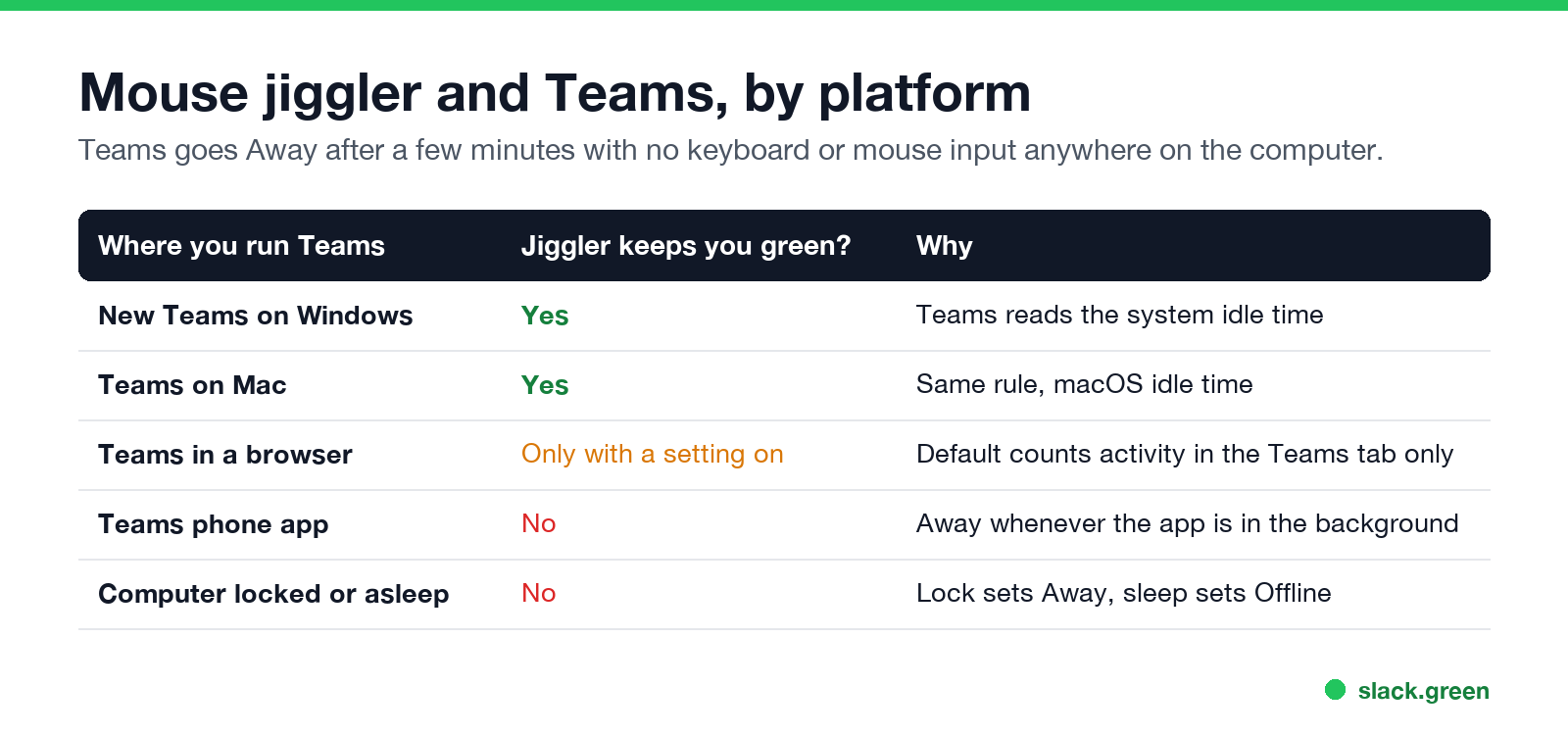
| Where you run Teams | Does a jiggler keep you green? | Why |
|---|---|---|
| New Teams on Windows | Yes | Teams reads the system idle time |
| Teams on Mac | Yes | Same rule, macOS idle time |
| Teams in a browser | Only with a setting on | By default Teams on the web counts activity in its own tab |
| Teams phone app | No | Away whenever the app is in the background |
| Computer locked or asleep | No | Lock sets Away, sleep sets Offline |
Teams on the web. Microsoft added a setting for people who work in other tabs. In Teams on the web, go to Settings, Notifications and activity, Presence, and turn on Keep my current status when I'm active outside of Teams on the web. The browser asks for permission to detect your activity; select Allow. After that, input anywhere on the computer, jiggler included, keeps you green.
The phone app. A jiggler has nothing to move on a phone. Teams sets you Away the moment the app goes to the background, and Offline after 24 hours. Keeping the phone app open with the screen on is the only thing that helps; does Teams stay green on mobile has the details.
Two devices. If your phone was used last, it sets your status, and the phone app in your pocket reads as Away. A jiggler on your laptop makes the laptop the most recent device again within seconds.
Which kinds of mouse jiggler work for Teams
Never appear "away" on Slack again
Cloud-based. No downloads. Works 24/7 even when your laptop is off.
Anything that creates keyboard or mouse input works. Anything that only keeps the computer awake does not.
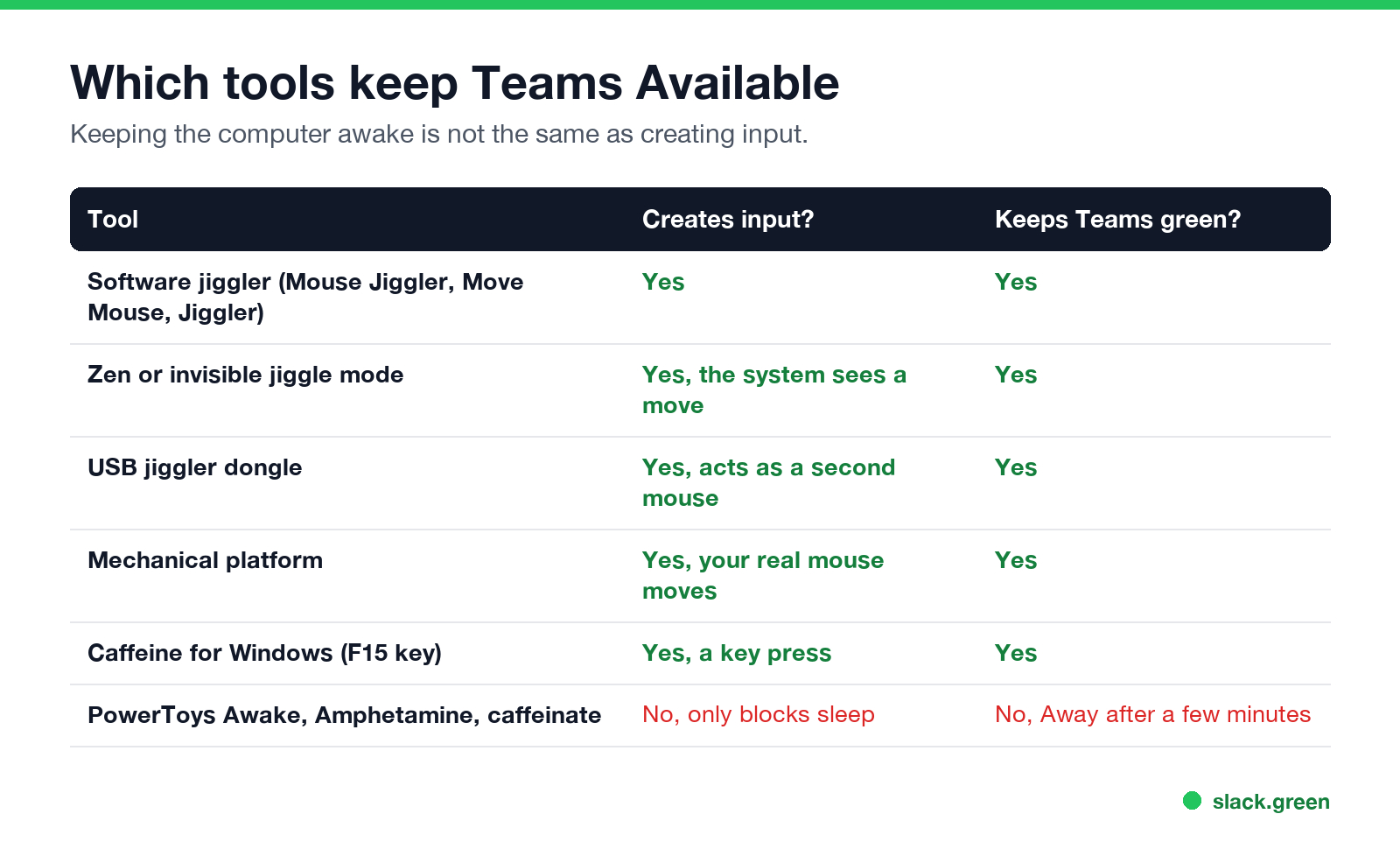
| Tool | Creates input? | Keeps Teams green? |
|---|---|---|
| Software jiggler that moves the pointer (Mouse Jiggler, Move Mouse, Jiggler for Mac) | Yes | Yes |
| "Zen" or invisible jiggle mode | Yes, the system sees a move | Yes |
| USB jiggler dongle | Yes, it acts as a second mouse | Yes |
| Mechanical platform under your real mouse | Yes, your real mouse moves | Yes |
| Caffeine for Windows (presses F15) | Yes, a key press | Yes |
PowerToys Awake, Amphetamine, caffeinate | No, only blocks sleep | No, Away after a few minutes |
The last row catches many people. Keep-awake apps stop the computer from sleeping, so you never go Offline, but they create no input, so Teams still shows Away. We tested this for PowerToys Awake. On a Mac, the difference between the two groups is explained in the best app to keep your Mac awake.
For a list of jigglers by type and price, see the best mouse jiggler. An auto clicker also keeps Teams green, with more risk; see auto clicker vs mouse jiggler. Setup steps are in mouse jiggler for Windows and mouse jiggler for Mac.
Test whether your jiggler counts as input
You do not have to watch your Teams dot for five minutes to find out. Both operating systems report how long they have seen no input. Start the jiggler, keep your hands off the keyboard and mouse, and run one of these. If the number keeps going back to 0 or a few seconds, Teams sees you as active.
On a Mac, in Terminal:
# prints seconds since the last keyboard or mouse input, every 5 seconds
while true; do
  ioreg -c IOHIDSystem | awk '/HIDIdleTime/ {print int($NF/1000000000) " s idle"; exit}'
  sleep 5
done
On Windows, in PowerShell:
# prints seconds since the last keyboard or mouse input, every 5 seconds
Add-Type @'
using System;
using System.Runtime.InteropServices;
public static class Idle {
  [StructLayout(LayoutKind.Sequential)]
  struct LASTINPUTINFO { public uint cbSize; public uint dwTime; }
  [DllImport("user32.dll")] static extern bool GetLastInputInfo(ref LASTINPUTINFO p);
  public static uint Seconds() {
    var i = new LASTINPUTINFO(); i.cbSize = (uint)Marshal.SizeOf(i);
    GetLastInputInfo(ref i);
    return ((uint)Environment.TickCount - i.dwTime) / 1000;
  }
}
'@
while ($true) { "Idle for $([Idle]::Seconds()) s"; Start-Sleep 5 }
Press Ctrl+C to stop either one. If the count climbs past 300 seconds with the jiggler running, your jiggler is not creating input and Teams will show Away.
What a mouse jiggler cannot change in Teams
Can Teams tell you are using a mouse jiggler?
Never appear "away" on Slack again
Cloud-based. No downloads. Works 24/7 even when your laptop is off.
Teams itself does not look for jigglers. It only asks the computer whether there was input. The trace sits elsewhere on a company laptop: a software jiggler shows up as a running app, and a USB jiggler shows up as an extra mouse in the device log that tools such as Microsoft Intune or Defender for Endpoint collect. Monitoring software that records activity over the day can also see the pattern of mouse movement with no typing. The full picture is in can a mouse jiggler be detected, and the legal side is in are mouse jigglers legal.
If you only want to stop looking idle while you read or think, there are options without a jiggler. Longer lock and sleep settings, the web setting above, and a Busy status for focus time are all in how to keep your Teams status available.
Does the same jiggler keep Slack active?
Often not. Slack counts only input inside its own window, and sets you away after 10 minutes without it. A jiggler that moves the pointer over your email keeps Teams green and lets Slack go grey. It works for Slack only with the pointer parked over the Slack window. The comparison is in how to keep Teams and Slack active.
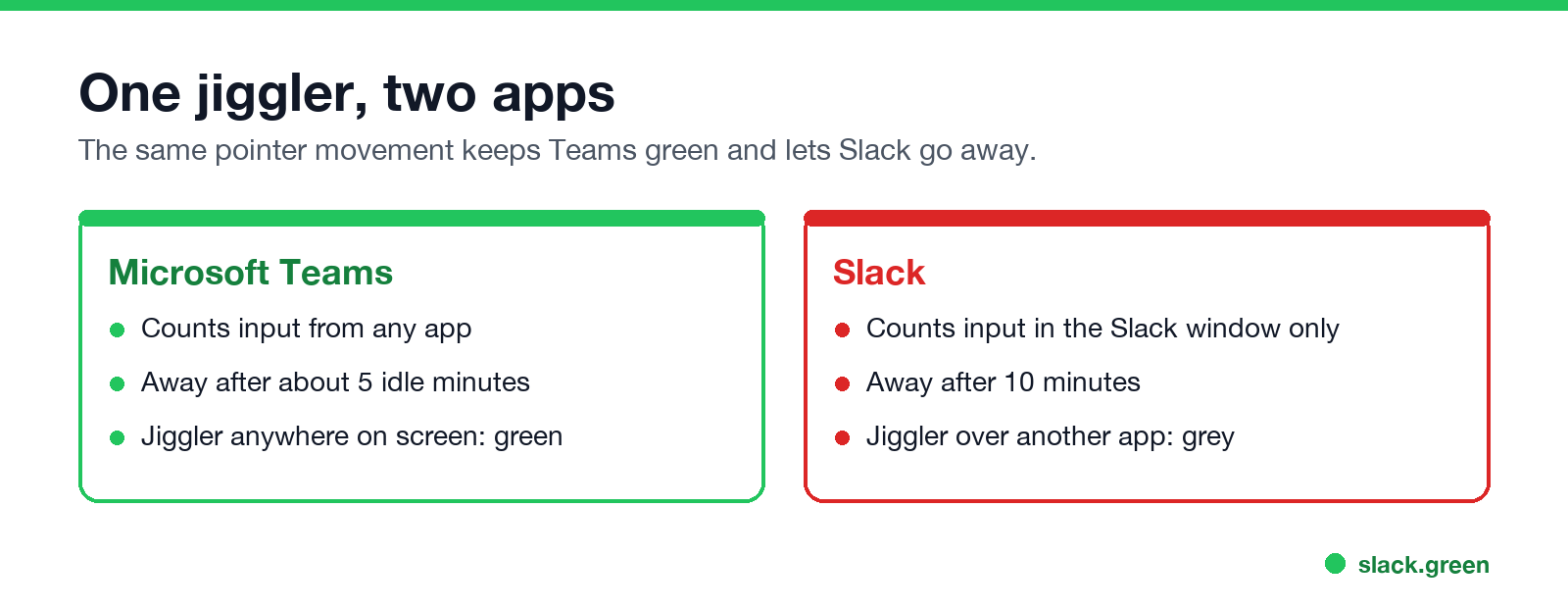
Slack Green handles the Slack side without any input. It keeps your Slack presence active from a server during the hours you set, with your laptop open or closed. The differences are in Slack Green vs mouse jiggler.
FAQ
Does a mouse jiggler work for Microsoft Teams? Yes on Windows and Mac. Teams counts input from the whole computer, and a jiggler creates it. It does not help the phone app.
Does a mouse jiggler work for Teams on the web? Only after you turn on Keep my current status when I'm active outside of Teams on the web, under Settings, Notifications and activity, Presence.
Do I need a USB jiggler, or is software enough? Either works for Teams. Software jigglers are easier to spot on a company laptop because they show up as a running app.
Why do I still go Away with a keep-awake app? Apps such as PowerToys Awake, Amphetamine and caffeinate block sleep but create no input. Teams still counts you as idle.
Will a mouse jiggler keep me green during a meeting? No. During a meeting Teams shows In a meeting, which comes from your calendar.
Can Teams detect a mouse jiggler? Teams does not flag it. Other tools on a company laptop can log the app or the USB device.
Stop Jiggling Your Mouse.
Join hundreds of remote workers who never worry about their Slack status. Set it up once, stay green forever.
Related Articles
Can My Employer See My Browsing If I Use a VPN? It Depends Whose
A personal VPN hides the sites you visit from the office network, but not from monitoring software, a managed browser or IT on a work laptop. The company VPN shows your employer every site it carries. What each setup hides.
Teams Status on Multiple Devices: The Last Device You Used Wins
Signed in to Teams on a computer and a phone? Your status comes from the device you used most recently. That is why a quick look at your phone can turn you Away, and why a phone in your pocket shows Away instead of Offline at night.
Zoom Do Not Disturb: How to Turn It On, Schedule It, and What It Blocks
To turn on Do not disturb in Zoom, click your profile picture, point at your status and choose Do not disturb, then a time from 20 minutes to 24 hours, or Custom for a daily schedule. It blocks pop-up notifications for Zoom Team Chat and Zoom Phone calls. Busy, by contrast, mutes nothing. How the two differ, and how to keep a Zoom meeting free of pop-ups.