
How to Keep Your Teams Status Available: What Works and What Does Not
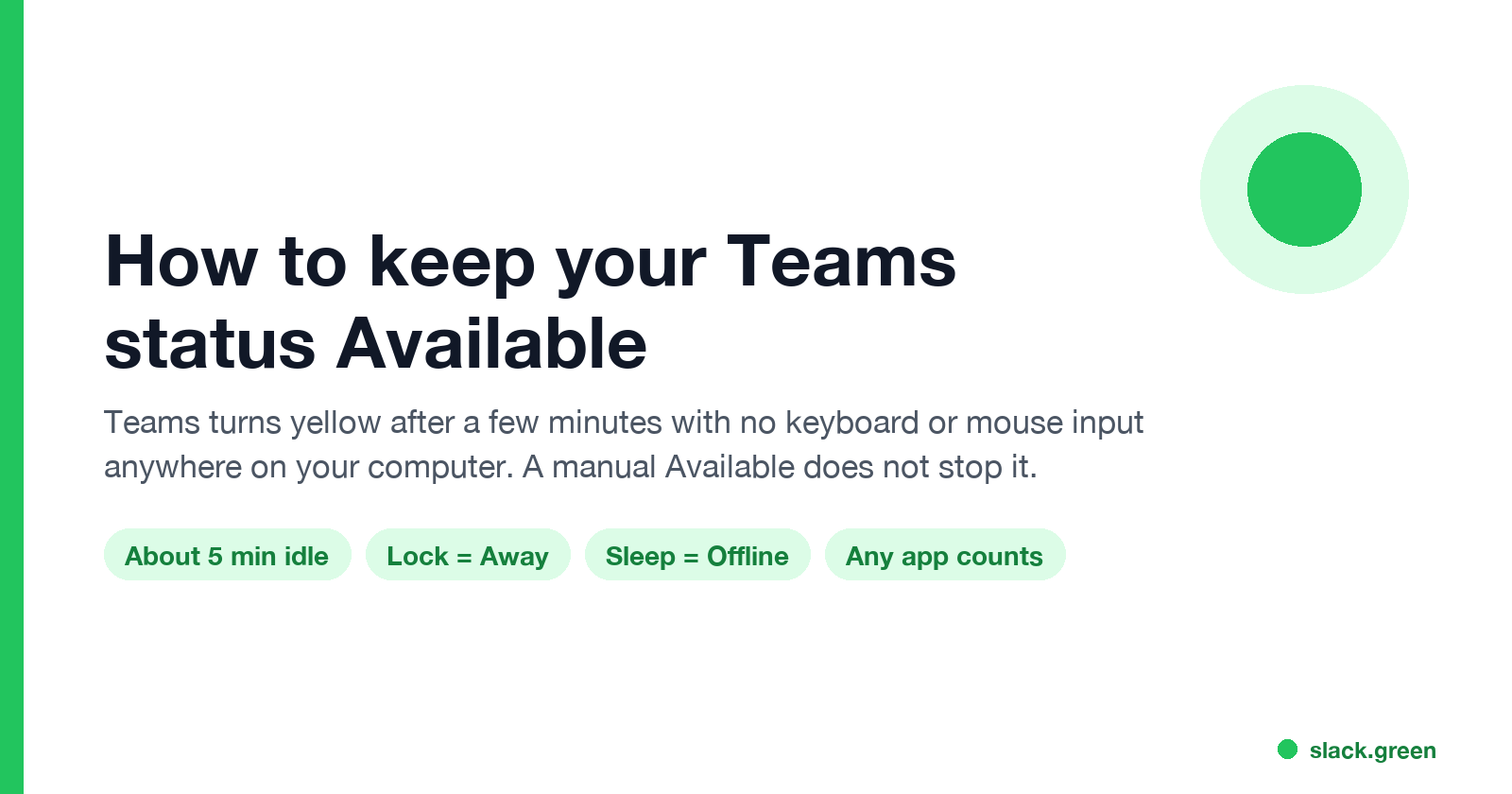
Microsoft Teams sets you to Away after a few minutes with no keyboard or mouse input, when you lock your computer, and Offline when it sleeps. A manual Available does not stop that. What keeps Teams green, and what only looks like it does.
You cannot pin your Microsoft Teams status to Available. Teams sets you to Away (the yellow dot) after a few minutes with no keyboard or mouse input on your computer, about 5 in most reports. It also sets you to Away when you lock the computer, and to Offline when the computer sleeps. Choosing Available by hand does not stop this. To stay green, Teams needs input from you in any app, and your computer must stay awake and unlocked.
Microsoft's moderators say the same in the Q&A forum: "there is no option to set Teams to always available". One question there has more than 1,700 "same question" votes.
We build Slack Green, which keeps Slack presence active from a server. It does not work with Teams. We wrote this page because many of our users run both apps and ask why Teams behaves differently. The short version: Teams counts input anywhere on your computer and Slack only counts input inside Slack, so the fixes are different.
How Teams decides your status
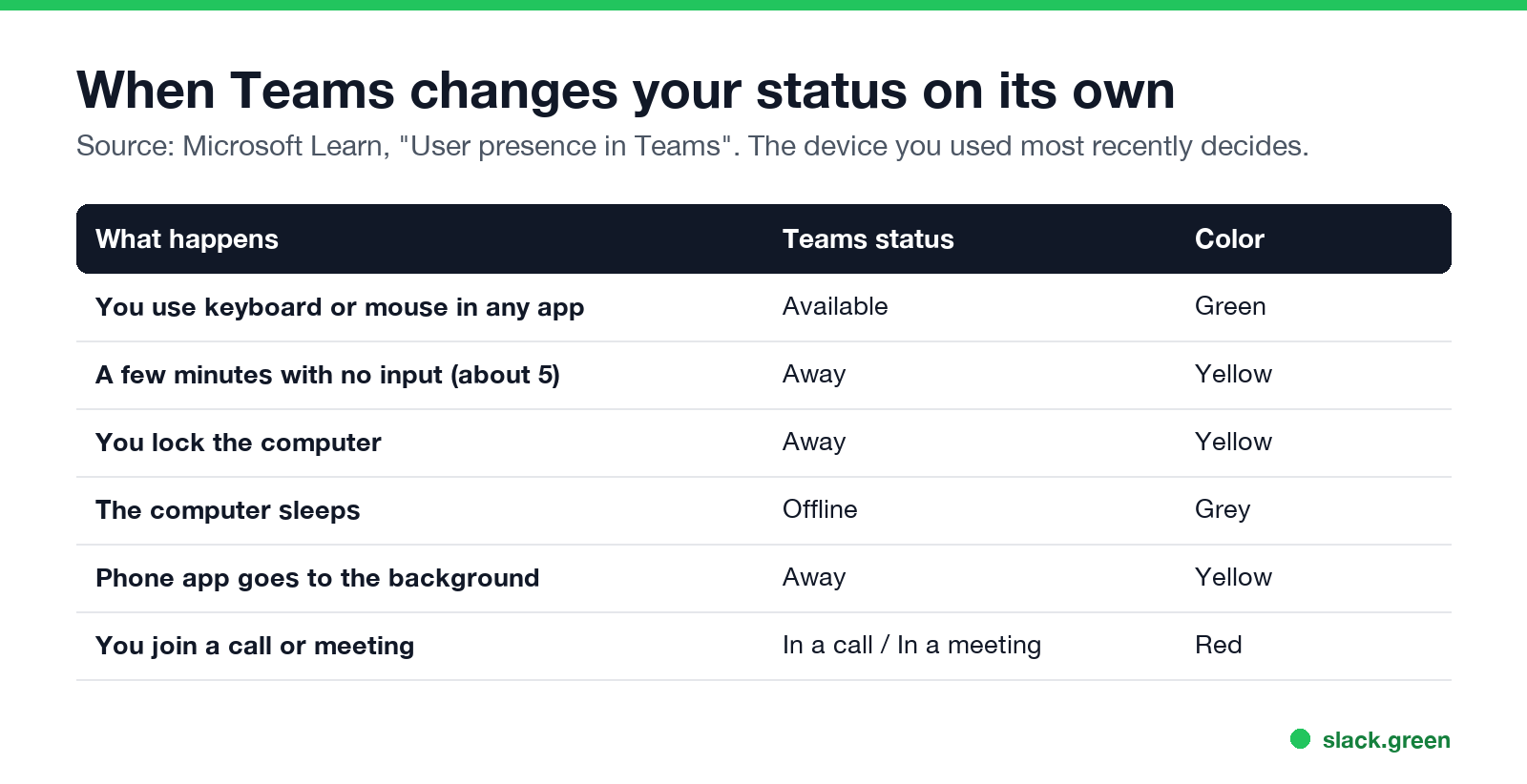
Microsoft's admin guide, "User presence in Teams", sets out the rules:
| What happens | Teams status | Color |
|---|---|---|
| You use the keyboard or mouse | Available | Green |
| A few minutes with no input | Away | Yellow |
| You lock the computer | Away | Yellow |
| The computer sleeps | Offline | Grey |
| The Teams phone app goes to the background | Away | Yellow |
| You join a call or a meeting | In a call or In a meeting | Red |
Three details from the same guide explain most surprises:
- • The most recent device decides. If you are signed in on your computer and your phone, Teams takes your status from the device you used last. When your computer goes idle, your status can come from a phone app that sits in the background, which means Away.
- • Your calendar can set your status. Outlook meetings set In a meeting, and automatic replies set Out of Office.
- • Manual statuses have limits. Without a duration, a manual status lasts 1 day for Busy and Do not disturb, and 7 days for others. A Microsoft moderator explains in another Q&A thread that idle time, a locked screen, a call, or a meeting can still replace it.
Why Teams turns yellow so quickly
Yellow means Away. Teams sets it after a few minutes without keyboard or mouse input, and right away when you lock your screen. Reading a long document, sitting in a call as a listener, or working on paper looks like no input to Teams. One r/MicrosoftTeams user with 144 upvotes on the post said it plainly: "now it shows me idle very quickly, and people assume that means I'm not working".
There is no admin setting for this either. Microsoft's presence guide lists no idle timeout that a Teams admin can change. Every Teams timer, next to Slack's, is in how long before Teams shows you as Away. If you are active and still yellow, see Teams status stuck on Away.
What keeps Teams green
Never appear "away" on Slack again
Cloud-based. No downloads. Works 24/7 even when your laptop is off.
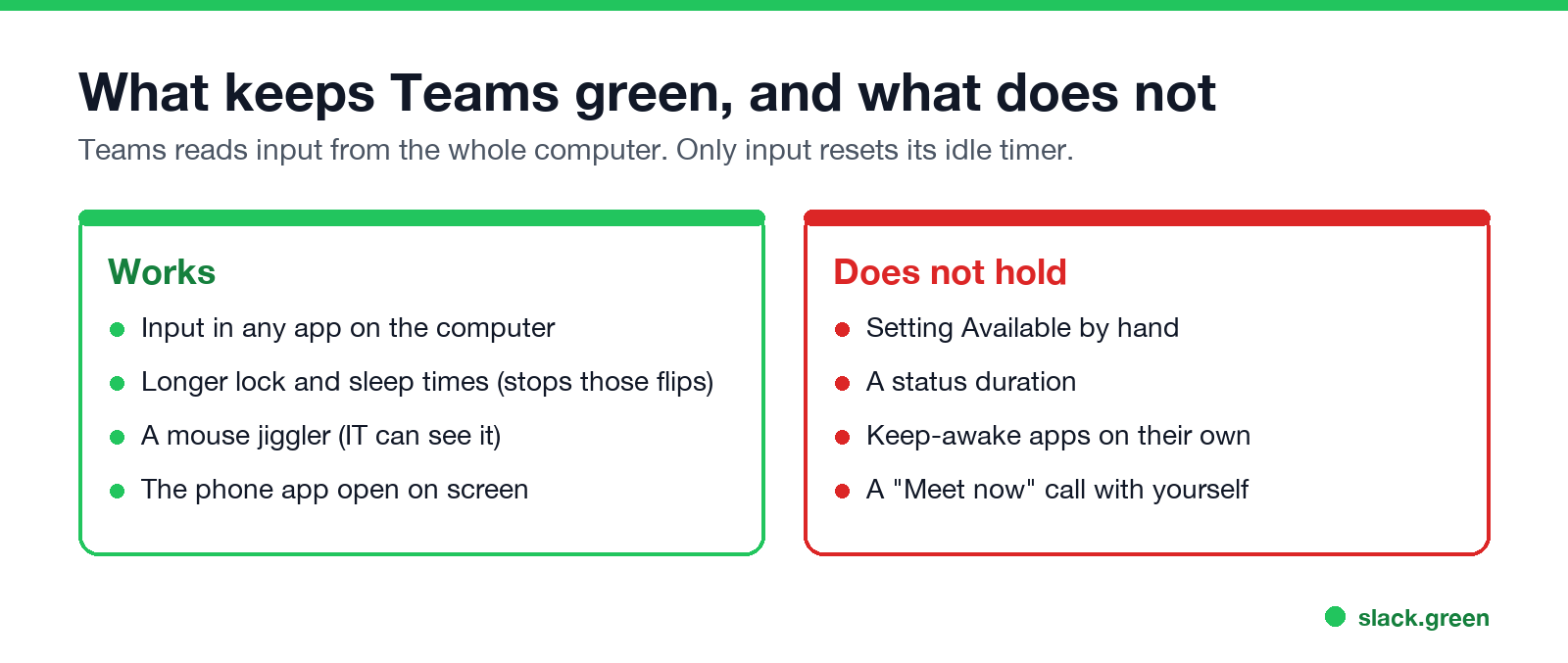
What does not hold
caffeinate stop sleep. They do not create input, so you still go to Away after the idle minutes. Our test of Caffeine with Slack shows the same limit.Stop Windows from turning you yellow on breaks
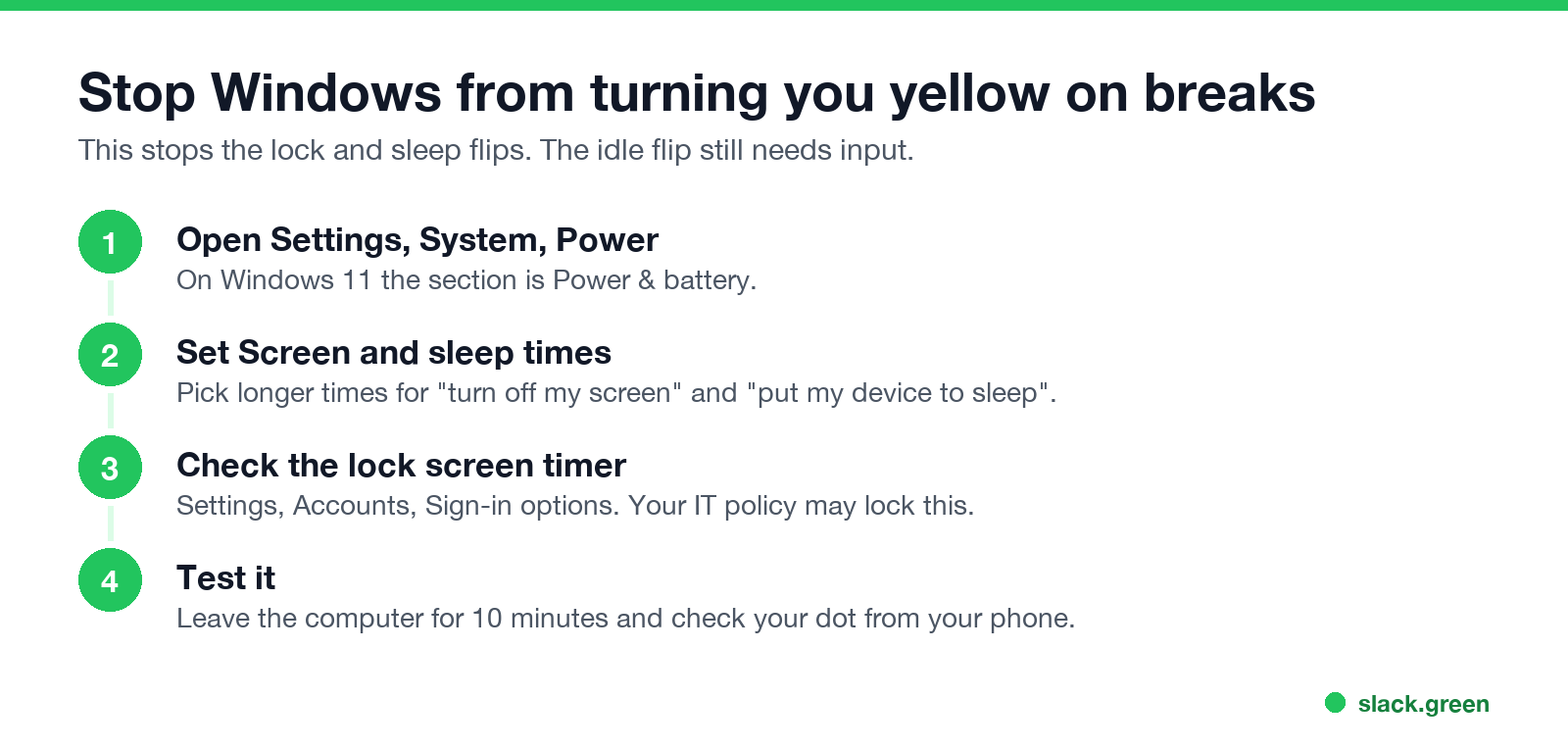
On a Mac, open System Settings, then Lock Screen, and set longer times for turning the display off and for requiring a password.
This stops the lock and sleep flips. The idle flip after a few minutes still needs input.
Teams and Slack at the same time
Never appear "away" on Slack again
Cloud-based. No downloads. Works 24/7 even when your laptop is off.
If you use both apps, the same afternoon can keep Teams green and let Slack go grey. Teams counts input from any app after about 5 idle minutes. Slack counts only input inside Slack and waits 10 minutes. The full comparison is in how to keep Teams and Slack active.
For the Slack side, Slack Green keeps your presence active from a server during the hours you set, with the laptop open or closed. For every Slack option, see how to keep Slack active.
Talk to your team about the dot
The r/MicrosoftTeams thread has a reply from a Teams admin with 26 points: "It's sane to look at In a meeting, Busy, Presenting as a don't bug them, but you really should treat idle/available as the same thing." If your team reads yellow as "not working", a written norm fixes more than any setting. Use Busy or Do not disturb for focus time, and treat Away and Available as "send me a message".
FAQ
Is there a way to set Teams to Available permanently?
No. Teams replaces a manual Available with Away when you are idle for a few minutes or lock your computer. Microsoft's forum moderators confirm there is no always-available option.
How do I stop Teams from showing Away after 5 minutes?
Keep giving your computer keyboard or mouse input, in any app. Longer lock and sleep times stop the other two causes. There is no setting that changes the idle time.
Why does my Teams status change to Away while I am working?
You are working without input, such as reading or listening in a call. Or your computer locked, or Teams took your status from your phone because you used it last.
How do I keep Teams active on my phone?
Keep the Teams app open on screen. Teams sets you to Away as soon as the app goes to the background.
Does Busy or Do not disturb stay longer than Available?
A manual Busy or Do not disturb lasts up to 1 day without a duration. Idle time or a locked screen can still set you to Away, according to Microsoft's moderator answer.
Can my Teams admin change the away time?
Microsoft documents no admin setting for the idle time. Admins can set screen-lock policies on managed laptops, which can make you go Away sooner.
Stop Jiggling Your Mouse.
Join hundreds of remote workers who never worry about their Slack status. Set it up once, stay green forever.
Related Articles
Slack Workflow Builder Examples: 12 Workflows to Copy, With Triggers and Steps
Twelve Slack Workflow Builder examples with the exact trigger and steps for each: daily standups, channel welcomes, time-off approvals, help desk requests, emoji escalations, keyword routing, incidents, list updates and webhooks from other tools. Plus where Workflow Builder lives, what it costs and how branches work.
Slack Timer: How to Set a Countdown, Pomodoro or Focus Timer in Slack
Slack has no built-in timer, but four built-in tools act like one: /remind me to ... in 25 minutes, a status that clears itself, /dnd for a focus block, and Workflow Builder for dated countdowns. For a live countdown in a channel, use a Marketplace app or a 15-line bot script.
Slack Saved for Later: Where the Later Tab Is and How It Works
Saved messages in Slack live in the Later tab, which replaced stars and Saved items in 2023. Hover a message and click Save for later, or press A. Add a reminder, mark items complete, and find them with is:saved. Where Later is on desktop and mobile, and what changed.