
How to Change Teams Away Time: What You Can and Cannot Set
Teams sets you Away after about 5 idle minutes, and there is no setting for that timer, for you or your admin. The lock, sleep, duration and web settings that do change when you turn yellow.
You cannot change the time before Microsoft Teams shows you as Away. Teams switches you to Away after a few minutes with no keyboard or mouse input on your computer, about 5 minutes in most reports, and neither Teams settings nor the Teams admin center has a field for that number. What you can change are the things that set Away sooner: your screen lock delay, your sleep delay, how long a status you set lasts, and one setting in Teams on the web. Microsoft's own support page gives the same advice: "Change your device's sleep or idle settings to require more time before your status switches from Available to Away."
If you also use Slack, its rule is different: 10 minutes, and only input inside Slack counts. We build Slack Green, which keeps your Slack dot green from a server during the hours you set. The Teams side is below.
When Teams sets you Away
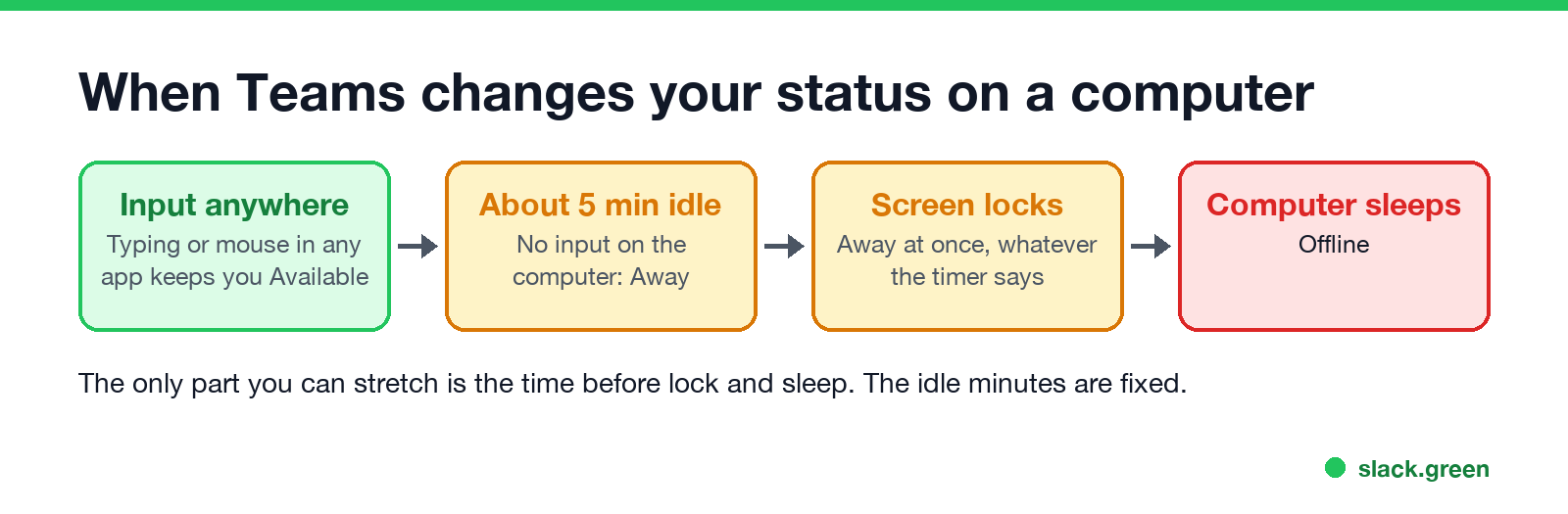
Teams reads your computer's idle state, not only the Teams window. Typing in Word or scrolling in a browser counts as activity. Microsoft's support page lists the triggers: Teams sets you from Available to Away "when you lock your computer or when it enters idle or sleep mode", and on mobile "when the Teams app is in the background".
| Event | Teams status |
|---|---|
| No input anywhere on the computer for about 5 minutes | Away |
| Screen locked | Away, at once |
| Computer asleep | Offline |
| Teams phone app in the background | Away |
| A status you set with a duration | That status until the duration ends |
So when people search "Teams away after 5 minutes", the 5 minutes is the idle part. If you go yellow after 2 minutes, a screen lock is almost always the cause, and that part you can change. The timings in detail are in how long before Teams shows Away.
What you can change, and who controls it
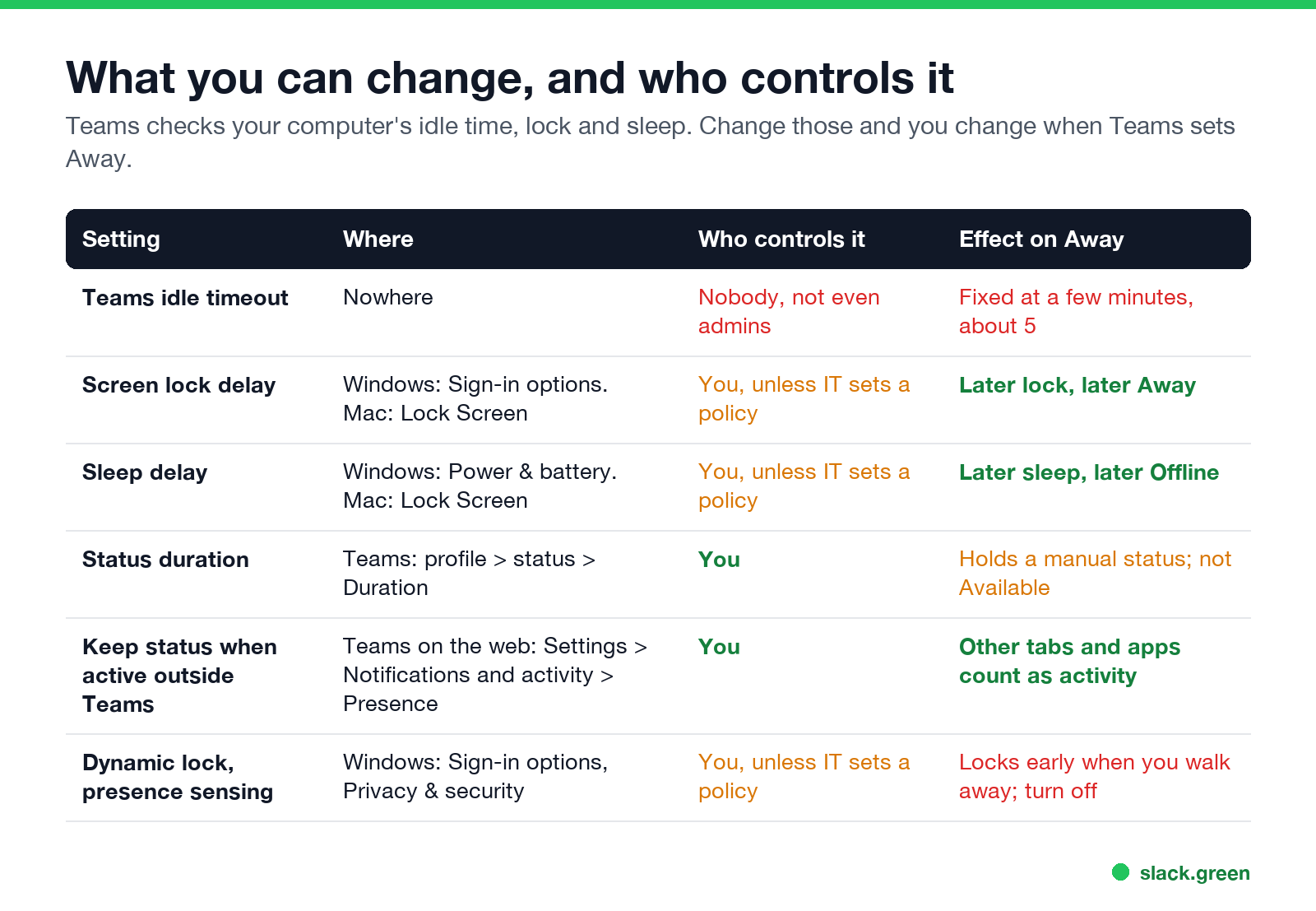
| Setting | Where | Who controls it | Effect on Away |
|---|---|---|---|
| Teams idle timeout | Nowhere | Nobody, not even admins | Fixed, about 5 minutes |
| Screen lock delay | Windows: Sign-in options. Mac: Lock Screen | You, unless IT sets a policy | Later lock, later Away |
| Sleep delay | Windows: Power & battery. Mac: Lock Screen | You, unless IT sets a policy | Later sleep, later Offline |
| Status duration | Teams: profile, status, Duration | You | Holds a manual status, not Available |
| Keep my current status when active outside Teams | Teams on the web: Settings, Notifications and activity, Presence | You | Other tabs and apps count as activity |
| Dynamic lock, presence sensing | Windows: Sign-in options, Privacy & security | You, unless IT sets a policy | Locks early when you step away |
Change the lock and sleep time on Windows
Never appear "away" on Slack again
Cloud-based. No downloads. Works 24/7 even when your laptop is off.
This is the change that matters most, because a lock sets Away at once.
- Open Settings, then Accounts, then Sign-in options. Under "If you've been away, when should Windows require you to sign in again?", pick a longer time or Never.
- On the same page, turn off Dynamic lock if it is on. It locks the PC when your paired phone leaves Bluetooth range.
- Open Settings, then System, then Power & battery (Power & sleep on Windows 10). Set longer times for turning off the screen and for sleep.
- If your laptop has a presence sensor, turn off the option that locks the screen when you leave, under Privacy & security, Presence sensing.
- Test it. Leave the computer for 10 minutes and check your status from the Teams phone app.
The sleep and screen times can also be set from a terminal:
# screen off after 30 minutes, sleep after 60, while plugged in
powercfg /change monitor-timeout-ac 30
powercfg /change standby-timeout-ac 60
If the lock still comes after 2 or 3 minutes, your IT team set it by policy. Check with these two read-only commands:
# a lock timeout set by IT, in seconds (an error means there is no policy)
reg query "HKLM\SOFTWARE\Microsoft\Windows\CurrentVersion\Policies\System" /v InactivityTimeoutSecs

# your screen saver timeout, in seconds
reg query "HKCU\Control Panel\Desktop" /v ScreenSaveTimeOut
A value under InactivityTimeoutSecs comes from the "Interactive logon: Machine inactivity limit" policy. You cannot raise it yourself, and Teams will go Away when it runs out. More on locks you can and cannot change is in keep your computer awake without admin rights.
Change the lock and sleep time on a Mac
A work Mac with a device management profile may lock these fields. The Mac details are in keep Slack active on Mac, which covers the same settings.
Set a status duration in Teams
A duration keeps a status you choose for a set time, then Teams goes back to automatic status.
Two limits come from Microsoft's own page. You can set a duration for any status except Available. And "a more available status (like Busy) will not override a less available status (like Away) even if its duration is set." So a duration cannot hold you green. It is the right tool for Be right back over lunch or Do not disturb for an hour of focus.
You can also change your status from the Teams search box with these commands:
/available /busy /dnd /brb /away /offlineTeams on the web: keep your status when you work in other tabs
Never appear "away" on Slack again
Cloud-based. No downloads. Works 24/7 even when your laptop is off.
Teams in a browser cannot see what you do in other tabs unless you allow it. In Teams for the web, open Settings, then Notifications and activity, then Presence, and turn on Keep my current status when I'm active outside of Teams on the web. The browser then asks for permission to detect your activity. Select Allow. If you select Block, Teams on the web sets you Away while you work elsewhere.
Why no one can change the 5 minutes
The Teams admin center has policies for chat, meetings and calling, but no presence timeout. Microsoft's user documentation points to the device instead: change the sleep or idle settings of the computer. Teams status stuck on Away covers the cases where you are active and still yellow.
If the goal is to stay Available through breaks longer than 5 minutes, the only thing that works is input on the computer. A mouse jiggler or a script that presses a key does that, and both can be seen by monitoring tools. The options and the trade-offs are in how to keep Teams status available, the script is in keep your computer awake with PowerShell, and what your employer can see is in does Teams track your activity.
Teams and Slack: two different timers
| Microsoft Teams | Slack | |
|---|---|---|
| Idle time before Away | About 5 minutes | 10 minutes |
| What counts as activity | Input anywhere on the computer | Input in the Slack window only |
| Can you change the timer? | No | No |
| Screen locked | Away | Away |
A jiggler keeps Teams green because it creates input anywhere. It often fails for Slack, because the cursor has to sit over the Slack window. Keep Teams and Slack active covers both at once. For Slack, Slack Green keeps you green from a server, with nothing installed on the work laptop.
FAQ
Never appear "away" on Slack again
Cloud-based. No downloads. Works 24/7 even when your laptop is off.
How do I change the away time in Microsoft Teams? You cannot change the idle timer itself. Make your screen lock and sleep wait longer in your system settings, and Teams will wait longer before it sets you Away for a lock or sleep.
Why does Teams go Away after 5 minutes? That is Teams' built-in idle time. After about 5 minutes with no keyboard or mouse input anywhere on the computer, Teams sets Away.
Can a Teams admin change the away timeout? No. The Teams admin center has no idle timeout setting. IT can only change the Windows lock policy, which makes you go Away sooner or later.
How do I stop Teams from showing Away when my computer locks? Raise the lock delay in Settings, Accounts, Sign-in options on Windows, or in Lock Screen on a Mac. A locked computer always shows Away.
Does setting a status duration stop Away? No. Durations work for every status except Available, and Microsoft says a more available status does not override Away.
Does Teams on my phone change the away time? No. The phone app shows Away as soon as it goes to the background. The phone options are in how to keep Teams status available.
Stop Jiggling Your Mouse.
Join hundreds of remote workers who never worry about their Slack status. Set it up once, stay green forever.
Related Articles
How to Keep Skype Status Active: Skype for Business Idle Timers
To keep your Skype for Business status active, open Options, Status, and raise both idle timers, Inactive and then Away, from 5 minutes to as much as 360 minutes each. Consumer Skype shut down on May 5, 2025 and Skype for Business Online in 2021, so for most people the real question is now Teams. What still works, status icons, Outlook, and status not updating.
Is It Legal for My Employer to Monitor Me? US, EU and UK Rules
In the US it is mostly legal for an employer to monitor company devices, accounts and premises, often without asking. The limits are state notice laws in New York, Connecticut and Delaware, consent rules for audio recording and biometrics, bans on cameras in restrooms, and your personal devices. The EU, UK and parts of Canada and Australia add notice and proportionality rules.
Can My Employer See My Personal Email on My Work Computer?
Your employer cannot sign in to your Gmail, and doing so without permission can break the Stored Communications Act. But on a work computer, screenshot and keystroke monitoring, browser history, HTTPS inspection and Outlook's local cache can all expose personal email. Work email is fully visible, deleted messages included. Case by case, with what to do.