
Teams Status Stuck on Away? Why It Happens and How to Fix It
Microsoft Teams stays on Away (yellow) while you work when you set Appear away or a status duration, when the phone app is in the background, when Teams on the web cannot see activity outside the tab, or when presence is stale. Fix it by resetting your status, closing Teams on other devices, and signing out and in.
When Microsoft Teams stays on Away (the yellow clock) while you are working, check four things in order. First, a status you set yourself: Appear away, maybe with a duration, stays until you reset it. Second, the phone: if Teams is in the background on your phone, it can show Away. Third, Teams on the web: without its presence setting and the browser's idle detection permission, a tab cannot see that you are active in other apps. Fourth, stale presence: sign out and back in, or reset the app. To reset your status, select your profile picture, your current status, and Reset status.
If you use Slack too, it has its own away rules: 10 minutes after your last input in the Slack window, whatever you do elsewhere. Slack Green keeps your Slack dot green during the working hours you set, from the cloud.
Why Teams shows Away when you are active
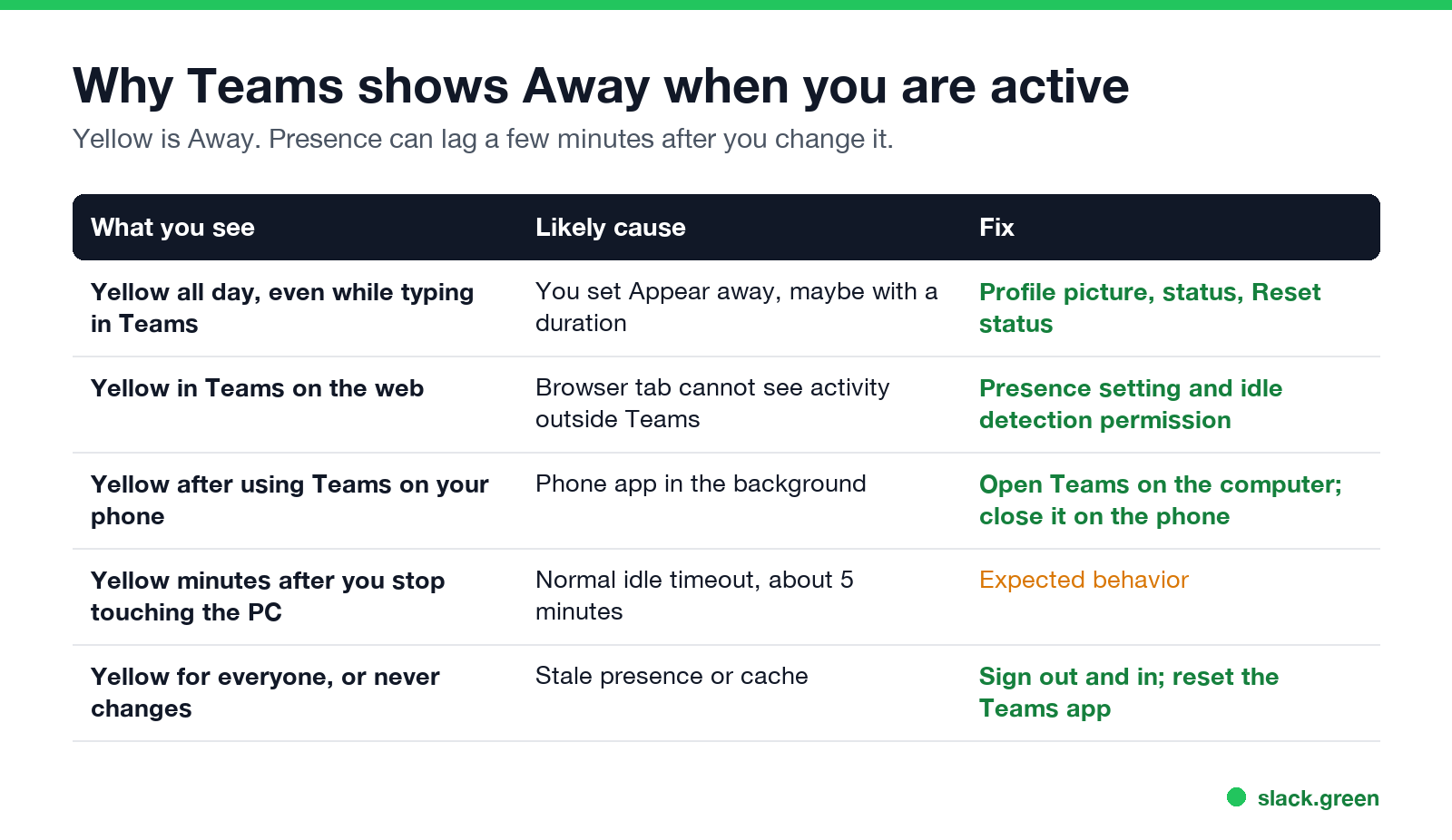
| What you see | Likely cause | Fix |
|---|---|---|
| Yellow all day, even while typing in Teams | You set Appear away, maybe with a duration | Reset your status |
| Yellow in Teams on the web | The tab cannot see activity outside Teams | Turn on the presence setting and allow idle detection |
| Yellow after using Teams on your phone | Phone app in the background | Use Teams on the computer; close it on the phone |
| Yellow a few minutes after you stop using the PC | Normal idle timeout | Expected |
| Stuck for everyone, never changes | Stale presence or cache | Sign out and in; reset the app |
Fix 1: reset a status you set
A status you choose, such as Appear away, Busy or Do not disturb, stays until you change it or its duration ends. Microsoft notes that a more available status does not override a less available one, even with a duration. So a leftover Appear away blocks everything else.
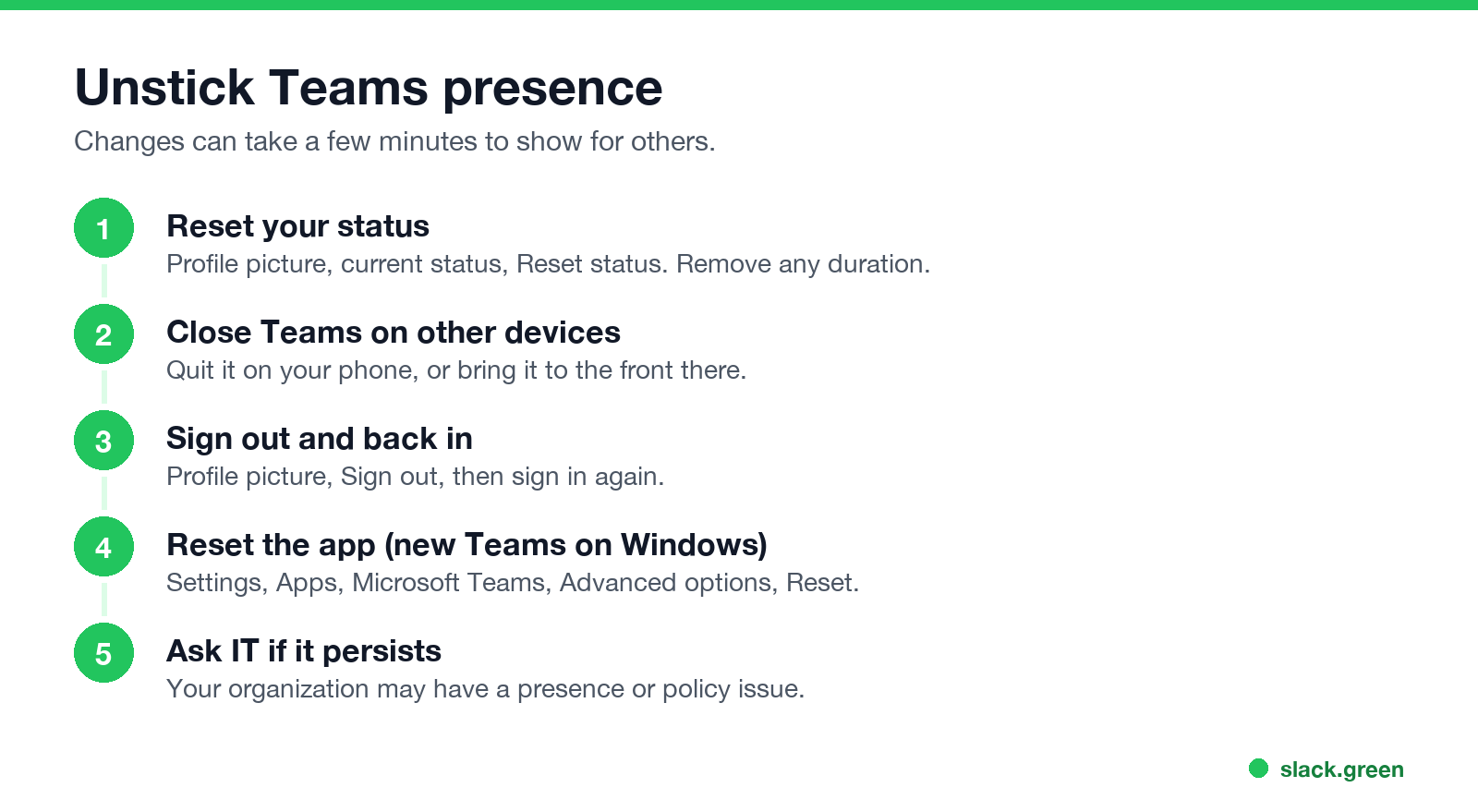
- Select your profile picture at the top right.
- Select your current status.
- Choose Reset status, or pick Available.
The /available command in the search box does the same.
Fix 2: check your other devices
Never appear "away" on Slack again
Cloud-based. No downloads. Works 24/7 even when your laptop is off.
On a phone, Teams shows Away whenever the app is in the background. If you last used Teams on your phone, your status can lag behind until the computer reports activity. Bring Teams to the front on the computer and use it for a moment, or quit Teams on the phone.
Fix 3: Teams on the web
Microsoft's support page describes a setting for Teams on the web: under Settings, Notifications and activity, Presence, turn on the option to keep your current status when you are active outside Teams, then Allow the browser's permission to detect activity in other tabs and apps. If you block that permission, Teams cannot see your activity outside the tab and shows Away.
Fix 4: stale presence in new Teams
Why does Teams show me Away?
Never appear "away" on Slack again
Cloud-based. No downloads. Works 24/7 even when your laptop is off.
If none of the above apply, Teams is working as designed. It shows Away after a few minutes without input on your computer, about 5, at once when you lock it, and Offline when the computer sleeps. The timings are in how long before Teams shows you as Away, and ways to stay Available are in how to keep Teams status available.
Teams status yellow meaning
Yellow with a clock means Away or Be right back. Green is Available, red is Busy or Do not disturb, and grey with an x is Offline. Busy turns red automatically in meetings and calls. Every icon is in Microsoft Teams status icons meaning.
Slack has the same problem, with a stricter rule
Slack's grey dot follows only input inside the Slack window, so you can be active in every other app and still show away. The diagnosis for Slack is in why Slack keeps showing you as away. For both apps at once, see keep Teams and Slack active.
FAQ
Never appear "away" on Slack again
Cloud-based. No downloads. Works 24/7 even when your laptop is off.
Why is my Teams status stuck on Away?
Usually a status you set, such as Appear away with a duration, or Teams on your phone in the background. Reset your status first.
Why does Teams say Away when I am active?
Teams on the web cannot see activity outside the tab without the presence setting and permission, or your presence is stale. Sign out and back in.
Why is my Teams status yellow?
Yellow means Away. Teams sets it after a few minutes of inactivity, when you lock the computer, or when the phone app is in the background.
How do I stop Teams from showing Away?
See how to keep Teams status available.
Does resetting Teams delete my chats?
No. Chats and files stay on Microsoft's servers. A reset clears the local app data.
Stop Jiggling Your Mouse.
Join hundreds of remote workers who never worry about their Slack status. Set it up once, stay green forever.
Related Articles
How to Keep Your Outlook Status Green (It Comes From Teams)
Your Outlook status shows your Microsoft Teams presence, so to keep Outlook green you keep Teams Available: Teams signed in and running, input on the computer, no lock or sleep, and no leftover status. What sets you Away, and what you can change.
Microsoft Teams Status Icons Meaning: Every Colour and Symbol
In Microsoft Teams, a green check means Available, red means Busy, In a meeting or In a call, red with a white bar means Do not disturb or Presenting, a yellow clock means Away or Be right back, a grey circle with an x means Offline, and a purple arrow means Out of office. Which ones Teams sets for you, and which wins.
Does Microsoft Teams Track Your Activity? What Admins Can See
Teams admins can see activity counts per person: messages in channels and chats, meetings, 1:1 calls, audio, video and screen share time, and your last activity date. Your status follows keyboard and mouse activity on the whole computer. Teams does not log keystrokes, your screen, or other apps.