
Teams Status Stuck on Offline? 7 Causes and How to Fix Each
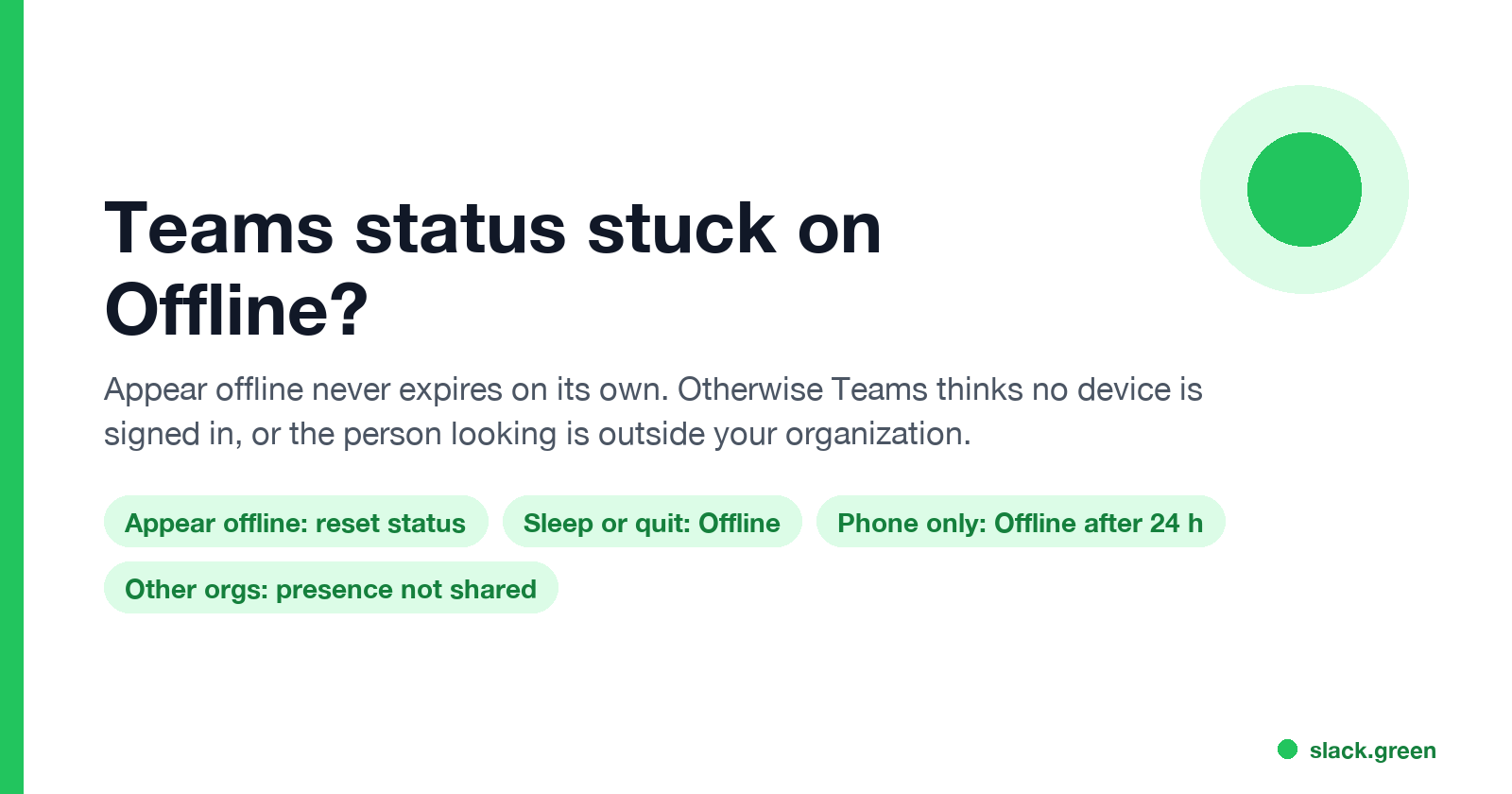
Teams shows Offline while you are online for a few reasons: an Appear offline you set, which never expires on its own; Teams not signed in on any device; a sleeping computer; the phone app unused for 24 hours; or people in another organization who cannot see your presence. Fixes for each.
If Microsoft Teams shows you as Offline while you are signed in and working, check your own status first. Appear offline is the only manual status that Microsoft says lasts "indefinitely" when you set it without a duration, so one click weeks ago can keep you grey today. Select your profile picture, then your status, then Reset status. If that is not it, Teams thinks no device is signed in: the desktop app was quit, the computer went to sleep, the web tab was closed, or the session expired. If only some people see you as Offline, they are probably in another organization, or looking at Outlook instead of Teams.
If you use Slack too, it goes grey for its own reasons, 10 minutes after your last input in the Slack window. Slack Green keeps your Slack status active from our servers during the working hours you set.
Why Teams shows you Offline, cause by cause
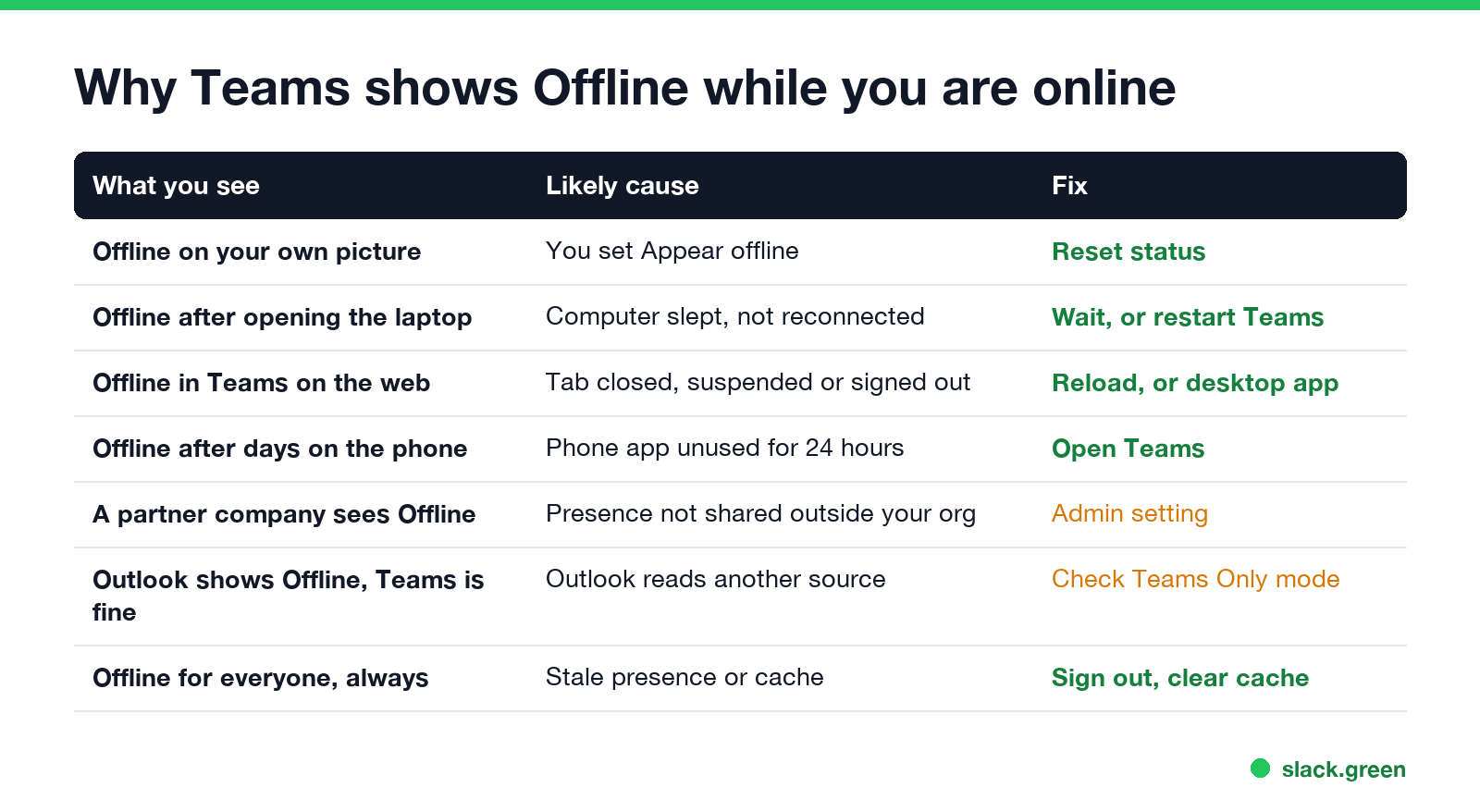
| What you see | Likely cause | Fix |
|---|---|---|
| You see Offline on your own picture | You set Appear offline | Reset status |
| Offline right after you open the laptop | The computer slept, Teams has not reconnected | Wait a minute, or restart Teams |
| Offline while Teams is "open" in a browser | The tab was closed, suspended or signed out | Reload the tab, or use the desktop app |
| Offline after days on the phone only | The phone app was unused for 24 hours | Open Teams on the phone or computer |
| You see Available, a partner company sees Offline | Presence is not shared with their organization | Admin setting, not yours |
| Teams shows you fine, Outlook shows Offline | Outlook reads presence from a different place | See the Outlook section below |
| Offline for everyone, nothing changes it | Stale presence or a broken client cache | Sign out, clear the cache, update |
Fix 1: reset an Appear offline you set
Microsoft's admin docs on user presence list how long a manual status lasts when you give it no duration:
- • Appear offline: indefinitely.
- • Busy and Do not disturb: 1 day.
- • Any other status: 7 days.
- Select your profile picture at the top right of Teams.
- Select your current status.
- Choose Reset status.
So Appear offline is the one status that never clears itself. You also cannot choose Available on top of it and have it stick, because Teams lets you pick only a status that is "less available than the automatically calculated status," and a manual status overrides the calculation until you reset it.
Typing /available in the Teams search box has the same effect. If you wanted to appear offline on purpose, how to appear offline on Teams covers the side effects, such as messages that still arrive.
Fix 2: make sure Teams is signed in on a device
Never appear "away" on Slack again
Cloud-based. No downloads. Works 24/7 even when your laptop is off.
Microsoft's rule is short: "When users aren't logged in on any of their devices for a few minutes, they appear offline." These all count as not logged in:
After the computer wakes, Teams needs a moment to reconnect. If you still show Offline a few minutes later, quit Teams fully and open it again. If Teams starts but will not stay connected, check that a VPN or proxy is not blocking it, which your IT team can confirm.
Fix 3: when other people see you as Offline
If your own picture shows Available but a coworker says you look Offline, find out where they are looking.
People in another company. Admins choose which external organizations can see presence. With privacy mode on, Microsoft says "presence is never shared outside your organization, regardless of your external access settings." Guests and partners then see you as Offline or unknown. Only your Teams admin can change that.
Outlook. Outlook shows Teams presence only for contacts in the same organization, and only when your account is in the Teams Only upgrade mode. Otherwise Outlook asks Skype for Business, which may show you Offline while Teams shows you Available. Mailboxes hosted on-premises can lag up to an hour. The full fix list is in Teams status not showing in Outlook.
Two accounts. If you switch between organizations in Teams, you can be Available in one and Offline in the other. Check the account in the top right.
Fix 4: clear stale presence and the Teams cache
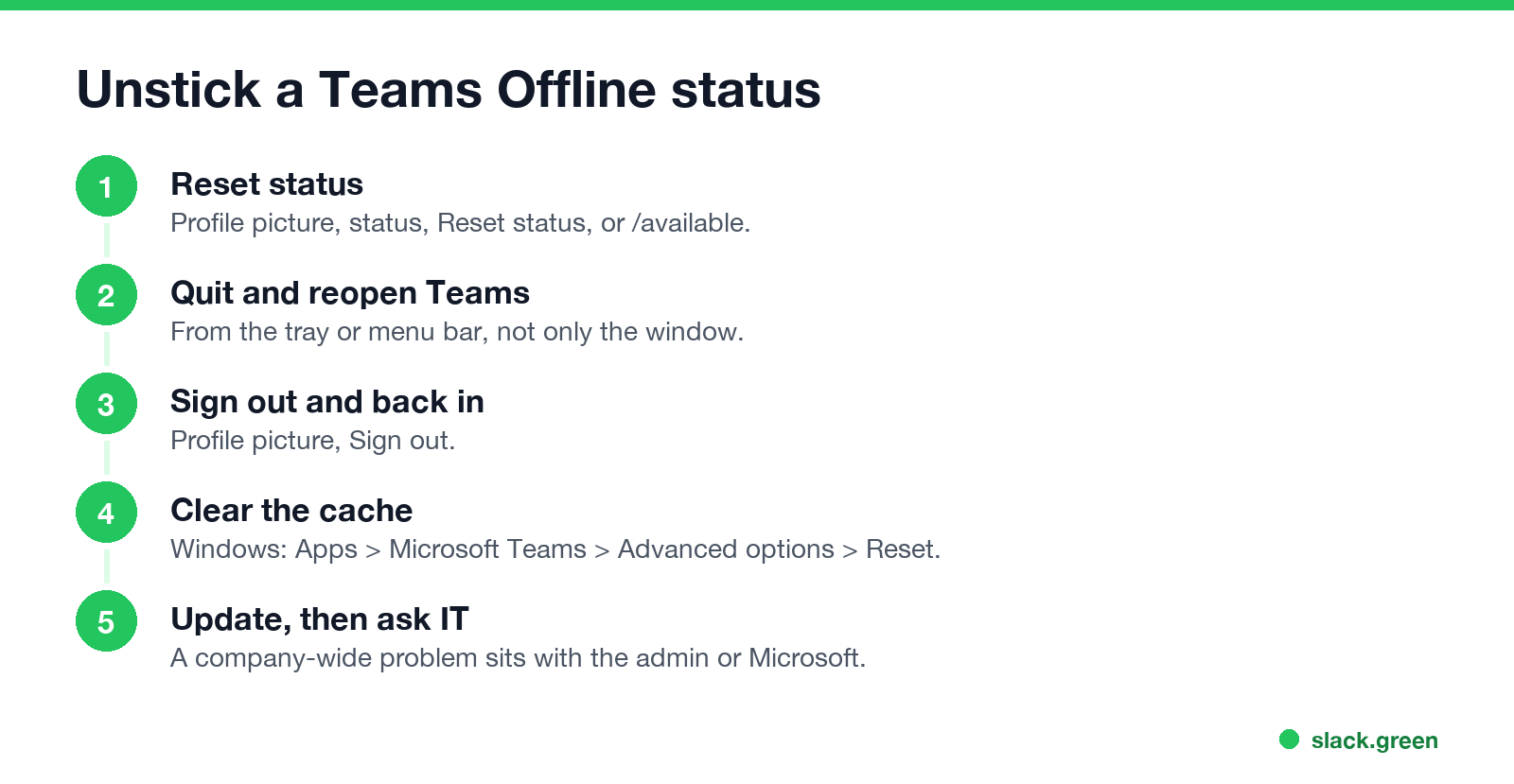
If Teams shows Offline for everyone and none of the above applies, the local client is the usual suspect.
%userprofile%\appdata\local\Packages\MSTeams_8wekyb3d8bbwe\LocalCache\Microsoft\MSTeamsOn a Mac, quit new Teams and run these two commands in Terminal:
rm -rf ~/Library/Group\ Containers/UBF8T346G9.com.microsoft.teams
rm -rf ~/Library/Containers/com.microsoft.teams2Clearing the cache resets your app settings, but your chats stay on Microsoft's servers. Microsoft advises against clearing the cache for missing messages or wrong unread counts, since it deletes the logs needed to find the cause, so keep it for presence and startup problems.
Offline vs Away vs Status unknown in Teams
Never appear "away" on Slack again
Cloud-based. No downloads. Works 24/7 even when your laptop is off.
All the icons are in Microsoft Teams status icons meaning.
Teams offline questions
Why does Teams say I'm offline when I'm online? Most often you set Appear offline, which does not expire. Reset your status. If that is not it, Teams on this device has lost its connection; quit and reopen it.
How long does Appear offline last in Teams? Until you change it, unless you set a duration.
Why do external people see me as offline in Teams? Your organization does not share presence with theirs, or privacy mode is on. Only an admin can change it.
Does Teams show Offline when the computer is locked? No. Locking shows Away. Sleep shows Offline.
Stop Jiggling Your Mouse.
Join hundreds of remote workers who never worry about their Slack status. Set it up once, stay green forever.
Related Articles
KeepingYouAwake vs Amphetamine: Which Mac Keep-Awake App to Use
KeepingYouAwake is a free, open-source menu bar switch that runs Apple's caffeinate for you. Amphetamine is a free App Store app with triggers, schedules and a closed-lid mode. Pick KeepingYouAwake for one click and Homebrew, Amphetamine for automation. Neither keeps Slack or Teams active.
Computer Locks After 15 Minutes? How to Tell If Group Policy Set It
A work laptop that locks after exactly 15 minutes, with screen settings greyed out, is almost always following a policy from IT: the Windows machine inactivity limit, a forced screen saver, or an Intune device lock. Security baselines and PCI DSS ask for 15 minutes. How to see which policy it is, and what you can and cannot change.
How to Keep a Citrix Session Active: Find Which Timeout Logs You Out
A Citrix session can end from four different timers: Windows locking inside the virtual desktop, the Citrix session idle timer, the Citrix Gateway session time-out, and the StoreFront web page timeout. Only input from your own device into the Citrix window resets them. How to tell which one hit you and what keeps each one quiet.