
Teams Status Unknown: What It Means, the Layoff Rumor, and the Fix
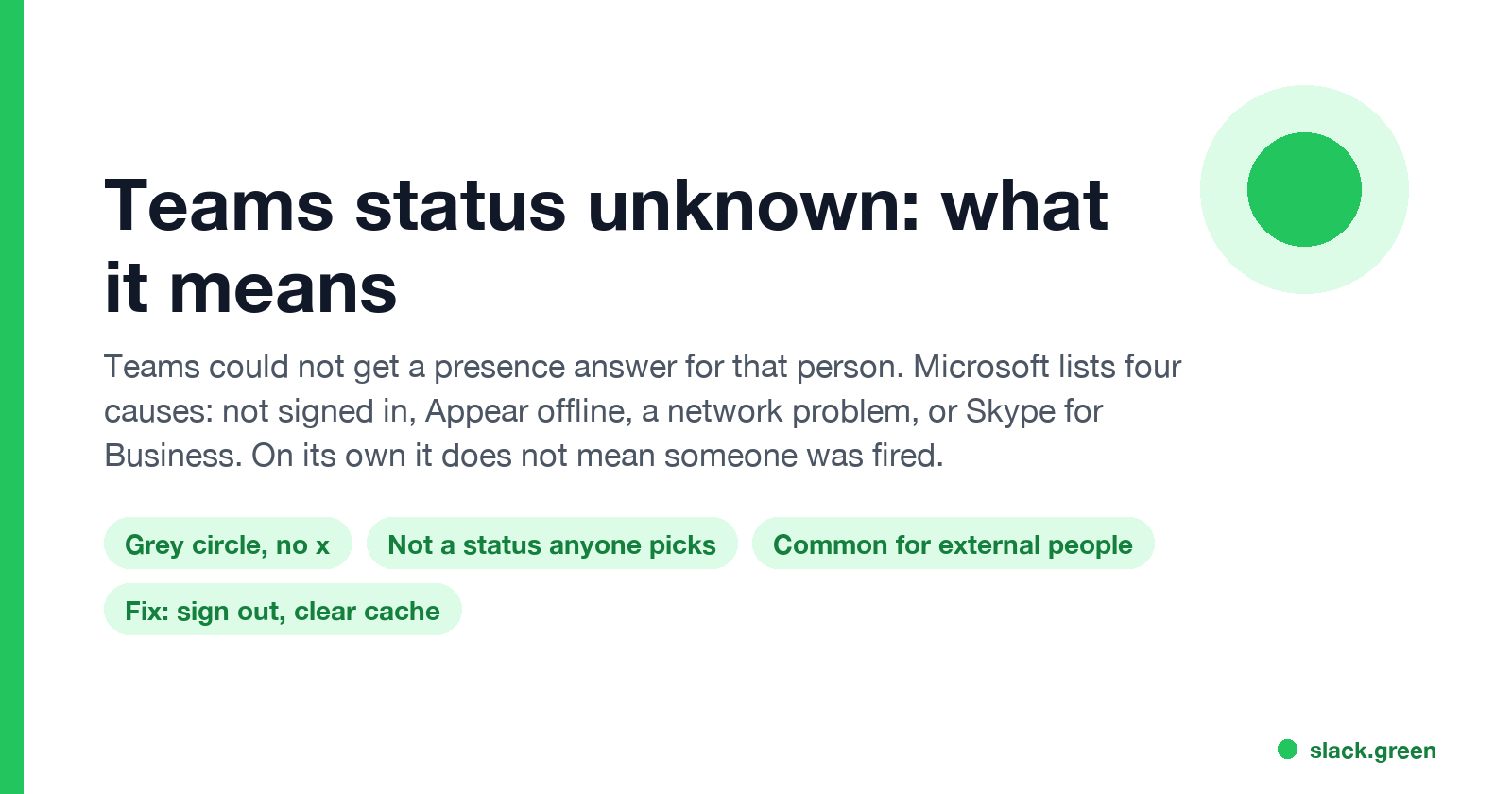
Status unknown on Microsoft Teams means Teams could not get a presence answer for that person. Microsoft lists four causes: they have not signed in, they set Appear offline, a network problem with the presence service, or they use Skype for Business. It is common for people in other organizations. What it says, and does not say, about someone leaving, and how to fix it when it is your own status.
Status unknown on Microsoft Teams means Teams asked for someone's presence and did not get an answer. It shows as a plain grey circle with no x. Nobody can choose it. Microsoft's troubleshooting article lists four causes: the person has not signed in to Teams, they set Appear offline, a network problem is affecting the presence service, or they use Skype for Business. You also see it for many people in other organizations, whose presence your company does not receive.
Status unknown on its own does not mean someone was fired. A deleted account shows a different sign: the name itself changes to Unknown user.
Every chat app has its own presence rules. In Slack the dot turns grey after 10 minutes without input in the Slack window; Slack Green keeps it green during the working hours you set, from the cloud. For the other Teams icons, see Microsoft Teams status icons meaning.
Why Teams shows Status unknown
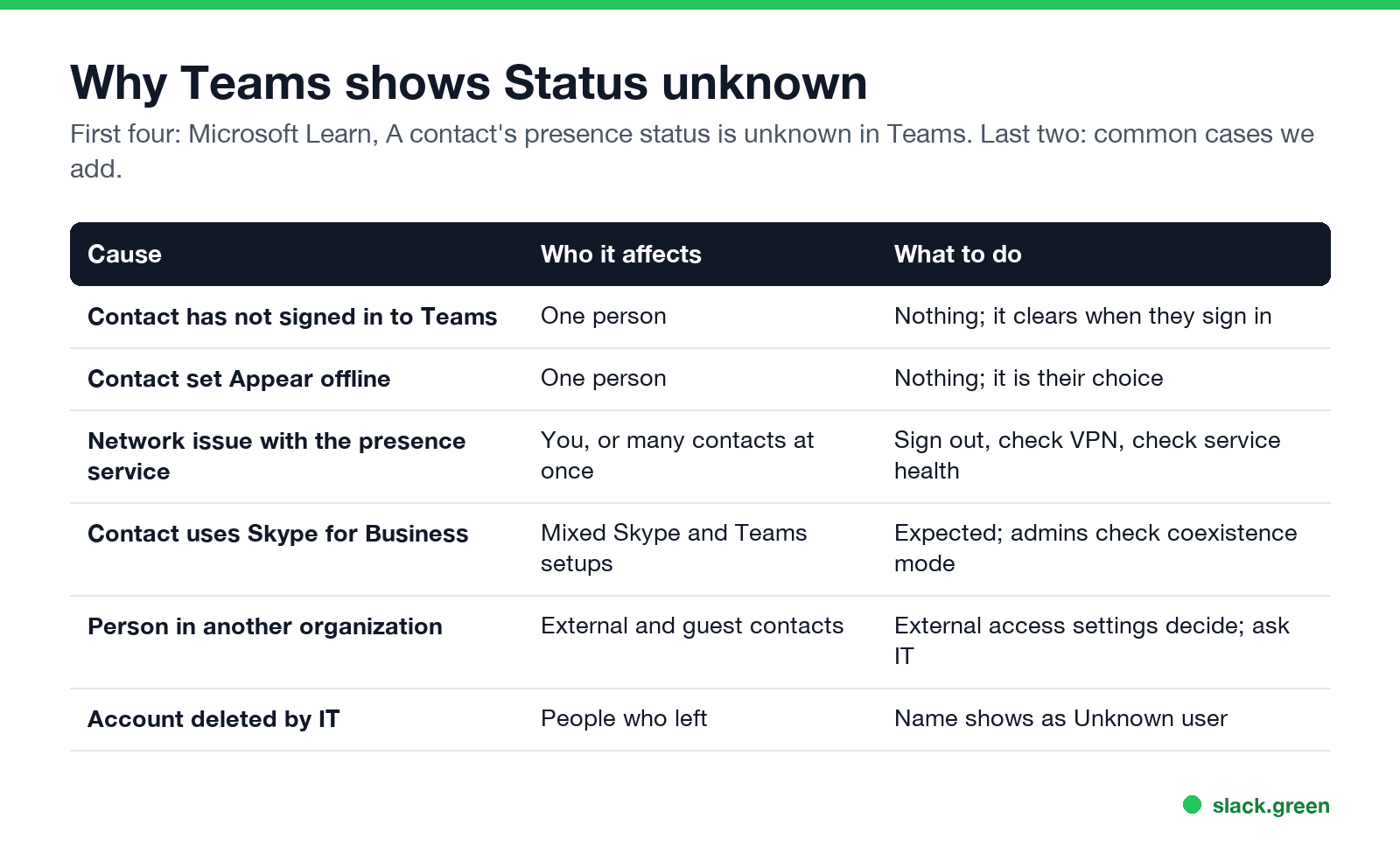
Microsoft Learn, A contact's presence status is unknown in Teams, gives these causes:
| Cause | Who it affects | What to do |
|---|---|---|
| The contact has not signed in to Teams | One person | Nothing; it clears when they sign in |
| The contact set Appear offline | One person | Nothing; it is their choice |
| A network issue with the unified presence service | You, or many contacts at once | Sign out and in, check VPN, check service health |
| The contact uses Skype for Business | Companies running both apps | Expected in some coexistence modes |
Two more cases come up often:
- • People outside your organization. Presence for external and guest contacts depends on your company's external access settings, which admins set in the Teams admin center. If presence is not shared, their dot stays unknown.
- • Right after sign-in or an update. Presence can take a few minutes to load after Teams starts. Microsoft also notes that for mailboxes hosted on-premises, "presence delays of one hour (maximum) are expected".
- • Name changes to Unknown user. When IT deletes an account, existing chats show the name as Unknown user.
- • Email bounces. A message to their address comes back as undeliverable.
- • They leave shared teams and channels. Directory search stops finding them.
Status unknown is different from Offline. Offline, the grey circle with a white x, is a known answer: the person is not signed in on any device. Unknown means no answer came back. The grey x is covered in what does the grey x mean on Teams.
Does Status unknown mean someone was fired?
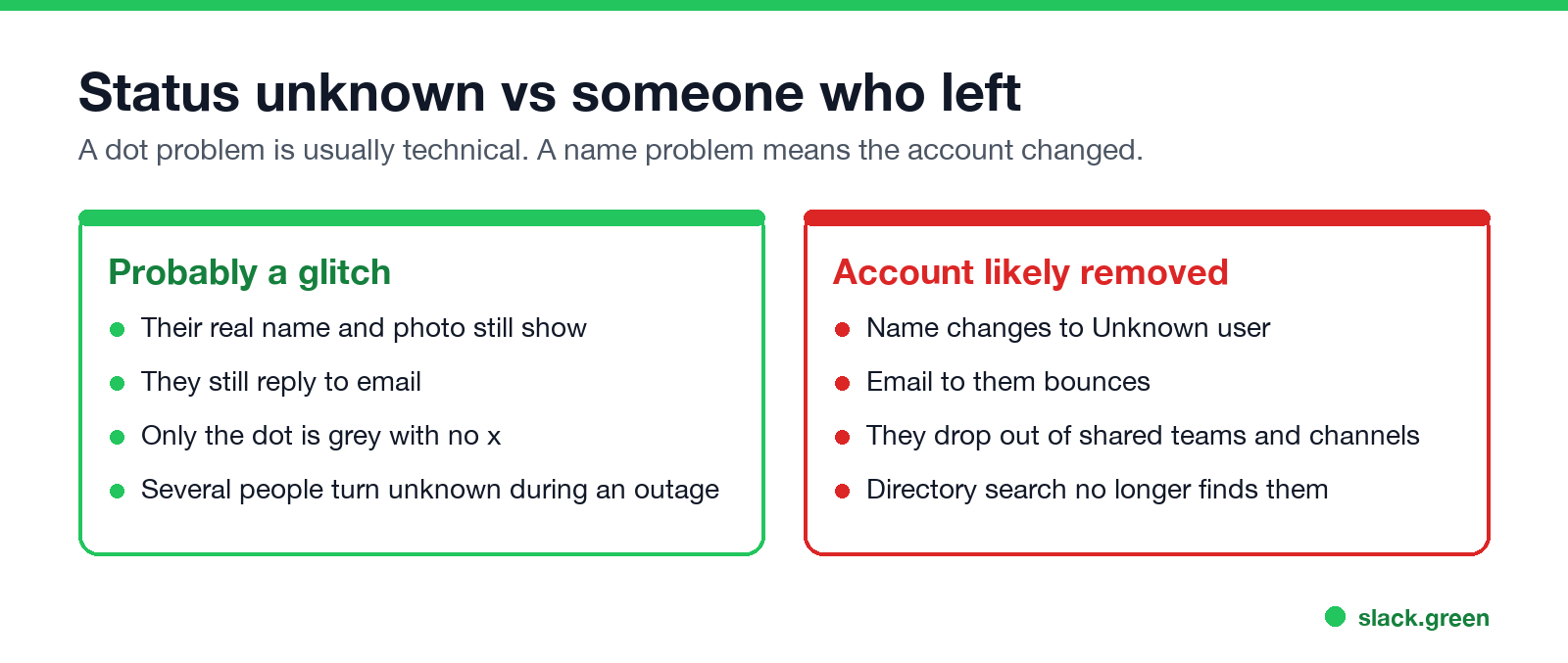
This is the most searched version of the question, and threads on Reddit and Blind trade stories of coworkers turning "unknown" before a layoff. The status alone does not show it. Every cause Microsoft lists applies to people who still work there, and an outage or a VPN problem can turn a whole team unknown at once.
What changes when an account is removed is the person, not the dot:
If their name, photo and email still work, and only the dot is grey with no x, the likely cause is technical. The quickest way to know is to ask. What Teams shows admins about each person is in does Microsoft Teams track your activity.
Teams status unknown for everyone
Never appear "away" on Slack again
Cloud-based. No downloads. Works 24/7 even when your laptop is off.
If every contact shows unknown, the problem is on your side or Microsoft's:
How to fix your own Teams status stuck on Unknown
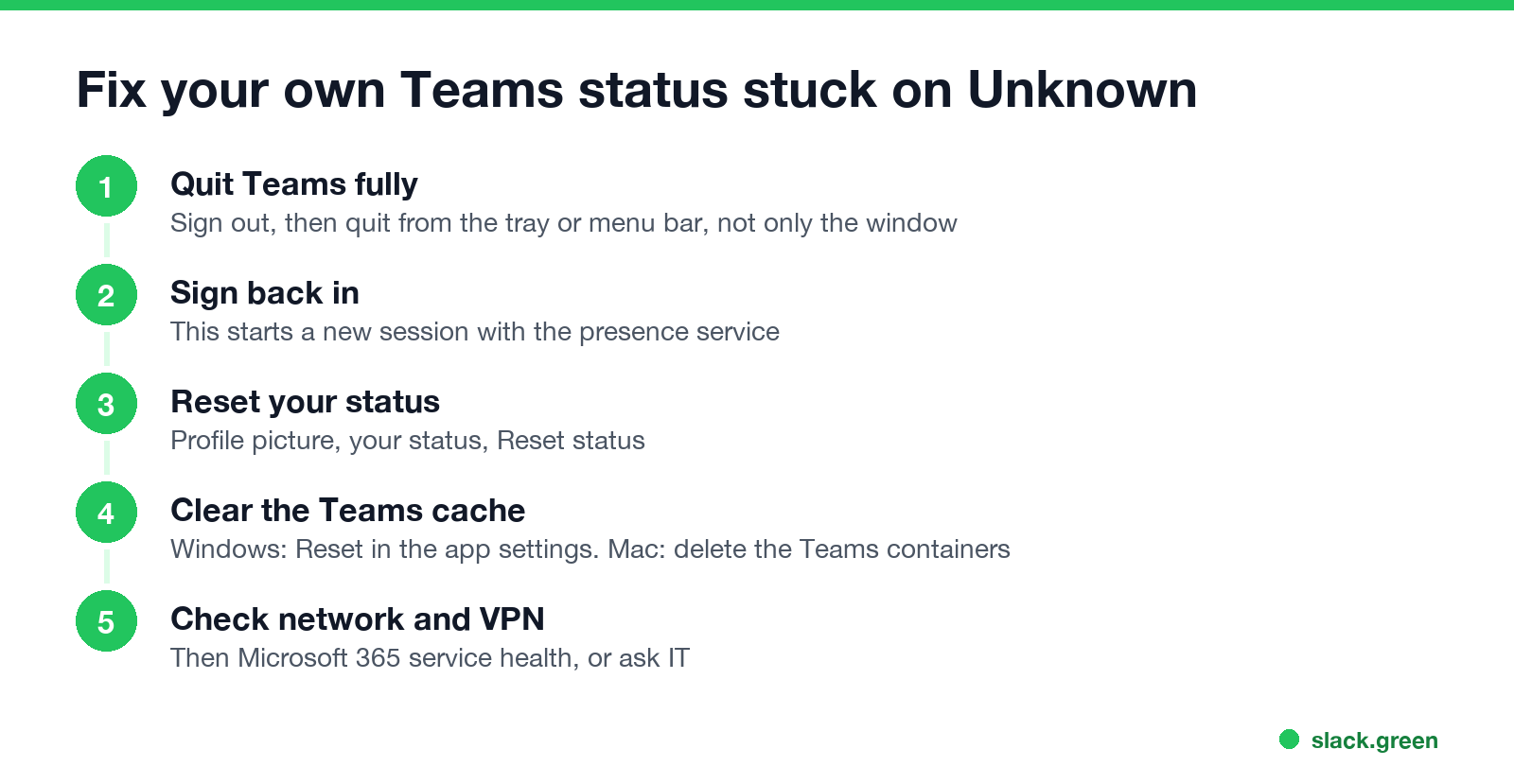
Remove-Item -Recurse -Force "$env:LOCALAPPDATA\Packages\MSTeams_8wekyb3d8bbwe\LocalCache\Microsoft\MSTeams"On a Mac, quit Teams and run:
rm -rf ~/Library/Group\ Containers/UBF8T346G9.com.microsoft.teams
rm -rf ~/Library/Containers/com.microsoft.teams2
Both are the paths in Microsoft Learn's Clear the Teams client cache for the new Teams app. Microsoft calls this a targeted step, not a first step, because it also deletes logs that IT may need. You sign in again afterwards; chats and files live in the cloud and come back.
If your status is yellow rather than unknown, that is Away, a different problem; see Teams status stuck on Away.
Teams web status unknown
Teams on the web uses the same presence service. When it shows unknown while the desktop app does not, check the browser first: a blocked third-party cookie or storage setting for Microsoft sites, an extension that blocks scripts, or an old tab from before a sign-in. Sign out, close all Teams tabs, and open teams.microsoft.com in a fresh window, or try Microsoft Edge or Chrome.
Quick answers
Never appear "away" on Slack again
Cloud-based. No downloads. Works 24/7 even when your laptop is off.
Is Status unknown the same as Offline? No. Offline is a grey circle with an x and means not signed in. Unknown is a grey circle with no x and means Teams got no answer.
Can I set myself to Status unknown? No. The nearest choice is Appear offline, which shows the grey x; see how to appear offline on Teams.
Why is an external contact always unknown? Your company or theirs does not share presence across organizations. Only an admin can change that.
How long does Status unknown last? For a sign-in or sync delay, minutes. For external contacts or Skype for Business users, until the setup changes.
Stop Jiggling Your Mouse.
Join hundreds of remote workers who never worry about their Slack status. Set it up once, stay green forever.
Related Articles
Can My Employer See My Browsing If I Use a VPN? It Depends Whose
A personal VPN hides the sites you visit from the office network, but not from monitoring software, a managed browser or IT on a work laptop. The company VPN shows your employer every site it carries. What each setup hides.
Teams Status on Multiple Devices: The Last Device You Used Wins
Signed in to Teams on a computer and a phone? Your status comes from the device you used most recently. That is why a quick look at your phone can turn you Away, and why a phone in your pocket shows Away instead of Offline at night.
Zoom Do Not Disturb: How to Turn It On, Schedule It, and What It Blocks
To turn on Do not disturb in Zoom, click your profile picture, point at your status and choose Do not disturb, then a time from 20 minutes to 24 hours, or Custom for a daily schedule. It blocks pop-up notifications for Zoom Team Chat and Zoom Phone calls. Busy, by contrast, mutes nothing. How the two differ, and how to keep a Zoom meeting free of pop-ups.