
What Does the Grey X Mean on Teams? Offline, Not Blocked
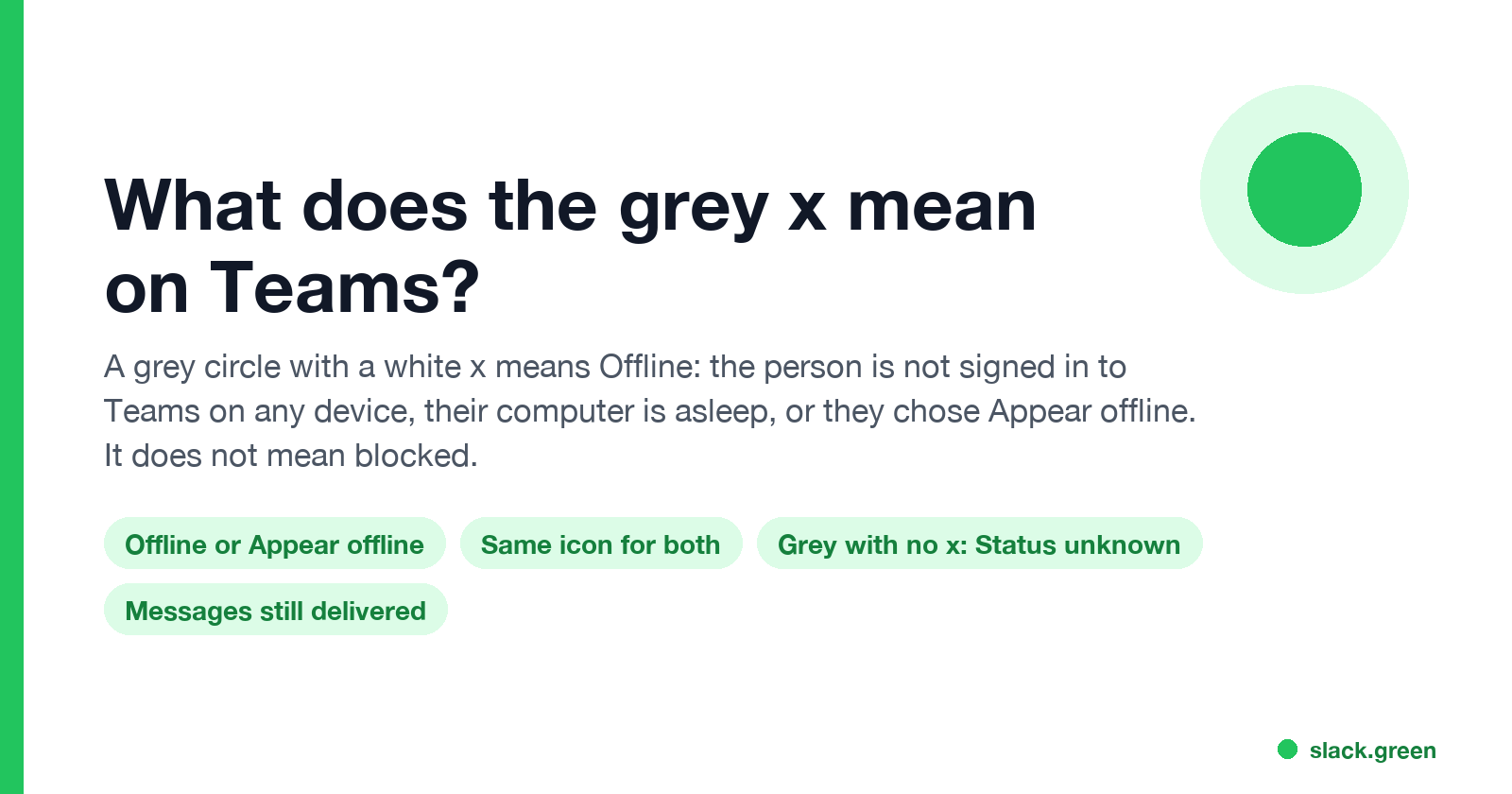
A grey circle with a white x on Microsoft Teams means Offline. The person is not signed in on any device, their computer is asleep, or they set Appear offline, which uses the same icon. A grey circle with no x is a different status, Status unknown. What triggers each, how to tell them apart, and how to fix it when your own dot shows the grey x.
The grey circle with a white x on Microsoft Teams means Offline. Teams shows it when the person is not signed in to Teams on any device, when their computer has gone to sleep, or when their phone is the only device left and it has been idle for 24 hours. It is also the icon for Appear offline, the status people pick to look offline while they keep working. The two look the same to everyone else. The grey x does not mean you are blocked.
A grey circle with no x is a different status: Status unknown. Teams shows it when it cannot read someone's presence at all.
Every chat app draws "not here" differently. In Slack it is a hollow or grey dot, and Slack sets it after 10 minutes without input in the Slack window. Slack Green keeps the Slack dot green during the working hours you set, from the cloud. The full Teams icon set is in Microsoft Teams status icons meaning.
The grey Teams icons, side by side
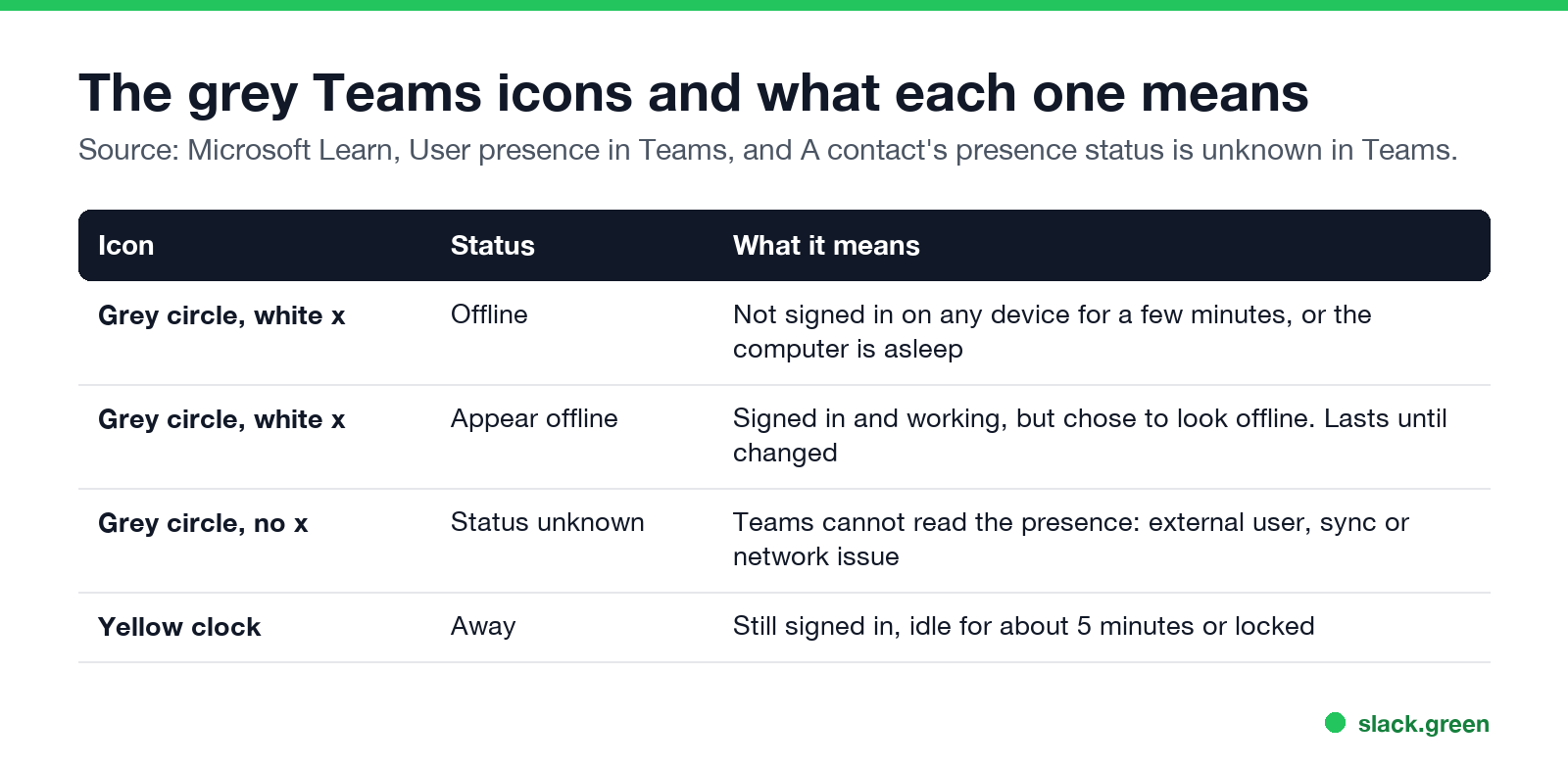
| Icon | Status | What it means |
|---|---|---|
| Grey circle, white x | Offline | Not signed in on any device for a few minutes, or the computer is asleep |
| Grey circle, white x | Appear offline | Signed in and working, but chose to look offline |
| Grey circle, no x | Status unknown | Teams cannot read the presence |
| Yellow clock | Away | Still signed in; idle for about 5 minutes, or the screen is locked |
Microsoft Learn, in User presence in Teams, defines Offline this way: "When users aren't logged in on any of their devices for a few minutes, they appear offline." Appear offline is in the same list as a status users set themselves.
What makes Teams show the grey x
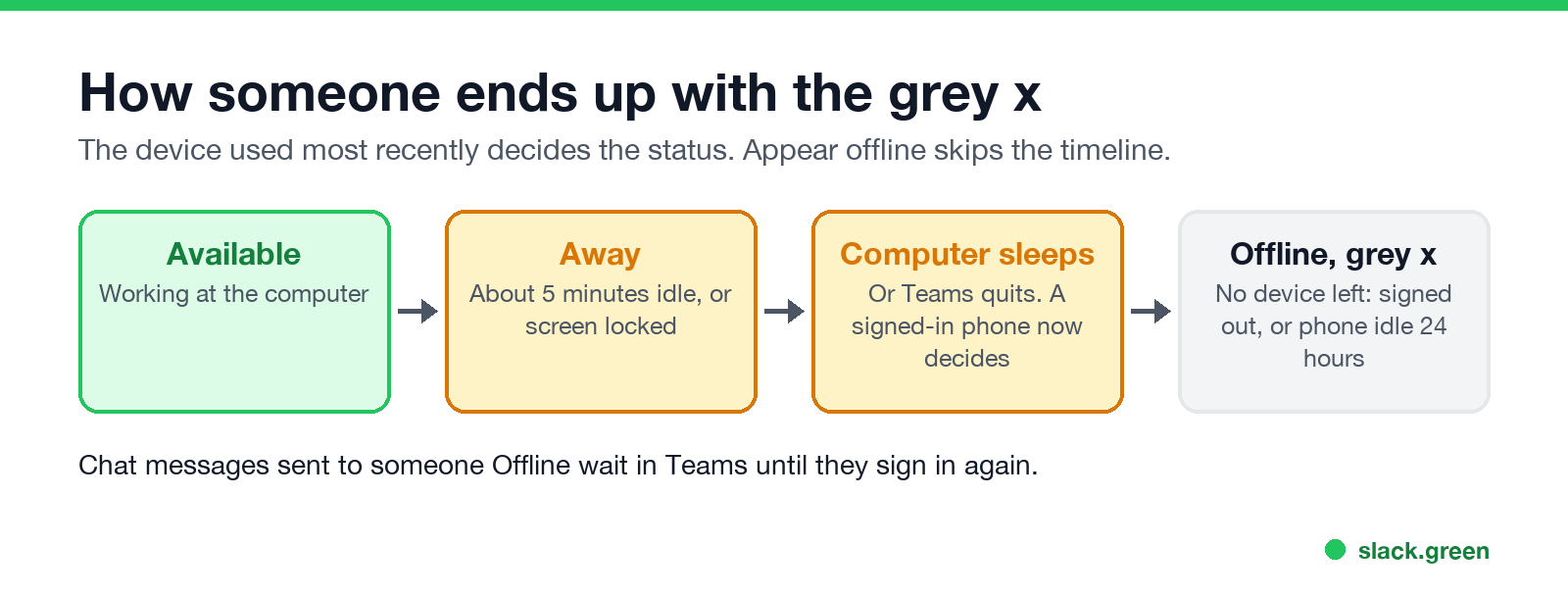
Teams uses the device you used most recently to decide your status. The grey x appears when no device is left to report you:
- • The computer went to sleep. Microsoft Learn: on a computer, presence "becomes Offline when the computer enters sleep mode". Closing a laptop lid does it.
- • Teams was quit or signed out. Closing the window usually leaves Teams running in the tray. Quitting it, or signing out, removes that device.
- • The phone was idle for 24 hours. On a phone, Teams shows Away while the app is in the background, then Offline "after 24 hours of inactivity".
- • The person chose Appear offline. With no duration, Microsoft says a manual Appear offline lasts "indefinitely", until they change it.
- • A network drop. If the device cannot reach the Teams presence service, the person can show Offline for a while.
Away comes first. Before the grey x, most people show the yellow clock for a while, with a "Last seen" time next to it; see what does Last seen mean on Teams. How fast that happens is in how long before Teams shows you as Away.
Can you tell Offline from Appear offline?
Never appear "away" on Slack again
Cloud-based. No downloads. Works 24/7 even when your laptop is off.
Not from the icon. Both are the same grey x. What gives away someone on Appear offline is activity: a reply a minute after your message, a reaction, a read receipt on your chat, or joining a meeting.
If you are the one who wants to look offline, the steps and the limits are in how to appear offline on Teams.
Grey circle with no x: Status unknown
A plain grey circle without the x means Status unknown. Microsoft's troubleshooting article, A contact's presence status is unknown in Teams, lists four causes:
In practice you see it most often for people in another organization, whose presence your company's external access settings do not share, and for a short time after someone signs in. The fixes, and the layoff rumor, are in Teams status unknown.
Does the grey x mean someone blocked you on Teams?
No. Teams presence is the same for everyone who can see it; a person cannot pick Offline for one coworker and Available for the rest. Teams does have a block option, mostly for chats with people outside your organization, and a blocked person stops seeing the other's presence. Inside one company, a grey x almost always means the person is offline, asleep, or on Appear offline.
Messages still reach someone with the grey x. Microsoft Learn: "If a user is offline when someone sends them a message, the chat message appears in Teams the next time they come online." Calls to someone who is offline go to voicemail if they have it.
Why your own Teams status shows the grey x
Never appear "away" on Slack again
Cloud-based. No downloads. Works 24/7 even when your laptop is off.
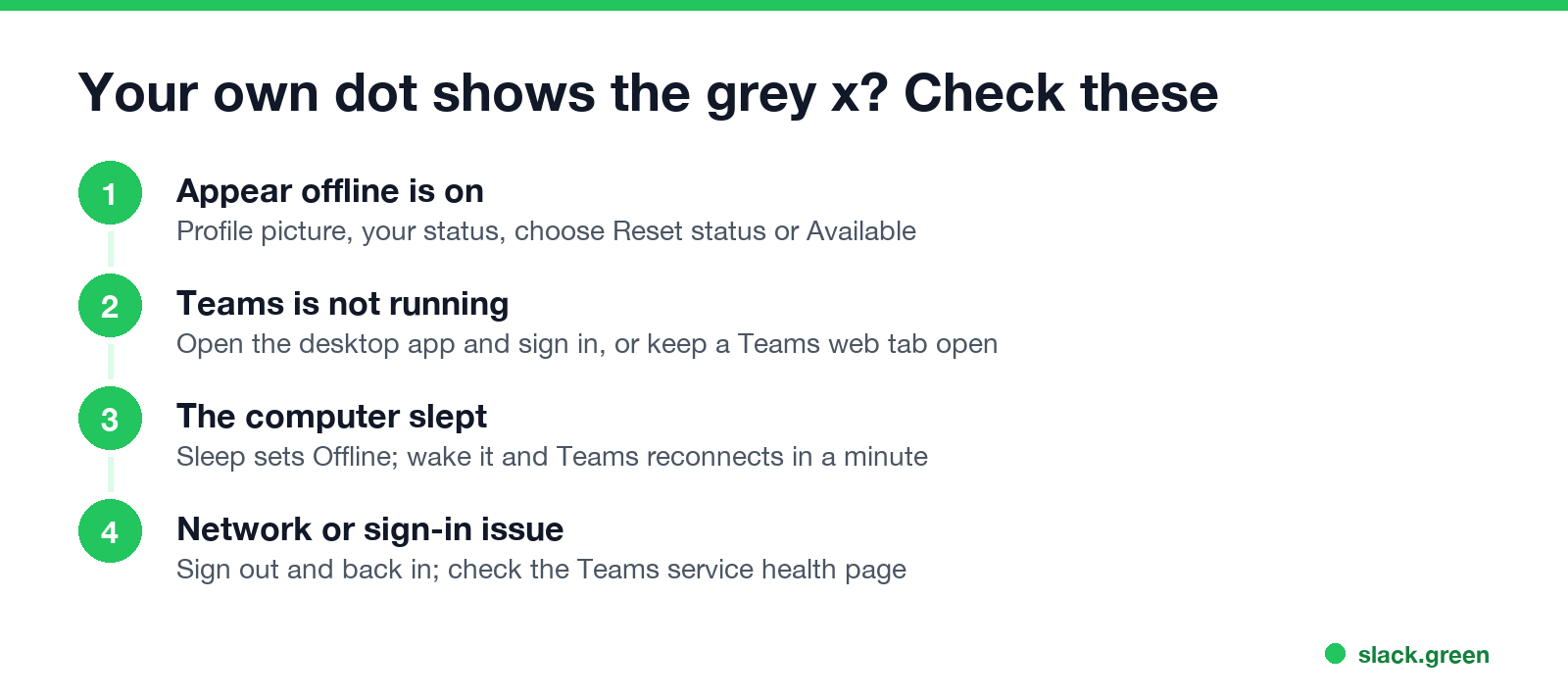
If coworkers see the grey x while you are at your desk, check these in order:
If your dot turns yellow rather than grey while you work, that is Away, and the fixes are in Teams status stuck on Away. For keeping it green through the day, see how to keep your Teams status available.
Quick answers
What does a red circle with an x mean on Teams? There is no red x status. A red circle with a white bar is Do not disturb, Presenting or Focusing.
Does the grey x show in Outlook too? Yes. Outlook shows the same Teams presence next to names; see Outlook status colors meaning.
Why does a coworker show the grey x in the middle of the day? Their laptop is closed or asleep, they quit Teams, or they are on Appear offline.
Is the grey x the same on the Teams mobile app? Yes. The same icon means the same status on every device.
Stop Jiggling Your Mouse.
Join hundreds of remote workers who never worry about their Slack status. Set it up once, stay green forever.
Related Articles
Can My Employer See My Browsing If I Use a VPN? It Depends Whose
A personal VPN hides the sites you visit from the office network, but not from monitoring software, a managed browser or IT on a work laptop. The company VPN shows your employer every site it carries. What each setup hides.
Teams Status on Multiple Devices: The Last Device You Used Wins
Signed in to Teams on a computer and a phone? Your status comes from the device you used most recently. That is why a quick look at your phone can turn you Away, and why a phone in your pocket shows Away instead of Offline at night.
Zoom Do Not Disturb: How to Turn It On, Schedule It, and What It Blocks
To turn on Do not disturb in Zoom, click your profile picture, point at your status and choose Do not disturb, then a time from 20 minutes to 24 hours, or Custom for a daily schedule. It blocks pop-up notifications for Zoom Team Chat and Zoom Phone calls. Busy, by contrast, mutes nothing. How the two differ, and how to keep a Zoom meeting free of pop-ups.