
What Does Presenting Mean in Teams? The Status and the Meeting Role
Presenting on Microsoft Teams is a status Teams sets while someone shares their screen, a window or PowerPoint Live slides in a meeting or call. It shows as a red circle with a white bar, mutes their notification banners, and ends when they stop sharing. It is different from the Presenter role in a meeting. What each means, how Presenting compares with In a meeting and Busy, and why it sometimes does not show.
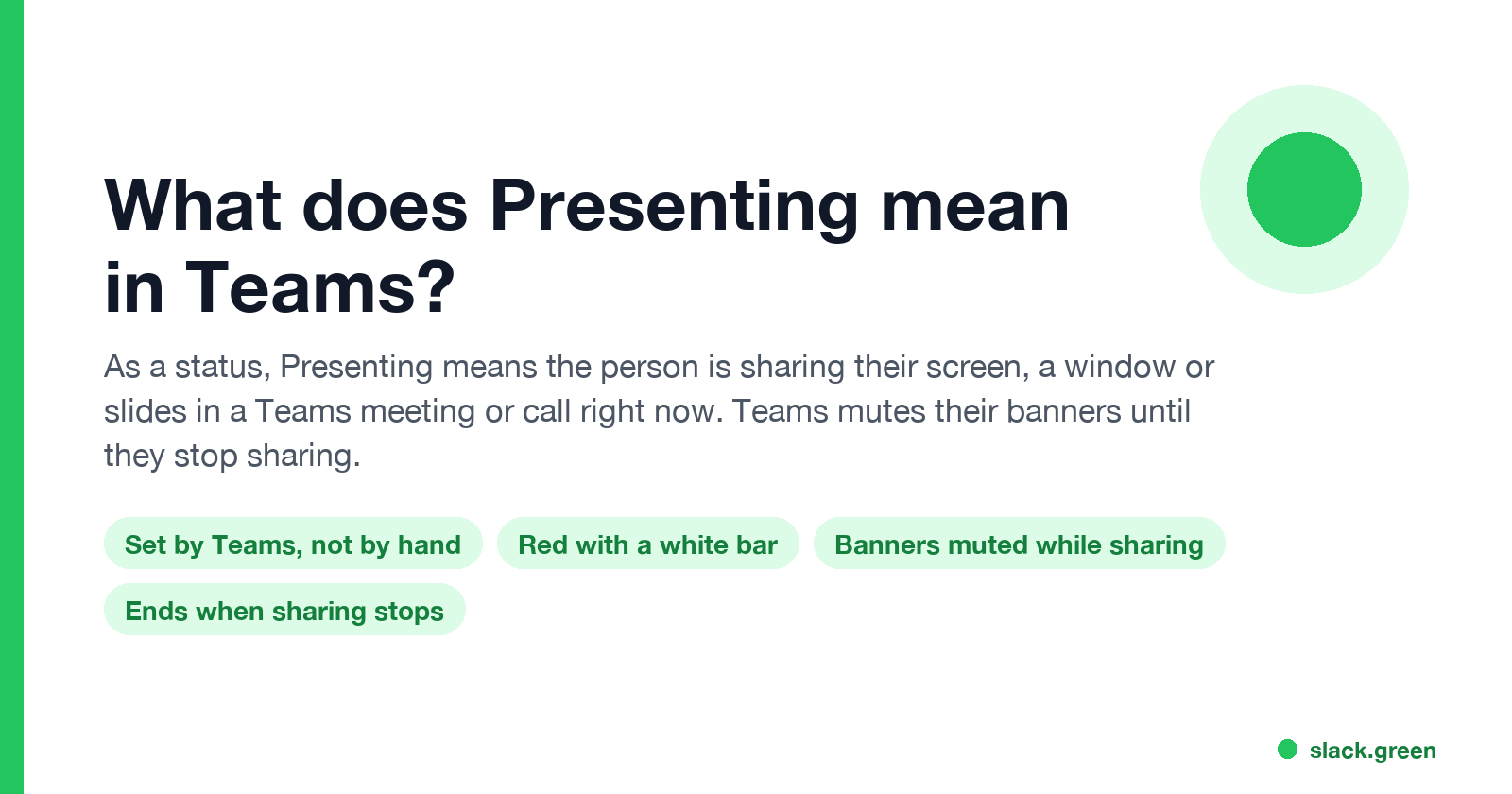
Presenting on Microsoft Teams means the person is sharing content in a Teams meeting or call right now: their whole screen, one window, or PowerPoint Live slides. Teams sets it on its own when sharing starts and clears it when sharing stops. You cannot pick it from the status menu. It shows as a red circle with a white bar, the same icon as Do not disturb, and like Do not disturb it mutes that person's notification banners, so a chat message does not pop up on the screen everyone is watching. Messages are still delivered.
"Presenter" also means something else in Teams: a meeting role. A presenter in a meeting can share content and manage attendees, whether or not they are sharing at the moment. Both are covered below.
Teams sets statuses like this from what you are doing. Slack has one rule for its dot: it turns grey after 10 minutes without input in the Slack window. Slack Green keeps that Slack dot green during the working hours you set, from the cloud.
When Teams shows Presenting
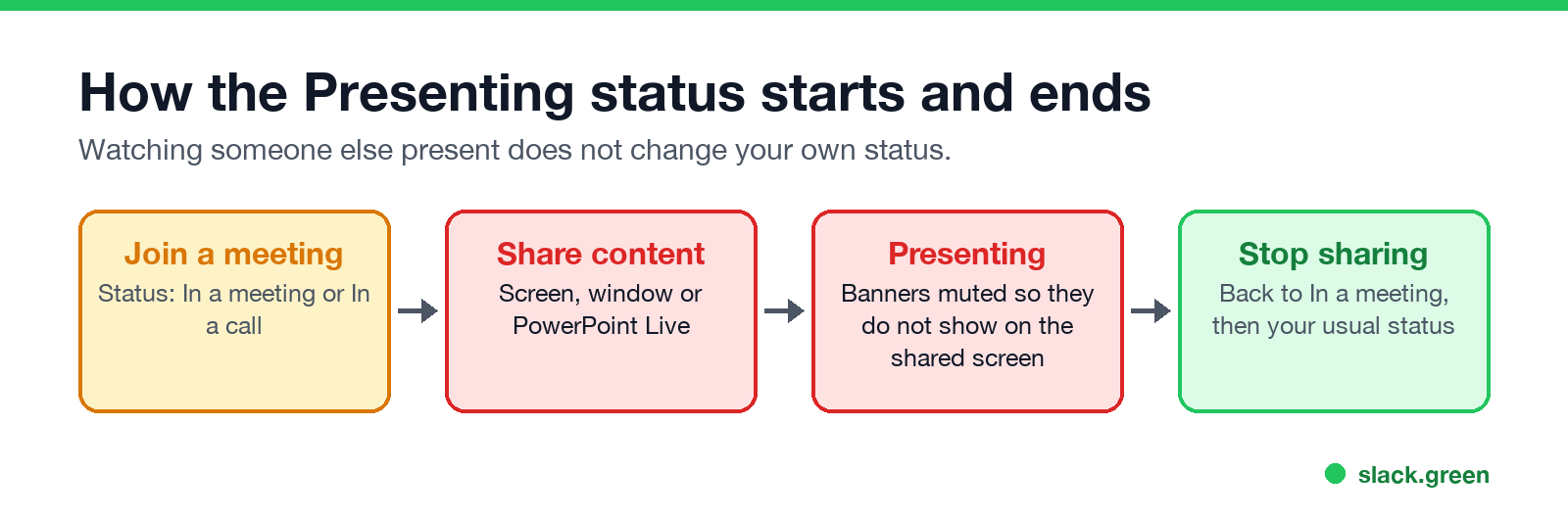
- You join a meeting. Teams shows In a meeting (a scheduled meeting) or In a call.
- You select Share and share your screen, a window, or PowerPoint Live.
- Your status changes to Presenting. Teams mutes your banners.
- You stop sharing. Your status goes back to In a meeting, and after the meeting to your usual status.
Watching someone else share does not change your status. Joining a meeting with your camera on does not either. Microsoft Learn's User presence in Teams lists Presenting among the states that Teams sets from "the state of the Teams app", next to In a call.
Presenting vs In a meeting, In a call, Busy and Do not disturb
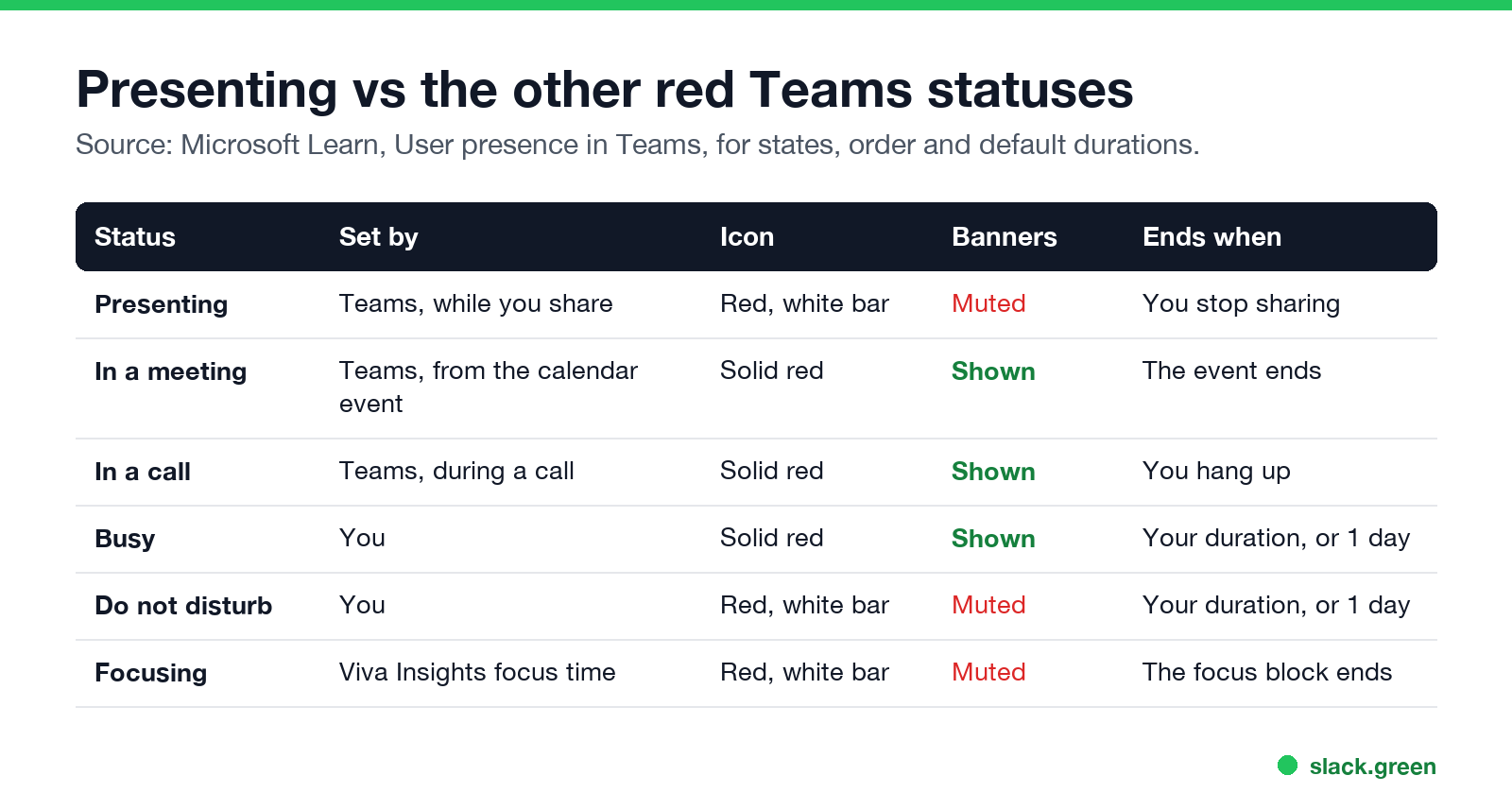
| Status | Set by | Icon | Banners | Ends when |
|---|---|---|---|---|
| Presenting | Teams, while you share | Red, white bar | Muted | You stop sharing |
| In a meeting | Teams, from the calendar event or a joined meeting | Solid red | Shown | The meeting ends |
| In a call | Teams, during a call | Solid red | Shown | You hang up |
| Busy | You | Solid red | Shown | Your duration, or 1 day |
| Do not disturb | You | Red, white bar | Muted | Your duration, or 1 day |
| Focusing | Viva Insights focus time | Red, white bar | Muted | The focus block ends |
The 1-day defaults come from Microsoft Learn: a manual Busy or Do not disturb with no duration lasts 1 day. The difference between the solid-red states is in Teams Busy vs In a meeting. Do not disturb, including how it handles calls, is in Teams Do not disturb, and Focusing is in what does Focusing mean in Teams.
What coworkers see while you present
Never appear "away" on Slack again
Cloud-based. No downloads. Works 24/7 even when your laptop is off.
If you want a quiet screen during a demo without sharing through Teams, set Do not disturb yourself before you start.
Presenter role in a Teams meeting
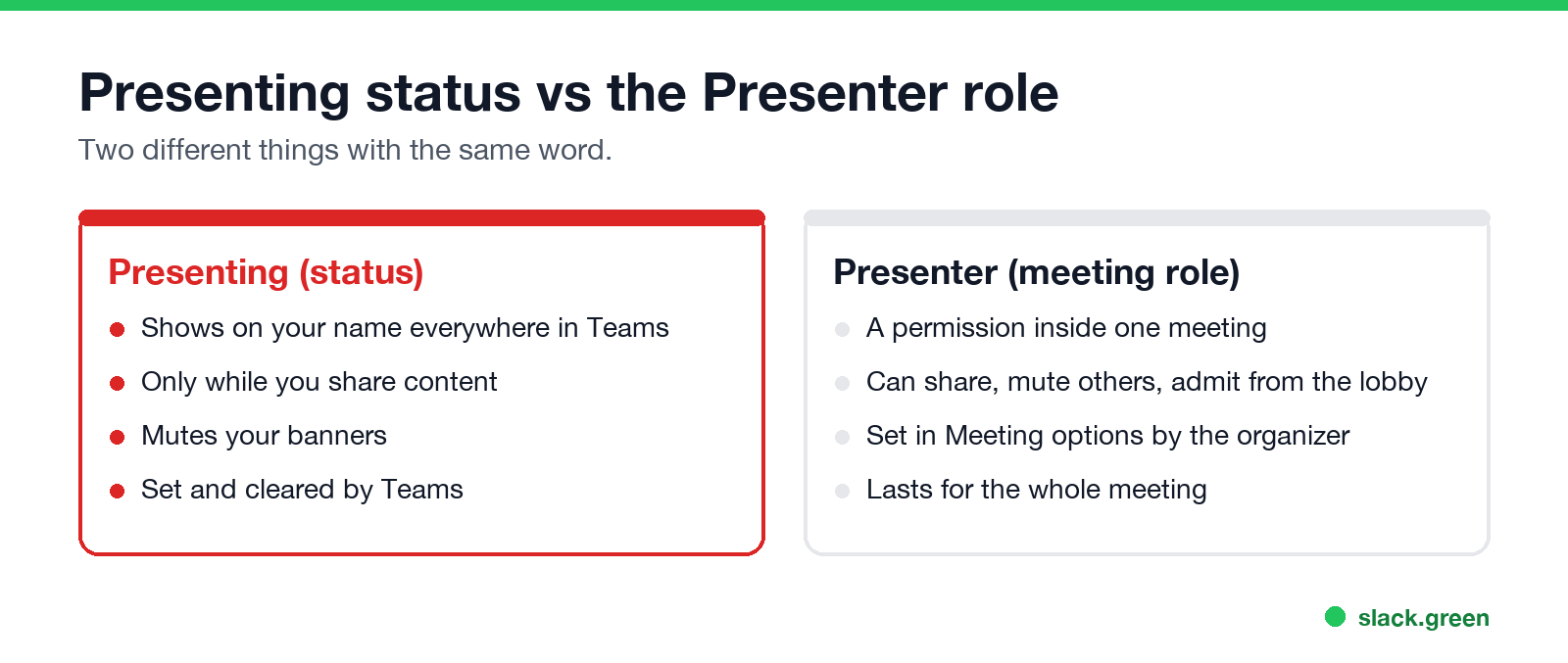
The Presenter role is a permission inside one meeting. The organizer sets who has it in Meeting options, under "Who can present". Presenters can share content, mute attendees, admit people from the lobby and remove people. Attendees can talk, use video and chat, but cannot share content unless someone makes them a presenter.
A presenter has the role for the whole meeting. The Presenting status appears only while they actually share. For how the shared content is laid out on screen, Teams has presenter modes such as Standout, Side-by-side and Reporter, which place your video next to or over your content.
Teams not showing the Presenting status
If you share and your status stays In a meeting, or coworkers do not see Presenting:
Teams In a meeting status not updating
Never appear "away" on Slack again
Cloud-based. No downloads. Works 24/7 even when your laptop is off.
In a meeting comes from your Outlook calendar, so it follows the calendar event, not whether you joined:
When Teams shows the wrong status in Outlook as well, see Teams status not showing in Outlook.
Quick answers
Can I set myself to Presenting? No. It is not in the status menu. Busy or Do not disturb are the nearest choices.
Does Presenting mean the person is in a meeting? Yes, a meeting or call, and they are sharing content in it right now.
Is Presenting the same as Do not disturb? Same icon and same muted banners, but Teams sets Presenting and clears it when sharing stops.
Why does my status still say Presenting after the meeting? Presence can lag a minute or two. If it stays, reset your status from your profile picture, or sign out and back in.
Stop Jiggling Your Mouse.
Join hundreds of remote workers who never worry about their Slack status. Set it up once, stay green forever.
Related Articles
Can My Employer See My Browsing If I Use a VPN? It Depends Whose
A personal VPN hides the sites you visit from the office network, but not from monitoring software, a managed browser or IT on a work laptop. The company VPN shows your employer every site it carries. What each setup hides.
Teams Status on Multiple Devices: The Last Device You Used Wins
Signed in to Teams on a computer and a phone? Your status comes from the device you used most recently. That is why a quick look at your phone can turn you Away, and why a phone in your pocket shows Away instead of Offline at night.
Zoom Do Not Disturb: How to Turn It On, Schedule It, and What It Blocks
To turn on Do not disturb in Zoom, click your profile picture, point at your status and choose Do not disturb, then a time from 20 minutes to 24 hours, or Custom for a daily schedule. It blocks pop-up notifications for Zoom Team Chat and Zoom Phone calls. Busy, by contrast, mutes nothing. How the two differ, and how to keep a Zoom meeting free of pop-ups.