
Teams Do Not Disturb: What It Blocks and How Long It Lasts
Do not disturb in Teams hides pop-up banners and sends calls to voicemail. Messages still arrive, priority people still get through, and it resets after one day unless you set a duration.
Do not disturb in Microsoft Teams is the red status with a white bar. It stops Teams notification banners from popping up and sends incoming calls to voicemail. Chat messages still arrive, and people on your priority access list still get through. To turn it on, select your profile picture, select your current status, then Do not disturb, or type /dnd in the search box. Microsoft's presence documentation says a Do not disturb you set yourself lasts one day unless you give it a duration.
This page covers what Do not disturb blocks, how it differs from Busy, why Teams sometimes turns it on by itself, and how to turn it off. If you also work in Slack, where the problem usually runs the other way, Slack Green keeps your Slack status green from a server during the hours you set.
What Do not disturb means in Teams
In Teams' ranking of statuses, Do not disturb sits below Busy, In a meeting and In a call, and above Be right back, Away and Offline. Coworkers see a red circle with a white bar next to your name, and the words "Do not disturb" on your profile card. Microsoft's help page describes it as the status for when you "want to focus or present your screen and don't want to receive notifications."
It changes two things for you and one thing for everyone else:
- • For you, message banners and sounds stop, and calls go straight to voicemail.
- • For others, your dot turns red, so they know a reply may take a while.
- Select your profile picture at the top right.
- Select your current status under your name.
- Select Do not disturb.
It does not stop anything from being delivered. Every chat message lands in Teams as usual, and your Activity feed still counts mentions. When you switch back, it is all there.
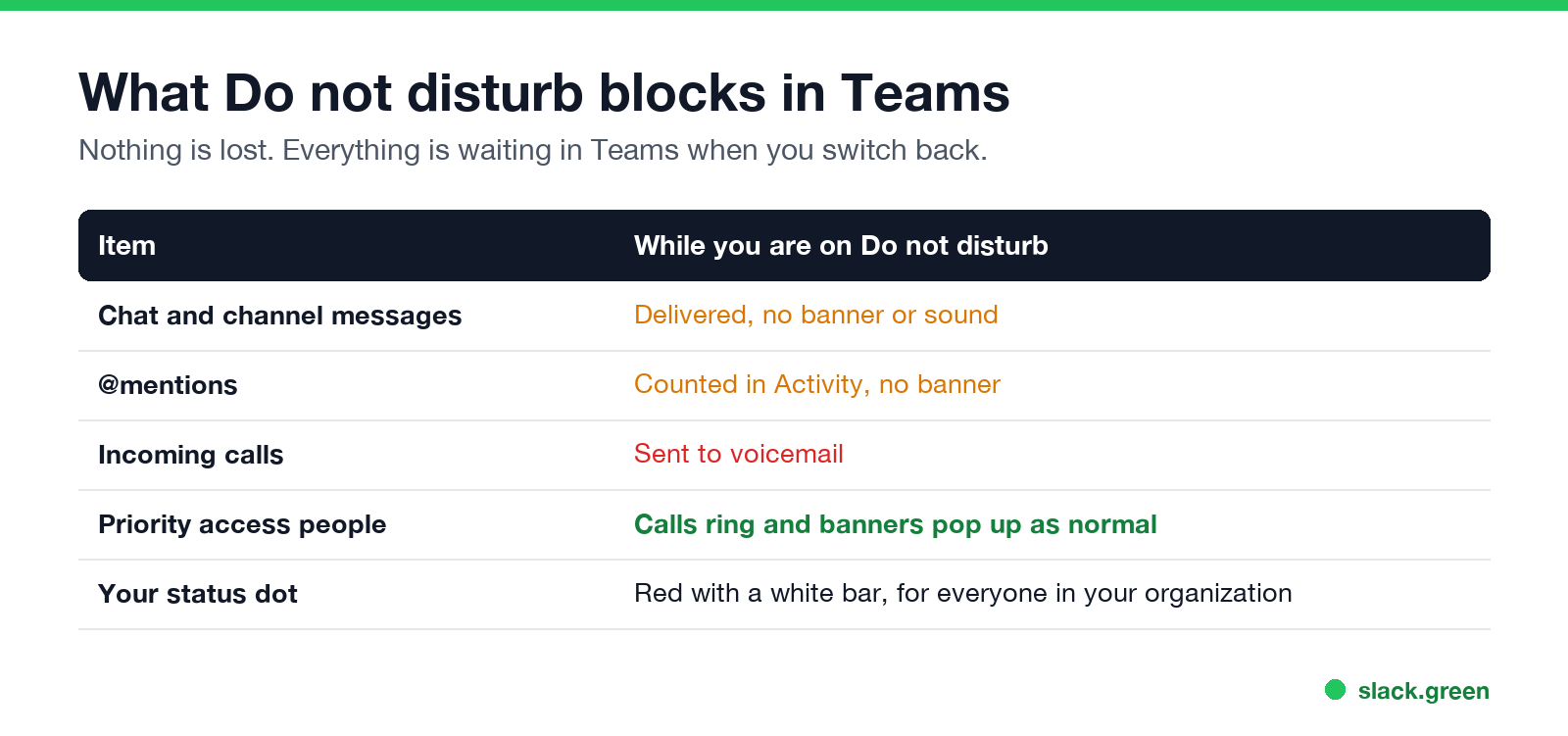
| Item | While you are on Do not disturb |
|---|---|
| Chat and channel messages | Delivered, no banner or sound |
| @mentions | Counted in Activity, no banner |
| Incoming calls | Go to voicemail |
| Calls and messages from priority access people | Ring and pop up as normal |
| Your status dot | Red with a white bar, for everyone in your organization |
How to turn on Do not disturb in Teams
Desktop app or Teams on the web
From the search box. Type the command in the search box at the top of Teams and press Enter:
/dnd          Do not disturb
/busy         Busy
/available    back to Available
/brb          Be right back
/away         Away
/offline      Appear offline
Phone app. Tap your profile picture, tap your current status, then tap Do not disturb. Your status belongs to your account, so it shows the same on every device you are signed in on.
Set Do not disturb for a fixed time
Without a duration, Teams keeps a manual Do not disturb for one day, then goes back to working out your status from your activity and calendar. To choose the end time yourself:
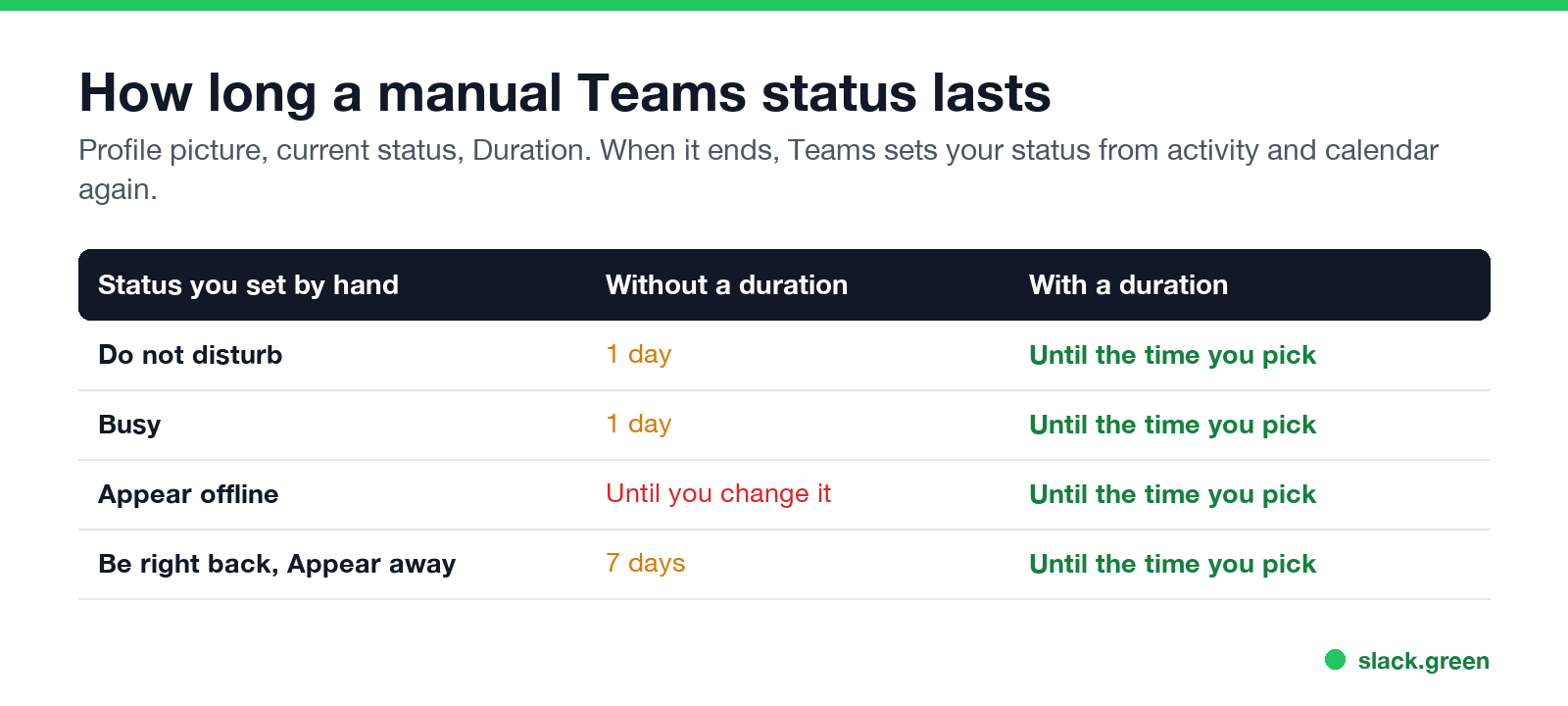
The same rules from Microsoft's admin page, as a table:
| Manual status | How long it lasts without a duration |
|---|---|
| Do not disturb | 1 day |
| Busy | 1 day |
| Appear offline | Until you change it |
| Any other status | 7 days |
Teams has no weekly schedule for Do not disturb. For a daily quiet block, book focus time in your Outlook calendar through Viva Insights; Teams then shows Focusing and silences notifications until the block ends.
Priority access: who still gets through
Never appear "away" on Slack again
Cloud-based. No downloads. Works 24/7 even when your laptop is off.
Priority access is the exception list for Do not disturb. Messages from people on it still show banners, and their calls still ring.
Put your manager and anyone who covers on-call work on it. Everyone else sees your red dot and waits.
Busy vs Do not disturb in Teams
Both show a red dot, so coworkers often cannot tell them apart at a glance. The difference is what reaches you.
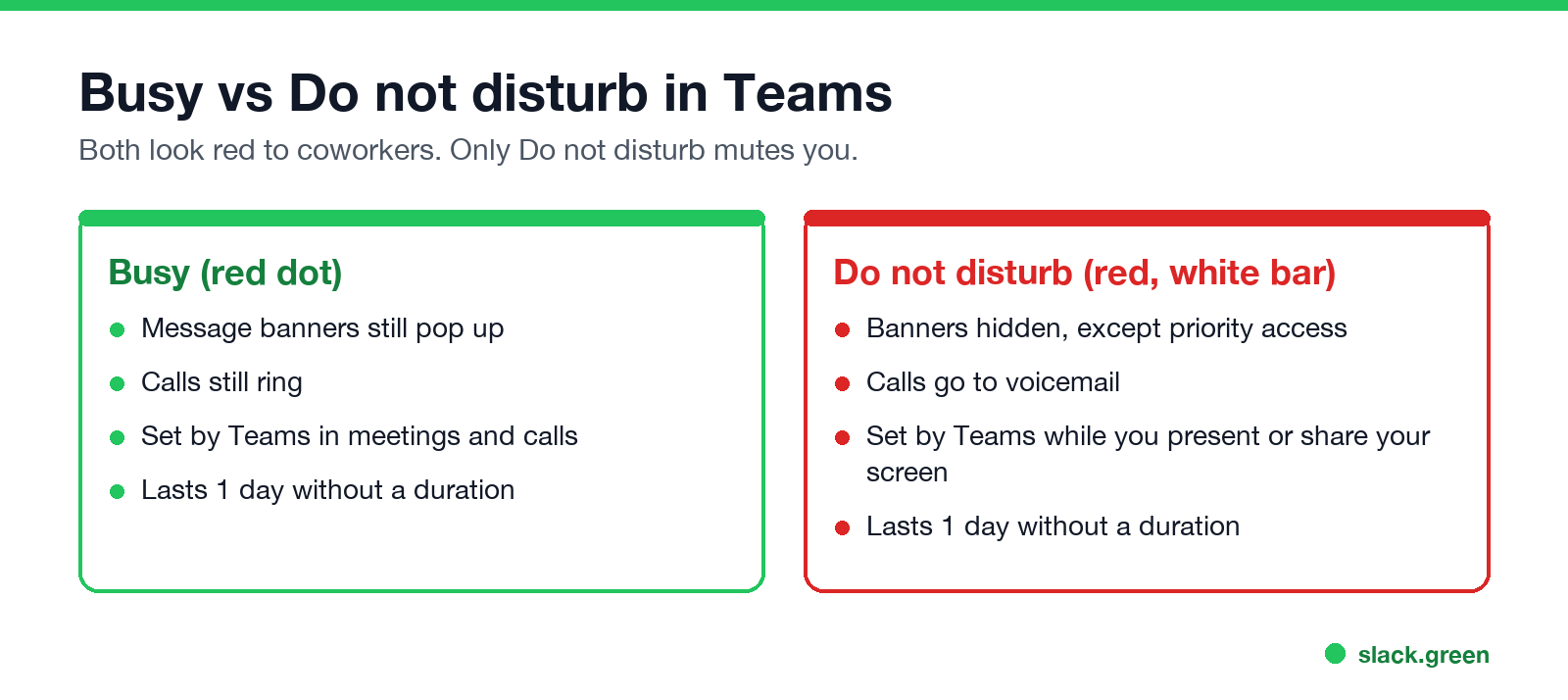
| Busy | Do not disturb | |
|---|---|---|
| Dot | Red | Red with a white bar |
| Message banners | Shown | Hidden, except priority access |
| Incoming calls | Ring | Voicemail, except priority access |
| Set by Teams on its own | In a meeting, In a call | While presenting or sharing your screen |
| Lasts without a duration | 1 day | 1 day |
| Good for | Heads-down work where you still want to see pings | Presenting, deep work, interviews |
Busy says "I am working and may be slow to reply." Do not disturb says "I will not see this until later." If you want to look occupied without muting anything, Busy or a calendar block is the better fit; how to look busy on Teams covers those options. What every colour and symbol means is in Microsoft Teams status icons meaning.
Why Teams puts you on Do not disturb by itself
If your status turns red with a white bar without you choosing it, one of these is usually the cause:
On the Microsoft Q&A forum, several users reported Teams switching them back to Do not disturb every 15 to 30 minutes with nothing on their calendar and Windows Focus assist off. One user's case cleared up on its own after two weeks, after a support ticket that did not find the cause. If none of the causes above apply, sign out of Teams on every device, sign back in, and open a ticket with your IT team.
How to turn off Do not disturb in Teams
Never appear "away" on Slack again
Cloud-based. No downloads. Works 24/7 even when your laptop is off.
/available in the search box.If it keeps coming back, check the causes in the section above. A status set with a long duration on another device is the most common one.
Teams, Windows and phone Do not disturb are separate
Three different switches share the name:
If notifications vanished and your dot is still green, the operating system is the one muting them.
Do not disturb etiquette in Teams
Do not disturb on Slack
Never appear "away" on Slack again
Cloud-based. No downloads. Works 24/7 even when your laptop is off.
Slack's version is called Pause notifications. It mutes your notifications and puts a small Z on your dot. Unlike Teams, Slack lets you schedule it for the same hours every day. The steps are in Slack Do Not Disturb. The opposite problem, Slack switching you to away after 10 minutes without input, is the one Slack Green solves.
FAQ
What does Do not disturb mean on Teams? The person has muted Teams notifications. Your messages are delivered, but they will not see a banner, and calls go to voicemail.
Does Do not disturb block calls in Teams? Yes. Calls go to voicemail, except calls from people on your priority access list.
How long does Do not disturb last in Teams? One day if you set it without a duration. With a duration, until the time you chose.
What is the difference between Busy and Do not disturb in Teams? Busy still shows notifications and rings calls. Do not disturb hides banners and sends calls to voicemail.
Why does Teams keep setting me to Do not disturb? Usually screen sharing or presenting. Turn off "Set my status to Do not disturb when I'm sharing my screen" under Settings, Privacy.
Can my manager still reach me on Do not disturb? Only if you add them to priority access under Settings, Privacy, Manage priority access.
Stop Jiggling Your Mouse.
Join hundreds of remote workers who never worry about their Slack status. Set it up once, stay green forever.
Related Articles
Can My Employer See My Browsing If I Use a VPN? It Depends Whose
A personal VPN hides the sites you visit from the office network, but not from monitoring software, a managed browser or IT on a work laptop. The company VPN shows your employer every site it carries. What each setup hides.
Teams Status on Multiple Devices: The Last Device You Used Wins
Signed in to Teams on a computer and a phone? Your status comes from the device you used most recently. That is why a quick look at your phone can turn you Away, and why a phone in your pocket shows Away instead of Offline at night.
Zoom Do Not Disturb: How to Turn It On, Schedule It, and What It Blocks
To turn on Do not disturb in Zoom, click your profile picture, point at your status and choose Do not disturb, then a time from 20 minutes to 24 hours, or Custom for a daily schedule. It blocks pop-up notifications for Zoom Team Chat and Zoom Phone calls. Busy, by contrast, mutes nothing. How the two differ, and how to keep a Zoom meeting free of pop-ups.