
Teams Quiet Hours: Set Them on Mobile, Plus Desktop Options
Teams quiet hours is a phone setting: profile picture, Notifications, Block during quiet hours. It mutes Teams on your phone at set hours or on set days, and nobody else can tell. The desktop app has no quiet hours; here is what to use instead.
Quiet hours in Microsoft Teams is a setting in the Teams phone app that mutes Teams notifications on your phone at the hours or on the days you choose. To set it, open Teams on your phone, tap your profile picture, tap Notifications, and under Block notifications choose Block during quiet hours. Then turn on Certain hours, All day, or both. Microsoft's quiet time page says other people "won't know if your notifications are muted." The Teams desktop app has no quiet hours schedule; the ways to get one on a computer are further down.
Quiet hours changes only what reaches you. Your status dot keeps following your activity, so a teammate still sees you as Away or Offline in the evening, not "quiet". Slack works the same way with its notification schedule. If your Slack problem is the opposite, going grey during working hours while you read or think, Slack Green keeps your Slack status active from a server during the hours you set.
How to set quiet hours in the Teams phone app
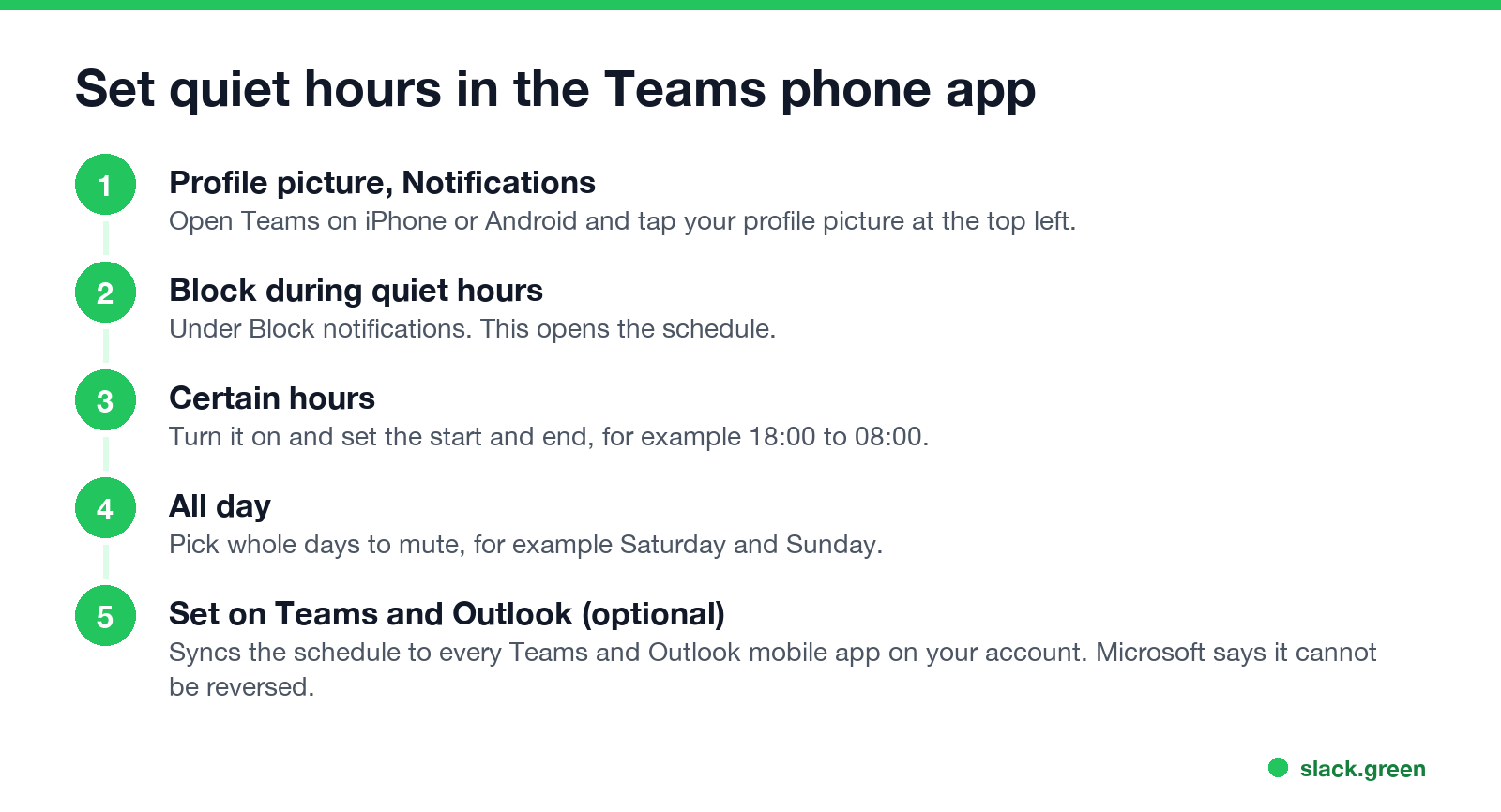
- Open Teams on your phone and tap your profile picture at the top left.
- Tap Notifications.
- Under Block notifications, tap Block during quiet hours.
- Turn on Certain hours and set the start and end, for example 18:00 to 08:00.
- Turn on All day and pick days to mute all day, for example Saturday and Sunday.
- To use the same schedule on every phone and tablet, turn on Set on Teams and Outlook.
Set on Teams and Outlook syncs the schedule to every Teams and Outlook mobile app signed in with the same account, and sends it to Viva Insights. Microsoft warns that the sync "can't be reversed": every quiet time schedule is copied to the device where you turn it on.
During quiet hours you get no sounds or push notifications from Teams. When you open the app, new messages and Activity are all there. Quiet hours follow the phone's clock, so if you travel and the phone changes time zone, the schedule moves to local time.
Does Teams have quiet hours on the desktop app?
No. The quiet hours schedule exists only in the Teams mobile apps. On a computer you have four other tools, and each covers part of it.
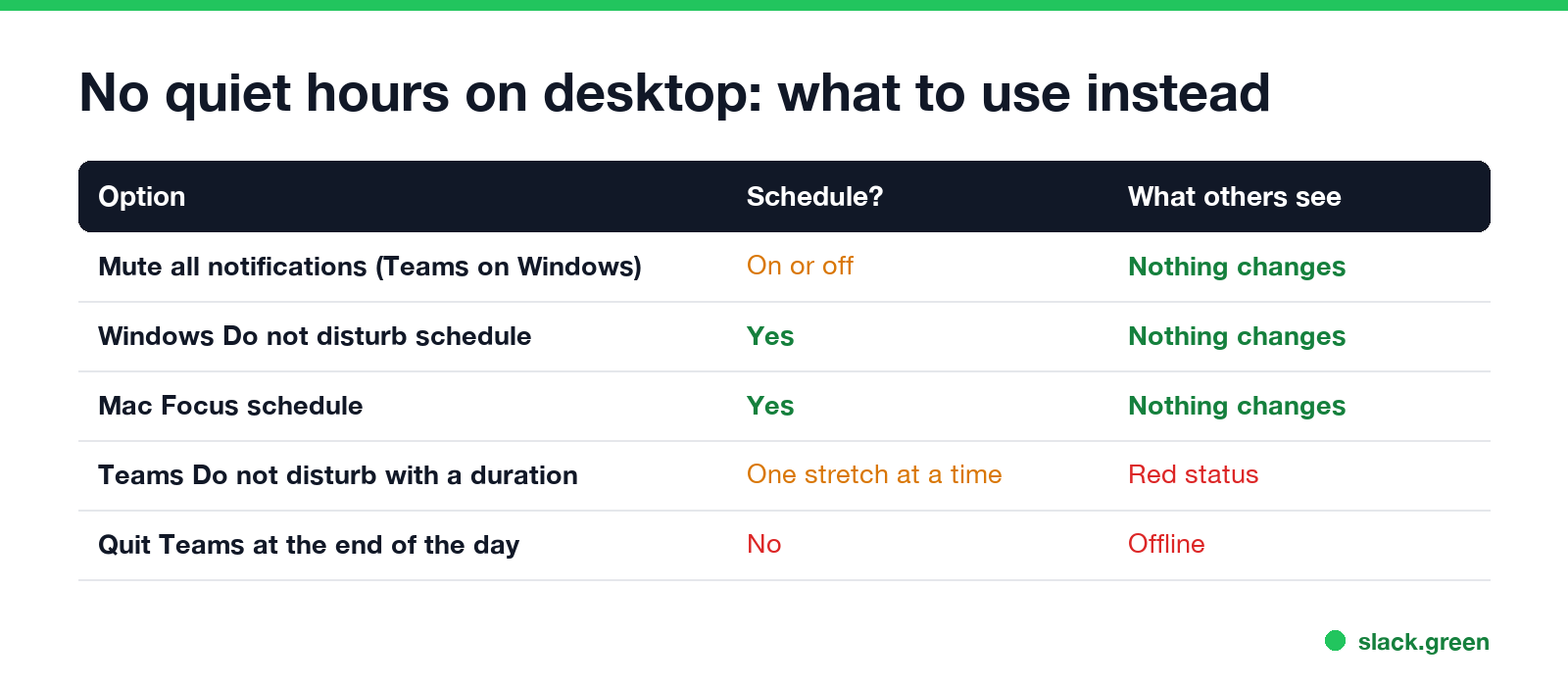
| Option | Where | Schedule? | What others see |
|---|---|---|---|
| Mute all notifications | Teams Settings, Notifications and activity, General (Windows only) | No, on or off | Nothing changes |
| Windows Do not disturb schedule | Windows Settings, System, Notifications, Turn on do not disturb automatically | Yes | Nothing changes |
| Mac Focus schedule | System Settings, Focus, Do Not Disturb, Add Schedule | Yes | Nothing changes |
| Teams Do not disturb with a duration | Profile picture, status, Duration | One stretch at a time | Red status with a white bar |
| Quit Teams at the end of the day | Right-click the Teams icon, Quit | No | Offline |
Mute all notifications keeps calls and meetings ringing and silences the rest. It is a switch, so you turn it on each evening and off each morning.
The operating system schedule is the closest thing to desktop quiet hours. Windows and macOS both hide banners from every app during the hours you set, Teams included. Your Teams status does not change.
Teams Do not disturb hides banners and sends calls to voicemail, but everyone sees it, and it lasts only until the duration runs out. What it blocks is in Teams Do not disturb.
Quiet time in Viva Insights
Never appear "away" on Slack again
Cloud-based. No downloads. Works 24/7 even when your laptop is off.
If your organization has Viva Insights, it has its own quiet time. In Viva Insights, open the Wellbeing tab, find Disconnect with quiet time, and select Set quiet time. Choose when to start and stop silencing Outlook and Teams mobile notifications, and which days to mute all day. It controls the same phone notifications as Teams quiet hours and reports how many days you kept it in the last month. You edit it later under Settings, Protect time.
Teams work hours are a different setting
"Work hours" in Teams come from Outlook. Set them in Outlook under File, Options, Calendar, Work time, or in Outlook on the web under Settings, Calendar, Work hours and location. Microsoft's profile card page says your profile card then shows your work hours in the viewer's time zone, and that changes can take up to 12 hours to appear.
Work hours tell people when you work. They do not mute anything. Pair them with quiet hours on your phone so the two match.
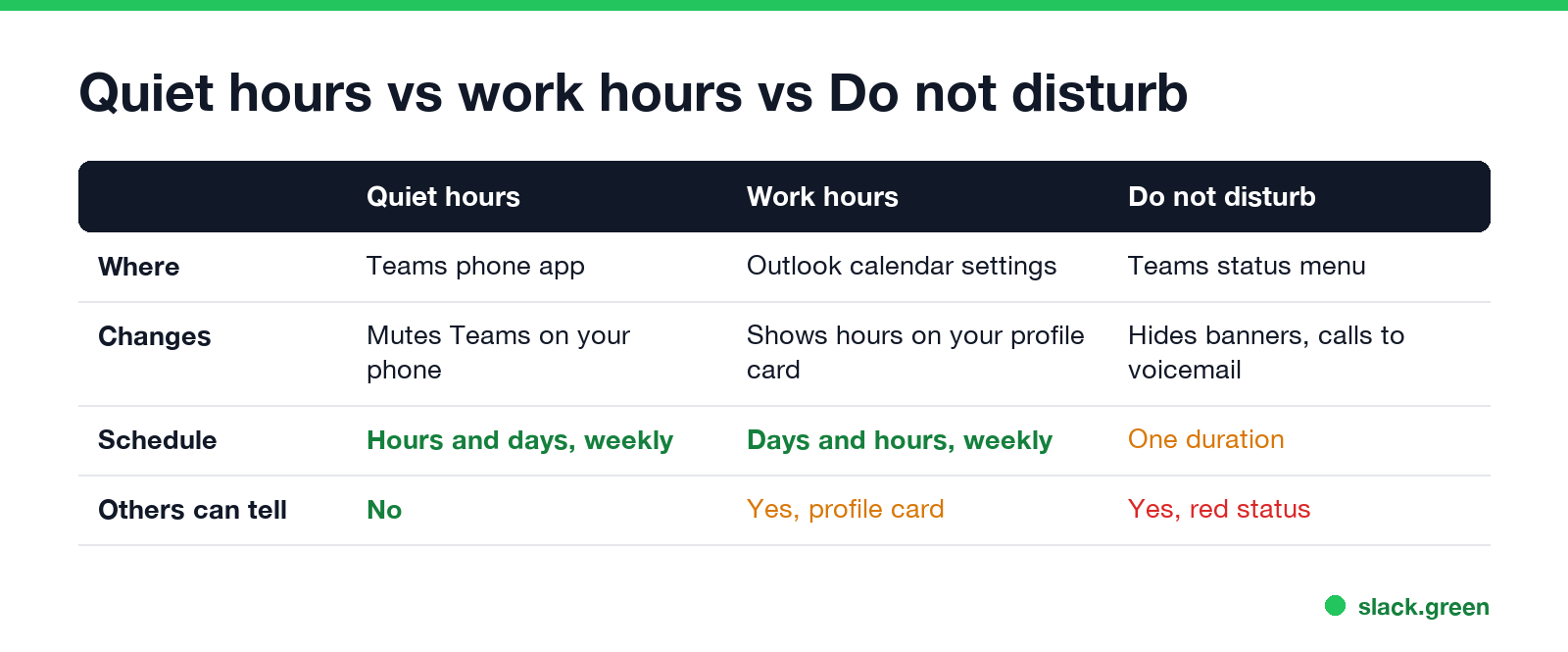
| Quiet hours | Work hours | Do not disturb | |
|---|---|---|---|
| Where | Teams phone app | Outlook calendar settings | Teams status menu |
| What it changes | Mutes Teams on your phone | Shows your hours on your profile card | Hides banners, calls to voicemail |
| Schedule | Hours and whole days, every week | Days and hours, every week | One duration at a time |
| Others can tell | No | Yes, on your profile card | Yes, red status |
Teams quiet hours not working
Quiet hours in Slack
Never appear "away" on Slack again
Cloud-based. No downloads. Works 24/7 even when your laptop is off.
Slack's version is called a notification schedule. Under Preferences, Notifications, you set the hours you allow notifications each day, and Slack pauses them outside those hours on every device. Unlike Teams, teammates see a small Z next to your name while it is on. The steps are in Slack Do Not Disturb. If you use both apps, how to keep Teams and Slack active covers the status side of each.
FAQ
How do I set quiet hours in Teams? In the Teams phone app, tap your profile picture, Notifications, Block during quiet hours, then set Certain hours, All day, or both.
Does Teams have quiet hours on desktop? No. Use Mute all notifications on Windows, a Windows or Mac Do not disturb schedule, or Teams Do not disturb with a duration.
Can people see when I am in quiet hours? No. Microsoft says others will not know your notifications are muted. Set a status message if you want them to know.
Do I still get messages during quiet hours? Yes. They arrive silently and are waiting when you open Teams.
Are Teams quiet hours the same as Viva Insights quiet time? Both silence Teams and Outlook mobile notifications on a schedule. Set on Teams and Outlook keeps them in sync.
Why are my quiet hours not working? Usually the notifications are coming from the desktop app, which quiet hours do not cover, or the phone is in a different time zone.
Stop Jiggling Your Mouse.
Join hundreds of remote workers who never worry about their Slack status. Set it up once, stay green forever.
Related Articles
Can My Employer See My Browsing If I Use a VPN? It Depends Whose
A personal VPN hides the sites you visit from the office network, but not from monitoring software, a managed browser or IT on a work laptop. The company VPN shows your employer every site it carries. What each setup hides.
Teams Status on Multiple Devices: The Last Device You Used Wins
Signed in to Teams on a computer and a phone? Your status comes from the device you used most recently. That is why a quick look at your phone can turn you Away, and why a phone in your pocket shows Away instead of Offline at night.
Zoom Do Not Disturb: How to Turn It On, Schedule It, and What It Blocks
To turn on Do not disturb in Zoom, click your profile picture, point at your status and choose Do not disturb, then a time from 20 minutes to 24 hours, or Custom for a daily schedule. It blocks pop-up notifications for Zoom Team Chat and Zoom Phone calls. Busy, by contrast, mutes nothing. How the two differ, and how to keep a Zoom meeting free of pop-ups.