
Does Teams Stay Green on Mobile? Only With the App on Screen
Teams on your phone shows Available only while the app is open on screen. In the background you are Away, and after 24 hours without use, Offline. How the phone and the computer combine, and how to keep the phone green.
No. Microsoft Teams on your phone keeps you green, Available, only while the Teams app is open on the screen. Microsoft's admin documentation says that on a mobile device your presence "becomes Away whenever the Teams app is in the background, and then becomes Offline after 24 hours of inactivity." Switch to another app or lock the phone, and you go yellow.
A phone can still help. When you are signed in on a computer and a phone, Teams takes your status from the device you used most recently. So opening Teams on the phone turns you green again after the laptop has gone idle, for as long as the app stays on screen. The rules and the settings that keep a phone on screen are below.
If Slack is your other work app, its phone rule is the same: active only with the app on screen. Slack Green, which we build, keeps your Slack dot green from a server during your working hours, with the phone in your pocket.
Your Teams status from the phone app
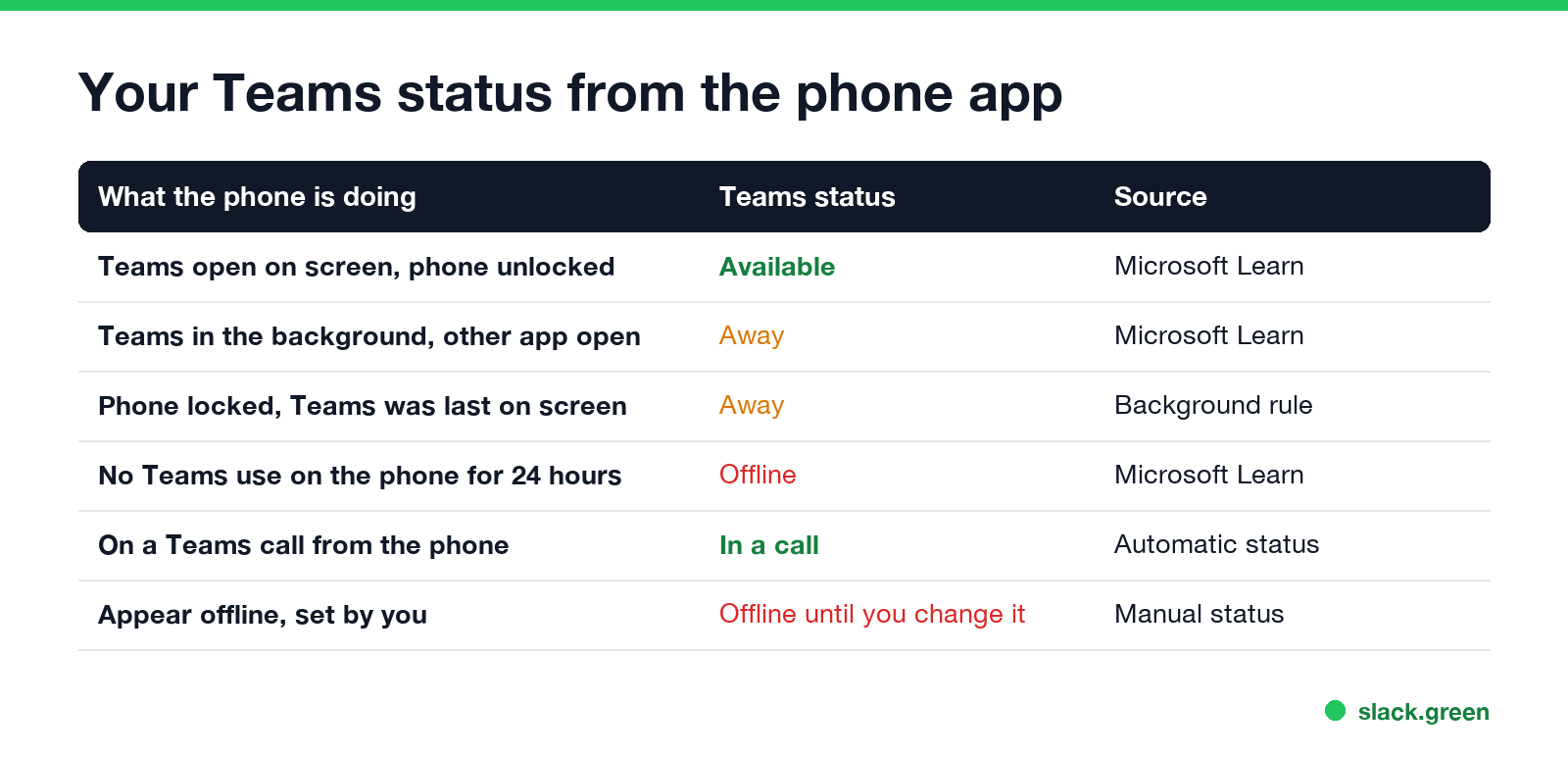
| What the phone is doing | Teams status |
|---|---|
| Teams open on screen, phone unlocked | Available |
| Teams in the background, another app open | Away |
| Phone locked while Teams was on screen | Away |
| No Teams use on the phone for 24 hours | Offline |
| On a Teams call from the phone | In a call |
| Appear offline, set by you | Offline until you change it |
The background rule is the one people notice. On a computer, Teams waits about 5 idle minutes before it shows Away, as covered in how long before Teams shows Away. On a phone there is no wait. iOS and Android pause apps that are not on screen, and Teams reports Away as soon as it leaves the foreground.
Phone and computer together: the latest device decides
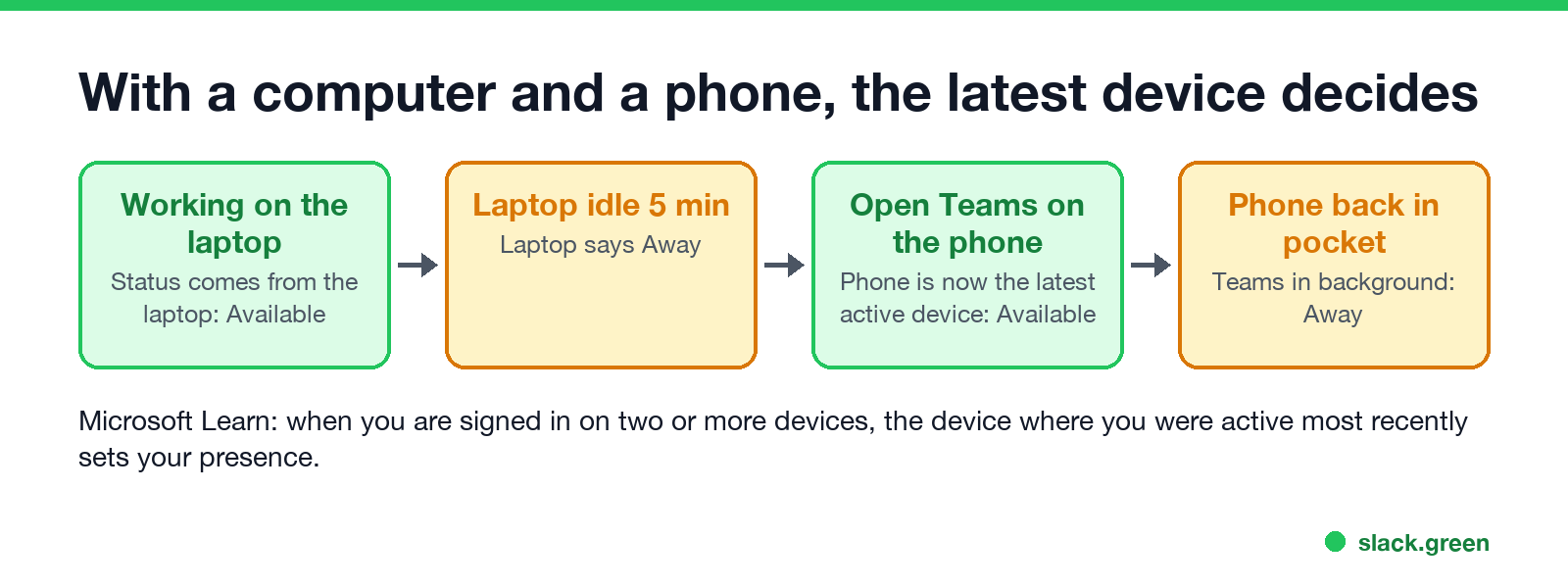
Microsoft's rule for more than one device: "the device where they were active most recently determines their presence." Microsoft gives an example. You work on the computer, so your status comes from the computer. When the computer disconnects, your status comes from the phone.
In practice:
- • Laptop idle, phone open. You open Teams on the phone and it is now your latest active device, so you show Available.
- • Laptop idle, phone in pocket. Both report Away. You are Away.
- • Laptop asleep, phone in pocket. The laptop is disconnected, so your status comes from the phone, which is in the background: Away. After 24 hours without phone use: Offline.
- • Laptop active, phone in pocket. You used the laptop last, so you are Available.
This is where Teams and Slack differ. Slack shows you active if any one of your devices is active. Teams takes the most recent one. The rest of the differences are in keep Teams and Slack active.
How to keep Teams green on your phone
Never appear "away" on Slack again
Cloud-based. No downloads. Works 24/7 even when your laptop is off.
The only way is to keep the Teams app on screen with the phone unlocked. Here is how to make the phone allow that.
iPhone
Android
Menu names differ between Android makers. The same phone setups for Slack are in keep Slack active on iPhone and keep Slack active on Android.
The cost is a screen that stays on for hours and a phone you cannot use for anything else.
What does not keep Teams green on mobile
Teams mobile shows Away while I am using it
If you have Teams open on the phone and still show Away, check these:
More fixes are in Teams status stuck on Away, and every icon is in Microsoft Teams status icons meaning.
Teams on mobile vs Slack on mobile
Never appear "away" on Slack again
Cloud-based. No downloads. Works 24/7 even when your laptop is off.
| Teams on a phone | Slack on a phone | |
|---|---|---|
| Green while | The app is on screen | The app is on screen |
| App in background | Away | Away within seconds |
| With a computer too | The latest active device decides | Any active device keeps you green |
| After long phone inactivity | Offline after 24 hours | Away |
For Slack, keep Slack active on mobile has every option. For the computer side of Teams, how to keep Teams status available covers lock, sleep and idle.
FAQ
Does Teams stay green on mobile? Only while the Teams app is open on screen and the phone is unlocked. In the background it shows Away.
Does Teams stay active on my phone when the screen is off? No. A locked phone puts Teams in the background, and your status turns to Away.
Can Teams on my phone keep me green while my laptop is idle? Yes, while the app is on screen. Teams uses the device you used most recently, so opening Teams on the phone makes you Available again.
How long until Teams on my phone shows Offline? After 24 hours without using Teams on the phone, if no other device is active.
Why do I show Away on Teams when I only use my phone? Because the app went to the background. Keep it on screen, or set Auto-Lock or Screen timeout to its longest setting.
Can I change the Teams away time on my phone? No. There is no setting for it on the phone or the computer. What you can change is in how to change Teams away time.
Stop Jiggling Your Mouse.
Join hundreds of remote workers who never worry about their Slack status. Set it up once, stay green forever.
Related Articles
How to Keep Skype Status Active: Skype for Business Idle Timers
To keep your Skype for Business status active, open Options, Status, and raise both idle timers, Inactive and then Away, from 5 minutes to as much as 360 minutes each. Consumer Skype shut down on May 5, 2025 and Skype for Business Online in 2021, so for most people the real question is now Teams. What still works, status icons, Outlook, and status not updating.
Is It Legal for My Employer to Monitor Me? US, EU and UK Rules
In the US it is mostly legal for an employer to monitor company devices, accounts and premises, often without asking. The limits are state notice laws in New York, Connecticut and Delaware, consent rules for audio recording and biometrics, bans on cameras in restrooms, and your personal devices. The EU, UK and parts of Canada and Australia add notice and proportionality rules.
Can My Employer See My Personal Email on My Work Computer?
Your employer cannot sign in to your Gmail, and doing so without permission can break the Stored Communications Act. But on a work computer, screenshot and keystroke monitoring, browser history, HTTPS inspection and Outlook's local cache can all expose personal email. Work email is fully visible, deleted messages included. Case by case, with what to do.