
Microsoft Teams Status Icons Meaning: Every Colour and Symbol
In Microsoft Teams, a green check means Available, red means Busy, In a meeting or In a call, red with a white bar means Do not disturb or Presenting, a yellow clock means Away or Be right back, a grey circle with an x means Offline, and a purple arrow means Out of office. Which ones Teams sets for you, and which wins.
Microsoft Teams status icons use colour for availability and a mark for the reason. A green dot with a check means Available. Solid red means Busy, In a meeting or In a call. Red with a white bar means Do not disturb, Presenting or Focusing, when notifications are muted. A yellow dot with a clock means Away or Be right back. A grey circle with an x means Offline or Appear offline. A purple arrow means Out of office, set by automatic replies or an out-of-office calendar event, and it can show alongside another status.
If you also use Slack, its icons work differently: a solid green dot for active and a hollow dot for away; see Slack status icons meaning. Slack Green keeps the Slack dot green during your working hours, from the cloud.
Microsoft Teams status icons list
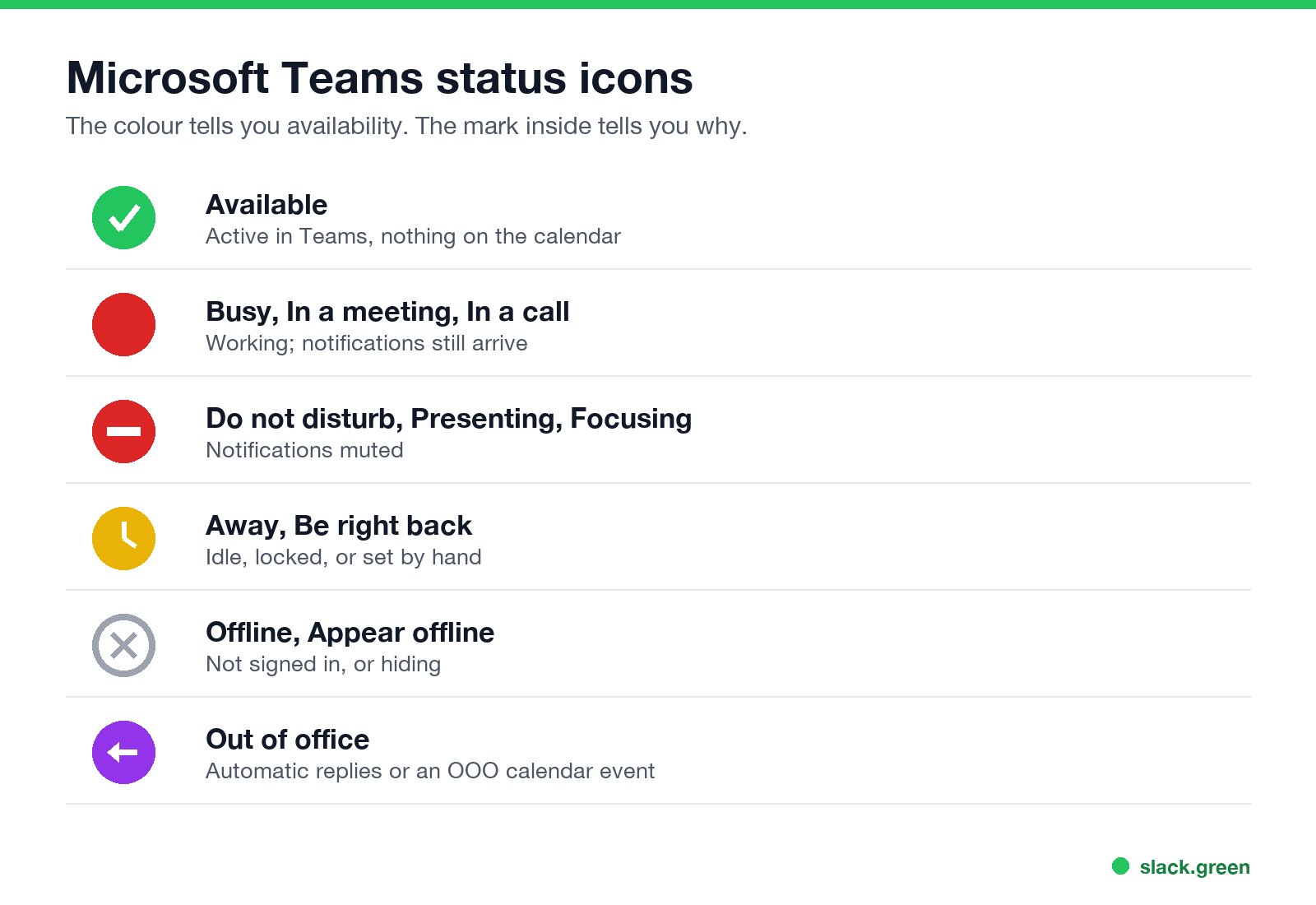
| Icon | Status | What it means |
|---|---|---|
| Green with a check | Available | Active in Teams, nothing on the calendar |
| Red | Busy, In a meeting, In a call | Working; notifications still come through |
| Red with a white bar | Do not disturb, Presenting, Focusing | Notifications muted |
| Yellow with a clock | Away, Be right back | Idle, locked, in the background on mobile, or set by hand |
| Grey circle with an x | Offline, Appear offline | Not signed in, or hiding |
| Purple arrow | Out of office | Automatic replies on, or an OOO calendar event |
Microsoft Learn lists the states and notes that Out of office can show next to another status while you use Teams during your automatic-reply period.
Which statuses Teams sets for you
- • Available and Away follow your activity: on a computer you go Away after a few minutes without input or when you lock it; see how long before Teams shows you as Away.
- • In a meeting comes from your Outlook calendar, In a call and Presenting from what you are doing in Teams, and Focusing from focus time booked through Viva Insights.
- • Offline appears when you are not signed in on any device for a few minutes, or when the computer sleeps.
- • Be right back is never set automatically.
Which status wins
Never appear "away" on Slack again
Cloud-based. No downloads. Works 24/7 even when your laptop is off.
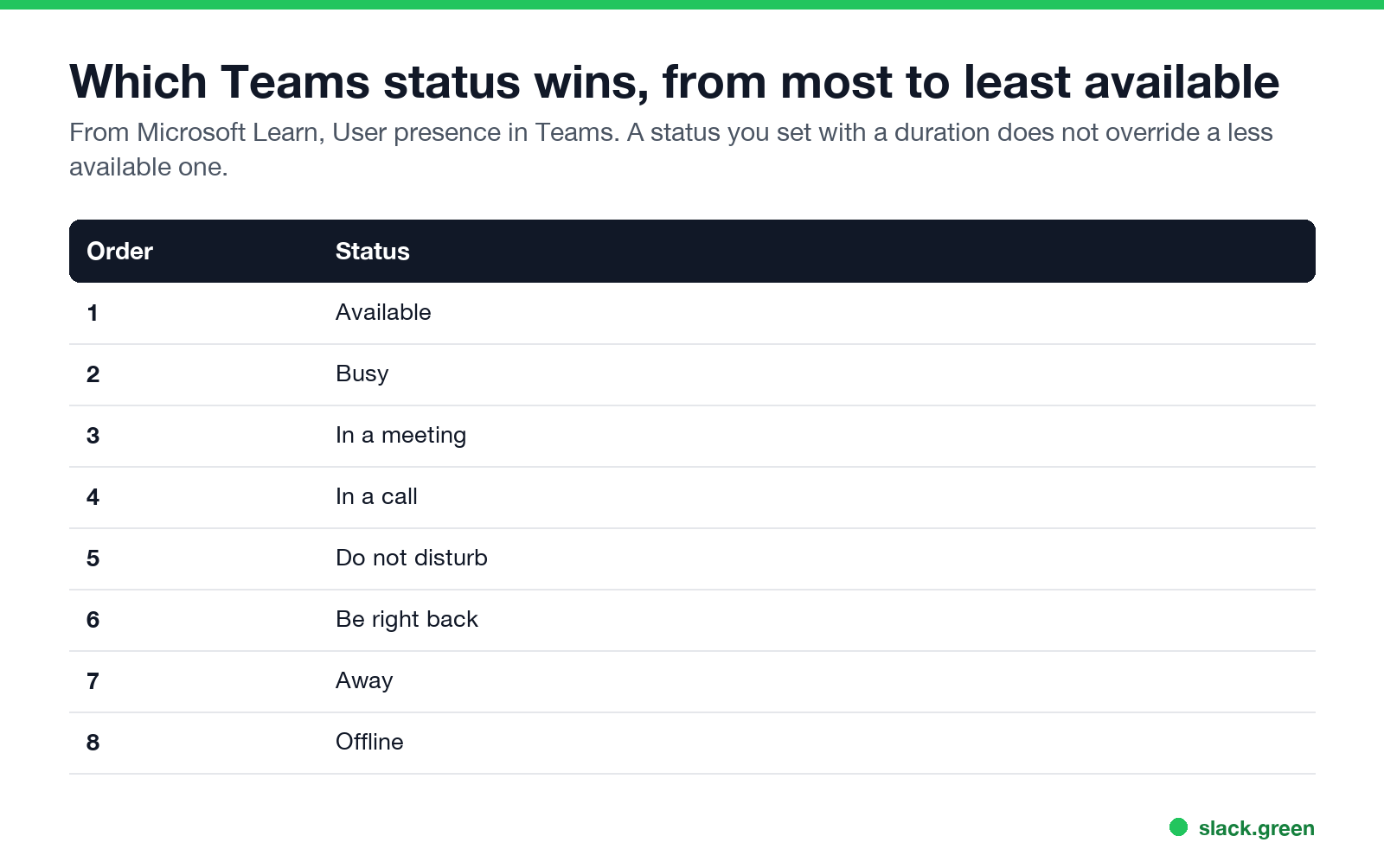
Microsoft lists the order from most to least available: Available, Busy, In a meeting, In a call, Do not disturb, Be right back, Away, Offline. It also notes that a status you set with a duration does not override a less available one, so a Busy duration will not replace an Away.
Teams status grey circle
A grey circle with an x means Offline or Appear offline. A plain grey or blank icon usually means Status unknown, for example for people outside your organization whose presence you cannot see.
Teams status yellow clock
Yellow with a clock is Away or Be right back. If you see it on yourself while you work, see Teams status stuck on Away, and for ways to stay Available, how to keep Teams status available.
Teams status icons not updating
Never appear "away" on Slack again
Cloud-based. No downloads. Works 24/7 even when your laptop is off.
Presence can lag a few minutes. Reset your status, close Teams on other devices, or sign out and back in. Outlook shows the same status; see how to keep your Outlook status green. Microsoft notes that for mailboxes hosted on-premises, delays of up to an hour are expected.
FAQ
What do the Teams status colours mean?
Green available, red busy or do not disturb, yellow away, grey offline, purple out of office.
What does a red circle with a white line mean in Teams?
Do not disturb, Presenting or Focusing. Notifications are muted.
What does the purple arrow mean in Teams?
Out of office, from automatic replies or an out-of-office calendar event.
What does the yellow clock mean in Teams?
Away or Be right back.
Does Teams show when someone was last active?
Microsoft lists an "Away, last seen" state that shows the time.
Stop Jiggling Your Mouse.
Join hundreds of remote workers who never worry about their Slack status. Set it up once, stay green forever.
Related Articles
Slack Workflow Builder Examples: 12 Workflows to Copy, With Triggers and Steps
Twelve Slack Workflow Builder examples with the exact trigger and steps for each: daily standups, channel welcomes, time-off approvals, help desk requests, emoji escalations, keyword routing, incidents, list updates and webhooks from other tools. Plus where Workflow Builder lives, what it costs and how branches work.
Slack Timer: How to Set a Countdown, Pomodoro or Focus Timer in Slack
Slack has no built-in timer, but four built-in tools act like one: /remind me to ... in 25 minutes, a status that clears itself, /dnd for a focus block, and Workflow Builder for dated countdowns. For a live countdown in a channel, use a Marketplace app or a 15-line bot script.
Slack Saved for Later: Where the Later Tab Is and How It Works
Saved messages in Slack live in the Later tab, which replaced stars and Saved items in 2023. Hover a message and click Save for later, or press A. Add a reminder, mark items complete, and find them with is:saved. Where Later is on desktop and mobile, and what changed.