
How to Change Your Status in Outlook (Available, Busy, Away)
In new Outlook and Outlook on the web, click your profile picture and pick a status. Classic Outlook has no status picker: it shows your Teams status, so you change it in Teams. How to set Available, Busy, Appear away or a status message, how long each one lasts, and why the status changes back by itself.
To change your status in Outlook, click your profile picture at the top right of new Outlook or Outlook on the web, then pick Available, Busy, Do not disturb, Be right back, Appear away or Appear offline. Classic Outlook for Windows has no status picker of its own. They show the status Microsoft Teams sets for you, so you change it in Teams (click your picture there) and Outlook follows within a minute. Your calendar also changes it: a meeting marked Busy turns you red for its length, and automatic replies turn you purple.
If your team works in Slack too, Outlook has no say there. Slack keeps its own status and shows you away after 10 minutes without input in the Slack window. Slack Green keeps your Slack status green from a server during the hours you set.
Where to change your status, by Outlook version
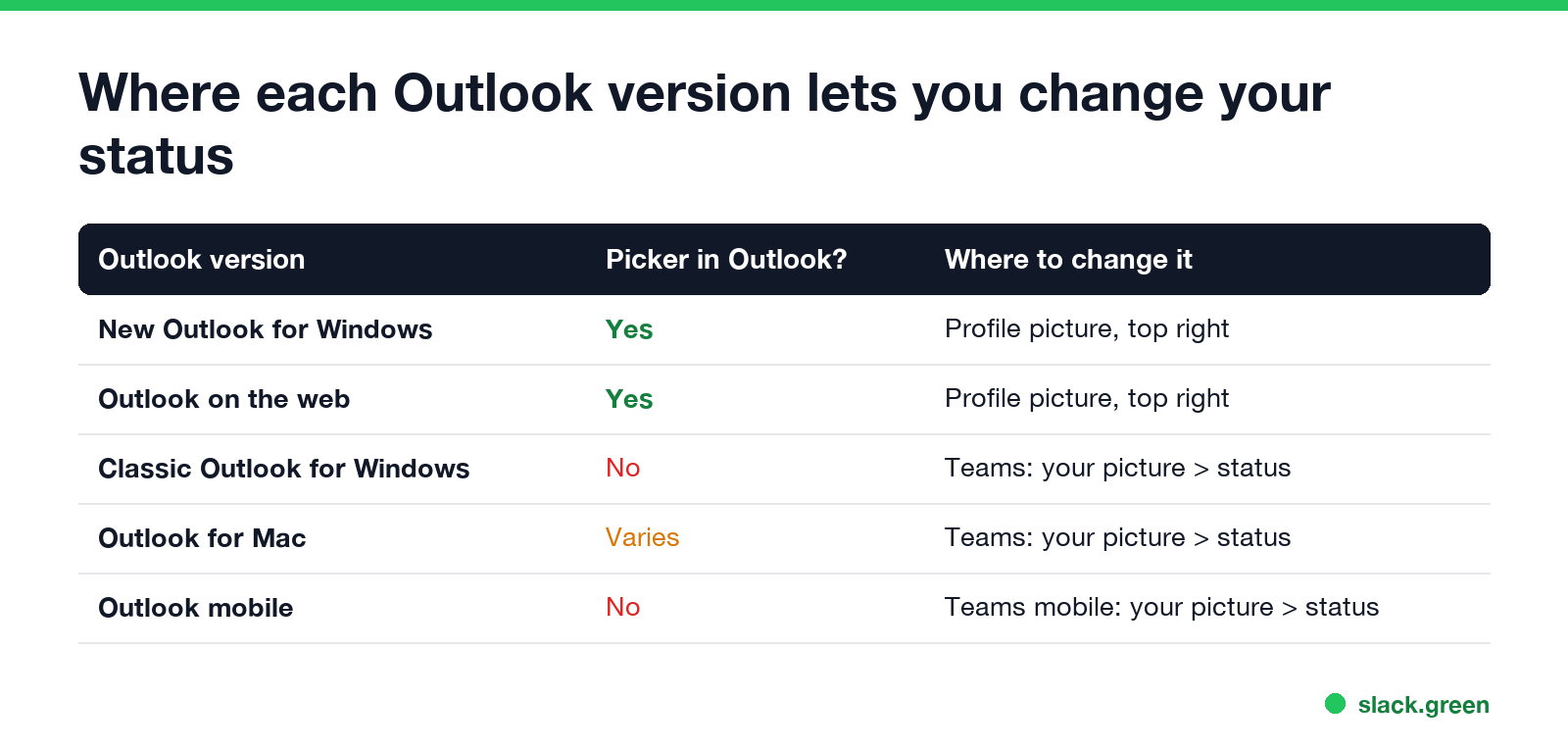
| Outlook version | Status picker in Outlook? | Where to change it |
|---|---|---|
| New Outlook for Windows | Yes | Profile picture, top right |
| Outlook on the web (outlook.office.com) | Yes | Profile picture, top right |
| Classic Outlook for Windows | No | Teams: your picture > status |
| Outlook for Mac | Varies by version | Teams: your picture > status (always works) |
| Outlook mobile | No | Teams mobile: your picture > status |
All versions show the same presence, because Outlook and Teams read one status from Microsoft 365. What changes by version is only where the picker sits.
Change your status in new Outlook or Outlook on the web
- Click your profile picture or initials at the top right.
- Click the current status under your name (for example Available).
- Pick Available, Busy, Do not disturb, Be right back, Appear away or Appear offline.
- To go back to the automatic status, open the same menu and pick Reset status.
Under the status list you can also pick a Duration, such as 30 minutes, 1 hour, today or this week. When it runs out, Outlook and Teams go back to the automatic status that follows your activity and your calendar. Without a duration, Microsoft's presence rules apply: Appear offline stays until you change it, Busy and Do not disturb last 1 day, and other manual statuses last 7 days. One catch is covered below.
Change your status in classic Outlook through Teams
Never appear "away" on Slack again
Cloud-based. No downloads. Works 24/7 even when your laptop is off.
Classic Outlook shows your presence next to your name and in contact cards, but clicking it opens a contact card, not a picker. The status comes from Teams:
Classic Outlook picks up the change within about a minute. If it never shows a status at all, Teams is not registered as the chat app for Office on that computer; Teams status not showing in Outlook walks through that fix.
Set a status message in Outlook
A status message is the short note people see when they open your contact card or send you a message, such as "Heads down until 2pm, call if urgent".
A status message does not change your colour. You can be green with "At lunch" in the note.
Why your Outlook status changes back by itself
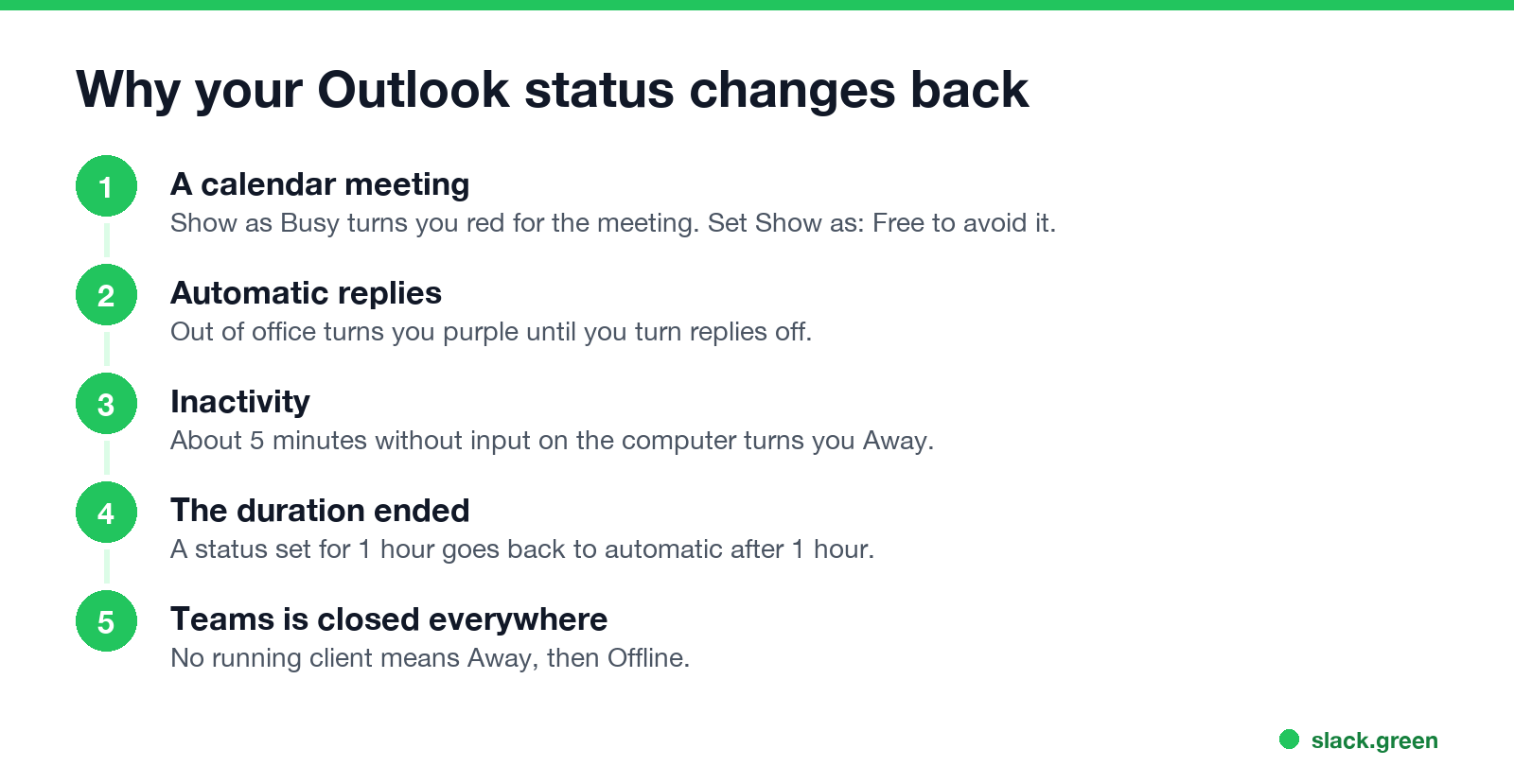
"Outlook status not changing" usually means something else is setting it after you do. In order of how often it happens:
Manual Busy and Do not disturb are the most stable. Manual Available can still flip to Away when your computer is idle, which is why people search for how to keep Outlook status green.
What each Outlook status means to other people
Never appear "away" on Slack again
Cloud-based. No downloads. Works 24/7 even when your laptop is off.
| Status | Colour | Effect |
|---|---|---|
| Available | Green | Normal notifications |
| Busy, In a meeting, In a call | Red | Notifications still arrive |
| Do not disturb, Presenting | Red with a white bar | Only priority contacts get through |
| Be right back, Away | Yellow | Notifications still arrive |
| Out of office | Purple | Automatic replies are on |
| Appear offline | Grey | You look signed out |
| Status unknown | Grey | Outlook cannot read your presence |
The full colour guide, including the grey and white dots, is in Outlook status colors meaning.
FAQ
How do I set my status to Available in Outlook? In new Outlook or on the web, click your profile picture, click the status and pick Available. In classic Outlook, do the same in Teams.
Can I appear offline in Outlook? Yes. Pick Appear offline in the same menu. Mail still sends and arrives; you only look signed out in Outlook and Teams.
Does my Outlook status show in Slack? Not by itself. Slack's Outlook Calendar app can set your Slack status to "In a meeting" from your calendar, as shown in Slack and Outlook calendar integration, but your green or away dot in Slack follows Slack activity only.
Stop Jiggling Your Mouse.
Join hundreds of remote workers who never worry about their Slack status. Set it up once, stay green forever.
Related Articles
KeepingYouAwake vs Amphetamine: Which Mac Keep-Awake App to Use
KeepingYouAwake is a free, open-source menu bar switch that runs Apple's caffeinate for you. Amphetamine is a free App Store app with triggers, schedules and a closed-lid mode. Pick KeepingYouAwake for one click and Homebrew, Amphetamine for automation. Neither keeps Slack or Teams active.
Computer Locks After 15 Minutes? How to Tell If Group Policy Set It
A work laptop that locks after exactly 15 minutes, with screen settings greyed out, is almost always following a policy from IT: the Windows machine inactivity limit, a forced screen saver, or an Intune device lock. Security baselines and PCI DSS ask for 15 minutes. How to see which policy it is, and what you can and cannot change.
How to Keep a Citrix Session Active: Find Which Timeout Logs You Out
A Citrix session can end from four different timers: Windows locking inside the virtual desktop, the Citrix session idle timer, the Citrix Gateway session time-out, and the StoreFront web page timeout. Only input from your own device into the Citrix window resets them. How to tell which one hit you and what keeps each one quiet.