
Teams Status Stuck on Busy? 6 Causes and How to Fix Each
A Teams status stuck on Busy, In a meeting or In a call usually has one of four causes: a Busy you set by hand, which lasts a full day; an Outlook event marked Show as Busy; a call still running on your phone or in a browser tab; or a meeting window you never left. How to find which one, the fix for each, and what to try when nothing works.
If your Teams status is stuck on Busy, select your profile picture, select your current status, and choose Reset status. That clears a Busy you set by hand, which Teams otherwise keeps for a full day. If the status is In a meeting when you have no meeting, open Outlook and look for an event happening now, including all-day and recurring ones, whose Show as is set to Busy; change it to Free or Tentative. If it says In a call or Presenting, Teams is still in a call somewhere: end it on your phone, in a browser tab or on a desk phone, and close any meeting window you did not fully leave. When none of that works, sign out, quit Teams completely, and reset the app.
Teams takes your status from the device you used most recently, from the state of the Teams app, and from your Outlook calendar. A stuck red dot means one of those three still says you are busy.
Presence is what we work on. We build Slack Green, which keeps your Slack status green during the hours you set. The Teams problems that go the other way are covered in Teams status stuck on Away and Teams status stuck on Offline.
Why Teams is stuck on Busy: 6 causes
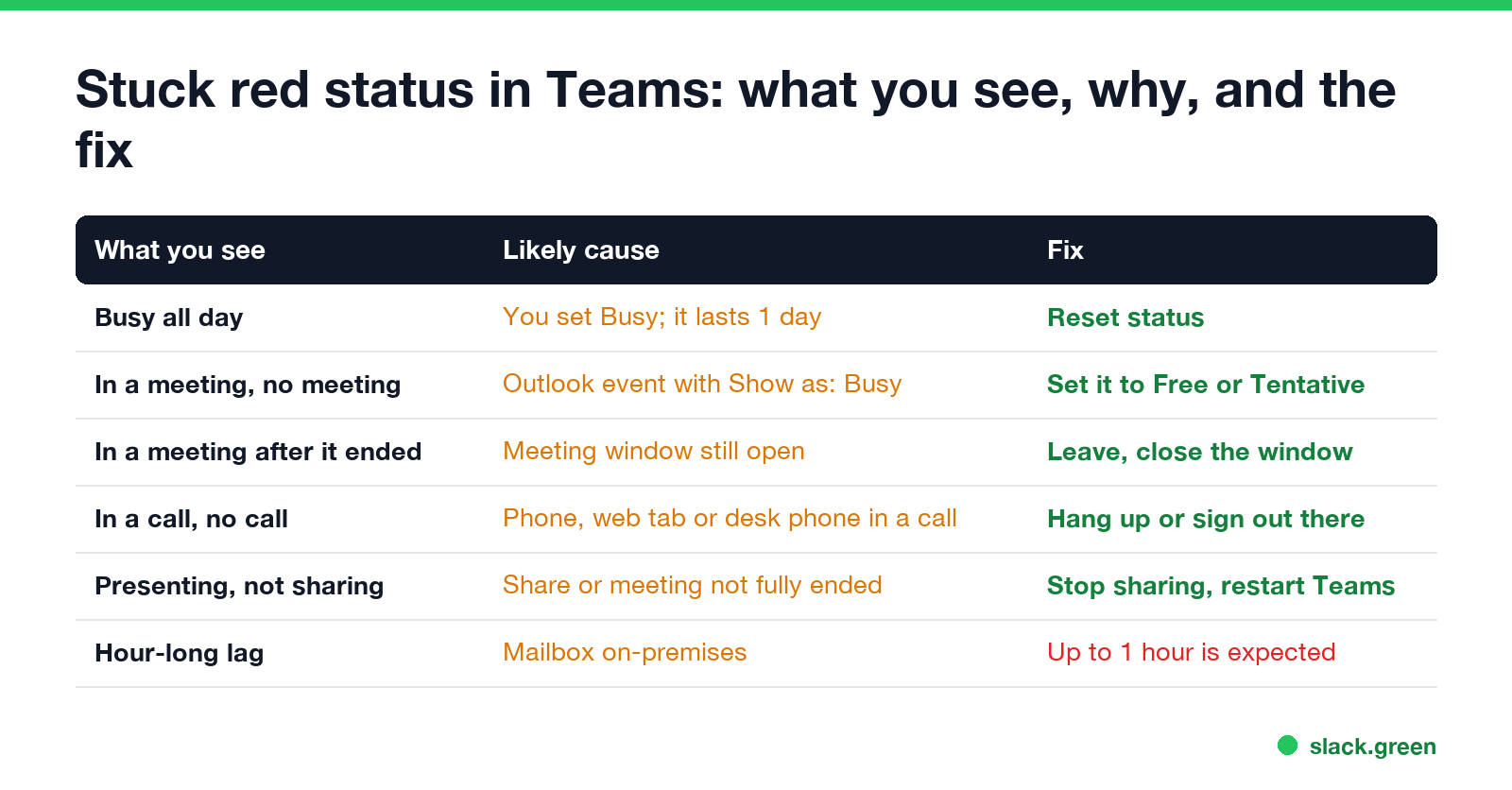
| What you see | Likely cause | Fix |
|---|---|---|
| Busy all day | You set Busy by hand, and without a duration it lasts 1 day | Reset status |
| In a meeting, with no meeting | An Outlook event now, all-day or recurring, with Show as: Busy | Set the event to Free or Tentative |
| In a meeting after it ended | The meeting window is still open, or you did not leave the call | Leave the meeting and close its window |
| In a call, with no call | Teams on your phone, in a browser tab, or a desk phone is still in a call | Hang up or sign out on that device |
| Presenting, while not sharing | A screen share or meeting did not end cleanly | Stop sharing, leave, and restart Teams |
| Status changes an hour late | Your mailbox is hosted on-premises | Microsoft says delays of up to one hour are expected |
The time limits come from Microsoft's admin article "User presence in Microsoft Teams": a status you set by hand without a duration lasts "for 1 day if it's Busy or Do not disturb", "for 7 days if it's any other status", and indefinitely if it is Appear offline.
Fix 1: reset a Busy you set by hand
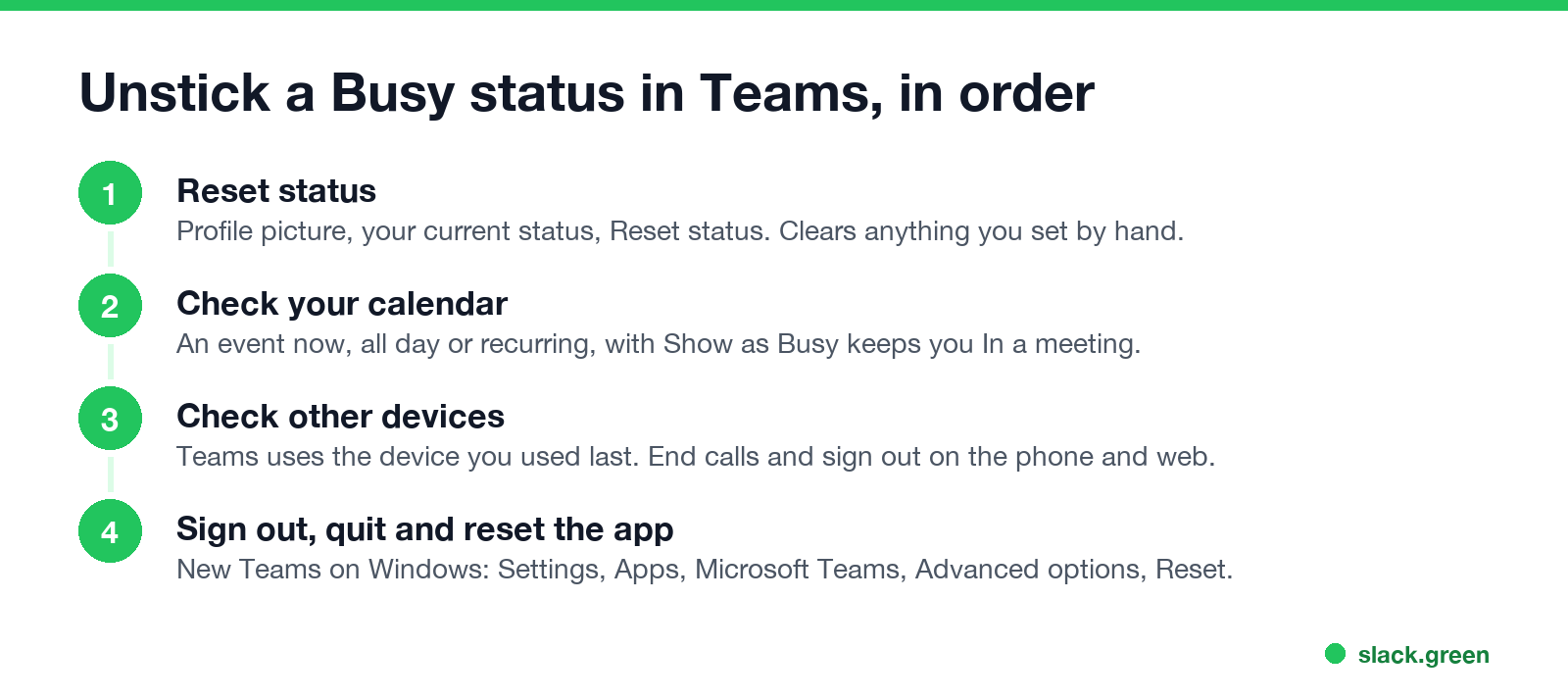
- Select your profile picture at the top right of Teams.
- Select your current status.
- Select Reset status.
Teams then works your status out again from your activity, your calendar and the app. To avoid the problem next time, set Busy with a duration: select your status, then Duration, and pick when it should reset. You can also type /available in the search box, but Teams will not let you choose a status that is more available than the one it calculates; for example, while your calendar says you are in a meeting, you cannot pick Available outside a call.
Fix 2: check your Outlook calendar
Never appear "away" on Slack again
Cloud-based. No downloads. Works 24/7 even when your laptop is off.
In a meeting comes from your Outlook calendar, not from Teams meetings only. Any event that is happening now and is marked Show as: Busy sets it, including:
Open the event in Outlook and change Show as to Free or Tentative. Marking an event Private does not change this; it hides the title, not the busy time (see can my boss see my private Outlook calendar events). Tentative and Free events do not set In a meeting. If your status also fails to show in Outlook, see Teams status not showing in Outlook.
Fix 3: end calls and meetings on your other devices
When you are signed in on more than one device, Teams uses the one where you were active most recently. A phone that is still in a call, a second laptop, a browser tab with Teams open, or a Teams desk phone can hold In a call or In a meeting even though your main computer is idle. Teams status on multiple devices explains the rule.
Presenting works the same way: it lasts while a screen share is running. Stop the share, leave the meeting, and restart Teams if it stays.
Fix 4: sign out, quit and reset Teams
If the status is still red:
For IT: check and clear presence with Microsoft Graph
Never appear "away" on Slack again
Cloud-based. No downloads. Works 24/7 even when your laptop is off.
Admins and power users can read the status Teams has calculated, and clear a status set by hand, with the Microsoft Graph presence API. Every presence endpoint is covered in the Microsoft Graph presence API. This uses the documented GET /me/presence and clearUserPreferredPresence requests; your tenant may require admin consent for the Presence.ReadWrite permission.
# Run in PowerShell with the Microsoft Graph module (Install-Module Microsoft.Graph)
Connect-MgGraph -Scopes "Presence.ReadWrite"

# 1. See what Teams has calculated for you
Invoke-MgGraphRequest -Method GET -Uri "https://graph.microsoft.com/v1.0/me/presence"

# 2. Clear the status you set by hand (same as Reset status in Teams)
$me = Invoke-MgGraphRequest -Method GET -Uri "https://graph.microsoft.com/v1.0/me?`$select=id"
Invoke-MgGraphRequest -Method POST -Body @{} `
  -Uri "https://graph.microsoft.com/v1.0/users/$($me.id)/presence/clearUserPreferredPresence"
The GET returns availability and activity, for example Busy and InAMeeting. If activity says InAMeeting with no meeting on the calendar, look at events synced from other calendars or at a delegate who manages the calendar.
When a red status is correct
Some red statuses are Teams working as designed: a call in progress, a calendar event you accepted, or Do not disturb, which switches on by itself while you share your screen unless you turn off Set my status to Do not disturb when I'm sharing my screen in Settings > Privacy. The differences between the red statuses are in Teams Busy vs In a meeting, and every icon is in Microsoft Teams status icons meaning.
FAQ
Why does Teams say I am in a meeting when I am not? An Outlook event marked Busy is happening now, or a meeting window is still open. Change the event to Free or leave the meeting.
How long does Busy last in Teams? A Busy you set by hand lasts 1 day unless you set a duration. Busy from a call or meeting ends when the call or meeting ends.
Why is my Teams status stuck on In a call? Teams on another device, often your phone or a browser tab, is still in a call. End it there.
Can my manager see that my status is stuck? They see the red status like anyone else. It says nothing about what you are doing.
Stop Jiggling Your Mouse.
Join hundreds of remote workers who never worry about their Slack status. Set it up once, stay green forever.
Related Articles
Does Slack Notify When You View Someone's Profile? No
No. Opening someone's Slack profile, hovering over their name or checking their status sends them nothing, and Slack has no list of who viewed your profile. Admins cannot see profile views either. What does get noticed: typing in a DM, messages, reactions, mentions and huddles. What a profile shows, and what Slack admins can see instead.
Windows 11 Keeps Going to Sleep? Find the Reason, Then Fix It
When Windows 11 keeps going to sleep, the System event log records why: Kernel-Power event 42 names the sleep reason, and powercfg /systemsleepdiagnostics lists every sleep and wake. Most cases are a short timer, the hidden 2-minute unattended sleep rule after a wake, the 1-minute lock screen display timeout, presence sensing, or a company policy. How to read the log, then the fix for each.
Teams: Keep My Current Status When Active Outside of Teams
Keep my current status when I'm active outside of Teams on the web is a Teams web setting under Settings, Notifications and activity, Presence. Turn it on and click Allow, and Teams stops setting you Away while you work in other tabs or apps. It needs Chrome or Edge. What it detects, why it can fail, and what it does not do.