
Can My Boss See My Private Outlook Calendar Events?
Usually not the details. When you mark an Outlook event Private, someone who can read your calendar sees only Private appointment, the time and a lock. The exceptions are delegates you gave Can view private items, the people invited to the event, anyone with full access to your mailbox in new Outlook or the web, and compliance admins. How to check who has which access, and what Private does not hide.
Usually your boss cannot see the details of a private Outlook event. Microsoft's help page "Make an appointment or meeting private" says that if you give someone Read access to your calendar, "they will not be able to see the details of your private appointments". They see a block labelled Private appointment, its time, and a lock icon. The exceptions matter, though. A delegate you gave "access to view private items" sees everything; the people invited to the meeting see the full invite; anyone with full access to your mailbox can see private items in new Outlook or Outlook on the web; and a compliance admin with eDiscovery can search the whole mailbox. Private also never hides the time: your boss still sees that you are busy from 2 to 3.
By default, coworkers in your organization see only whether you are free or busy, not titles. Private matters when someone has more access than that.
Calendars feed your status in chat apps too: an event marked Busy turns Teams to In a meeting, private or not. We build Slack Green, which keeps your Slack status green during the hours you set, and calendar sync is one of the things that changes a Slack status.
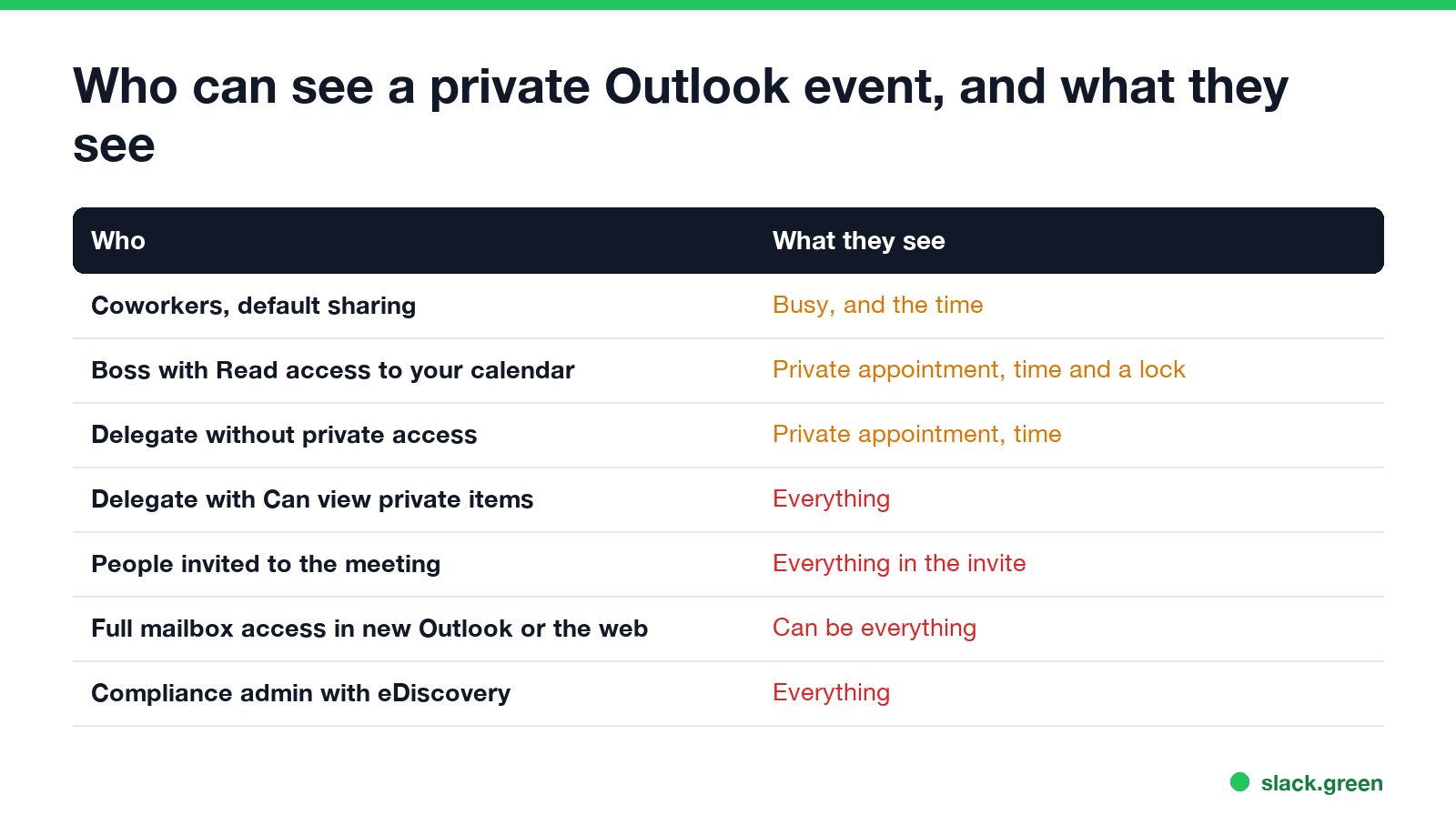
Who can see a private event, and what they see
| Who | What they see of a private event |
|---|---|
| Coworkers, with default organization sharing | Busy (or Free, Tentative, Away), and the time |
| Your boss, with Read access you gave | "Private appointment", the time and a lock |
| A delegate without private access | "Private appointment" and the time |
| A delegate with Delegate can see my private items | Everything |
| People invited to the meeting | Everything in the invite |
| Someone with Full Access to your mailbox, in new Outlook, the web or mobile | Private items can be visible |
| A compliance admin with eDiscovery | Everything in your mailbox |
The Full Access row comes from Microsoft's troubleshooting article "Private items aren't displayed in a shared mailbox in Outlook" (updated 11 August 2026): in classic Outlook, private items stay hidden unless the delegate has explicit permission, but "access granted through Full Mailbox Access can result in private items being visible" in Outlook on the web, new Outlook for Windows and Outlook Mobile.
When your boss can see the details
You made them a delegate with private access. Managers and assistants often share calendars both ways. In classic Outlook, File > Account Settings > Delegate Access lists your delegates, and the Delegate can see my private items box is off by default. An admin can also set it with PowerShell, using the CanViewPrivateItems flag.
They are invited. Marking a meeting private hides it on your calendar view. Everyone on the invite still receives the full details.
They or IT have full access to your mailbox. Admins can grant full mailbox access, usually for an assistant or after someone leaves. With that access, private items can show in the web and new Outlook.
Your company searches the mailbox. Calendar items live in your Exchange mailbox, next to your email and Teams chats, and compliance admins search all of it with Microsoft Purview eDiscovery. What that covers is in can my employer read my Teams chats.
Microsoft's older Outlook help put it plainly: do not rely on Private to keep people out; if someone has Read permission to your calendar, other email programs or scripts can show them private items. Treat Private as a courtesy screen, not a lock.
How to make an Outlook event private
Never appear "away" on Slack again
Cloud-based. No downloads. Works 24/7 even when your laptop is off.
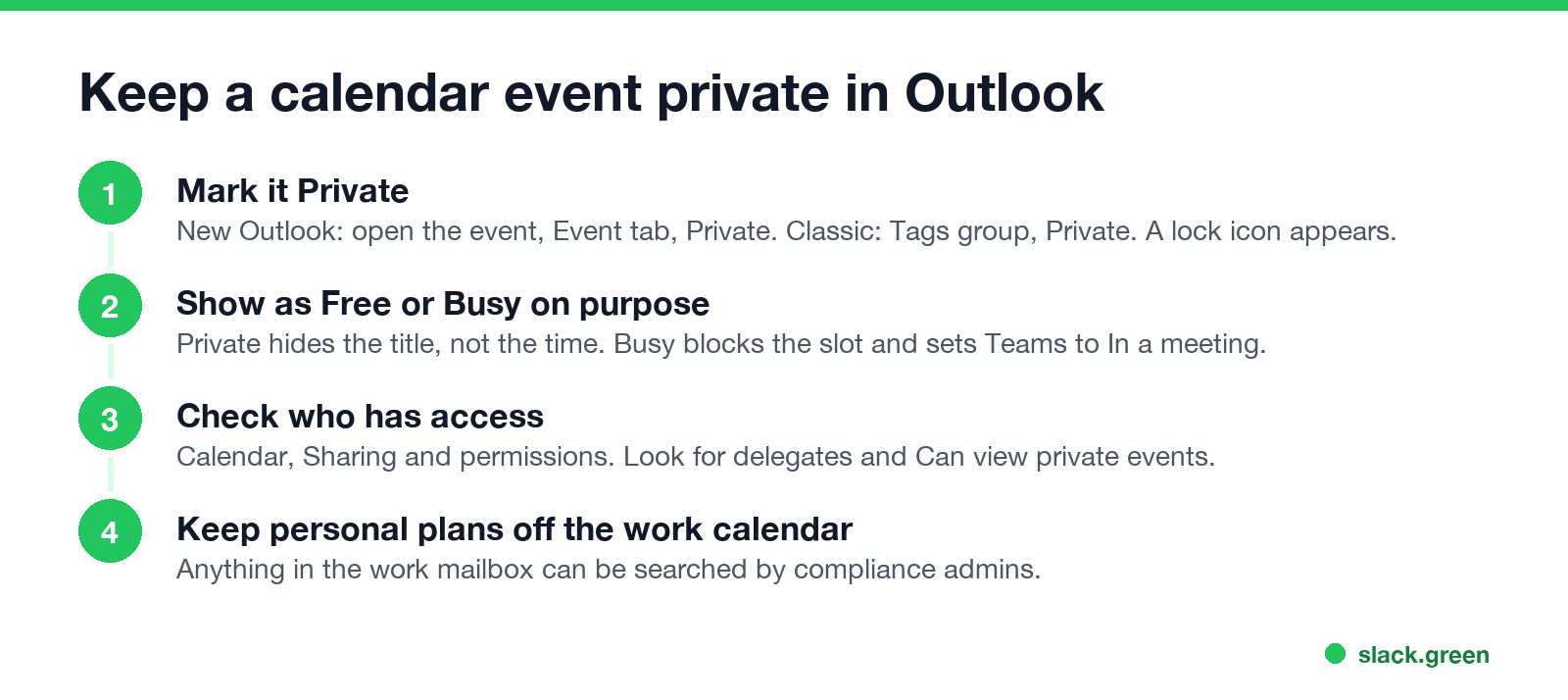
- • New Outlook for Windows and Outlook on the web: open the event, select Private on the Event tab, then save or send the update.
- • Classic Outlook: select the event, and in the Tags group select Private, then Save & Close.
A lock symbol appears on the event in your calendar. Only the organizer can mark a meeting private.
Private hides the title, not the time. Also choose Show as on purpose. Busy blocks the slot for scheduling and sets your Teams status to In a meeting; Free leaves the slot open. Changing a status with Outlook is covered in how to change your status in Outlook, and a Busy event that keeps Teams red is in Teams status stuck on Busy.
Check who can see your calendar
In new Outlook or Outlook on the web, right-click your calendar and choose Sharing and permissions. Each person is listed with their level, such as "Can view when I'm busy", "Can view titles and locations", "Can view all details", "Can edit" or "Delegate". For a delegate, look for Can view private events, and turn it off if you do not want them to see private items.
An Exchange admin sees the same list in PowerShell:
# what access each person has to your calendar (admin, Exchange Online PowerShell)
Get-MailboxFolderPermission -Identity you@contoso.com:\Calendar
An example result, where Dana is a delegate with the private-items flag on the last line:
FolderName           User                 AccessRights         SharingPermissionFlags
----------           ----                 ------------         ----------------------
Calendar             Default              {AvailabilityOnly}
Calendar             Anonymous            {None}
Calendar             Dana Lee             {Editor}             Delegate, CanViewPrivateItems
FAQ
Can my manager see my private meetings in Outlook? They see the time and "Private appointment". They see the details only if they are a delegate with private access, are invited, or have full mailbox access.
Can people see the subject of a private meeting? Not in your calendar view, unless they are attendees or delegates with private access.
Does marking a meeting private hide it from attendees? No. Attendees get the full invite.
Can IT see my private calendar events? Yes. Admins with eDiscovery or full mailbox access can see them.
Stop Jiggling Your Mouse.
Join hundreds of remote workers who never worry about their Slack status. Set it up once, stay green forever.
Related Articles
Can My Employer See What I Watch on YouTube at Work?
On a work laptop or the office network, your employer can see that you used YouTube, when, and for how long. With HTTPS inspection or monitoring software, they can see which videos, because the video address and the browser tab title both name it. On your own phone on mobile data, they see nothing.
Can My Employer See My iMessages on a Work Mac?
Not through device management or the network: Jamf or Intune cannot read Messages, and iMessage is end-to-end encrypted. But if you sign in to Messages on a work Mac, your texts are stored on that Mac, where monitoring screenshots, backups and admin access can reach them. How to check, and how to take iMessage off the Mac without deleting it from your iPhone.
Productivity Theater: Meaning, Numbers and How It Starts
Productivity theater is work done to look busy rather than to get results: extra messages, status updates, meetings to show progress, and keeping a green dot on. Slack's 2023 survey of 18,000 desk workers put it at 32% of the working week. Microsoft ties it to productivity paranoia, where 85% of leaders doubt remote staff are productive.