
Outlook Status Colors Meaning: Green, Red, Yellow, Grey, Purple
In Outlook, green means Available, red Busy, In a meeting or Do not disturb, yellow Away, grey Offline or unknown, and purple Out of office. The dot comes from Microsoft Teams presence, not from Outlook. What sets each color, why the status is greyed out, whether you can hide it, and how calendar Show as colors differ.
The dot next to a name in Outlook is Microsoft 365 presence, and each color has one meaning. Green is Available. Red is Busy, In a meeting, In a call, or with a white bar, Do not disturb or Presenting. Yellow is Away or Be right back. Grey is Offline, or unknown when Outlook cannot read presence. Purple is Out of office. Outlook does not calculate any of it. Microsoft Teams sets presence from your activity, your calls and your Outlook calendar, and Outlook displays the result.
Slack keeps its own presence, separate from Microsoft's. Its dot turns grey 10 minutes after your last input in the Slack window, whatever Outlook shows. Slack Green keeps your Slack status active during the hours you set, from the cloud.
Every Outlook status color and what sets it
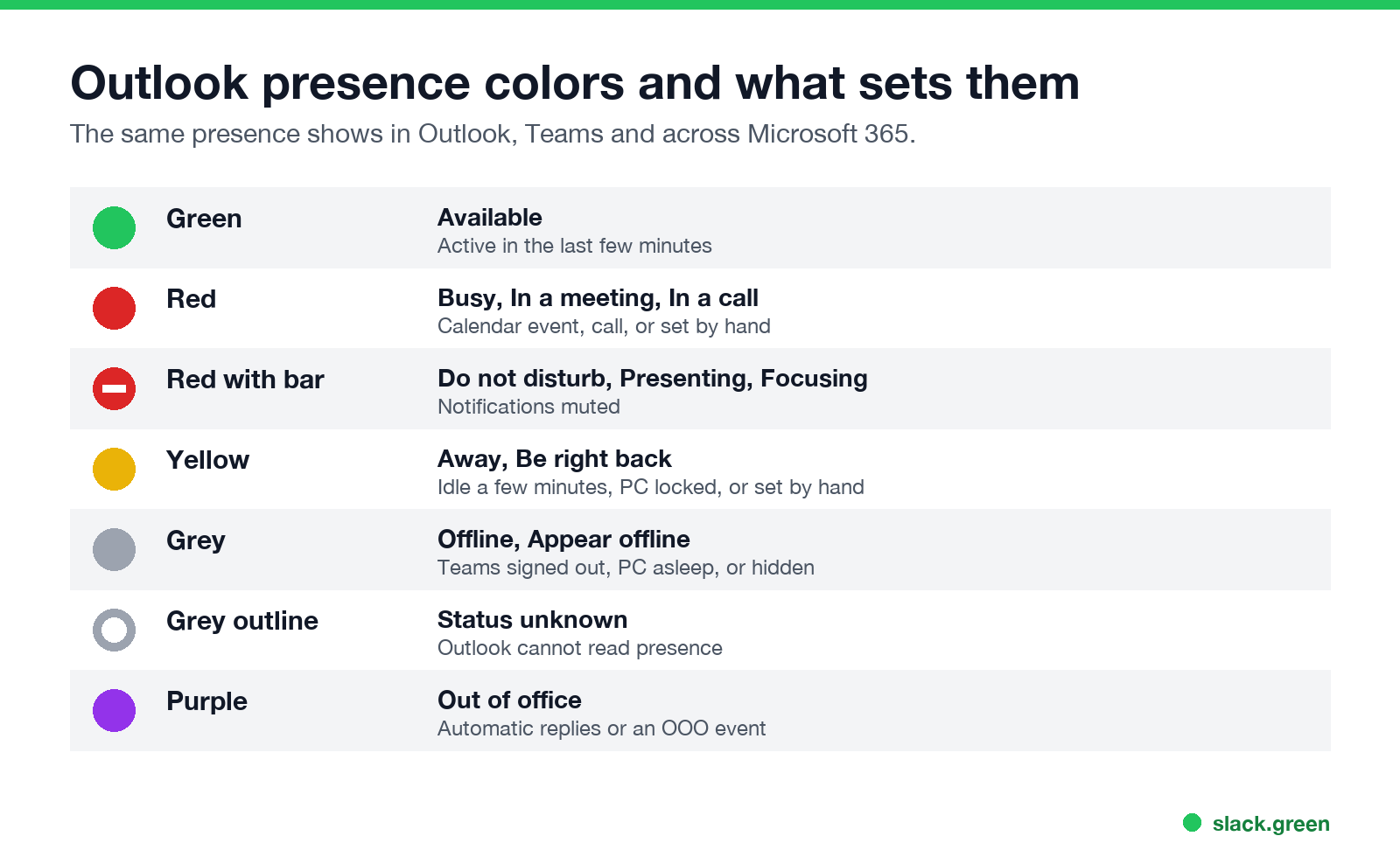
| Color | Status | What sets it |
|---|---|---|
| Green | Available | You used the computer in the last few minutes with Teams running |
| Red | Busy, In a meeting, In a call | A Busy calendar event, a Teams call, or you chose Busy |
| Red with a white bar | Do not disturb, Presenting, Focusing | You chose it, you are sharing your screen, or focus time is on |
| Yellow | Away, Be right back | A few minutes idle, a locked computer, or you chose it |
| Grey with an x | Offline, Appear offline | Teams signed out, the computer asleep, or you chose Appear offline |
| Grey outline | Status unknown | Outlook cannot read presence for that person |
| Purple | Out of office | Automatic replies are on, or an Out of office calendar event is running |
Microsoft's presence rules decide which one wins. A status you pick by hand can only be less available than the calculated one, so choosing Available does not stop Away when you go idle. Why that happens, and how long each state lasts, is in how to keep your Outlook status green. The icon set is the same one Teams uses; Microsoft Teams status icons meaning shows each icon shape.
How does Outlook status work?
- Teams is the source. When you sign in to Teams, Microsoft 365 starts tracking your presence. If Teams is closed or signed out, you show as Offline, or as Away for a while after you stop using it.
- Activity. Teams watches for keyboard and mouse input anywhere on the computer. After a few minutes without it, or the moment the screen locks, you turn yellow.
- Calendar. Any event in your Outlook calendar set to Show as Busy turns you red, In a meeting, for its length. An event set to Out of office turns you purple.
- Calls and sharing. A Teams call turns you red, In a call. Sharing your screen sets Presenting, with notifications muted.
- Automatic replies. Turning on automatic replies in Outlook sets Out of office in presence until you turn them off.
Outlook on the web, the new Outlook for Windows, classic Outlook and Outlook mobile all read the same presence. What differs is where the dot appears: on the contact photo in messages, in the people card, and in the To line when you write an email.
Outlook status greyed out or unknown
Never appear "away" on Slack again
Cloud-based. No downloads. Works 24/7 even when your laptop is off.
A grey outline, or no status at all, usually means Outlook cannot read presence. The common causes in classic Outlook for Windows:
If only your own status shows grey, and everyone else is fine, check that Teams is running and signed in. Teams set to start with Windows avoids most of it.
Can you hide your online status in Outlook?
Not from Outlook itself. The only setting in Outlook, Display online status next to name, hides other people's dots from your own view. It does not hide yours. To hide your status from others, open Teams, select your profile picture, and choose Appear offline. Colleagues then see you as Offline in Teams and Outlook, and you still receive messages. How long it lasts and what others see is in how to appear offline on Teams.
Calendar Show as colors are a different status
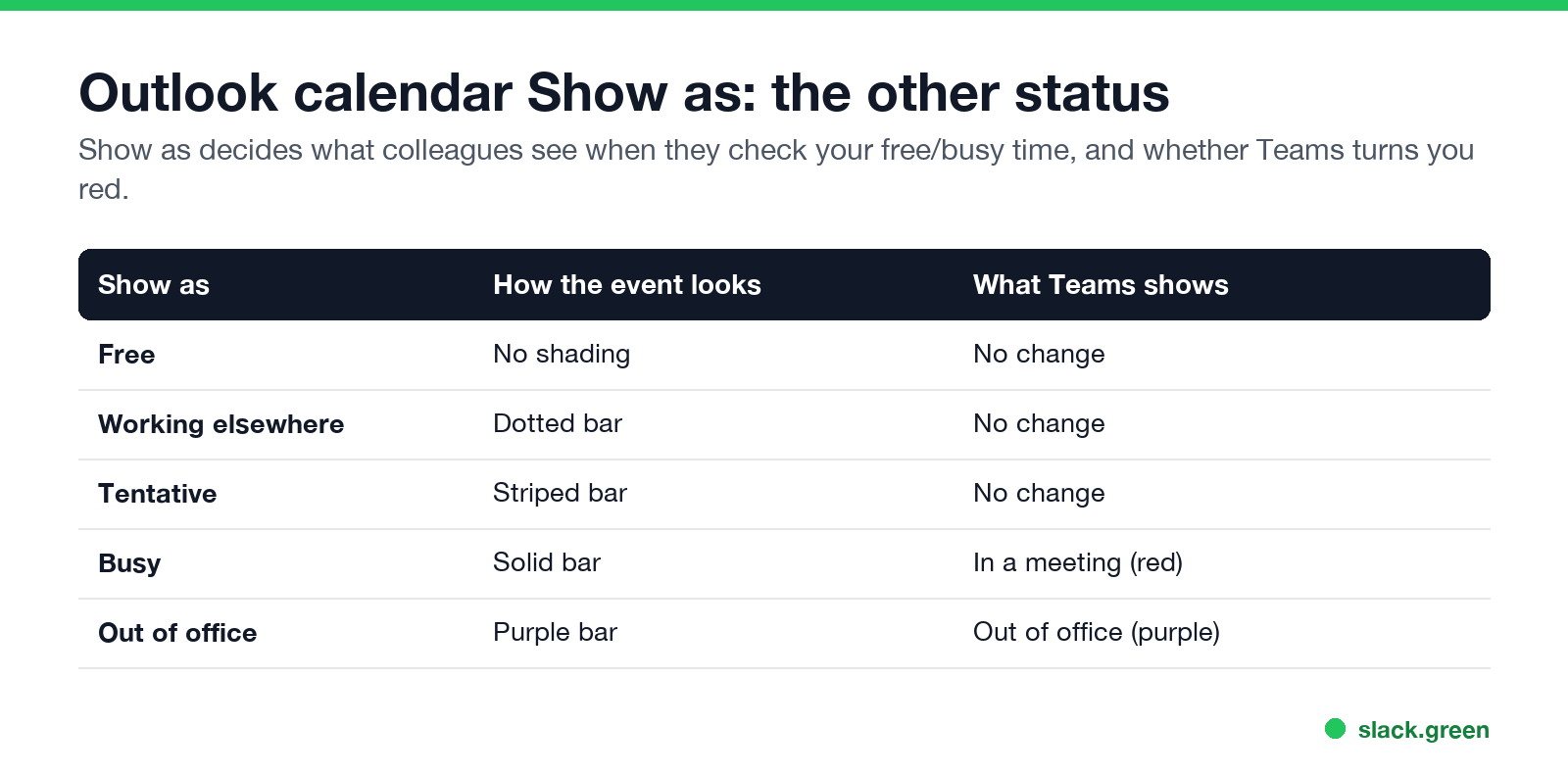
Outlook uses "status" for a second thing: the Show as value on each calendar event. It controls how the event looks to people who check your free/busy time, and whether Teams turns you red.
| Show as | How the event looks | What presence shows |
|---|---|---|
| Free | No shading | No change |
| Working elsewhere | Dotted bar | No change |
| Tentative | Striped bar | No change |
| Busy | Solid bar | In a meeting, red |
| Out of office | Purple bar | Out of office, purple |
That is why a block of focus time set to Busy makes you look busy in Outlook and Teams, and why a tentative invite does not. It also drives Slack's status if you use the Outlook Calendar app for Slack; see Slack Outlook Calendar integration.
FAQ
Never appear "away" on Slack again
Cloud-based. No downloads. Works 24/7 even when your laptop is off.
What does the yellow status mean in Outlook?
Away or Be right back. Teams sets Away after a few minutes without input on the computer, or when the screen locks.
What does a red dot with a white line mean in Outlook?
Do not disturb, or Presenting when you share your screen. Notifications are muted.
Why does Outlook show me offline when I am online?
Teams is not running, is signed out, or is signed in with another account. Outlook takes your status from Teams.
What does purple mean in Outlook?
Out of office, from automatic replies or an Out of office calendar event.
Does Outlook status show if someone read my email?
No. Presence shows availability only. Read receipts are a separate email option the recipient can decline.
Stop Jiggling Your Mouse.
Join hundreds of remote workers who never worry about their Slack status. Set it up once, stay green forever.
Related Articles
How to Keep Skype Status Active: Skype for Business Idle Timers
To keep your Skype for Business status active, open Options, Status, and raise both idle timers, Inactive and then Away, from 5 minutes to as much as 360 minutes each. Consumer Skype shut down on May 5, 2025 and Skype for Business Online in 2021, so for most people the real question is now Teams. What still works, status icons, Outlook, and status not updating.
Is It Legal for My Employer to Monitor Me? US, EU and UK Rules
In the US it is mostly legal for an employer to monitor company devices, accounts and premises, often without asking. The limits are state notice laws in New York, Connecticut and Delaware, consent rules for audio recording and biometrics, bans on cameras in restrooms, and your personal devices. The EU, UK and parts of Canada and Australia add notice and proportionality rules.
Can My Employer See My Personal Email on My Work Computer?
Your employer cannot sign in to your Gmail, and doing so without permission can break the Stored Communications Act. But on a work computer, screenshot and keystroke monitoring, browser history, HTTPS inspection and Outlook's local cache can all expose personal email. Work email is fully visible, deleted messages included. Case by case, with what to do.