
How to Appear Offline on Teams, and What It Still Shows
Select your profile picture, your status, then Appear offline, or type /offline. It lasts until you change it, messages still reach you, and read receipts can still give you away.
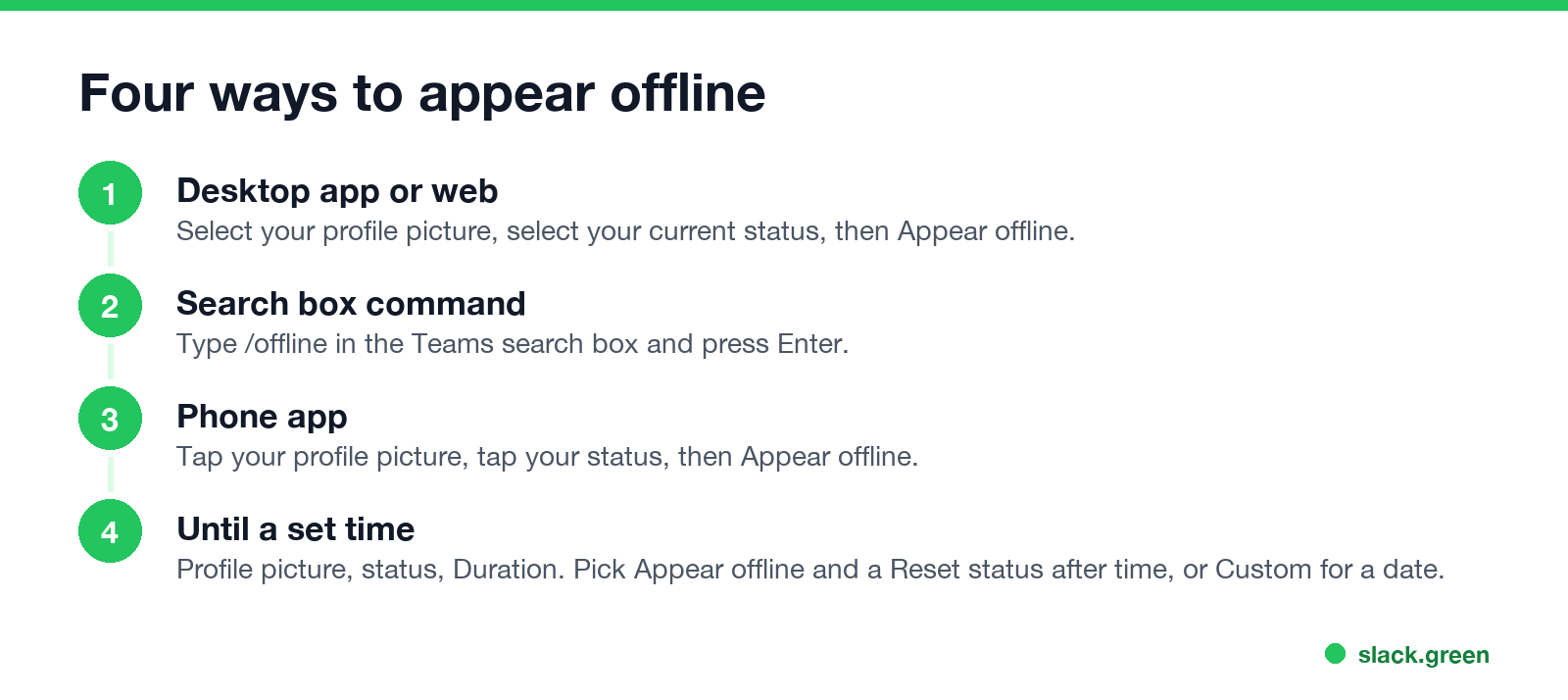
To appear offline on Microsoft Teams, select your profile picture, select your current status, then select Appear offline. Or type /offline in the Teams search box and press Enter. Your dot turns grey for everyone in your organization, and you keep using Teams as normal. Microsoft's admin documentation says a manual Appear offline stays on "indefinitely" until you change it, and that you still receive every chat message.
Appear offline changes the dot and nothing else. Read receipts, meeting lists and IT logs still work, which is where most people get caught out. All of it is below. If your problem is the other direction, staying green in Slack while you step away, that is what we build: Slack Green keeps your Slack presence active from a server during the hours you set.
How to appear offline on Teams
Desktop app or Teams on the web
- Select your profile picture at the top right.
- Select your current status under your name.
- Select Appear offline.
From the search box. Type one of these in the search box at the top of Teams and press Enter:
/offline      appear offline
/available    back to Available
/away         appear away
/busy  /dnd  /brb
Phone app. Tap your profile picture, tap your status, then tap Appear offline. The status belongs to your account, so it shows on every device.
To go back online, pick Available or select Reset status under your current status, and Teams goes back to setting your status from your activity.
Appear offline until a set time
Teams has no recurring schedule for Appear offline. What it has is a duration, and you can use it for one stretch at a time:
When the time runs out, Teams resets your status from your activity, calendar and computer state. Without a duration, Microsoft's admin page lists how long a manual status lasts:
| Manual status | How long it lasts without a duration |
|---|---|
| Appear offline | Indefinitely, until you change it |
| Busy, Do not disturb | 1 day |
| Any other status | 7 days |
So "Teams appear offline automatically" has two answers. Teams sets you Offline by itself when you are signed in nowhere or your computer sleeps. And a status you set yourself can switch off by itself when its duration ends. The automatic rules are in how long before Teams shows Away.
What others still see when you appear offline
Never appear "away" on Slack again
Cloud-based. No downloads. Works 24/7 even when your laptop is off.
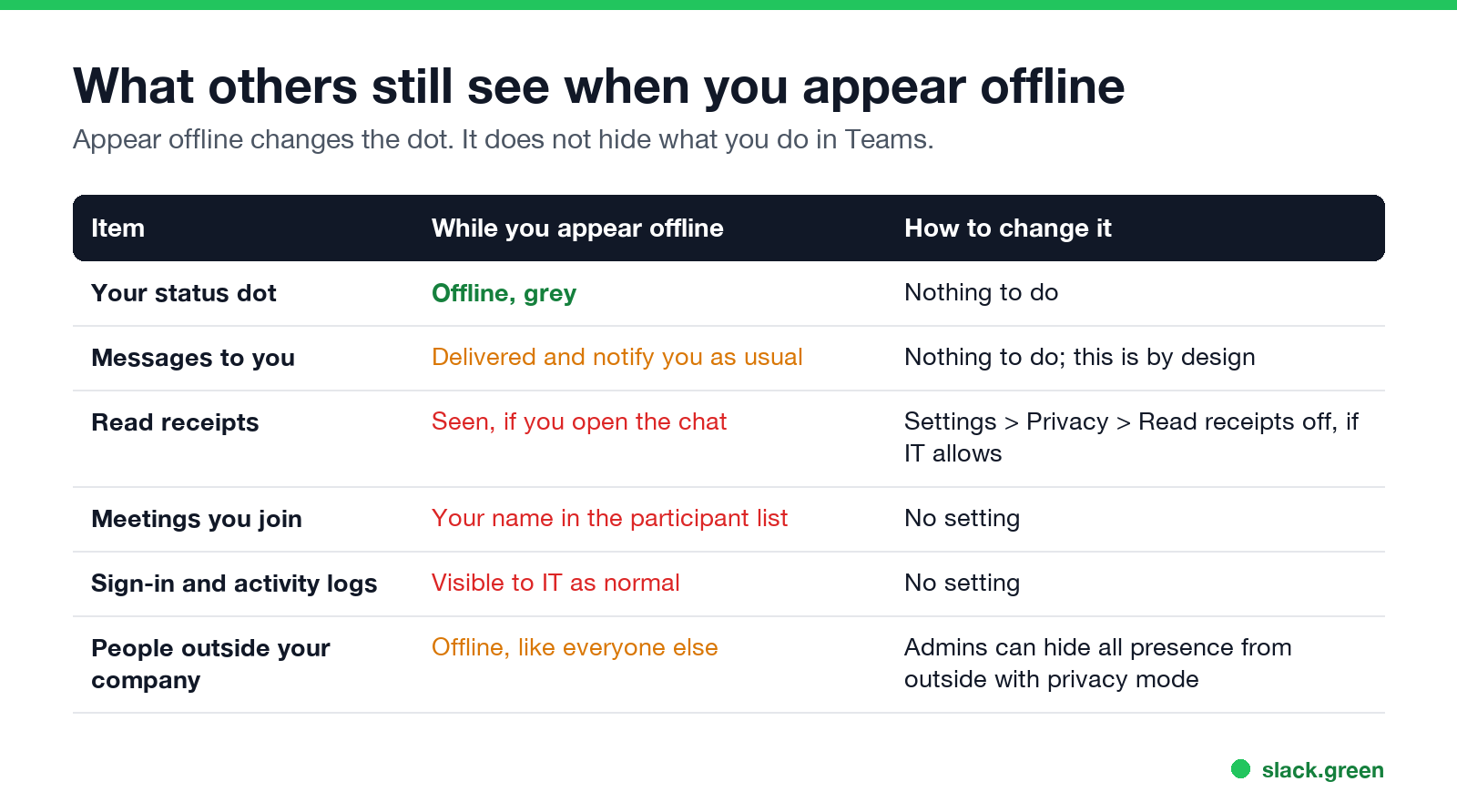
| Item | While you appear offline | How to change it |
|---|---|---|
| Your status dot | Offline, grey | Nothing to do |
| Messages to you | Delivered, and they notify you as usual | Nothing to do, this is by design |
| Read receipts | "Seen" when you open a chat | Settings, Privacy, turn off Read receipts, if IT allows it |
| Meetings you join | Your name in the participant list | No setting |
| Sign-in and activity logs | Visible to IT as normal | No setting |
| People outside your company | Offline, like everyone else | Admins can hide all presence from outside with privacy mode |
Read receipts are the common leak. If you open a one-to-one chat while you appear offline, the sender can still see that you read it. Turn off Read receipts under Settings, then Privacy, if your organization lets you. Some organizations switch it on for everyone. Joining a meeting shows your name in the meeting's participant list, whatever your dot says.
Can you appear offline to certain people?
No. Teams has no per-person visibility. Your status shows the same to everyone in your organization. Discord has the same limit, covered in how to appear offline to one person on Discord. The two settings close to it are:
# Teams PowerShell module, run by an admin
Set-CsPrivacyConfiguration -Identity global -EnablePrivacyMode $TrueAppear offline, Away, Do not disturb: which one to use
| Status | Others see | Notifications for you | Good for |
|---|---|---|---|
| Appear offline | Grey, Offline | All arrive | Working without being expected to reply |
| Appear away | Yellow, Away | All arrive | A soft "not at my desk" |
| Do not disturb | Red | Banners hidden, except priority people | Focus time, presenting |
| Be right back | Yellow clock | All arrive | Short breaks |
What each color and icon means is in Microsoft Teams status icons meaning.
Teams appear offline not working
Never appear "away" on Slack again
Cloud-based. No downloads. Works 24/7 even when your laptop is off.
Does IT know when you appear offline?
Your dot does not change what the Teams admin can see. Sign-ins, messages sent, meetings joined and files touched are logged the same way whatever your status is. What those logs contain is in does Teams track your activity.
Appear offline on Slack
Slack has no status called Appear offline. You choose Set yourself as away instead, and your dot turns into the same hollow grey dot people see when you are signed out. It stays until you undo it. Separately, Slack sets you away by itself after 10 minutes without input in Slack. The steps and the limits are in can you appear offline on Slack. The reverse problem, staying green when you step away, is what Slack Green does for Slack.
FAQ
Never appear "away" on Slack again
Cloud-based. No downloads. Works 24/7 even when your laptop is off.
How do I appear offline on Teams? Select your profile picture, your current status, then Appear offline. Or type /offline in the search box.
How long does Appear offline last on Teams? Until you change it, unless you set a duration. Microsoft documents it as indefinite.
Can I still get messages when I appear offline? Yes. Every chat message arrives and notifies you as usual.
Can I appear offline to one person on Teams? No. Everyone in your organization sees the same status.
Will people know I read their message while I appear offline? Yes, if read receipts are on. Turn them off under Settings, then Privacy, if your organization allows it.
Does Appear offline hide me from my admin? No. Admin logs and reports do not depend on your status.
Stop Jiggling Your Mouse.
Join hundreds of remote workers who never worry about their Slack status. Set it up once, stay green forever.
Related Articles
How to Keep Skype Status Active: Skype for Business Idle Timers
To keep your Skype for Business status active, open Options, Status, and raise both idle timers, Inactive and then Away, from 5 minutes to as much as 360 minutes each. Consumer Skype shut down on May 5, 2025 and Skype for Business Online in 2021, so for most people the real question is now Teams. What still works, status icons, Outlook, and status not updating.
Is It Legal for My Employer to Monitor Me? US, EU and UK Rules
In the US it is mostly legal for an employer to monitor company devices, accounts and premises, often without asking. The limits are state notice laws in New York, Connecticut and Delaware, consent rules for audio recording and biometrics, bans on cameras in restrooms, and your personal devices. The EU, UK and parts of Canada and Australia add notice and proportionality rules.
Can My Employer See My Personal Email on My Work Computer?
Your employer cannot sign in to your Gmail, and doing so without permission can break the Stored Communications Act. But on a work computer, screenshot and keystroke monitoring, browser history, HTTPS inspection and Outlook's local cache can all expose personal email. Work email is fully visible, deleted messages included. Case by case, with what to do.