
Teams Status Message for Training: 24 Examples to Copy
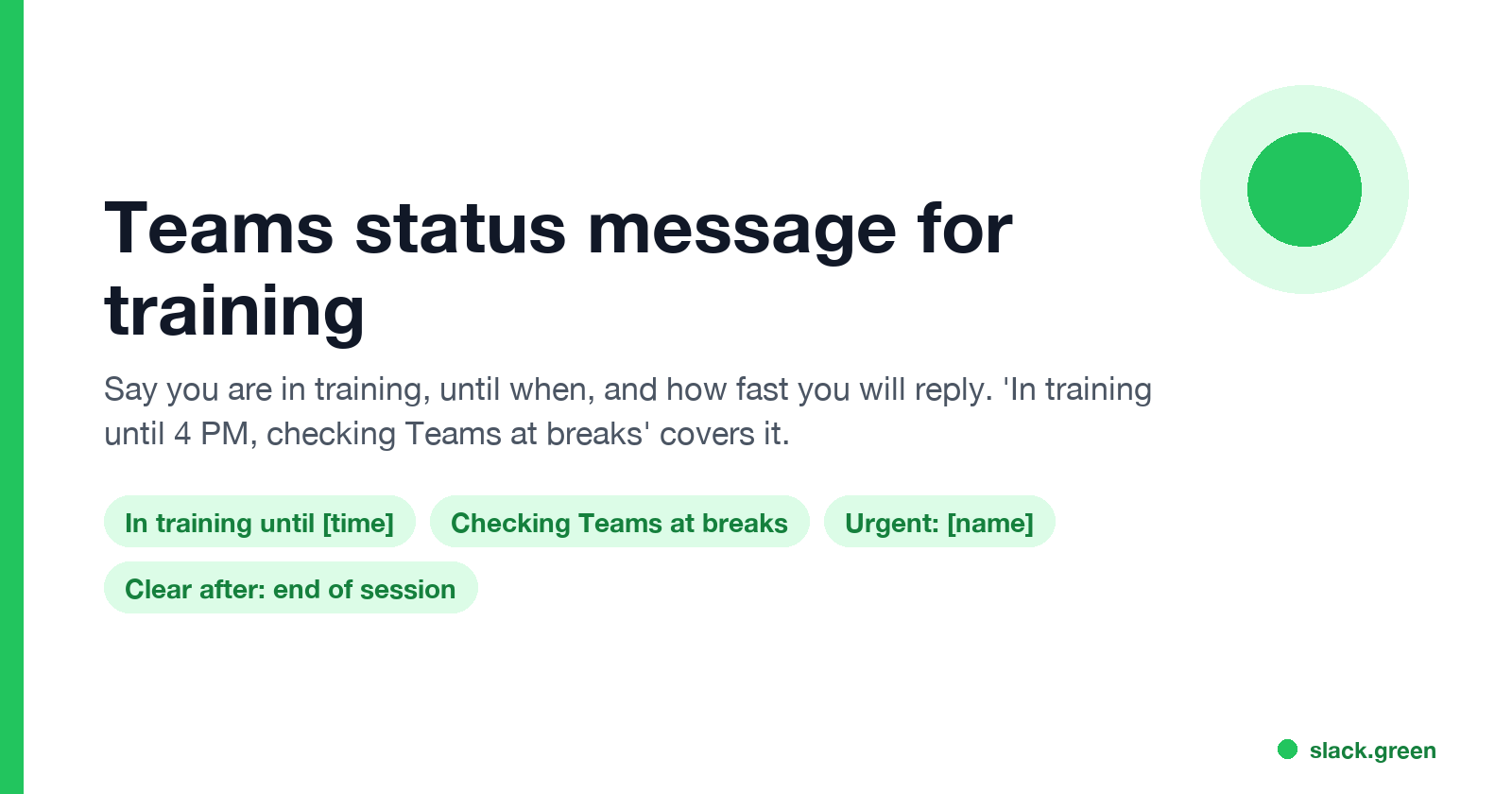
A Teams status message for training says you are in training, until when, and how fast you will reply: 'In training until 4 PM, checking Teams at breaks.' 24 examples for training days, courses, exams, conferences and onboarding, plus which presence to pick.
A Teams status message for training needs three things: that you are in training, when it ends, and how fast you will reply. For example: "In training until 4 PM, checking Teams at breaks." Set Clear status message after to the end of the session, turn on Show when people message me, and set your presence to Busy, or Do not disturb if you cannot look at your phone at all.
Below are 24 messages to copy for training days, online courses, exams, conferences, onboarding and running a training yourself, then the steps and which presence fits.
We build Slack Green, which keeps your Slack status green from our servers during the hours you set. The full how-to for Teams status messages and out of office is in how to set an away message in Teams.
Teams status messages for training, by situation
Replace the brackets. Teams status messages hold up to 280 characters, so each of these fits with room to spare.
Training day or workshop
In training all day, checking Teams at breaks.
In a workshop until 4 PM. Replies after.
Training session 9-12. Back online at 1.
At a full-day training. Urgent: [name].
In training this morning, slower replies until noon.
Online course or webinar
In an online course until 3 PM. Camera on, chat off.
Attending a webinar, back in an hour.
Doing mandatory training this afternoon. Replies after 4.
Learning day: in courses until 5. Urgent: [name].
Exam or certification
In a certification exam until 12. Not reachable.
Exam this morning, back online at 1 PM.
Studying for [exam] today, checking Teams at 12 and 4.
Conference or multi-day training
At [conference] until Thursday. Replies in the evening.
At a training course in [city] this week. Limited access. Urgent: [name].
Offsite training [6-8 October]. Checking messages once a day.
At [event], [time zone] hours this week.
Onboarding and new-hire training
New here: in onboarding sessions all week. Say hi.
Onboarding [name] this morning. Back at 1.
Running new-hire training until 3. Urgent: [name].
Running the training yourself
Teaching a workshop until 4. Urgent: [name].
Presenting a training session, back at 11.
Hosting training all day. Please post questions in [channel].
Facilitating [course] 1-5 PM. Replies after.
Training the team today. [Name] covers support.
Lighter wording for normal days is in funny Teams status messages. For a message about slow replies in general, see Teams status message for delayed response.
Which status and presence for which training
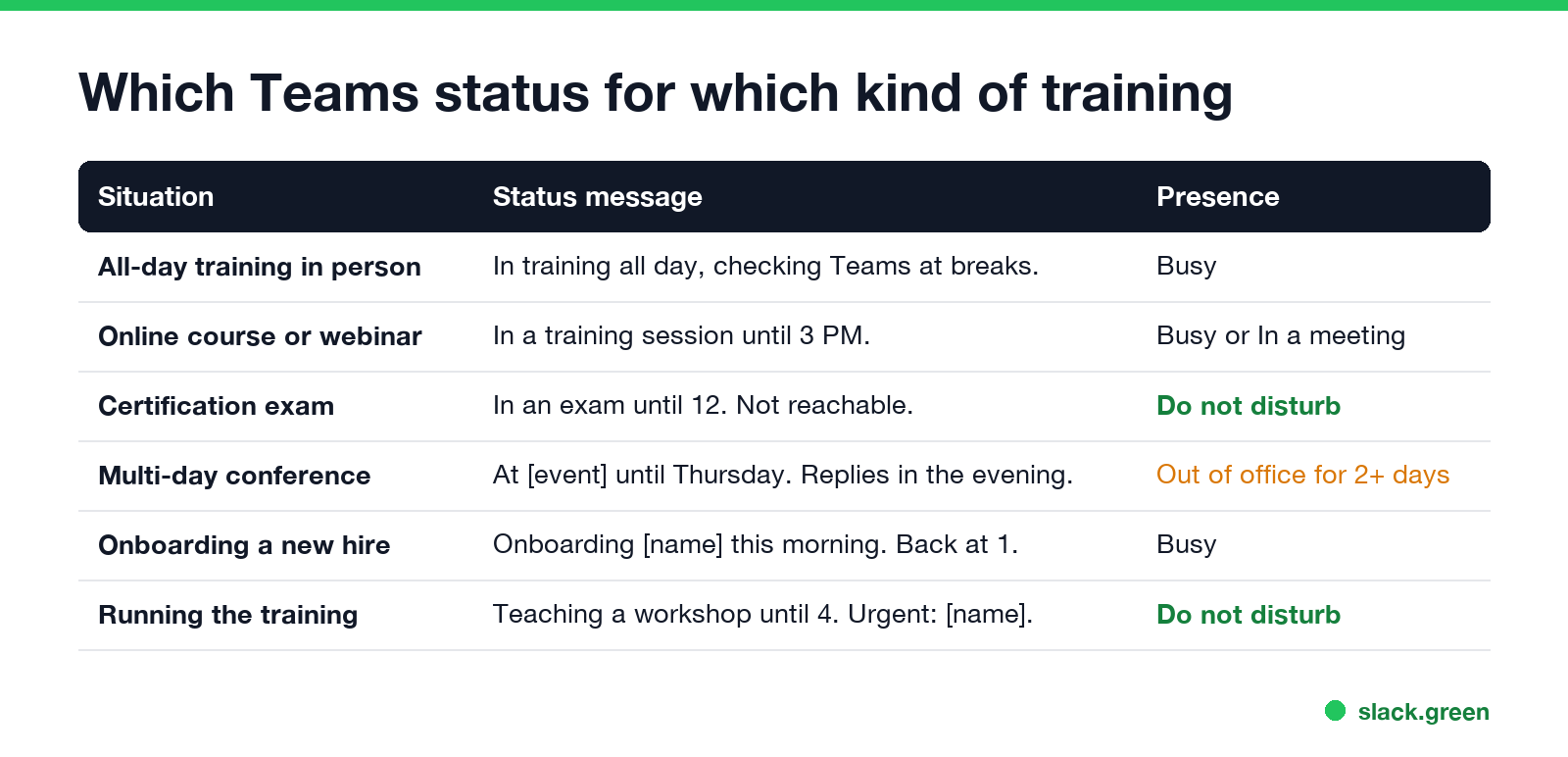
| Situation | Presence | Why |
|---|---|---|
| Training day, in person | Busy | You can still check at breaks |
| Online course in Teams | In a meeting | Teams sets it when you join the call |
| Exam | Do not disturb | No notifications at all |
| Running the training | Do not disturb | Teams also turns it on while you present |
| Conference, 2 or more days | Out of office | Also replies to email |
If the training is on your Outlook calendar and marked Busy, Teams sets your presence to Busy for that time without you doing anything. The status message is still worth adding, because presence only says busy, not until when.
How to set a training status message in Teams
Never appear "away" on Slack again
Cloud-based. No downloads. Works 24/7 even when your laptop is off.
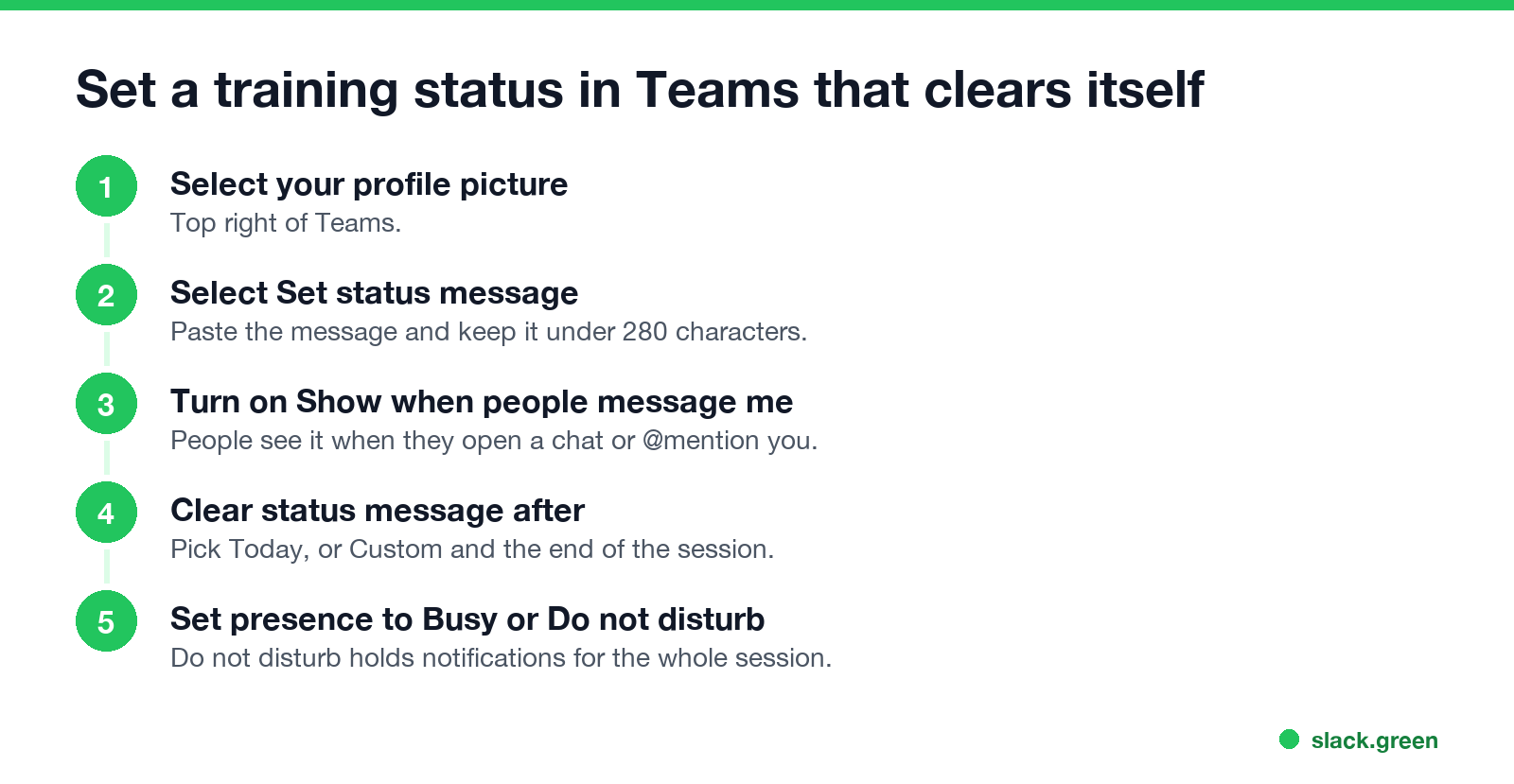
- Select your profile picture at the top right of Teams.
- Select Set status message and paste the message.
- Turn on Show when people message me. Microsoft's help says people then see it when they message or @mention you.
- Under Clear status message after, pick Today, or a custom time at the end of the session.
- Select Done.
- Select your presence under your name and pick Busy or Do not disturb. To have it go back to Available on its own, choose Duration and set Reset status after.
On the Teams phone app: tap your profile picture, then Set status message. The duration option is called Clear after.
Microsoft notes one catch: if you have a status message set in Teams, it will not show your automatic out-of-office reply from Outlook. For a conference where you use both, make the two say the same thing.
Busy or Do not disturb during training
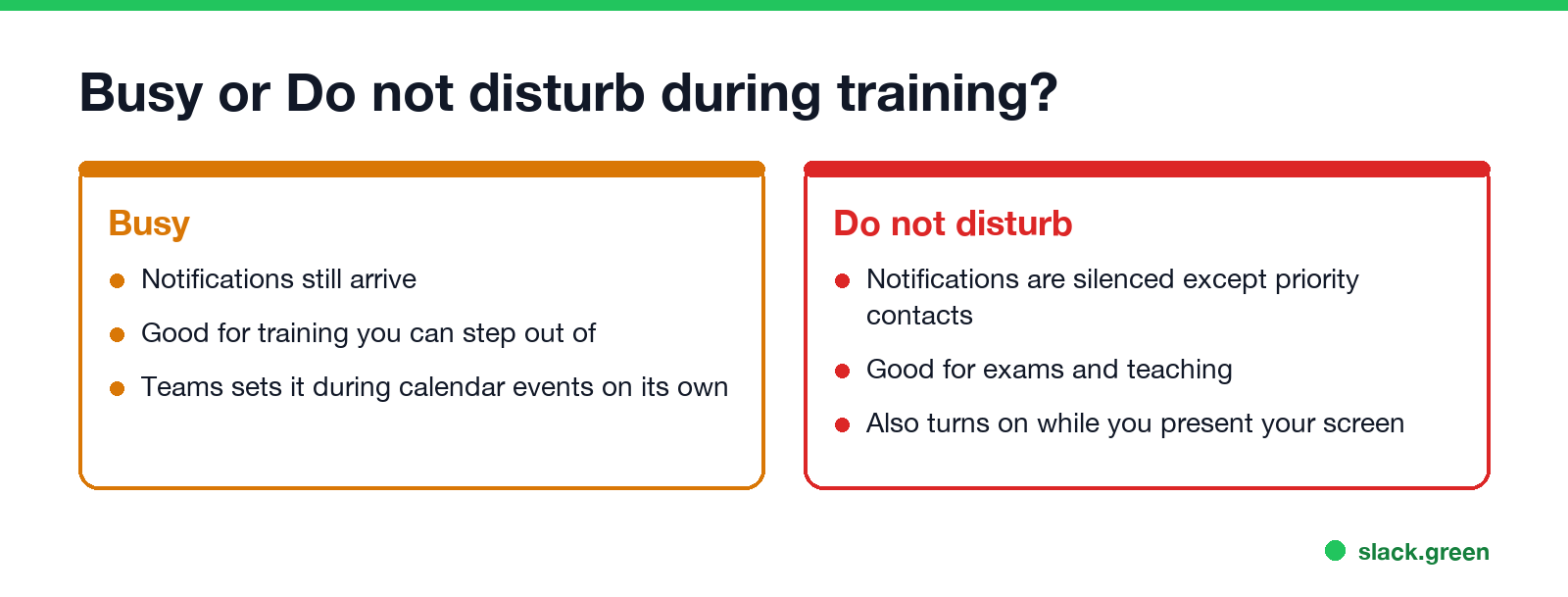
Busy keeps notifications on. It suits a training you can step out of for a real problem. Do not disturb silences notifications except from people on your priority access list, so it suits exams and teaching. After the session, check your presence: a manual Busy or Do not disturb stays until the time you set, and a status stuck on red is covered in Teams status stuck on busy.
For a conference or course that runs several days, schedule an out of office instead. It sets the purple status and answers email too. The wording for longer absences is in Teams status message for leave.
The same status in Slack
If your team also uses Slack, set the same line there, for example 🧑🏫 "In training until 4 PM, checking Slack at breaks", and pick a Remove status after time. Our free Slack status generator has more work statuses, and Slack status for limited availability covers slow-reply days. Slack sets you to away after 10 minutes without input in the Slack window; Slack Green keeps your dot green during your working hours.
FAQ
Never appear "away" on Slack again
Cloud-based. No downloads. Works 24/7 even when your laptop is off.
What should my Teams status be when I am in training? "In training until [time], checking Teams at breaks", with Busy presence and the message set to clear at the end.
What is a good Teams status for a conference? "At [conference] until Thursday. Replies in the evening." For two days or more, also schedule an out of office.
Should I use Busy or Do not disturb during training? Busy if you can check at breaks. Do not disturb for exams or when you are teaching.
How long can a Teams status message be? Up to 280 characters.
How do I make my training status clear by itself? Pick a time under Clear status message after when you set it.
Stop Jiggling Your Mouse.
Join hundreds of remote workers who never worry about their Slack status. Set it up once, stay green forever.
Related Articles
Tips for Working Across Time Zones: 10 Habits That Work
Working across time zones works when the team writes things down, keeps a short overlap window for live talk, says the zone with every time, and lets tools deliver messages in each person's working hours. Ten habits, a follow-the-sun handoff note, the Slack settings that help, and a script that shows your team's local times.
Slack Emoji for OOO, PTO and Days Off
The usual Slack emoji for OOO is 🌴 :palm_tree:, with ✈️ :airplane: for travel and 🗓️ :spiral_calendar_pad: for planned PTO. Enterprise's built-in Out of office status uses ⛔. Codes for vacation, upcoming PTO, sick days, holidays and outages, custom :ooo: and :pto: emoji, and statuses to copy.
How to Schedule a Meeting Across Time Zones (Without Guessing)
Write down each person's working hours in UTC, pick the hour where most of them overlap, rotate the slot nobody likes, and send the invite from a calendar that shows each guest their own time. A worked example for San Francisco, New York, London and Bangalore, the daylight saving weeks that break recurring meetings, and a script that finds the best hour.