
Funny Teams Status Messages: 100+ Lines That Are Safe for Work
100+ funny Microsoft Teams status messages grouped by situation: meetings, focus time, working from home, breaks, Mondays, Fridays and out of office. Plus how to set one in Teams, the 280-character limit, and when to keep it plain.
A funny Teams status message answers "where are you?" before anyone asks, and gets a smile on the way. The best ones are short, joke about you or the work rather than about people, and get replaced before they go stale. Below are 100+ lines to copy, grouped by situation. To set one, click your profile picture in Teams, choose Set status message, paste the line, pick when to clear it, and click Done.
Status text is only half of what people see. The dot next to your name still turns yellow after about 5 minutes without input on your computer, however good the joke is. The fixes for that are in how to keep your Teams status available. If you also work in Slack, Slack Green keeps your Slack dot green during your working hours without the app running, so the status line is the only thing people read into.
Funny Teams status messages for meetings
- • In a meeting about the meeting we had yesterday.
- • Back-to-back calls. Send snacks, not messages.
- • On mute, fully unmuted inside.
- • Currently saying "can everyone see my screen?"
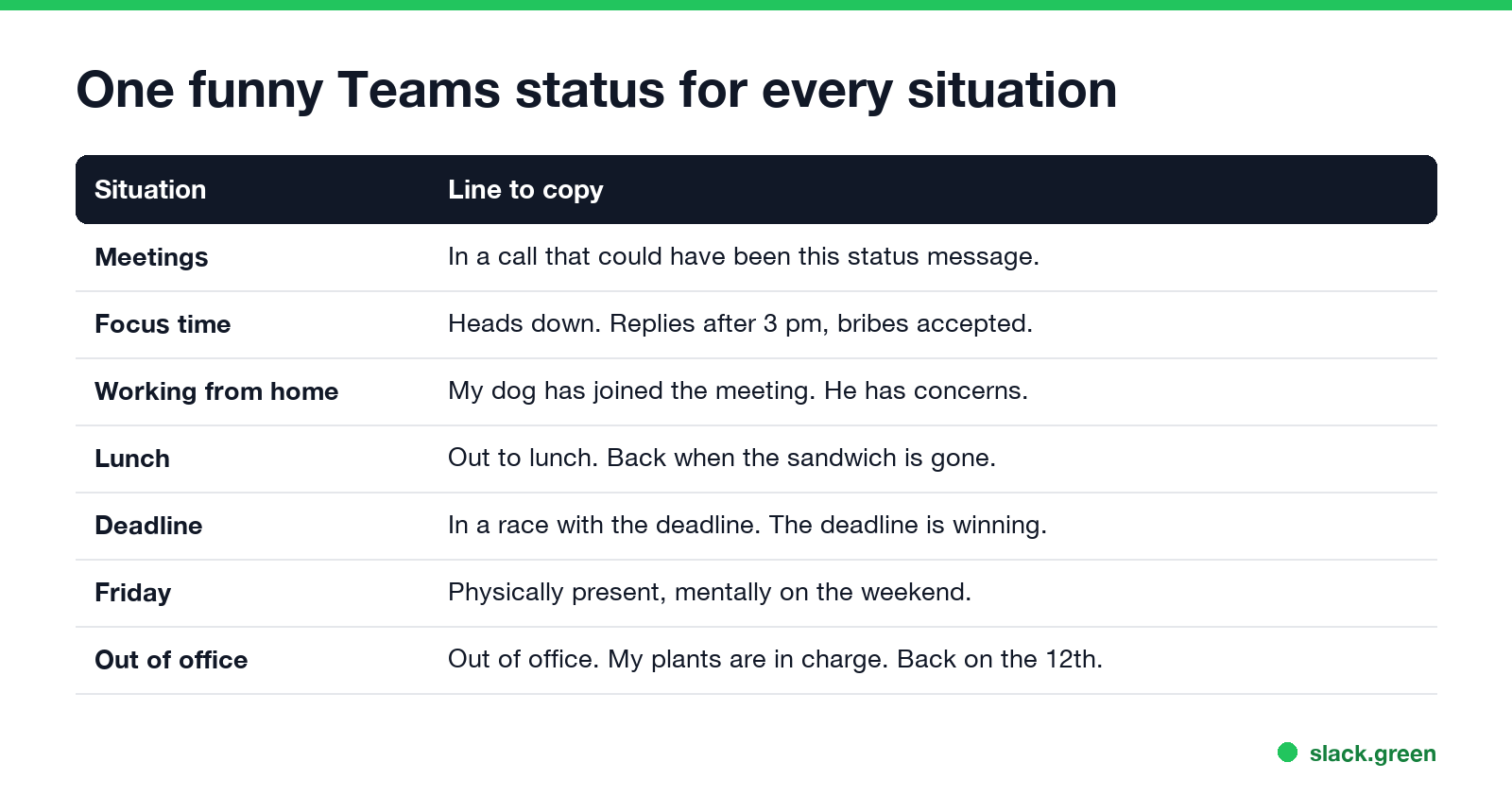
- • In a call that could have been this status message.
- • Presenting. Please pretend my slides are exciting.
- • Stuck in a meeting that ran over. So did the next one.
- • Camera off, opinions on.
- • "Let's take this offline", said the online meeting.
- • Nodding along in meeting 4 of 7.
- • My calendar is a game of Tetris and I am losing.
- • In a meeting. If it's urgent, it's still going to wait 20 minutes.
- • Heads down. Replies after 3 pm, bribes accepted.
- • In the zone. The zone has no notifications.
- • Writing code that future me will not understand.
- • Thinking. Please don't interrupt the loading bar.
- • Deep work mode. Surface time: 2 pm.
- • Solving one problem, creating two more. Back soon.
- • Spreadsheet wrangling. Send help or pivot tables.
- • Busy being productive. It's a rare sighting.
- • Do not disturb, unless you bring coffee.
- • Focusing. If I reply now, the focus was fake.
Focus time and deep work
Working from home
Never appear "away" on Slack again
Cloud-based. No downloads. Works 24/7 even when your laptop is off.
Coffee, lunch and short breaks
Deadlines, busy days and stress
Mondays, Fridays and general mood
Never appear "away" on Slack again
Cloud-based. No downloads. Works 24/7 even when your laptop is off.
Funny Teams statuses with emoji
Short funny Teams statuses (under 25 characters)
Short lines fit the space next to your name without being cut off.
Out of office and vacation
Never appear "away" on Slack again
Cloud-based. No downloads. Works 24/7 even when your laptop is off.
Out of office has its own setting in Teams. Pair it with a light status line only if the actual return date and backup contact are still in it.
For developers, IT and support
Teams-specific jokes
These only land in Teams, which is the point.
How to set a status message in Teams
Never appear "away" on Slack again
Cloud-based. No downloads. Works 24/7 even when your laptop is off.
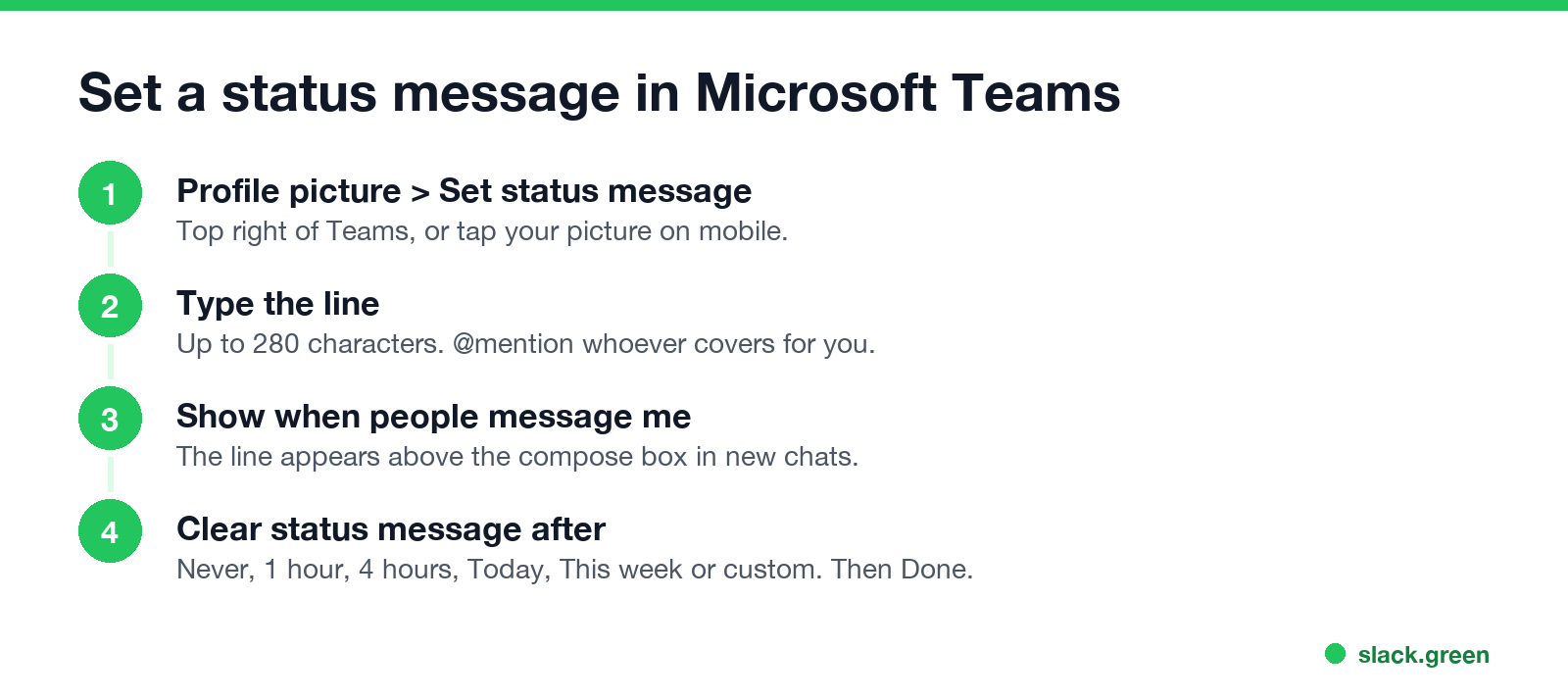
For days off, the out of office scheduler that also sets your Outlook reply is in how to set an away message in Teams. On the Teams mobile app, tap your profile picture, then Set status message. The status message is separate from your availability; setting a message does not change the green, red or yellow dot. What each dot means is in Microsoft Teams status icons.
When a funny status is fine, and when to keep it plain
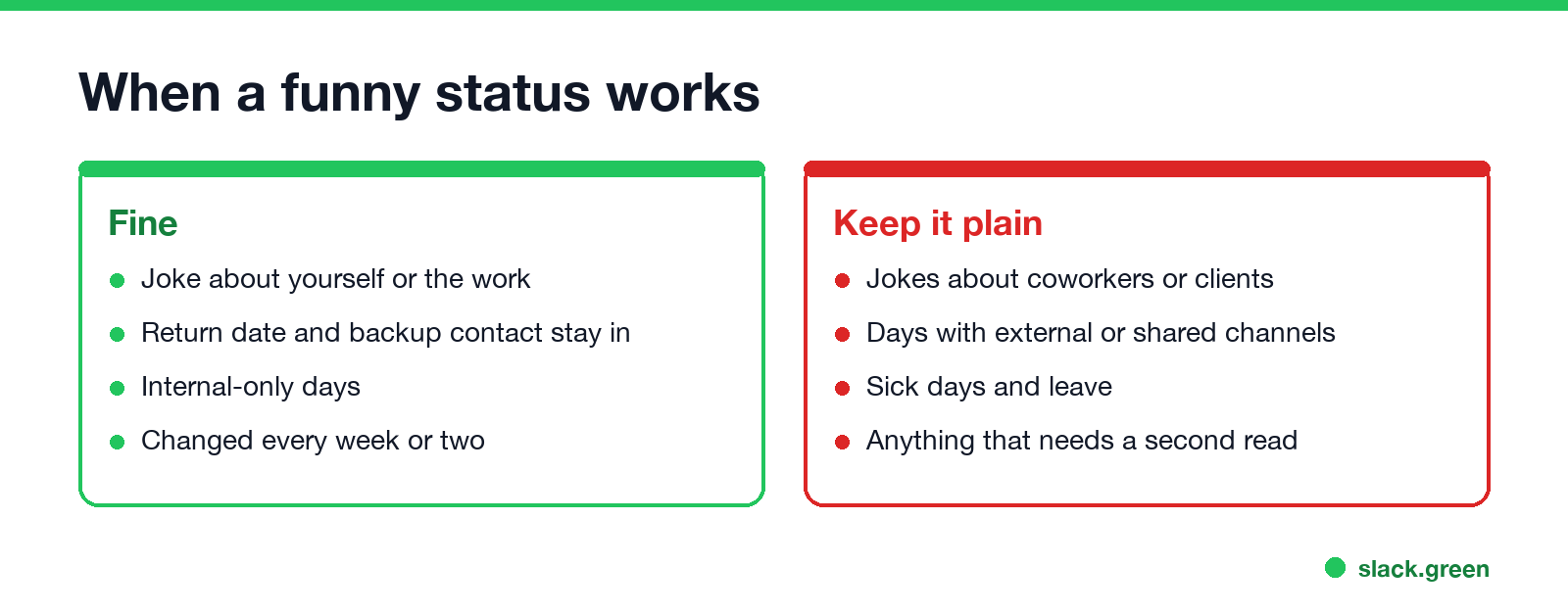
Three rules keep a joke on the right side of the line:
Rotate lines every week or two. A status that was funny in March is furniture by June.
For Slack, see funny Slack status ideas or generate more in the free status ideas tool. Plain work lines by situation are in Slack status examples; most of them work in Teams without changes.
FAQ
How long can a Teams status message be? 280 characters. Keep it under about 25 if you want the whole line to show next to your name.
Can I use emoji in a Teams status message? Yes. Emoji work in the message text.
Does a status message keep me green in Teams? No. Your dot depends on your activity and calendar, not the text. See how to look busy on Teams and why Teams gets stuck on away.
Do these work in Webex or Zoom? Yes. Webex custom statuses allow up to 75 characters, so pick from the short list. For Zoom's options, see Zoom status icons.
Stop Jiggling Your Mouse.
Join hundreds of remote workers who never worry about their Slack status. Set it up once, stay green forever.
Related Articles
How to Keep Skype Status Active: Skype for Business Idle Timers
To keep your Skype for Business status active, open Options, Status, and raise both idle timers, Inactive and then Away, from 5 minutes to as much as 360 minutes each. Consumer Skype shut down on May 5, 2025 and Skype for Business Online in 2021, so for most people the real question is now Teams. What still works, status icons, Outlook, and status not updating.
Is It Legal for My Employer to Monitor Me? US, EU and UK Rules
In the US it is mostly legal for an employer to monitor company devices, accounts and premises, often without asking. The limits are state notice laws in New York, Connecticut and Delaware, consent rules for audio recording and biometrics, bans on cameras in restrooms, and your personal devices. The EU, UK and parts of Canada and Australia add notice and proportionality rules.
Can My Employer See My Personal Email on My Work Computer?
Your employer cannot sign in to your Gmail, and doing so without permission can break the Stored Communications Act. But on a work computer, screenshot and keystroke monitoring, browser history, HTTPS inspection and Outlook's local cache can all expose personal email. Work email is fully visible, deleted messages included. Case by case, with what to do.