Back to Blog
Guide

Webex Status Icons Meaning: Every Symbol and Color

In Webex, a green icon means available, orange means busy, red means do not disturb, a moon means quiet hours and a clock with 'Active X minutes ago' means not active. All ten Webex status icons, the order Webex ranks them in, and how to change yours.

Slack Green Team
September 24, 2026
October 7, 2026
12 min read
Share:
webex
presence
status icons

Webex status icons show whether a coworker can answer right now. A green icon means available. An orange icon means busy, and a red icon means do not disturb. A moon means quiet hours. A camera means in a meeting, a handset means on a call, and an arrow means sharing a screen. An airplane means an Outlook out-of-office reply is on. A clock with "Active X minutes ago" means the person is not active. When two states apply at once, Webex shows the one higher in its list, so a meeting beats available.

The meanings below come from Cisco's help article See people's availability. We describe each icon in words and do not copy Cisco's artwork.

Webex status icons decoded: green available, orange busy, red do not disturb, clock not active

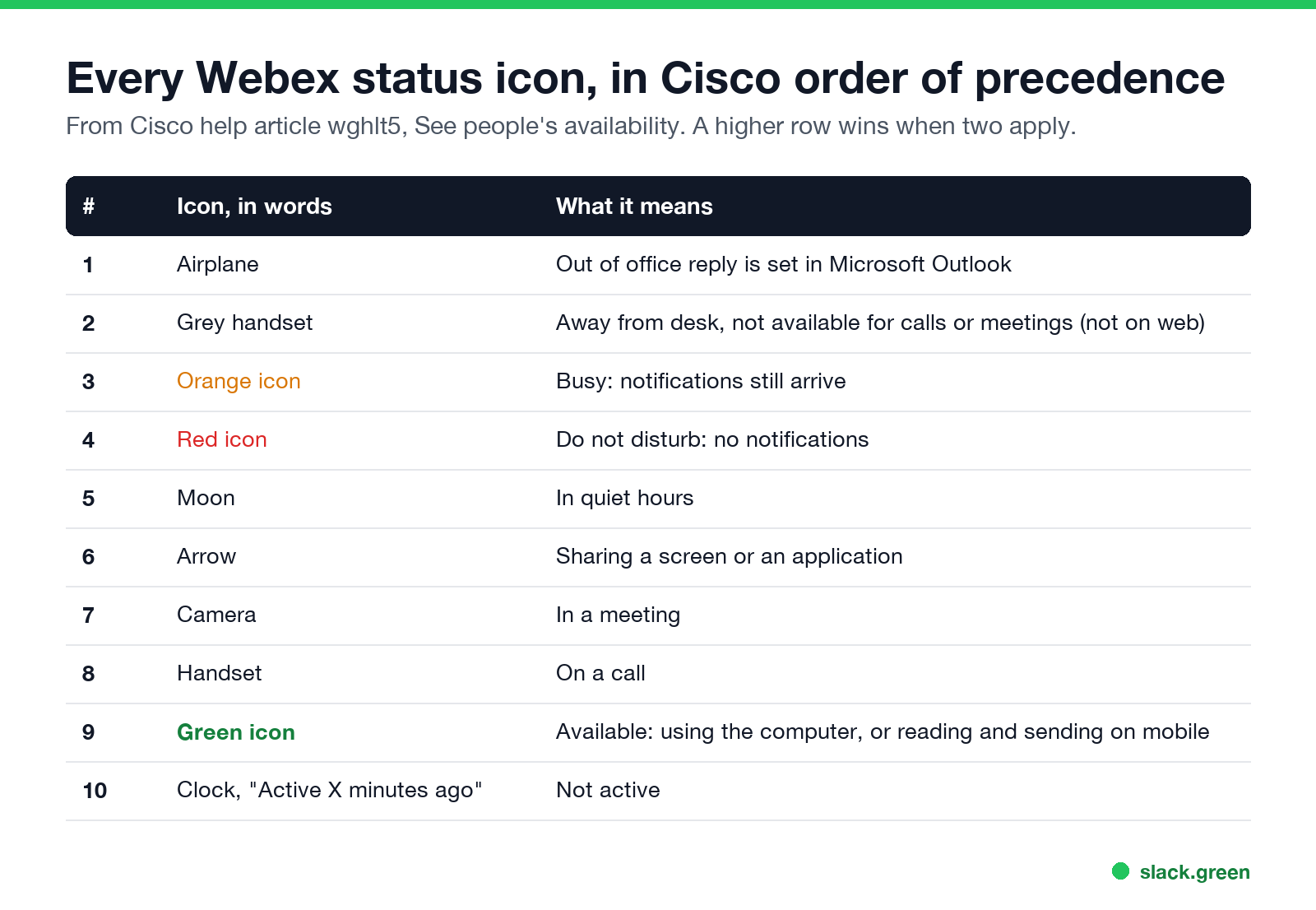
Every Webex status icon

All ten Webex status icons in Cisco's order of precedence, with what each one means
RankIconStatusWhat it means
1AirplaneOut of officeAn out-of-office reply is set in Microsoft Outlook
2Grey handsetAway from deskNot available for calls or meetings. Not shown in Webex for web
3Orange iconBusyFocused, but still gets message and call notifications
4Red iconDo not disturbGets no notifications, only unread markers
5MoonQuiet hoursInside the quiet hours they set
6ArrowPresentingSharing a screen or an application
7CameraIn a meetingIn a meeting
8HandsetOn a callOn a call
9Green iconAvailableUsing the computer with Webex open, or reading and sending messages on mobile
10ClockNot activeAway from the app. The profile shows "Active X minutes ago"

You can see availability only for people in your own organization. It shows wherever their profile picture appears: in a space, in a direct message, and in search.

Which Webex icon wins when two apply
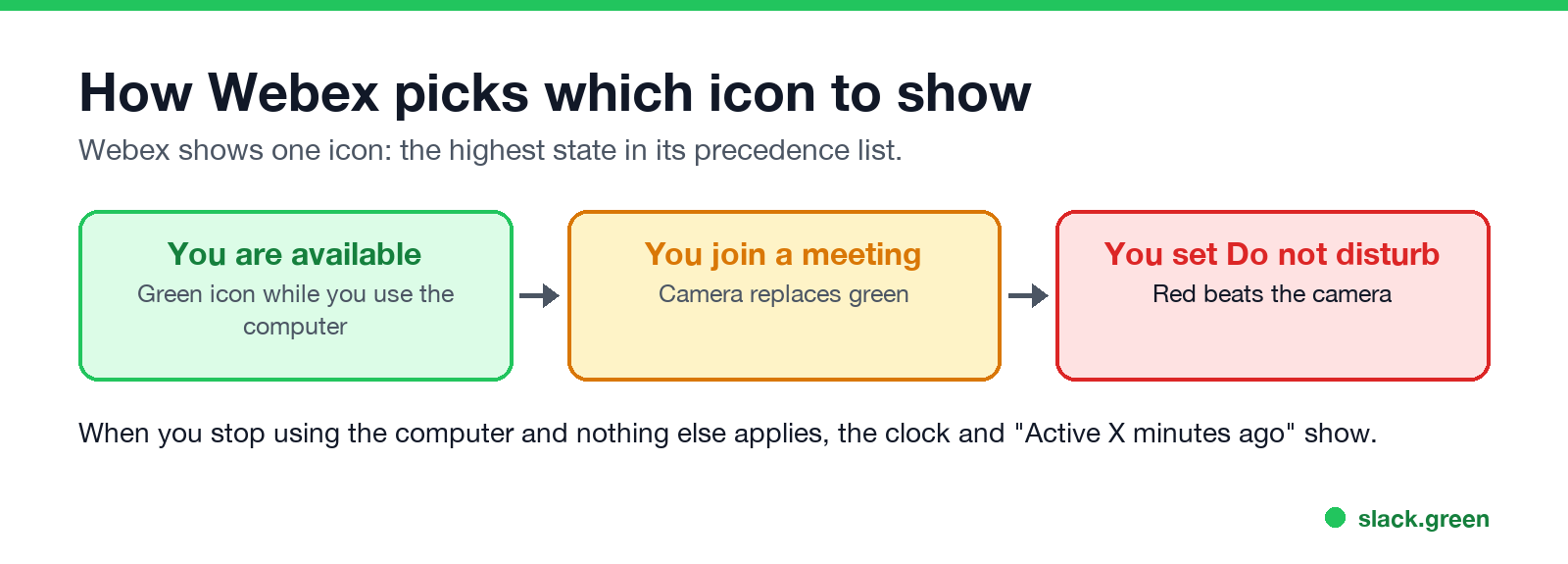
How Webex picks one icon: available, then a meeting replaces it, then do not disturb replaces the meeting

Webex shows one icon at a time. It takes the highest state that is true, in the rank order in the table. Three cases people ask about:

  • • In a meeting and set to Do not disturb. You see the red icon, because do not disturb ranks above a meeting.
  • • Available but sharing a screen. You see the arrow. Webex also holds back message and call notifications while someone shares a screen in a call or meeting.
  • • Out of office in Outlook. The airplane beats every other state, including busy and do not disturb.
  • If the camera or calendar icon stays after the meeting ended, see Webex status stuck in a meeting. The hot beverage icon with "Stepped away" inside a meeting is not a status icon; it is explained in step away from a Webex meeting below.

    How long before Webex shows you as not active

    On Windows and Mac, Webex shows you as available while you use the computer. When you stop, it switches to the clock and "Active X minutes ago". On iPhone, iPad and Android, you count as available only when you send or read messages. Cisco does not publish the number of idle minutes before the switch, and posts on the Cisco community report that the time varies. If you see the clock while you work, the fixes are in how to keep your Webex status active.

    "Active now" and a green icon mean the same thing: the person used Webex or the computer in the last few minutes.

    How to change your Webex status

  • Click your profile picture and choose Availability.
  • Choose Busy or Do not disturb.
  • Pick how long it lasts from the list, or click Set a time.
  • To go back to active, click Availability, then Clear.
  • On iPhone, iPad and Android, tap your profile picture, then Availability, and follow the same steps. To add text such as "In the lab until 3", use Set a status in the app header. A custom status sits next to the icon and does not change it. If you want nobody to see your icon at all, see how to hide your online status on Webex below. What the red icon silences, and how to schedule it with quiet hours, is in Webex do not disturb and quiet hours.

    The custom text next to the icon is up to you; the Webex status ideas below all fit the 75-character limit.

    Webex status ideas for a custom status

    A good Webex status says when you will reply. Cisco's help article "Webex App | Set a Custom Status" sets the limits: up to 75 characters including emoji, up to five saved statuses, and a Clear after time from 30 minutes to 30 days. We counted the lines below with Python, an emoji as one character; the longest is 53.

  • • Meetings: "📅 Back-to-back meetings until 3 PM. Reply after 3:15", "🎤 Presenting. Messages wait until the Q&A", "📝 In interviews all afternoon. Urgent? Call my mobile"
  • • Focus: "🎯 Deep work until 11:00. I'll check messages at 11", "🔇 Focus block. Replies at the top of the hour", "📵 Notifications off until 2 PM ET"
  • • Lunch and breaks: "🥪 Lunch, back at 1:00", "🚶 Walking break, 15 min", "👶 School pickup, back at 3:30"
  • • Time zones: "🌏 In Seoul (UTC+9). Replies overnight for US folks", "🕘 Working 7:00-15:30 CET", "📶 Patchy Wi-Fi today, email if Webex drops"
  • • Funny but safe: "☕ Converting coffee into action items", "🤐 On mute, for everyone's safety", "🧠 Loading... please do not refresh", "🍕 In a meeting about lunch"
  • Put the time first, name a backup for anything urgent, and set Clear after every time, because a stale "In a meeting" at 6 PM is worse than none. Our status ideas generator writes more lines; Slack's limit is 100 characters, so the ones under 75 also fit Webex.

    How to hide your online status on Webex

    Webex has no Appear offline status. To hide your online status from everyone, turn off status sharing:

  • Windows: click your profile picture, then Settings, General. Under Availability and status, clear Show availability and statuses, then click Save.
  • Mac: click your profile picture, then Preferences, General. Clear the same box and click Save.
  • iPhone and Android: tap your profile picture, then Settings, General, and turn off Share Your Status.
  • Web: click your profile picture, then Settings, General. Under Status, clear Show statuses and click Save.
  • This works both ways: once you stop sharing, you also stop seeing anyone else's status. If the check box is missing, your organization manages the setting for everyone.

    To hide your status from certain people only, open Settings, Privacy (Windows: Privacy, then Availability and status), click Add under Hide my availability and status from another person, and enter names or emails. The shortcut is to right-click the person in your contacts or direct messages and choose Show/Hide my availability and status; on a phone, long-press the person. Cisco says the change can take up to 15 minutes to apply, and the same when you undo it.

    OptionWhereWhat coworkers seeYou still see others?
    Stop sharing your statusSettings, GeneralNo availability for youNo
    Hide from specific peopleSettings, PrivacyNo availability, for those people onlyYes
    Do not disturbProfile picture, AvailabilityRed iconYes
    BusyProfile picture, AvailabilityOrange iconYes
    Quit WebexSystem tray or menu barThe clock, "Active X minutes ago"No

    The person you hid from sees no icon where yours used to be, which is itself a hint. Your messages, reactions and replies still show their times, and you still appear in meeting participant lists. The Slack side of the same question is in can you appear offline on Slack.

    Sync your Webex status with Outlook

    The airplane comes from Microsoft Outlook. When you turn on an automatic reply in Outlook, Webex reads it and shows you as out of office, above every other state. Turn the Outlook reply off and the airplane goes away. Other ways to tell people you are out, from a 75-character status to a voicemail greeting, are in Webex away message, out of office and vacation status below. If the airplane stays after you are back, check that the Outlook reply has an end time, then sign out of Webex and back in. The Outlook side of presence, and why it can differ from Teams, is in how to keep your Outlook status green.

    Webex away message, out of office and vacation status

    Webex has no automatic reply for chat messages, so your away message is your status, the out-of-office airplane, or your voicemail greeting.

    MethodBest forWho sees itClears
    Custom statusLunch, an errand, a few hours offPeople in your organizationAfter 30 minutes to 30 days, your choice
    Out of office from Outlook or Google CalendarVacation, sick days, travelPeople in your organization, plus anyone who emails youWhen the calendar reply ends
    Busy or Do not disturbFocus time with a clear endPeople in your organizationAt the time you set
    Extended Away greetingCallers while you are outAnyone who calls your Webex numberWhen you turn it off

    Custom status. Click Set a status in the app header (on a phone, your profile picture, then Set a status), type up to 75 characters, emoji included, pick a time under Clear after, and click Save. A status lasts at least 30 minutes and at most 30 days, and it does not change your icon. Lines that fit the limit:

  • • Away from my desk, back at 2:30 PM
  • • At lunch until 1 PM. Call my cell if urgent
  • • On vacation until Mon 14 Oct. Urgent: ask Priya
  • • Out of office. For support, message @helpdesk
  • More lines by situation are in Webex status ideas.

    Vacation status from your calendar. Webex has no out-of-office switch of its own. Turn on Automatic replies in Outlook, or an out-of-office or vacation reply in Google Calendar and Gmail, and Webex shows the airplane within about 20 minutes. Your calendar has to be connected to Webex, which your admin controls, and an Outlook meeting marked Out of Office does not set it. You still get notifications while the airplane shows.

    Extended Away greeting. With Webex Calling, callers hear your voicemail, not your status. Dial *62 to reach the voice portal, enter your voicemail PIN and # (from another phone, press *, then your mailbox ID and #, then the PIN), open the greetings menu, record the Extended Away greeting and activate it. Deactivate it in the same menu when you are back. Your admin must have set up the voice portal for your location first.

    We took the hide, status and greeting steps from Cisco's Webex help articles, read on 28 September 2026; no Webex account was signed in for a test.

    Webex do not disturb and quiet hours

    To turn on Do not disturb, click your profile picture, choose Availability, then Do not disturb, and pick a duration from the list, or click Set a time for a custom end. On iPhone, iPad and Android the path is the same from your profile picture. The status syncs across your devices, so DND set on the phone also shows on the desktop app. Your icon turns red until the time ends or you choose Availability, then Clear.

    ThingWith Do not disturb on
    Message notifications and @mentionsSilenced. You still see unread markers
    Calls to the Webex AppDo not ring the app
    Joining meetingsWorks as usual
    A Cisco desk phoneHas its own DND key, set on the phone
    Your phone's own Focus or DNDSeparate. Webex DND does not turn it on

    Busy, the orange icon, still delivers notifications, so use it when you want to stay reachable for urgent messages.

    Webex has no recurring DND switch. The scheduled version is quiet hours: open the app settings (on Windows, profile picture, then Settings; on Mac, Webex, then Preferences), open Notifications, turn on Quiet hours, and set the start time, end time and days. Inside that window your icon shows the moon and notifications stay silent, every week, with no need to set it again. For a one-off focus block, a timed DND fits better.

    If Webex still shows DND after you clear it, check these in order:

  • Quiet hours. Inside your quiet hours window the moon and the silence stay.
  • Another device. A long DND set on your phone can sync back. Clear it there too.
  • Your desk phone. Press the phone's own DND key again.
  • Outlook out of office. The airplane can look like you are unavailable. Turn off automatic replies in Outlook.
  • A stale status. Sign out of the Webex App and back in. Others may see the old icon for a minute or two.
  • The same switch in other apps is in Teams do not disturb, Zoom do not disturb and Slack do not disturb.

    Step away from a Webex meeting

    Inside a meeting, Stepped away with a hot beverage icon replaces a person's video. It is not a presence status. To use it, click Step away from the meeting on your own video thumbnail, or click More options (...), then Step away from meeting. Webex mutes your microphone and turns off your video, and you still hear the meeting. Click Back to meeting in the banner at the top of the window, and your microphone and video go back to how they were before, so if you were unmuted, you are unmuted again. You keep your place, and the host does not need to admit you again.

    Webex can also set you to Stepped away by itself when you leave the camera view for a few seconds. Cisco says an on-device model checks the video for a person, and that "processing of your video feed occurs solely on your device and is never stored elsewhere." The automatic mode runs only when both settings are on:

  • • Yours: Webex App, Settings, Meetings, Automatically set status to stepped away. Uncheck it to turn the automatic mode off; the manual button still works.
  • • Your company's: in Control Hub, Services, Meetings, Settings, Allow Webex to set stepped away status, on by default. If an admin turned it off, your check box does not appear.

Cisco itself suggests setting Stepped away by hand if you walk around while you talk, or the automatic mode may mute you mid-sentence.

Webex clientCan step away?Sees others step away?
Webex App for Windows or MacYes, manual or automaticYes
Webex App on iPhone or AndroidNoYes
Webex web appNoCisco's articles disagree
Desk or Room Series deviceNoYes

The feature needs meetings on the Webex Suite meeting platform; on older meeting sites the button is not there. "Extended Away" is something else: a Webex Calling voicemail greeting for long absences, covered in the away message section above. We took these steps from Cisco's Webex help articles, read on 28 September 2026; no Webex account was signed in for a test.

Webex, Slack, Teams and Zoom icons side by side

MeaningWebexSlackMicrosoft TeamsZoom
AvailableGreen iconGreen dotGreen circle with a checkGreen circle
Not active or awayClock, "Active X minutes ago"Hollow dotYellow clockGrey clock
BusyOrange iconNo built-in busy stateRed circleRed circle with an X
Do not disturbRed iconDot with a small zRed circle with a barRed circle with a bar
In a meetingCameraNo automatic iconRed, "In a meeting"Red camera

Slack sets you away 10 minutes after your last keyboard or mouse input, and Teams after about 5 minutes. The details for each app are in Slack status icons meaning, Microsoft Teams status icons meaning, Zoom status icons meaning and Google Chat status icons meaning.

If your company phones run on 8x8 instead, see 8x8 status icons meaning.

FAQ

What does the orange icon mean on Webex?

Busy. The person set it to show they are focused. They still get message and call notifications.

What does the red icon mean on Webex?

Do not disturb. The person gets no notifications until the time they picked ends or they clear it.

What does the clock mean on Webex?

Not active. The person has not used their computer or the app for a while, and their profile shows "Active X minutes ago".

What does the moon mean on Webex?

The person is in quiet hours, a time window they set when they do not want notifications.

What does the airplane mean on Webex?

An out-of-office reply is on in the person's Microsoft Outlook.

What does the grey phone mean on Webex?

Away from desk. The person is not available for calls or meetings. Webex for web does not show this state.

Can people outside my company see my Webex status?

No. Webex shows availability only to people in your own organization.

Related Articles

Guide

Slack Daily Standup Without a Paid Bot: /remind, Workflow Builder and a Script

We set up a weekday 9:30 standup in a free Slack workspace three ways: a /remind reminder, Workflow Builder, and a short script that posts the questions and collects the thread replies.

Slack Green Team
Guide

Slack Tabs Under a Channel Name: What Each One Is and How to Edit Them

We added, renamed, moved, hid and deleted the tabs under a channel name in Slack web on the Free plan, and compared them with the tabs in a DM.

Slack Green Team
Guide

Leave Multiple Slack Channels at Once: 4 Ways Timed, Plus a Script

Slack has no bulk leave button. We made 12 test channels and left them with the sidebar menu, the channel browser, /leave and a 30-line script, and timed each way.

Slack Green Team