
Zoom Status Icons Meaning: Every Symbol Explained
A green circle in Zoom means available on desktop, a green phone shape means available on mobile only, a grey clock means away, and red icons mean busy, do not disturb, in a meeting or on a call. Every Zoom status icon, and what sets it.
Zoom status icons show whether a contact is available. A solid green circle means available on the Zoom desktop app. A green phone shape, which many people read as a green square, means available on the Zoom mobile app only. A grey circle with a clock means away. A red circle with an X means busy, and a red circle with a white bar means do not disturb. A red video camera means the person is in a Zoom meeting or presenting, a red phone means a Zoom Phone call, and a red calendar means a calendar event. A hollow grey circle means offline.
These meanings come from Zoom's own status icon list in its support center. The descriptions below use words, not copies of Zoom's icons. If you also use Slack, its dots follow different rules, covered in Slack status icons meaning.
Every Zoom status icon
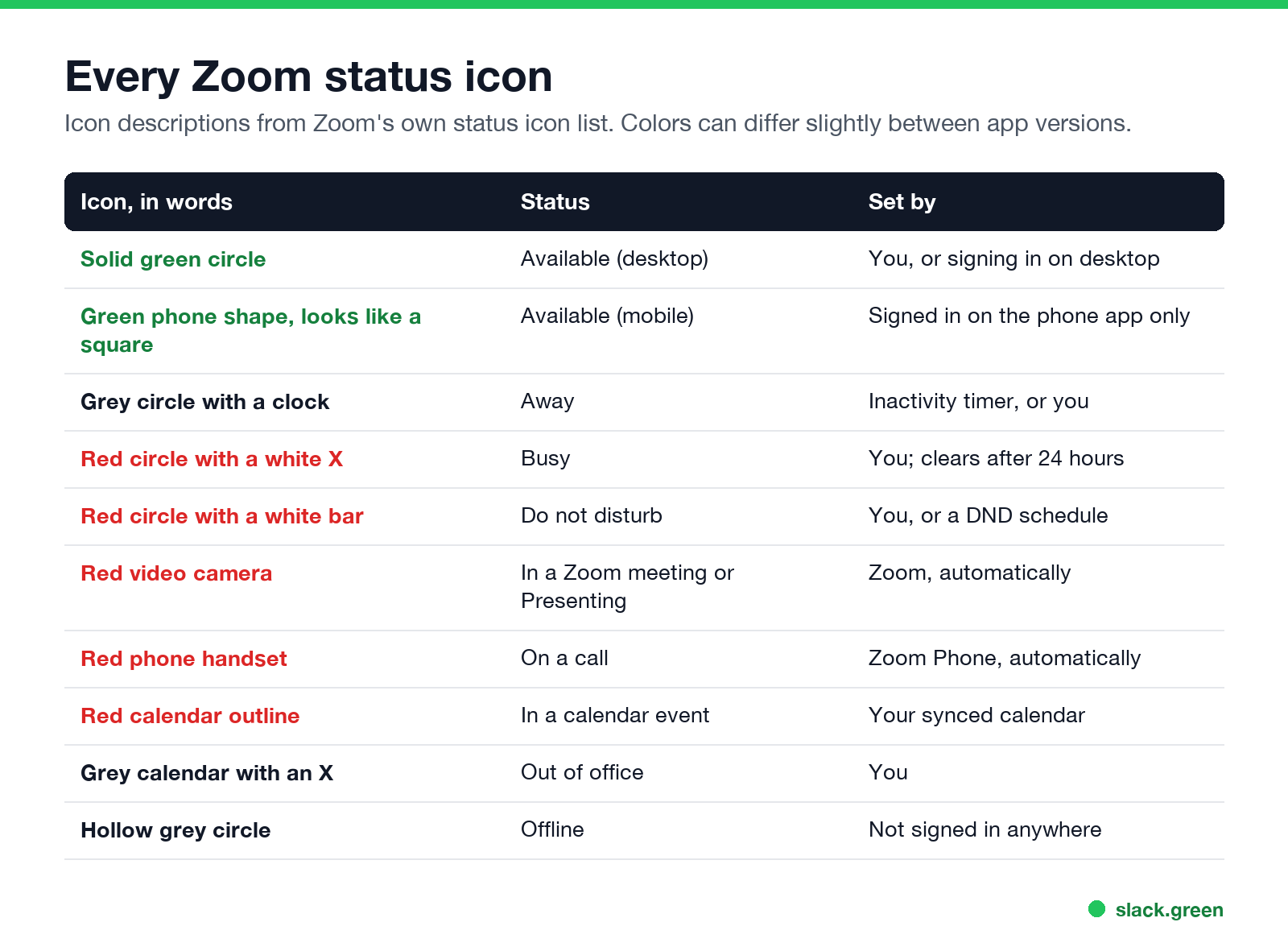
| Icon | Status | What it means | Set by |
|---|---|---|---|
| Solid green circle | Available (desktop) | Signed in to the desktop app and available | You, or signing in |
| Green phone shape | Available (mobile) | Signed in to the mobile app only | Signing in on the phone |
| Grey circle with a clock | Away | Signed in on desktop, but inactive, or set to Away by hand | The inactivity timer, or you |
| Red circle with a white X | Busy | Not necessarily available | You; clears after 24 hours |
| Red circle with a white bar | Do not disturb | No pop-up notifications for chat or Zoom Phone calls | You, or a DND schedule |
| Red video camera | In a Zoom meeting, or Presenting | In a meeting, or sharing the screen in one | Zoom, automatically |
| Red phone handset | On a call | On a Zoom Phone call | Zoom, automatically |
| Red calendar outline | In a calendar event | In an event on a synced calendar, not in a Zoom meeting | Your calendar |
| Grey calendar with an X | Out of office | Likely unavailable for a while | You |
| Hollow grey circle | Offline | Not signed in to the desktop or mobile app | Signing out |
A red circle with an exclamation mark is not a status. It marks a chat message, file or image that failed to send.
Zoom green circle vs green square
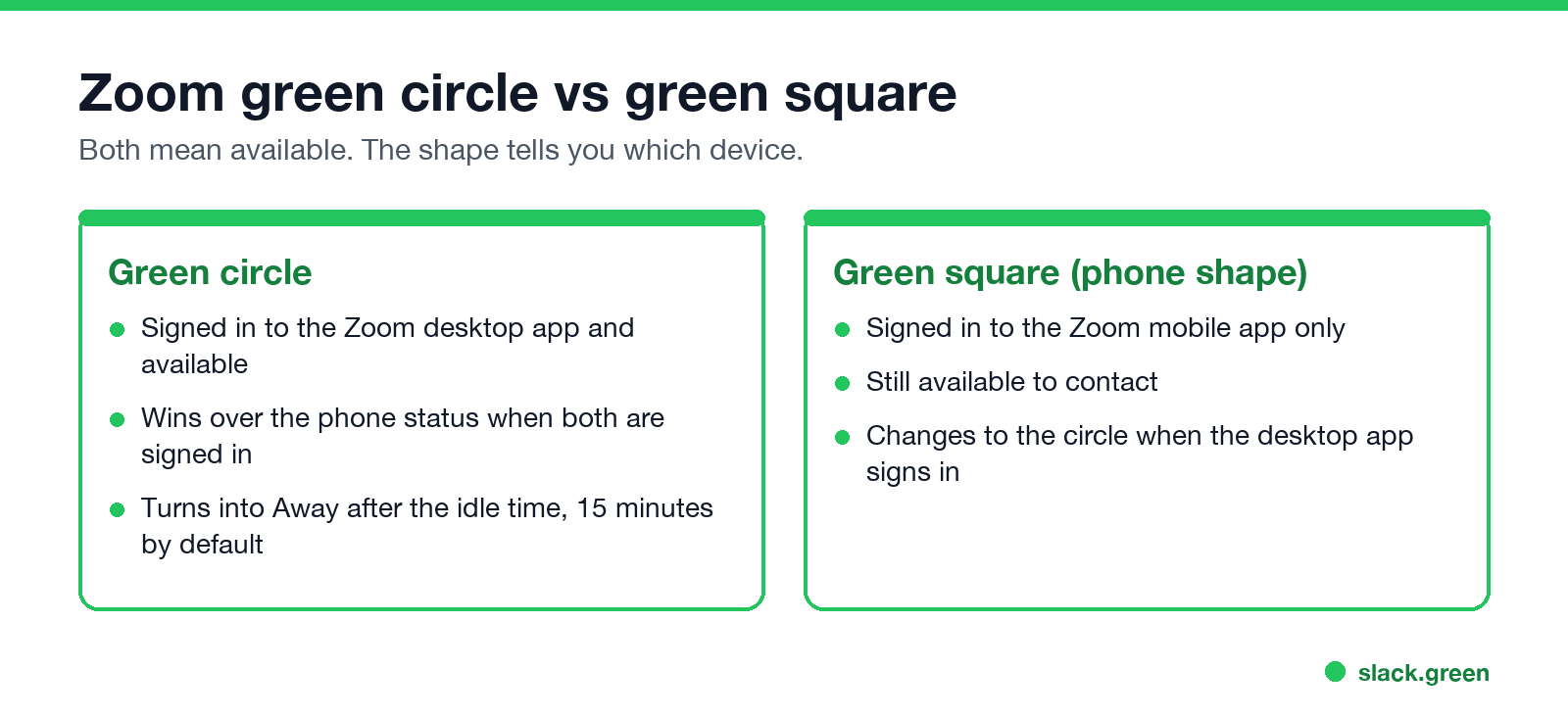
Both mean available. The shape tells you the device. The green circle is the desktop app. The green phone shape is the mobile app, shown only when the person is not signed in on a computer. If someone is signed in on both, Zoom shows the desktop status, because the desktop status overrides the mobile one.
What turns your Zoom status to Away
Never appear "away" on Slack again
Cloud-based. No downloads. Works 24/7 even when your laptop is off.
The grey clock appears for two reasons: you set Away by hand, or the desktop app saw no activity for the set time. By default that is 15 minutes. You can change the time, or turn the automatic Away off, in the desktop app under Settings, General, Presence status. The steps are in how to keep your Zoom status active. Away clears as soon as you are active on the desktop app, the mobile app or the web app.
How to change your Zoom status
- In the Zoom desktop app, click your profile picture at the top right.
- Choose Available, Busy, Do not disturb, Away or Out of office.
- To go back to an automatic status such as In a Zoom meeting or In a calendar event, choose Reset.
- • To Away. The inactivity timer. Lengthen it or turn it off, as above.
- • To In a calendar event. Your calendar is synced with Zoom, and an event is running. The status ends with the event.
- • To Out of office. Check your synced calendar for an out-of-office event, then reset your status. If it comes back, ask your Zoom admin whether your account syncs it.
- • To Offline. The app signed out, the computer went to sleep, or the network dropped.
- • Busy that disappears. Busy clears by itself after 24 hours.
Your status syncs to every device where you are signed in. On the phone app, tap your profile picture and pick the status there.
Why does my Zoom status keep changing?
Zoom, Slack and Teams status icons side by side
Never appear "away" on Slack again
Cloud-based. No downloads. Works 24/7 even when your laptop is off.
| Meaning | Zoom | Slack | Microsoft Teams |
|---|---|---|---|
| Available | Green circle | Green dot | Green circle with a check |
| Away | Grey clock | Hollow dot | Yellow clock |
| Do not disturb | Red circle with a bar | Dot with a small z | Red circle with a bar |
| In a meeting | Red camera | No automatic icon; a headphones icon during a huddle | Solid red, "In a meeting" |
Each app sets away on its own timer: Zoom after 15 minutes by default, Slack 10 minutes after your last input in the Slack window, Teams after about 5 minutes. Zoom is the only one of the three with a setting to turn it off. For the others, see Google Chat status icons meaning, Microsoft Teams status icons meaning, Slack status icons meaning, and how to keep Slack active. We build Slack Green, which keeps the Slack dot green during the working hours you set.
FAQ
What does the green square mean on Zoom?
The person is available on the Zoom mobile app only. It is a phone shape, and it changes to a green circle when they sign in on desktop.
What does the clock mean on Zoom?
Away. The person is signed in on desktop but inactive, or set Away by hand.
What does the red camera mean on Zoom?
The person is in a Zoom meeting, or presenting in one.
What does the red X mean on Zoom?
Busy. It clears by itself after 24 hours if not reset.
What does a hollow circle mean on Zoom?
Offline. The person is not signed in to the desktop or mobile app.
Can people see when I am on my phone in Zoom?
Yes. When you are signed in only on the phone, contacts see the green phone shape instead of the green circle.
Stop Jiggling Your Mouse.
Join hundreds of remote workers who never worry about their Slack status. Set it up once, stay green forever.
Related Articles
Slack Lists Tutorial: Create, Organize and Share a List
Slack lists are tables of tasks inside Slack, with fields, assignees, due dates, a board view and a comment thread on every item. How to create a list from scratch or a template, set up fields, turn it into a kanban board, add messages to it, share it, and what the plan limits are.
Slack Jira Integration: Setup, /jira Commands and Notifications
Install the Jira Cloud for Slack app, type /jira connect in a channel to send a Jira space's updates there, /jira notify for personal notifications as DMs, and create work items from any message with More actions. Every /jira command, Jira automation to Slack, and fixes when previews or notifications stop.
How to Create a Slack Workspace, on Desktop or Phone
Go to slack.com/get-started, enter your email, type the confirmation code, and click Create a Workspace. It is free to start, you become the Primary Owner, and it takes about five minutes. Steps for desktop, iPhone and Android, and what to set up next.