
How to Set Yourself Away on Zoom, and Make It Stay
To set yourself Away on Zoom, click your profile picture and choose Away (on a phone: profile picture, Availability, Away). Zoom clears a manual Away as soon as you use Zoom again, so for a status that stays, use Busy, Do not disturb or Out of office. How to set each one, and how to make Zoom set Away for you.
To set yourself Away on Zoom, click your profile picture in the top-right corner of the Zoom Workplace desktop app or Web App and choose Away. On a phone, tap your profile picture, tap Availability, then tap Away. Your status syncs to every device you are signed in on.
Zoom clears a manual Away automatically as soon as you are active in Zoom again, on desktop or mobile. If you need a status that stays while you keep working, choose Busy (it lasts up to 24 hours), Do not disturb (20 minutes to 24 hours, and it blocks pop-ups) or Out of office.
Status tools are what we work on. We build Slack Green, which keeps a Slack status green during your working hours. Zoom needs no tool like that, because it lets you turn its own away timer off; see how to keep your Zoom status active.
How to set Away on Zoom, step by step
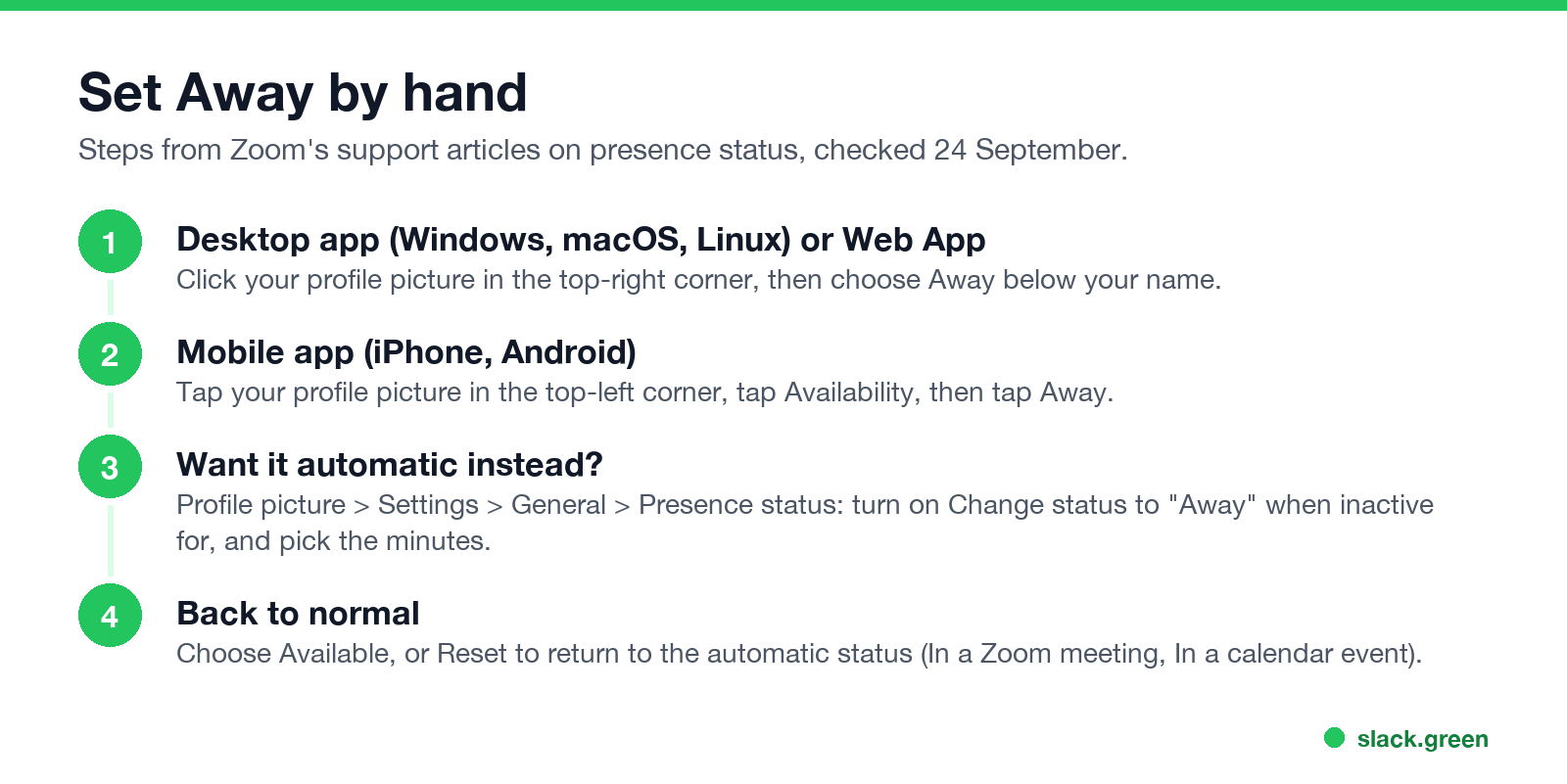
Zoom Workplace desktop app (Windows, macOS, Linux):
- Sign in to the Zoom desktop app.
- In the top-right corner, click your profile picture.
- Below your name and email address, click Away.
- Sign in to the Zoom app.
- In the top-left corner, tap your profile picture.
- Tap Availability, then tap Away.
Zoom Web App: the same menu. Click your profile picture in the top-right corner and choose Away.
Zoom mobile app (iPhone and Android):
To go back, choose Available. If you are in a meeting or a calendar event and want Zoom's automatic status back, choose Reset.
These steps come from Zoom's support article "Setting your presence status", checked on 24 September.
Why Zoom switches you back from Away
Zoom's own description of the Away status: the contact is signed in to the desktop app, but their device is inactive or they set Away by hand, and the status "clears automatically when becoming active on desktop or mobile."
So a manual Away lasts only while you leave Zoom alone. The next time you click in the Zoom app or open it on your phone, you show as Available again. Use Away for a short break. For anything longer, pick one of the statuses below.
Which status to use when you step away
Never appear "away" on Slack again
Cloud-based. No downloads. Works 24/7 even when your laptop is off.
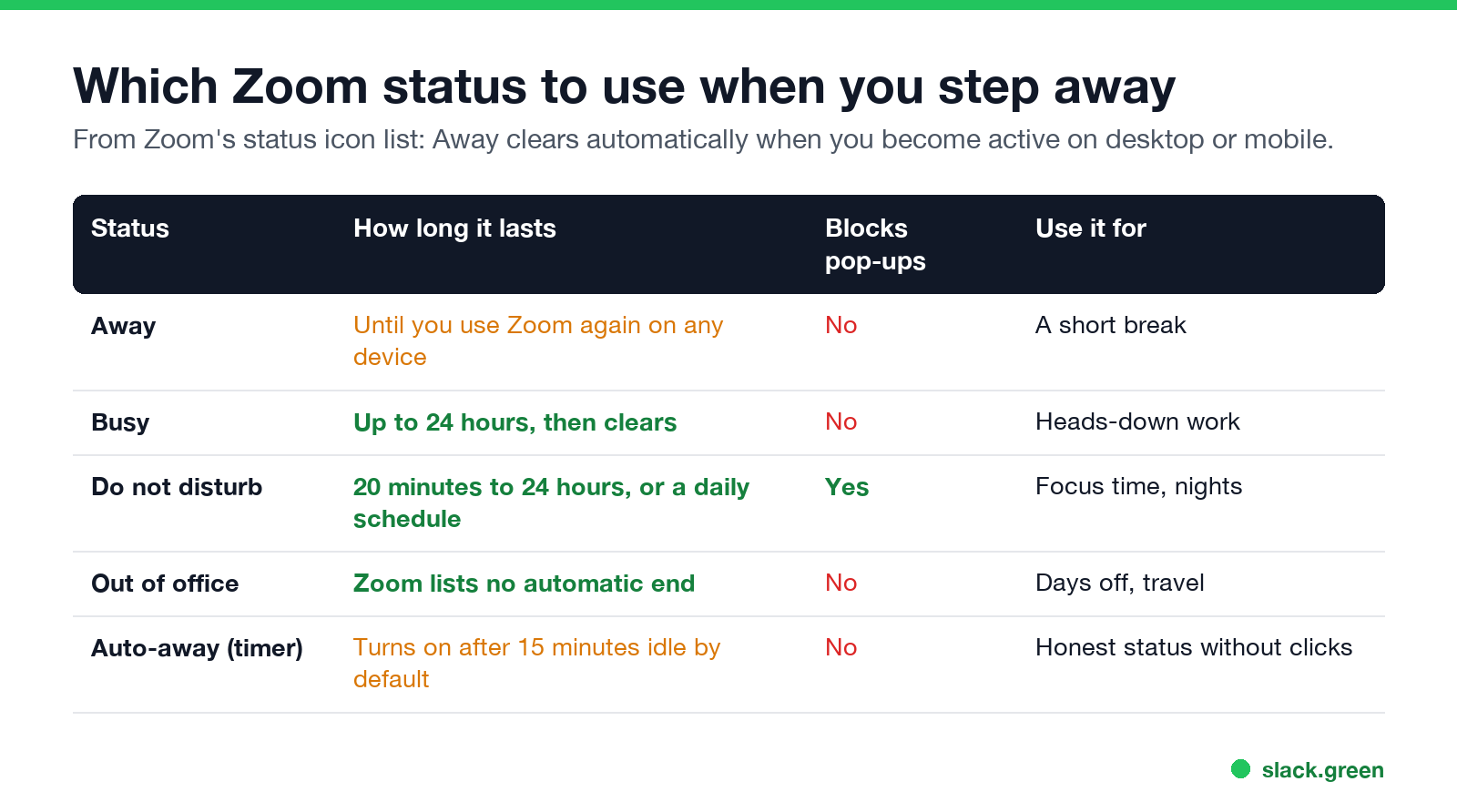
| Status | How long it lasts | Blocks chat and call pop-ups | Use it for |
|---|---|---|---|
| Away | Until you are active in Zoom again | No | A short break |
| Busy | Up to 24 hours, then Zoom clears it | No | Heads-down work while you still read messages |
| Do not disturb | 20 minutes to 24 hours, or a daily schedule | Yes | Focus time, evenings |
| Out of office | Zoom lists no automatic end | No | Days off, travel |
| Auto-away timer | Turns on after 15 minutes of inactivity by default | No | An accurate status with no clicks |
Do not disturb is the only status that also stops pop-up notifications for Zoom chat and Zoom Phone calls. Choose Custom under it to open the settings and set a daily recurring schedule.
What each icon looks like to other people is in Zoom status icons meaning.
Let Zoom set Away for you
Zoom can set you Away on its own after a period of inactivity. It is on by default at 15 minutes, and you choose the time:
The same setting is in the Zoom Web App. Turning it off stops the automatic Away completely. That is the fix if Zoom marks you Away while you are working, covered step by step in how to keep your Zoom status active.
Can you set Away in a Zoom meeting?
No. Joining a meeting sets In a Zoom meeting automatically, and sharing your screen sets Presenting. You can change your status by hand during a meeting, but meeting participants do not see a presence dot inside the meeting. To show you stepped away in a meeting, stop your video and mute, or rename yourself for the break if the host allows it. A host cannot see that you switched to another window; what hosts and admins can see is in does Zoom track your activity.
If you are worried about being dropped from a meeting while you are away from the keyboard, the answer is in does Zoom kick you out for inactivity, which covers the 40-minute cap and the 55-minute inactivity timer.
Can you set an away message on Zoom?
Never appear "away" on Slack again
Cloud-based. No downloads. Works 24/7 even when your laptop is off.
Zoom Workplace does not send an automatic reply to chat messages when you are Away. What people see is your status and, if you set one, a personal note on your profile. For a message that tells people when you will be back, set Out of office and add a note, or use your email auto-reply for longer absences.
Slack users have more options here; see Slack out of office messages.
FAQ
How do I mark myself away on Zoom?
Click your profile picture and choose Away. On mobile: profile picture, Availability, Away.
How long does Zoom take to show Away?
15 minutes of inactivity by default. You can change the time or turn it off under Settings, General, Presence status.
Why does my Zoom status keep going back to Available?
A manual Away clears as soon as you are active in Zoom on any device. Use Busy, Do not disturb or Out of office for a status that stays.
What does Away mean on Zoom?
The person is signed in to the Zoom desktop app, but their device has been inactive for the set time, or they chose Away by hand.
Does the Zoom status sync between my phone and computer?
Yes. A status you set on one device syncs to every device signed in to your account.
Stop Jiggling Your Mouse.
Join hundreds of remote workers who never worry about their Slack status. Set it up once, stay green forever.
Related Articles
How to Keep Skype Status Active: Skype for Business Idle Timers
To keep your Skype for Business status active, open Options, Status, and raise both idle timers, Inactive and then Away, from 5 minutes to as much as 360 minutes each. Consumer Skype shut down on May 5, 2025 and Skype for Business Online in 2021, so for most people the real question is now Teams. What still works, status icons, Outlook, and status not updating.
Is It Legal for My Employer to Monitor Me? US, EU and UK Rules
In the US it is mostly legal for an employer to monitor company devices, accounts and premises, often without asking. The limits are state notice laws in New York, Connecticut and Delaware, consent rules for audio recording and biometrics, bans on cameras in restrooms, and your personal devices. The EU, UK and parts of Canada and Australia add notice and proportionality rules.
Can My Employer See My Personal Email on My Work Computer?
Your employer cannot sign in to your Gmail, and doing so without permission can break the Stored Communications Act. But on a work computer, screenshot and keystroke monitoring, browser history, HTTPS inspection and Outlook's local cache can all expose personal email. Work email is fully visible, deleted messages included. Case by case, with what to do.