
Does Zoom Kick You Out for Inactivity? The 40 and 60 Minute Rules
Yes. On Zoom app 6.6.5 and later, a meeting with no activity for 55 minutes shows a 5-minute countdown and then ends. Free hosts also hit a 40-minute cap however active the call is, and any meeting ends 40 minutes after only one person is left. What each limit is, how to turn off the inactivity timer, and how to stay on longer than 40 minutes.
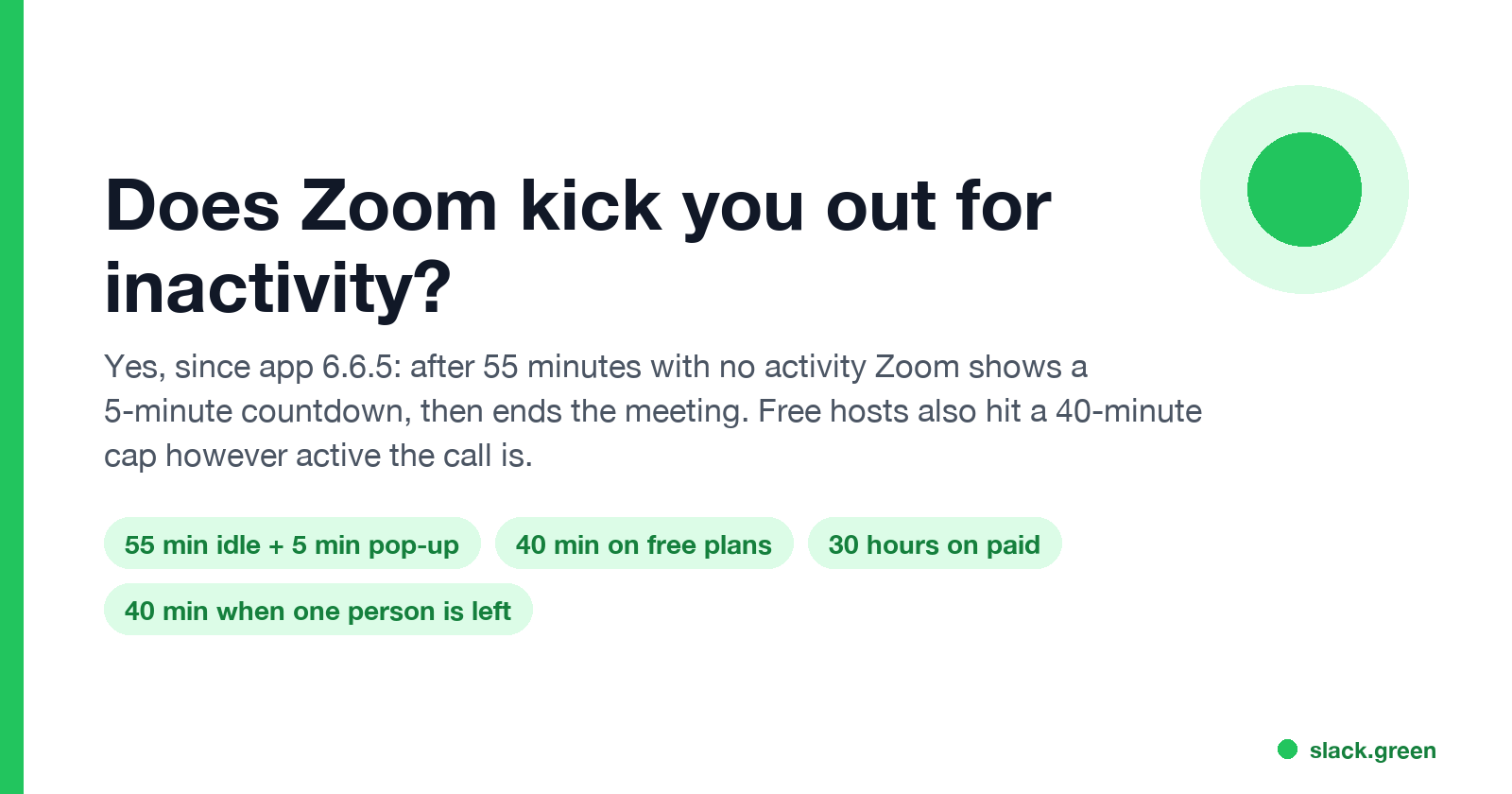
Yes. Since Zoom Workplace app version 6.6.5, released October 22, 2025, Zoom ends a meeting that has had no activity for 55 minutes. A pop-up gives you 5 minutes to extend the meeting, end it, or turn the timer off. If nobody responds, the meeting ends at the 60-minute mark. You can switch the timer off under Settings, Meetings & webinars, Advanced, Do not automatically end meetings after inactivity.
Two other limits end meetings no matter how active they are. A meeting hosted by a free (Basic) user ends after 40 minutes. And on any plan, when everyone else has left and one person remains, the meeting ends 40 minutes later unless someone joins. Zoom's support page Understanding time limits for Zoom Meetings lists these rules.
Your Zoom status is a separate thing. Going Away after 15 idle minutes does not remove you from a meeting. Slack has its own timer: grey after 10 minutes without input in the Slack window. Slack Green keeps your Slack status active during the hours you set, from the cloud, and it does not touch Zoom.
Every way Zoom ends a meeting on its own
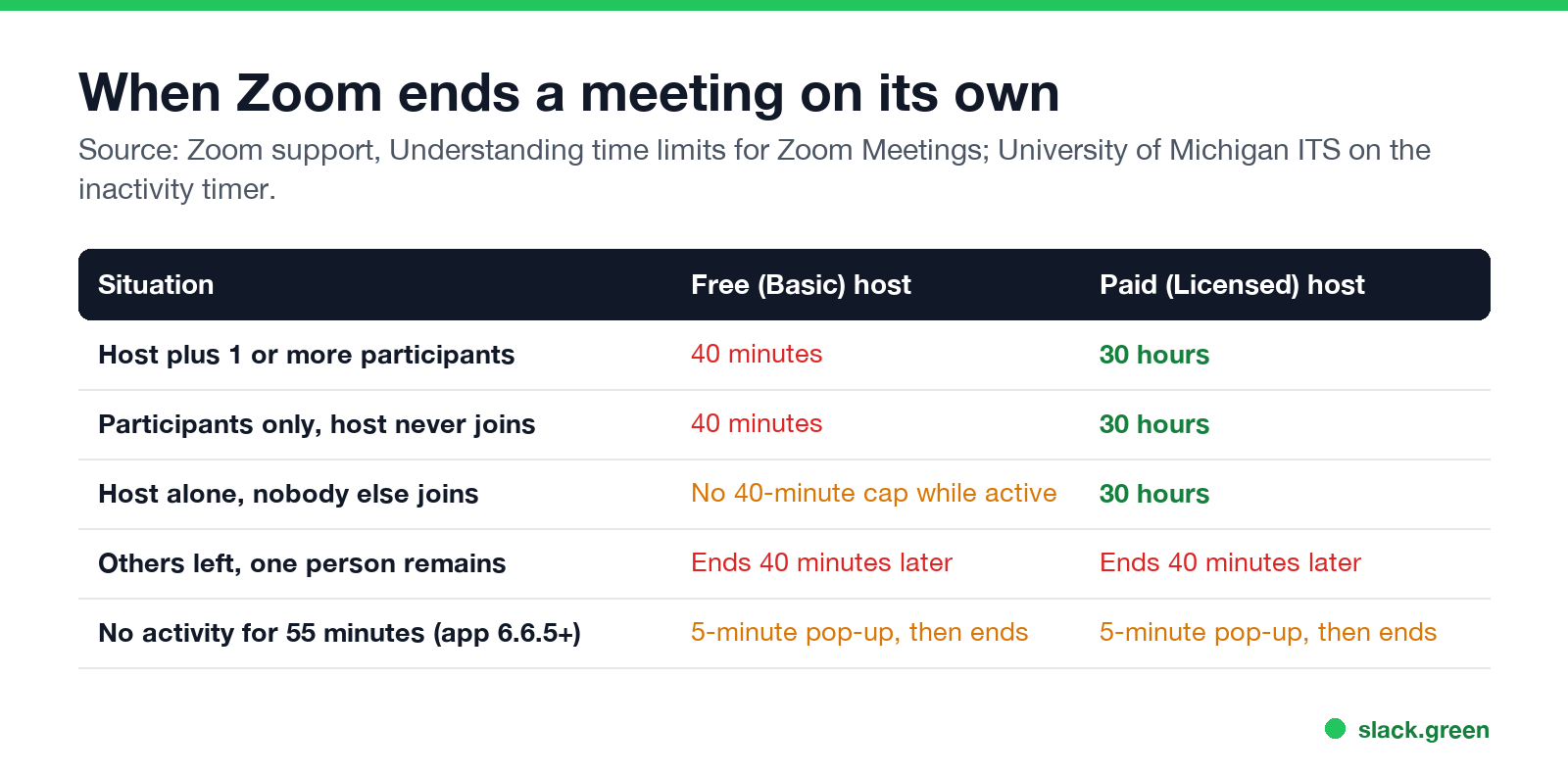
| Situation | Free (Basic) host | Paid (Licensed) host |
|---|---|---|
| Host and 1 or more participants | Ends at 40 minutes | Ends at 30 hours |
| Participants only, host never joins | Ends at 40 minutes | Ends at 30 hours |
| Host alone, nobody else joins | No 40-minute cap, but the meeting must stay active | Ends at 30 hours |
| Others left, one person remains | Ends 40 minutes later | Ends 40 minutes later |
| No activity for 55 minutes (app 6.6.5 or later) | 5-minute pop-up, then ends | 5-minute pop-up, then ends |
The limit follows the host's license, not yours. If you have a paid account and join a meeting hosted by a free user, the meeting still ends at 40 minutes. A meeting that starts without the host present is also held to the host's limit.
The inactivity timer: 55 minutes plus a 5-minute pop-up
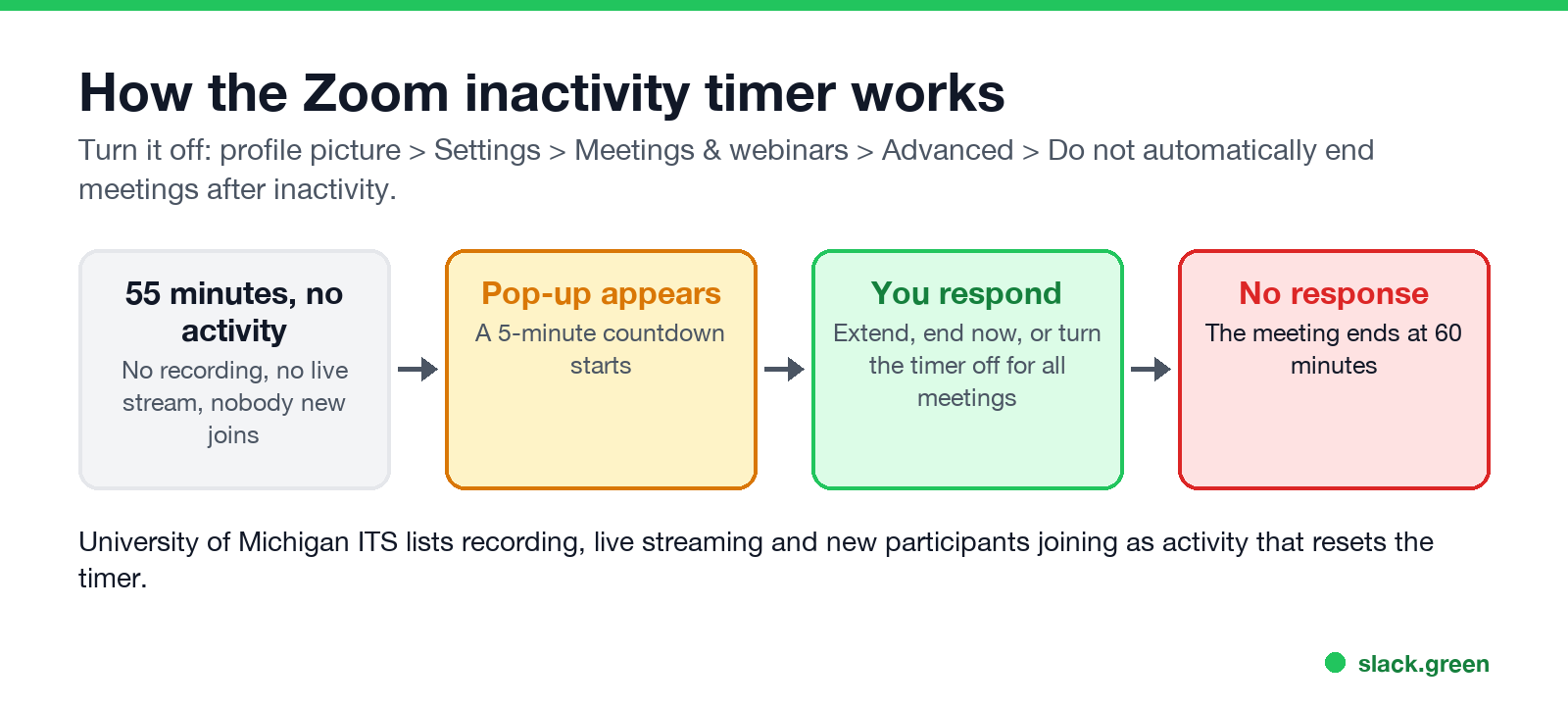
The University of Michigan's IT help page describes the timer that arrived with app 6.6.5: when no activity, "including recording, live streaming, or additional participants joining", is detected after 55 minutes, a pop-up starts a 5-minute countdown. You can:
- • Extend the meeting and keep going.
- • End it now.
- • Turn off the inactivity timer for all future meetings.
- Click your profile picture, then Settings.
- Open Meetings & webinars, then Advanced.
- Under Advanced meeting, switch on Do not automatically end meetings after inactivity.
If nobody answers within 5 minutes, the meeting ends. This mostly hits open rooms: office hours, study sessions, a "leave it running" line with a colleague, or a meeting where everyone walked away from the desk.
To turn the timer off ahead of time in the Zoom Workplace desktop app:
Even with the timer off, a paid meeting still ends at 30 hours, the longest meeting Zoom allows.
How to stay on Zoom longer than 40 minutes
Never appear "away" on Slack again
Cloud-based. No downloads. Works 24/7 even when your laptop is off.
The 40-minute cap belongs to free hosts. Ways around it:
If meetings end at 40 minutes even though you pay, check that the meeting was scheduled from the licensed account and that the license is assigned to your user. Basic users on a paid account are still held to 40 minutes.
Kicked out of a meeting versus shown as Away
People often mix up three different timers:
| Timer | What happens | Default |
|---|---|---|
| Meeting inactivity timer | The meeting ends after a pop-up | 55 minutes plus 5 |
| Zoom presence | Your status dot turns Away; you stay in any meeting | 15 minutes idle |
| Sign-in session | Your company's policy signs you out of the app | Set by your admin |
Your Zoom status turns Away when your computer is idle, and you can switch that off. How is in how to keep your Zoom status active, and the reverse is in how to set Away on Zoom. What a host can see while you are away from the keyboard is in does Zoom track your activity.
If you run Slack or Teams next to Zoom, their idle rules are stricter. Slack goes grey after 10 minutes without input in its own window; see how long does Slack stay active. Teams goes Away after about 5 minutes; see how long before Teams shows Away.
FAQ
How long can you be idle in a Zoom meeting?
55 minutes with no activity, then a 5-minute pop-up. The meeting ends at 60 minutes unless someone extends it, or the timer is turned off in Settings.
Why did my Zoom meeting end after 40 minutes?
Either the host has a free Basic license, or everyone else left and you were the only person in the meeting for 40 minutes.
Does Zoom end the meeting if the host leaves?
Not if the host hands the host role to someone else before leaving. If the host ends the meeting for all, it ends for everyone.
Can I keep a Zoom meeting open all day?
On a paid license, yes, up to 30 hours, if you turn off the inactivity timer or keep responding to its pop-up.
Does a mouse jiggler stop Zoom from ending the meeting?
Zoom's description of activity lists recording, live streaming and new participants joining. Mouse movement is not on that list, so turning the timer off in Settings is the fix to rely on.
Stop Jiggling Your Mouse.
Join hundreds of remote workers who never worry about their Slack status. Set it up once, stay green forever.
Related Articles
How to Keep Skype Status Active: Skype for Business Idle Timers
To keep your Skype for Business status active, open Options, Status, and raise both idle timers, Inactive and then Away, from 5 minutes to as much as 360 minutes each. Consumer Skype shut down on May 5, 2025 and Skype for Business Online in 2021, so for most people the real question is now Teams. What still works, status icons, Outlook, and status not updating.
Is It Legal for My Employer to Monitor Me? US, EU and UK Rules
In the US it is mostly legal for an employer to monitor company devices, accounts and premises, often without asking. The limits are state notice laws in New York, Connecticut and Delaware, consent rules for audio recording and biometrics, bans on cameras in restrooms, and your personal devices. The EU, UK and parts of Canada and Australia add notice and proportionality rules.
Can My Employer See My Personal Email on My Work Computer?
Your employer cannot sign in to your Gmail, and doing so without permission can break the Stored Communications Act. But on a work computer, screenshot and keystroke monitoring, browser history, HTTPS inspection and Outlook's local cache can all expose personal email. Work email is fully visible, deleted messages included. Case by case, with what to do.