
Does Zoom Notify Screenshots? No, but Hosts Can Block Them
Zoom does not notify anyone when you take a screenshot of a meeting, on a computer or a phone. It only announces recordings. Hosts can stop captures with the Prevent screen capture setting or trace leaks with watermarks.
No. Zoom does not notify the host or anyone else when you take a screenshot of a meeting. That holds on Windows, Mac, iPhone and Android, and for screenshots of the video grid, a shared screen, the whiteboard or the chat. The screenshot key belongs to your operating system, so the image is saved before Zoom is involved and Zoom is not told. The only capture Zoom announces is a recording made with Zoom's own Record button.
There is one catch. In Zoom 6.7.0 and later a host or admin can turn on Prevent screen capture. Then your screenshot does not trigger an alert either, but the Zoom window comes out blank or gray in the image. Hosts can also add a watermark with your email address, so a leaked screenshot shows who took it.
We build Slack Green, which keeps your Slack status active from our servers, so we read the admin docs of the apps people use at work. Slack works the same way, see does Slack notify screenshots.
Does Zoom notify when you take a screenshot?
No. Zoom has no screenshot alert of any kind, for the host, the other participants or the person on screen. A test by MakeUseOf with the Windows Snip & Sketch tool found that "no notifications were sent out to the participants or even the meeting host." Zoom's own community answer says the same thing: you cannot fully stop screenshots, because people take them on their own devices.
The reason is technical. Print Screen on Windows, Cmd+Shift+3 or Cmd+Shift+4 on a Mac, and the side and volume buttons on a phone are system functions. The system writes the image file and does not send an event to the app in front. Zoom sees as little of your screenshot as it sees of your other apps, which we cover in does Zoom track your activity.
People mix this up with recording. Zoom does tell everyone when a meeting is recorded with Zoom, and that alert is what most "Zoom told them" stories are about.
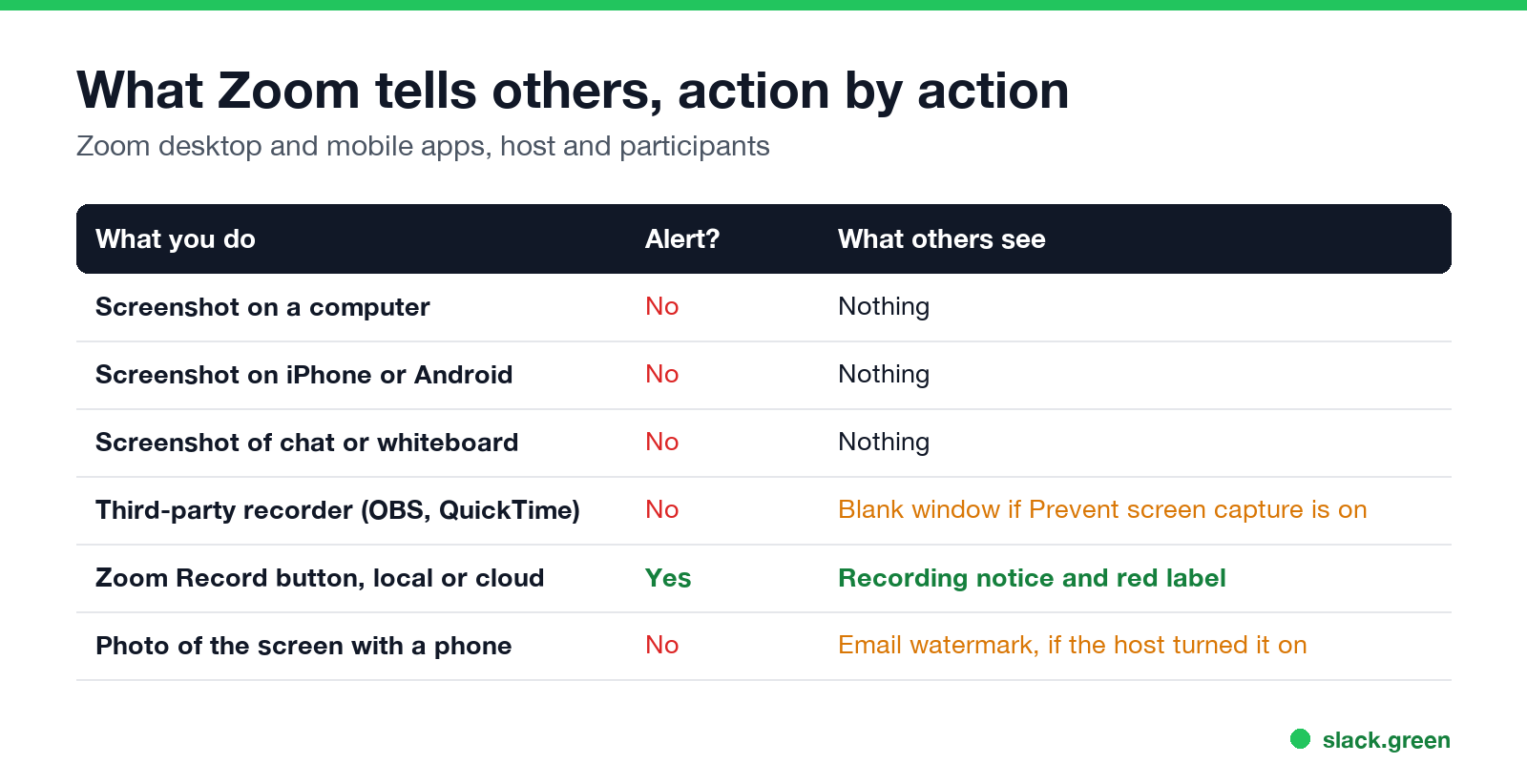
What Zoom tells others, action by action
| What you do | Does anyone get an alert? | What they can see |
|---|---|---|
| Screenshot on a computer | No | Nothing |
| Screenshot on iPhone or Android | No | Nothing |
| Screenshot of the chat or whiteboard | No | Nothing |
| Record with a third-party app (OBS, QuickTime, Game Bar) | No | Nothing, unless Prevent screen capture is on, then the recording shows a blank window |
| Record with Zoom's Record button (local or cloud) | Yes | A recording notice and a red Recording label for everyone |
| Save the meeting chat | No | Nothing |
| Photograph the screen with a second phone | No | Nothing, but an email watermark would show in the photo |
The last row is why no setting can promise a leak-proof meeting. A phone pointed at a laptop captures anything, and no software on the laptop can see it.
Can Zoom detect or block screenshots?
Never appear "away" on Slack again
Cloud-based. No downloads. Works 24/7 even when your laptop is off.
Zoom cannot detect a screenshot, but recent versions can block one. The setting is called Prevent screen capture. Zoom's support article says that when it is on, "the Zoom meeting window will not appear in any images captured using print screen functions or third-party screen capture tools." That covers the video, shared screens, whiteboards, in-meeting chat, captions, polls and quizzes.
The requirements from the same article:
- • Zoom desktop app 6.7.0 or later on Windows and macOS.
- • Zoom mobile app 7.1.0 or later on Android, 7.0.0 or later on iOS.
- • The host sets it in the web portal or when scheduling. It cannot be switched on during a meeting.
- • People on the web app or on Linux can join only with audio. People on older app versions get sent to the web app, so they also get audio only.
- • With Prevent screen capture on and the app at 7.0.0 (iOS) or 7.1.0 (Android) or later, the meeting area in your screenshot is blank.
- • Screen recording from the phone's Control Center or quick settings is also not announced by Zoom. Only the Zoom Record button, which on a phone saves to the cloud on paid plans, shows a notice.
When the setting is on and a screen recorder runs in the background, Zoom users report a gray window with the message "Zoom meeting windows are masked to prevent screen capture. Disconnect the screen recording to continue." An external DisplayLink monitor can set it off too, because the system treats the DisplayLink driver as a screen recorder.
Blocking is still not an alert. The host is not told that you tried.
Watermarks: how a host traces a leaked screenshot
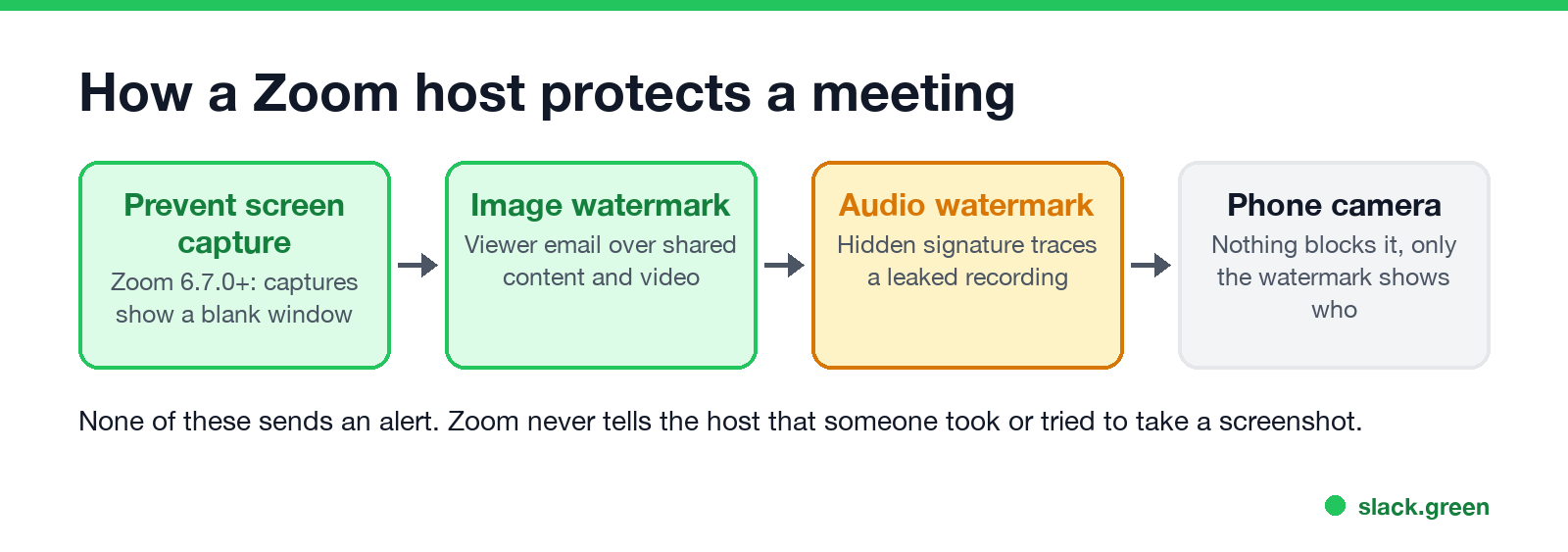
The older control is the watermark. With Add watermark on, Zoom lays part of each viewer's email address over the shared content and over the video in most layouts. Every participant sees their own email, so a screenshot or a phone photo carries the address of the person who took it. The University of Michigan's IT help page describes it as the viewer's email "patterned across the shared content". Participants must sign in to join a meeting that uses a watermark.
The audio watermark puts an inaudible signature with the participant's details into the audio. If a recording leaks, Zoom can tell whose audio stream it came from.
Neither watermark stops the capture or sends an alert. They only change what the leak reveals afterwards.
Does Zoom notify screenshots on iPhone and Android?
No. A screenshot on an iPhone or an Android phone sends no Zoom alert, in a meeting or in Zoom Team Chat. Zoom on a phone gets no screenshot event it could forward.
Two things differ on a phone:
Is it OK to screenshot a Zoom meeting?
Never appear "away" on Slack again
Cloud-based. No downloads. Works 24/7 even when your laptop is off.
Zoom does not stop you by default, but the people in the meeting and your employer may have rules. Company policies often ban capturing customer data, and screenshots of other people's faces can fall under privacy law in some places. If you want a picture of the gallery view, ask first. If you need the meeting content, ask the host to record it with Zoom so everyone gets the notice.
If you are the host and the content is sensitive, use Prevent screen capture for scheduled meetings, add a watermark, and turn off chat file transfer. Zoom's community moderators suggest the same mix. The phone camera problem remains, so do not show anything you could not accept being photographed.
What other work apps do with screenshots
No major work app sends a screenshot alert:
Presence works differently. Those apps show when you are active, and Slack marks you away after 10 minutes without input in its own window. If your camera is on in Zoom while Slack shows you gray, Slack Green keeps your Slack status green during your work hours from the cloud, with nothing running on your computer.
Zoom screenshot questions
Does Zoom tell the host if I screenshot? No. The host gets no alert, no log entry and no report line.
Can Zoom detect screen recording? Zoom does not alert anyone about a third-party recorder. With Prevent screen capture on, the recording shows a blank Zoom window instead.
Does Zoom notify if you screenshot a profile picture or chat? No. Nothing in Zoom Team Chat or the meeting chat reports screenshots.
Why is my Zoom window gray in screenshots? The host turned on Prevent screen capture, or a DisplayLink monitor made Zoom think a recorder is running.
Stop Jiggling Your Mouse.
Join hundreds of remote workers who never worry about their Slack status. Set it up once, stay green forever.
Related Articles
KeepingYouAwake vs Amphetamine: Which Mac Keep-Awake App to Use
KeepingYouAwake is a free, open-source menu bar switch that runs Apple's caffeinate for you. Amphetamine is a free App Store app with triggers, schedules and a closed-lid mode. Pick KeepingYouAwake for one click and Homebrew, Amphetamine for automation. Neither keeps Slack or Teams active.
Computer Locks After 15 Minutes? How to Tell If Group Policy Set It
A work laptop that locks after exactly 15 minutes, with screen settings greyed out, is almost always following a policy from IT: the Windows machine inactivity limit, a forced screen saver, or an Intune device lock. Security baselines and PCI DSS ask for 15 minutes. How to see which policy it is, and what you can and cannot change.
How to Keep a Citrix Session Active: Find Which Timeout Logs You Out
A Citrix session can end from four different timers: Windows locking inside the virtual desktop, the Citrix session idle timer, the Citrix Gateway session time-out, and the StoreFront web page timeout. Only input from your own device into the Citrix window resets them. How to tell which one hit you and what keeps each one quiet.