
Google Chat Status Icons Meaning: Green, Orange, Grey and Red
In Google Chat a solid green circle means active, an orange circle with a clock means idle for 5 minutes, a hollow grey ring means away, and a red circle with a white bar means do not disturb. Every status, and what sets it.
Google Chat has four status icons. A solid green circle means Active: Gmail or Google Chat is open and in use. An orange circle with a clock means Idle: no activity in Gmail or Chat for 5 minutes, shown on desktop only. A hollow grey ring, which looks like a white dot, means Away: idle for more than 10 minutes, offline, or set to away by hand. A red circle with a white bar means Do not disturb: the person muted notifications. On Workspace accounts you may also see calendar statuses such as "In a meeting" or "Out of office" next to a name.
These meanings come from Google's Chat help article on changing your availability status. We describe the icons in words rather than copy them. If you use Slack too, its dots follow different rules, covered in Slack status icons meaning.
Every Google Chat status icon
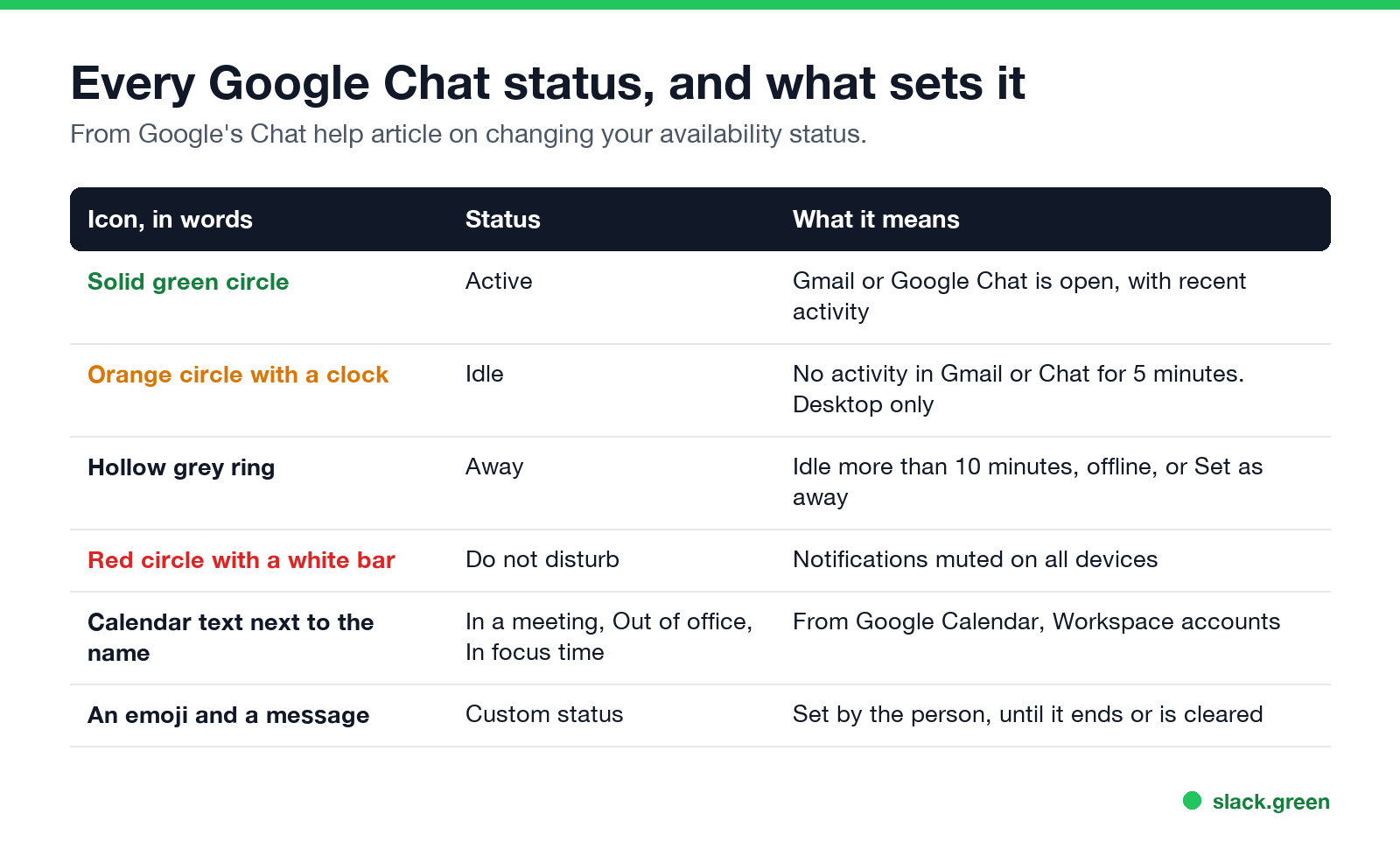
| Icon | Status | What it means |
|---|---|---|
| Solid green circle | Active | Gmail or Google Chat is open, with recent activity |
| Orange circle with a clock | Idle | No activity in Gmail or Chat for the last 5 minutes. Desktop only |
| Hollow grey ring | Away | Idle more than 10 minutes, not connected to the internet, or set to "Set as away" |
| Red circle with a white bar | Do not disturb | Chat notifications are muted on all devices |
| Calendar text next to the name | In a meeting, Out of office, In focus time | Pulled from Google Calendar on Workspace accounts |
| An emoji and a message | Custom status | Set by the person, until it ends or they clear it |
What does orange mean in Google Chat?
Orange with a clock is Idle. The person has Gmail or Chat open on a computer, but has not used either for 5 minutes. It only appears on desktop. If they stay inactive, it turns into the grey Away ring at 10 minutes. Any click or keystroke in Gmail or Chat turns it green again.
What does the white or hollow dot mean in Google Chat?
Never appear "away" on Slack again
Cloud-based. No downloads. Works 24/7 even when your laptop is off.
The hollow grey ring is Away. It appears in three cases: the person has been idle for more than 10 minutes, they are not connected to the internet, or they chose Set as away. It does not tell you which of the three.
How Google Chat decides you are active
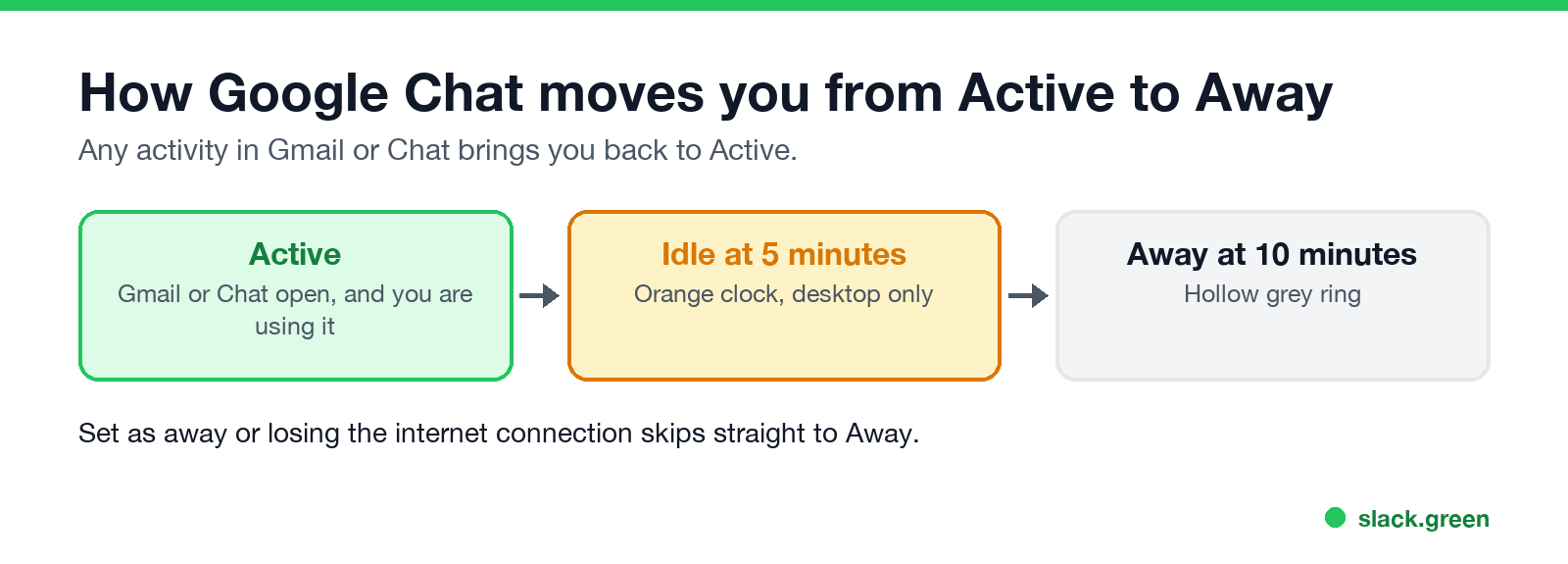
Google Chat's status is based on activity in Gmail and Chat. Using Gmail counts, not only Chat. Activity in other apps or other browser tabs does not count. The timeline:
- Active while you use Gmail or Chat.
- Idle after 5 minutes without activity there, on desktop.
- Away after 10 minutes, or at once if you lose the connection or choose Set as away.
- On your computer, open Gmail or Google Chat.
- At the top right, next to your status indicator, click the down arrow.
- Choose Automatic, Do not disturb or Set as away.
To stay green, the fix is activity in Gmail or Chat. The options are in how to keep Google Chat active.
How to change your Google Chat status
To add a custom status, click Add a status in the same menu, pick an emoji, write a message and choose when it ends. Automatic hands your status back to the activity rules above.
Calendar statuses in Google Chat
Never appear "away" on Slack again
Cloud-based. No downloads. Works 24/7 even when your laptop is off.
On Google Workspace accounts, your Chat status follows your Google Calendar. When you are in a meeting or out of office, people who open a direct message with you see it next to your name. Group conversations and spaces do not show it. Your administrator decides which calendar statuses exist, such as "Out of office" or "In focus time", and whether they show at all. To stop sharing your calendar status, go to Google Calendar settings, choose your calendar, and change the access permission for showing calendar info in other Google apps.
Who can see your Google Chat status?
Only people you share a space with, people whose chat invite you accepted, and people you have not blocked. On Workspace accounts, Do not disturb is shown only inside your organization's domain.
Google Chat, Slack, Teams and Zoom status icons compared
| Meaning | Google Chat | Slack | Microsoft Teams | Zoom |
|---|---|---|---|---|
| Active | Green circle | Green dot | Green circle with a check | Green circle |
| Idle or away | Orange clock, then grey ring | Hollow dot | Yellow clock | Grey clock |
| Do not disturb | Red with a white bar | Dot with a small z | Red with a white bar | Red with a white bar |
| Away after | 10 minutes (idle at 5) | 10 minutes | About 5 minutes | 15 minutes by default |
The other apps are decoded in Microsoft Teams status icons meaning and Zoom status icons meaning. For Slack, the dot goes hollow 10 minutes after your last input in the Slack window, and no setting changes it. We build Slack Green, which keeps the Slack dot green during the working hours you set, from the cloud.
FAQ
Never appear "away" on Slack again
Cloud-based. No downloads. Works 24/7 even when your laptop is off.
What are the different statuses on Google Chat?
Active, Idle, Away and Do not disturb, plus calendar statuses on Workspace accounts and custom statuses with an emoji.
How can you tell if someone is active on Google Chat?
A solid green circle next to their name means Gmail or Chat is open and in use.
What does orange status mean in Google Chat?
Idle. The person has not used Gmail or Chat for 5 minutes on a computer.
How long does Google Chat status stay active?
5 minutes without activity in Gmail or Chat before Idle, and 10 minutes before Away.
Does Gmail count as activity in Google Chat?
Yes. Using Gmail keeps your Chat status active.
Can I appear offline in Google Chat?
The closest option is Set as away, which shows the grey Away ring until you switch back to Automatic.
Stop Jiggling Your Mouse.
Join hundreds of remote workers who never worry about their Slack status. Set it up once, stay green forever.
Related Articles
Slack Lists Tutorial: Create, Organize and Share a List
Slack lists are tables of tasks inside Slack, with fields, assignees, due dates, a board view and a comment thread on every item. How to create a list from scratch or a template, set up fields, turn it into a kanban board, add messages to it, share it, and what the plan limits are.
Slack Jira Integration: Setup, /jira Commands and Notifications
Install the Jira Cloud for Slack app, type /jira connect in a channel to send a Jira space's updates there, /jira notify for personal notifications as DMs, and create work items from any message with More actions. Every /jira command, Jira automation to Slack, and fixes when previews or notifications stop.
How to Create a Slack Workspace, on Desktop or Phone
Go to slack.com/get-started, enter your email, type the confirmation code, and click Create a Workspace. It is free to start, you become the Primary Owner, and it takes about five minutes. Steps for desktop, iPhone and Android, and what to set up next.