
How to Set Your Status in Google Chat, With Status Ideas
In Gmail or Google Chat, click the down arrow next to your status to choose Automatic, Do not disturb or Set as away, or click Add a status for an emoji and a message with an end time. Steps for computer and phone, how to clear a status, how Google Calendar sets one for you, and status lines to copy.
To set your status in Google Chat, open Gmail or Google Chat on a computer and click the down arrow next to your status indicator at the top. Choose Automatic, Do not disturb or Set as away to change your availability. Click Add a status to set a custom status: pick an emoji, type a message, choose when it clears, and click Done. On a phone, open the Chat or Gmail app, tap Menu, and use the same arrow. Gmail and Google Chat share one status, so setting it in either place sets it everywhere.
A status message tells people why you are away. It does not keep you from going away: Google Chat shows Idle after 5 minutes without activity in Gmail or Chat. For Slack, Slack Green keeps your dot green during the hours you set, from the cloud.
Three kinds of status in Google Chat
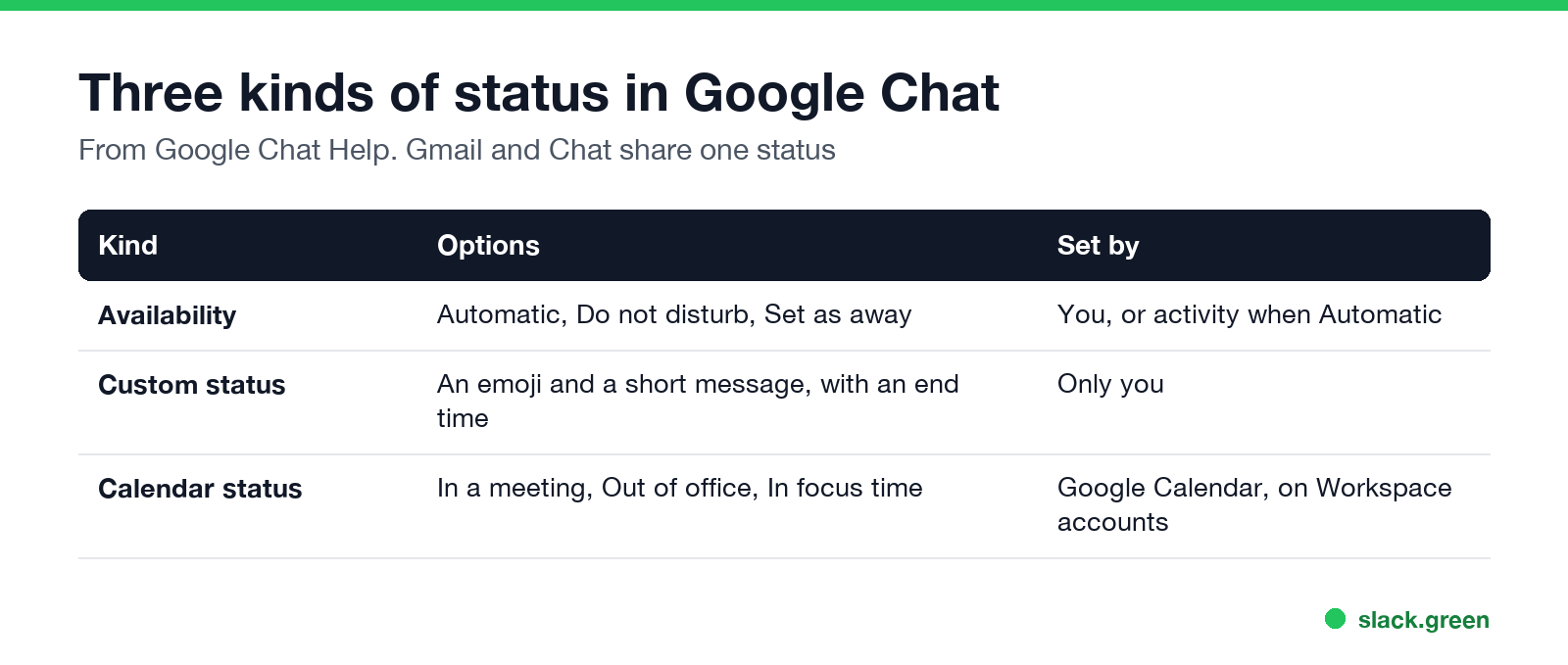
| Kind | Options | Who sets it |
|---|---|---|
| Availability | Automatic, Do not disturb, Set as away | You; Automatic lets Google decide from your activity |
| Custom status | An emoji, a short message and an end time | Only you |
| Calendar status | In a meeting, Out of office, In focus time | Google Calendar, on Workspace accounts |
Availability is the coloured icon on your picture. The custom status is the text people see next to your name. They are independent: you can be Active with "Working from Lisbon this week" as your status. What each icon means is in Google Chat status icons meaning.
How to set a custom status
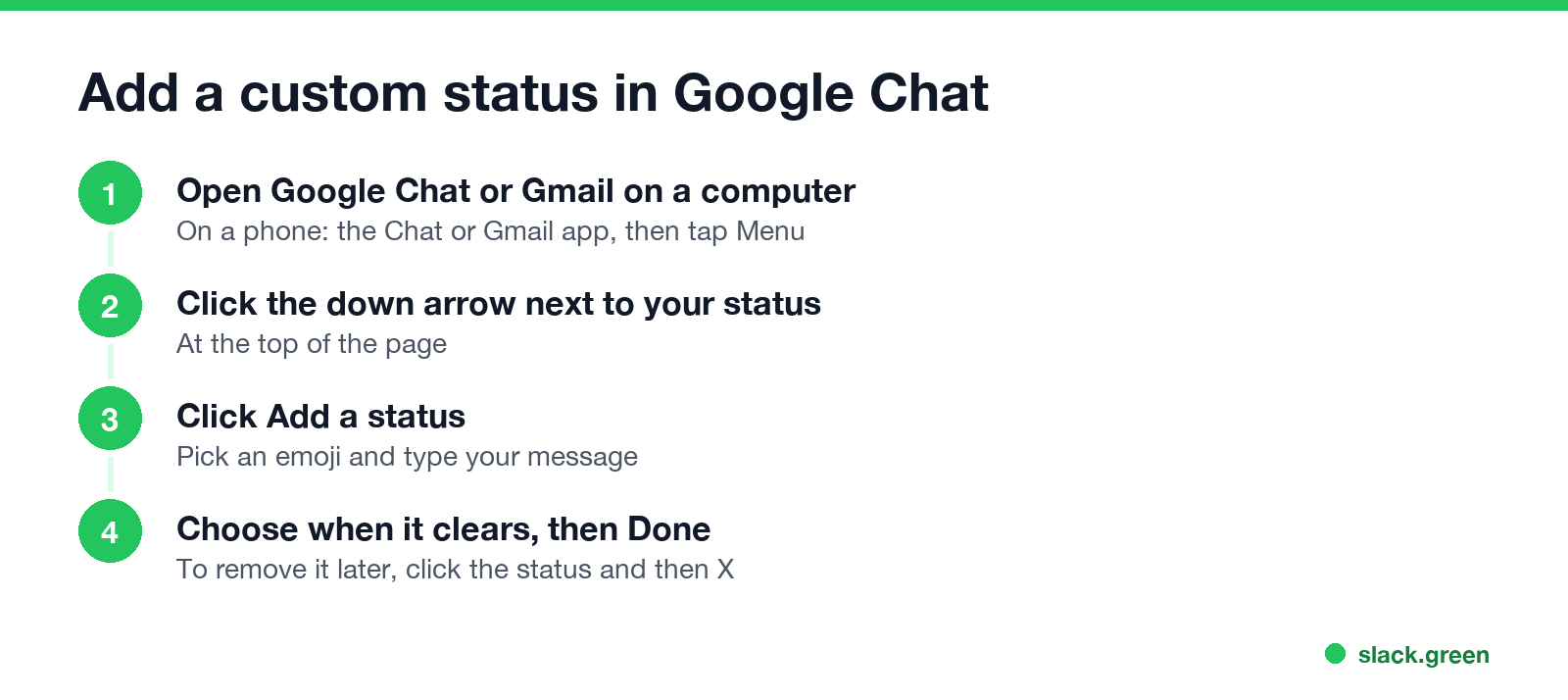
On a computer:
- Open Google Chat (chat.google.com) or Gmail.
- At the top, click the down arrow next to your status indicator.
- Click Add a status.
- Choose an emoji and write your message.
- Choose when the status ends, then click Done.
- Open the Chat app or the Gmail app.
- Tap Menu at the top left.
- Tap Add a status, choose an emoji, write the message and when it ends.
- Tap Done at the top right.
On Android or iPhone:
Setting an end time saves you from a "Back at 2" status that is still up at 5. Pick it every time you set a status that is about now.
How to clear or change a status
Never appear "away" on Slack again
Cloud-based. No downloads. Works 24/7 even when your laptop is off.
To change your availability back to normal, choose Automatic. A leftover Set as away keeps you Away all day, even while you work. How to look offline on purpose is in how to appear offline on Google Chat.
Do not disturb with a timer or a schedule
Do not disturb mutes Chat and Gmail notifications on all your devices, and Google says people "can tell how long you paused notifications". To set it:
For a daily quiet time, choose Do not disturb, then Set a do not disturb schedule, and under Do not disturb schedules click Create new. You can create several schedules.
Calendar status on Google Workspace accounts
On a work or school account, Google Chat can set your status from Google Calendar. During a meeting or an out-of-office event, people who open a direct message with you see it next to your name. Group conversations and spaces do not show it. Your admin decides which calendar statuses exist and whether they show at all.
To stop sharing it, open Google Calendar Settings, choose your calendar under Settings for my calendar, and change the option under Access permissions for events that shows calendar info in other Google apps. Google notes you can only change this on a computer.
Google Chat status ideas
Never appear "away" on Slack again
Cloud-based. No downloads. Works 24/7 even when your laptop is off.
Keep the part people need first, with a time:
The same kinds of lines for other apps are in Slack status examples and Zoom status message examples.
Who can see your Google Chat status
Google's help says your status is visible to people you share a space with, people whose chat invite you accepted, and people you have not blocked. On Workspace accounts, Do not disturb is shown only inside your organization's domain. How long Google Chat takes to show you Idle and Away is in how long before Google Chat shows away.
FAQ
How do I set a custom status in Google Chat? Click the down arrow next to your status in Chat or Gmail, click Add a status, pick an emoji, write a message, choose when it ends and click Done.
How do I set my status to away in Google Chat? Click the down arrow next to your status and choose Set as away. Choose Automatic when you are back.
Can I set a Google Chat status on my phone? Yes. In the Chat or Gmail app, tap Menu, then the arrow next to your status or Add a status.
Why does Google Chat show me as In a meeting? On Workspace accounts, your status follows Google Calendar. Turn off calendar info in other Google apps in Calendar settings to stop it.
Does my Google Chat status show in Gmail? Yes. Gmail and Chat use the same status.
Stop Jiggling Your Mouse.
Join hundreds of remote workers who never worry about their Slack status. Set it up once, stay green forever.
Related Articles
Can My Employer See What I Watch on YouTube at Work?
On a work laptop or the office network, your employer can see that you used YouTube, when, and for how long. With HTTPS inspection or monitoring software, they can see which videos, because the video address and the browser tab title both name it. On your own phone on mobile data, they see nothing.
Can My Employer See My iMessages on a Work Mac?
Not through device management or the network: Jamf or Intune cannot read Messages, and iMessage is end-to-end encrypted. But if you sign in to Messages on a work Mac, your texts are stored on that Mac, where monitoring screenshots, backups and admin access can reach them. How to check, and how to take iMessage off the Mac without deleting it from your iPhone.
Can My Boss See My Private Outlook Calendar Events?
Usually not the details. When you mark an Outlook event Private, someone who can read your calendar sees only Private appointment, the time and a lock. The exceptions are delegates you gave Can view private items, the people invited to the event, anyone with full access to your mailbox in new Outlook or the web, and compliance admins. How to check who has which access, and what Private does not hide.