
How to Appear Offline on Google Chat: Set as Away
Google Chat has no invisible mode, but Set as away gives the same result: your status shows Away, which is also what people see when you are offline, and messages keep arriving. Steps for Gmail, the Chat app and phones, what others can still see, and how blocking and calendar status change it.
To appear offline on Google Chat, click the down arrow next to your status in Gmail or Google Chat and choose Set as away. Google Chat has no invisible or offline option, but Away is also the status it shows when you are not connected to the internet, so people cannot tell the two apart. Messages still arrive and notify you. Your status stays Away until you switch back to Automatic. The same menu is in the Chat and Gmail phone apps under Menu.
Most people want the opposite at work: to stay green while they are busy in another app. For Slack, Slack Green keeps your status active during the hours you set, from the cloud, with nothing running on your computer.
How to set yourself as away
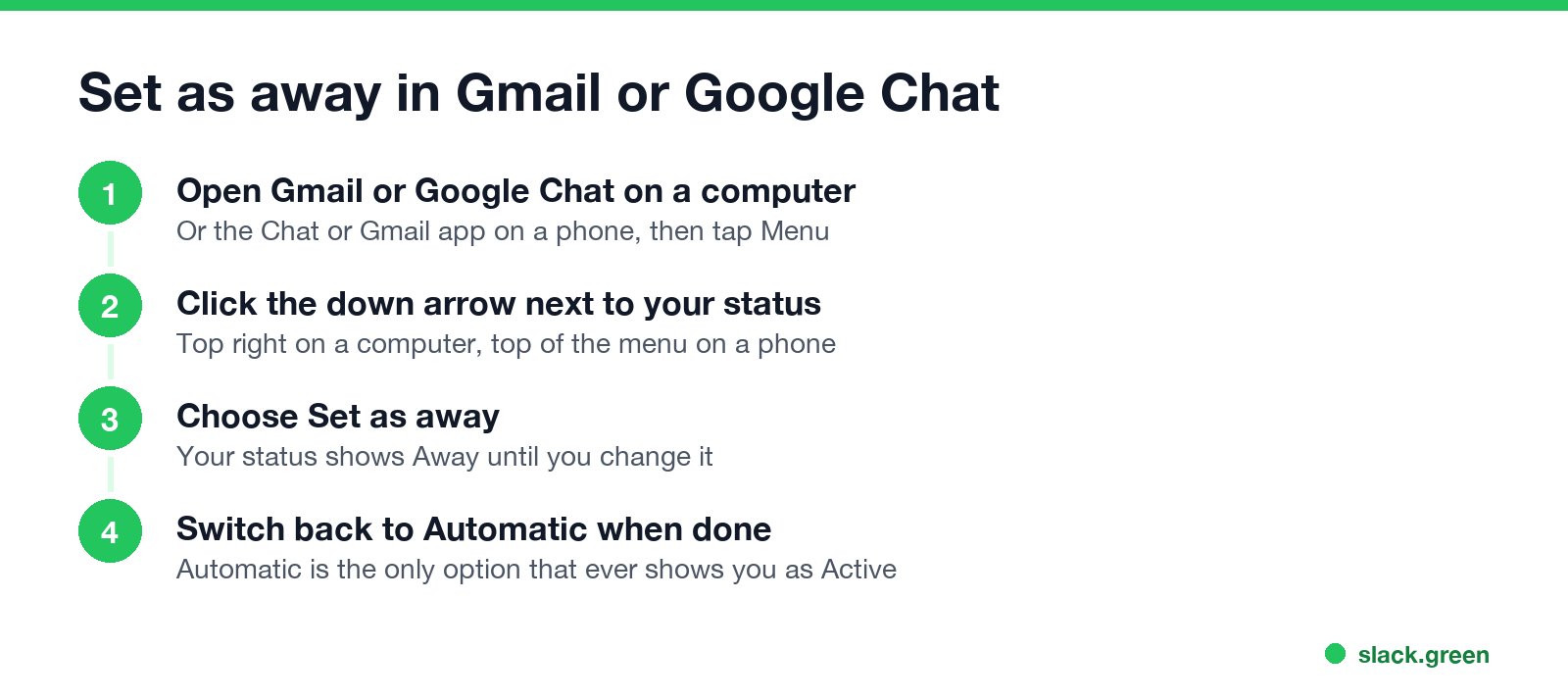
On a computer (Gmail or chat.google.com):
- Open Gmail or Google Chat.
- At the top right, next to your status indicator, click the down arrow.
- Choose Set as away.
- Open the Chat app or the Gmail app.
- Tap Menu at the top left.
- Next to your status indicator, tap the down arrow and choose Set as away.
- • you are not connected to the internet;
- • you have been idle for more than 10 minutes;
- • you chose Set as away.
On Android or iPhone (Chat app or Gmail app):
Your status belongs to your Google account, so setting it on one device sets it everywhere. To go back, open the same menu and choose Automatic. Google lists only three choices there: Automatic, Do not disturb and Set as away. Automatic is the only one that can ever show you as Active.
Is Set as away the same as offline?
To other people, yes. Google Chat Help gives three reasons for the Away status and shows the same icon for all of them:
Nobody sees which reason applies. Google Chat also shows no "last seen" time. So Set as away is as close to invisible as Google Chat gets. How each icon looks, including the orange Idle clock at 5 minutes, is in Google Chat status icons meaning.
The old Google Talk had an Invisible setting. Hangouts dropped it, and Google Chat never added it.
What others see, option by option
Never appear "away" on Slack again
Cloud-based. No downloads. Works 24/7 even when your laptop is off.
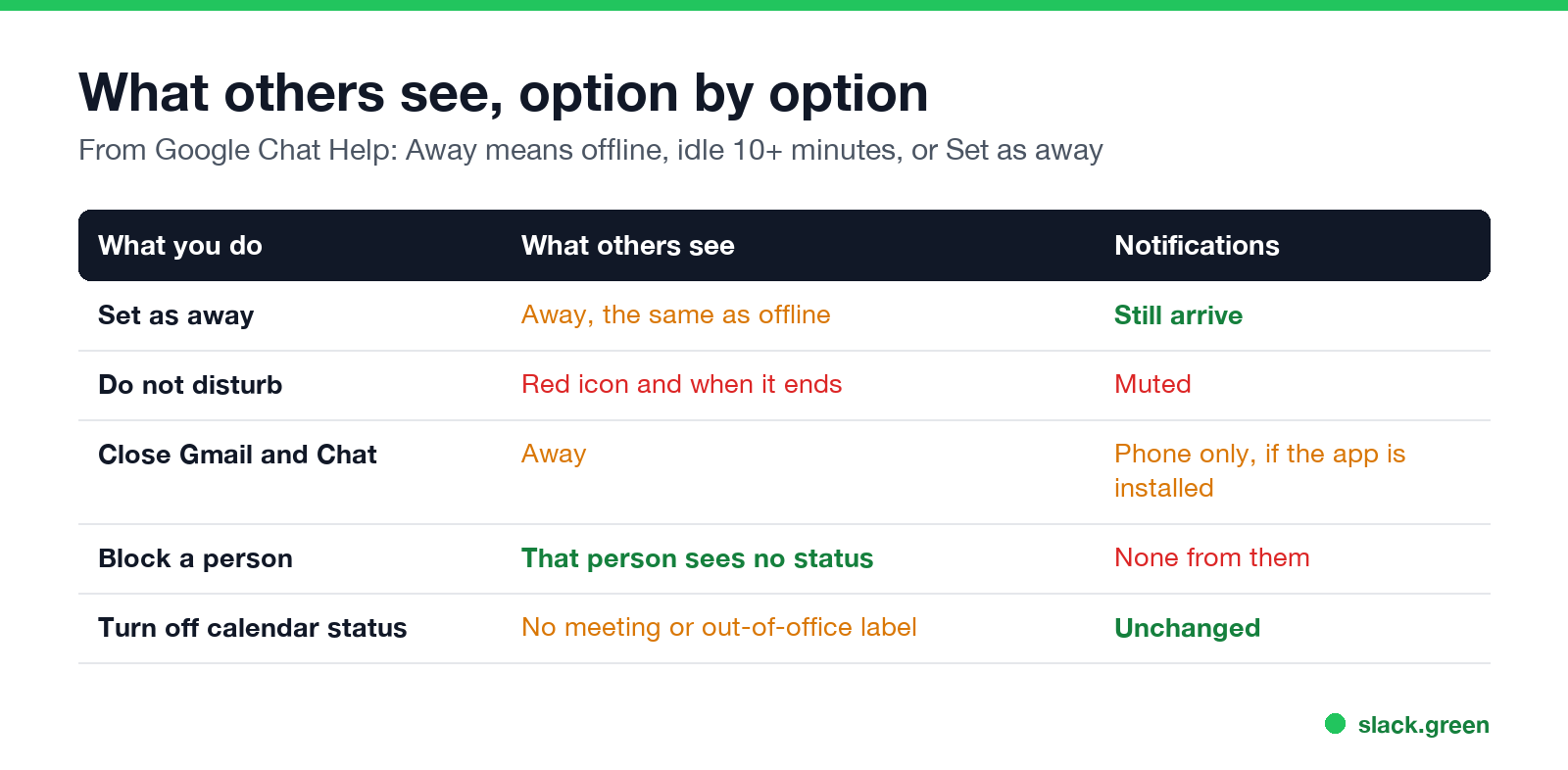
| What you do | What others see | Your notifications |
|---|---|---|
| Set as away | Away, the same as offline | Still arrive |
| Do not disturb | Do not disturb, and how long you paused notifications | Muted on all devices |
| Close Gmail and Chat | Away after you disconnect | Only on a phone with the app |
| Block a person | That person sees no status for you | None from that person |
| Turn off calendar status | No "In a meeting" or "Out of office" label | Unchanged |
Do not disturb is the wrong choice if you want to look offline. Google says people "can tell how long you paused notifications", so it tells them you are there and busy.
Can you appear offline to one person on Google Chat?
Only by blocking them. Google's help says your status is visible only to people you share a space with, people whose chat invite you accepted, and people you have not blocked. Blocking stops their messages as well, so it is a heavy tool for a coworker. There is no per-person "hide my status" setting. Slack has the same limit; see can you hide your Slack status from one person.
The rule also means people outside your spaces and chats cannot see your status at all. On a Google Workspace account, Do not disturb is visible only inside your organization's domain.
What still shows you are there
Away hides your status dot. It does not hide what you do:
Stop looking away when you are working
Never appear "away" on Slack again
Cloud-based. No downloads. Works 24/7 even when your laptop is off.
Automatic status goes Idle after 5 minutes without activity in Gmail or Chat and Away after 10. If you keep getting Away while you work, a leftover Set as away is the usual cause. The full list of fixes is in how to keep Google Chat active, and the timer is explained in how long before Google Chat shows away.
The same question for other apps: how to appear offline on Teams and how to appear offline on Slack.
FAQ
Can you go invisible on Google Chat? No. Google Chat has no invisible mode. Set as away is the closest option and looks the same as being offline.
How do I turn off the green dot on Google Chat? Choose Set as away from the arrow next to your status. The green dot turns to Away until you pick Automatic again.
Will I still get messages if I set myself as away? Yes. Set as away changes only your status. Use Do not disturb if you also want to mute notifications.
Does Set as away turn off by itself? No. It stays until you choose Automatic or Do not disturb.
Can people see when I was last online on Google Chat? No. Google Chat shows only your current status, not a last-seen time.
Stop Jiggling Your Mouse.
Join hundreds of remote workers who never worry about their Slack status. Set it up once, stay green forever.
Related Articles
How to Change Sleep Settings on a Mac (Ventura to Tahoe)
On macOS Ventura and newer, the Mac's sleep timer is its display timer: set it in System Settings > Lock Screen, under Turn display off on battery and on power adapter when inactive. The Mac sleeps about a minute after the display turns off, unless you turn on Prevent automatic sleeping in Battery > Options, or in Energy on a desktop Mac. Every setting, where it lives by macOS version, and the pmset commands.
Caffeine vs KeepingYouAwake: Which Mac Keep-Awake Cup to Use
Caffeine and KeepingYouAwake are both free, open-source coffee cups for the Mac menu bar. KeepingYouAwake runs on macOS 10.13 and newer, wraps Apple's caffeinate, and can let the display sleep or stop on low battery. Caffeine needs macOS 14.6 and adds an optional cursor nudge that keeps Teams green. Which to pick.
Can My Employer See My Google Chat Messages? Yes, in Vault
On a work Google account, yes. Workspace admins can search, export and keep your Google Chat DMs, group chats and spaces with Google Vault, often including messages you deleted. Messages sent with history off are not covered: they disappear after 24 hours. A personal Google account is out of your employer's reach.