
How to Keep Google Chat Active: Idle at 5 Minutes, Away at 10
Google Chat shows you as Idle after 5 minutes without activity in Gmail or Chat on desktop, and Away after more than 10 minutes. There is no always-active setting. How the status works, what you can set, and what keeps it green.
Google Chat has no setting that keeps you active. Its status is automatic: according to Google Chat Help, you show as Idle after 5 minutes without activity in Gmail or Google Chat on a computer, and as Away after more than 10 minutes idle, when you lose your internet connection, or when you choose Set as away. To stay green, keep Gmail or Chat open and use it, keep your computer from sleeping, and keep your status on Automatic. On Google Workspace, a meeting on your calendar also shows in Chat.
Slack Green is a Slack product and does not work with Google Chat. If your team also uses Slack, Slack Green keeps your Slack dot green during the working hours you set, from the cloud; for Google Chat the steps below are what you have.
How Google Chat decides your status
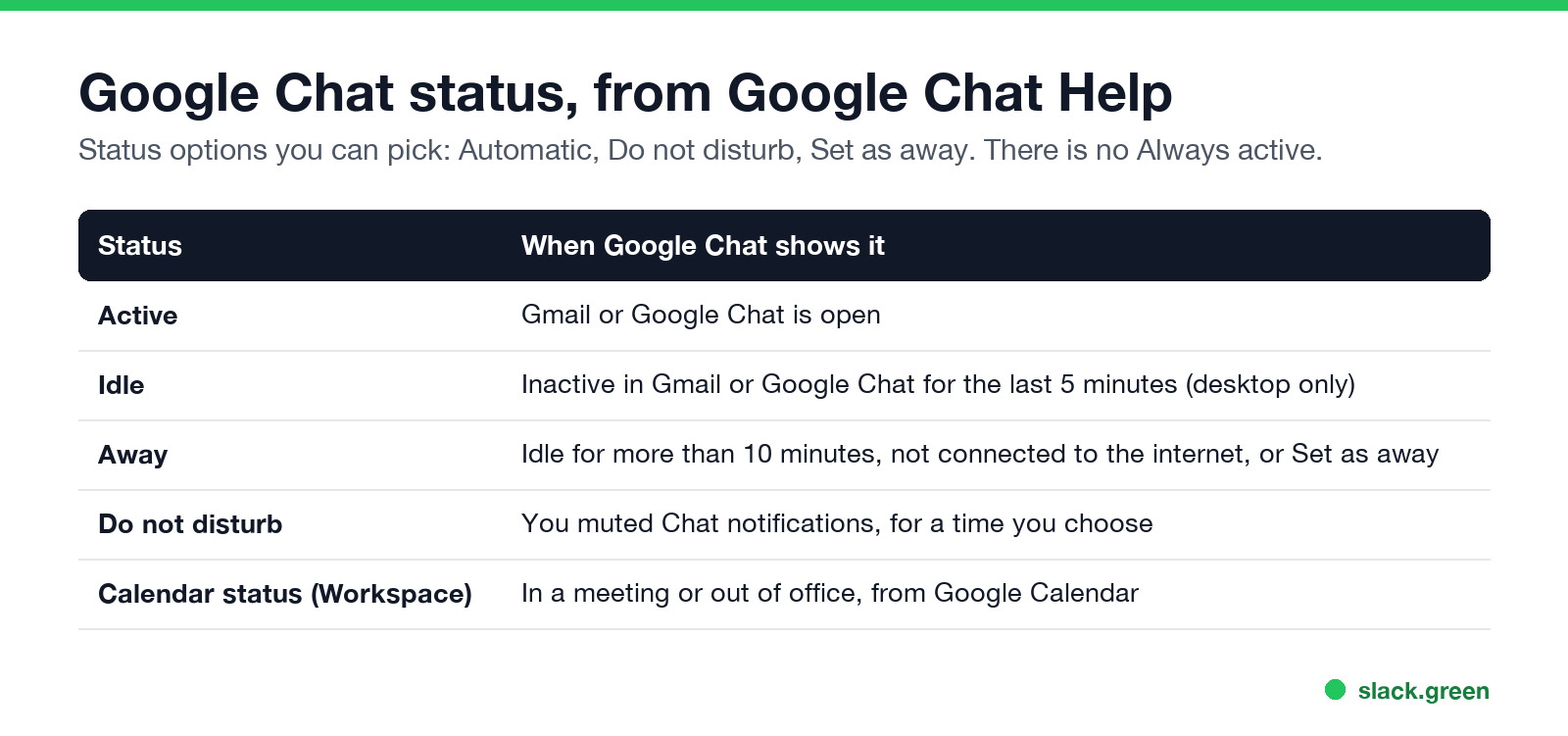
| Status | When Google Chat shows it |
|---|---|
| Active | Gmail or Google Chat is open |
| Idle | No activity in Gmail or Chat for the last 5 minutes (desktop only) |
| Away | Idle for more than 10 minutes, offline, or Set as away |
| Do not disturb | Notifications muted for a time you choose |
The three options you can pick are Automatic, Do not disturb and Set as away. Automatic is the only one that ever shows you as active.
How to keep Google Chat active
- Set your status to Automatic. In Gmail or Chat, click the down arrow next to your status indicator and choose Automatic. A leftover Set as away keeps you away no matter what you do.
- Keep Gmail or Chat open in a tab or the app. Active means Gmail or Chat is open. Pin the tab, or install Google Chat as an app from the browser so it has its own window.
- Use it now and then. Idle starts after 5 minutes without activity in Gmail or Chat. Reading and answering mail in Gmail counts, since Gmail and Chat share the status.
- Stop the computer from sleeping or locking. Going offline shows Away. See keep a work computer awake without admin rights.
- On a phone, keep the Chat or Gmail app open on screen if you are answering from it.
A custom status message ("Heads down until 3") explains an Idle or Away status to others, and Google Chat Help shows how to add one from the same status menu.
Google Chat inactive after how long?
Never appear "away" on Slack again
Cloud-based. No downloads. Works 24/7 even when your laptop is off.
Idle after 5 minutes, Away after more than 10 minutes. There is no setting to change either, for users or admins.
What does not keep Google Chat active
Google Chat vs Slack vs Teams
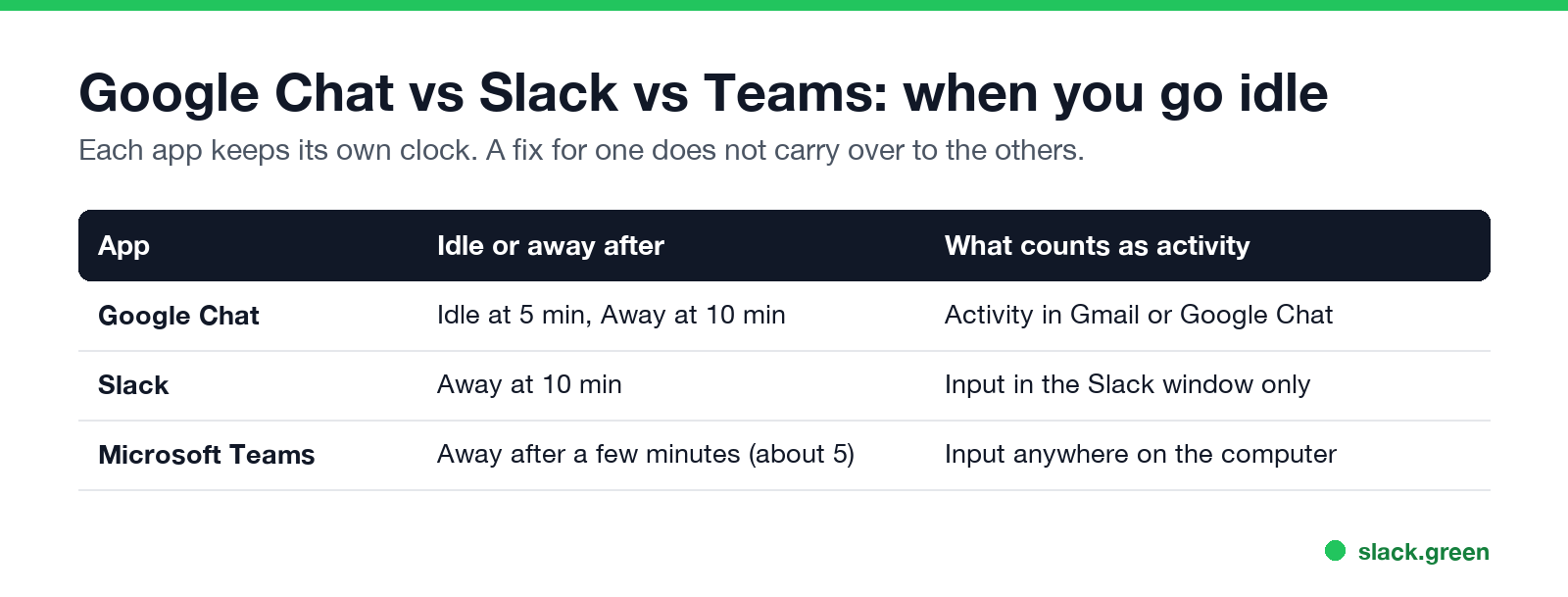
| App | Idle or away after | What counts |
|---|---|---|
| Google Chat | Idle at 5 min, Away at 10 min | Activity in Gmail or Chat |
| Slack | Away at 10 min | Input in the Slack window only |
| Microsoft Teams | Away after a few minutes, about 5 | Input anywhere on the computer |
The Slack rules are in how long does Slack stay active, and the Teams rules in how long before Teams shows you as Away.
FAQ
Never appear "away" on Slack again
Cloud-based. No downloads. Works 24/7 even when your laptop is off.
Can I set Google Chat to always active?
No. The only options are Automatic, Do not disturb and Set as away.
How long until Google Chat shows Away?
Idle after 5 minutes without activity in Gmail or Chat, and Away after more than 10 minutes.
Does having Gmail open keep Google Chat active?
Gmail open counts as Active, but after 5 minutes without activity in Gmail or Chat you show as Idle.
Why does Google Chat say I am away?
You set yourself as away, your computer went offline or slept, or you were idle for more than 10 minutes.
Does Slack Green work with Google Chat?
No. Slack Green works with Slack only.
Stop Jiggling Your Mouse.
Join hundreds of remote workers who never worry about their Slack status. Set it up once, stay green forever.
Related Articles
Slack Saved for Later: Where the Later Tab Is and How It Works
Saved messages in Slack live in the Later tab, which replaced stars and Saved items in 2023. Hover a message and click Save for later, or press A. Add a reminder, mark items complete, and find them with is:saved. Where Later is on desktop and mobile, and what changed.
How to Keep Your Outlook Status Green (It Comes From Teams)
Your Outlook status shows your Microsoft Teams presence, so to keep Outlook green you keep Teams Available: Teams signed in and running, input on the computer, no lock or sleep, and no leftover status. What sets you Away, and what you can change.
Slack Multiple Workspaces: Use, Switch and Stay Active in Each
You can sign in to several Slack workspaces in one app and switch with Ctrl+Tab or Cmd/Ctrl plus a number. Each workspace has its own account, status, presence and Do Not Disturb, so you can be active in one and away in another. How to add, switch and manage them.