
Slack After Hours Status: Working Hours, Messages and Examples
To show you are off after hours in Slack, set your working hours in Preferences so Slack pauses notifications outside them, tick the after-hours option under Automatic statuses, and add a status that says when you are back. Examples, what coworkers see, and a script for a daily status.
To show you are off after hours in Slack, set your working hours: click your profile picture, open Preferences, and under Working hours choose when you allow notifications. Outside those hours Slack pauses your notifications and shows a snooze icon next to your name. Under Automatic statuses you can also let Slack tell people you may be slow to respond after your working hours. Add a status such as "🌙 Offline for the day, back 9am ET" so people know when you will answer.
This page is about your own status. If you searched for whether Slack itself is down, that is Slack's system status page at status.slack.com.
We build Slack Green, which keeps your Slack dot green from our servers during the hours you set and stops at the end of them, so after hours your dot goes to away like everyone else's.
What coworkers see after your working hours
Slack has three separate signals, and after hours you want all three to say the same thing:
- • Your dot. Green when Slack counts you as active, away 10 minutes after your last input in Slack on desktop. The timer is covered in how long does Slack stay active.
- • The snooze icon. Shown while your notifications are paused, including outside the working hours you set.
- • Your status. The emoji next to your name and the text people see when they hover over it.
- Click your profile picture in the sidebar and select Preferences.
- Below Working hours, open the Allow notifications menu and pick Every day, Weekdays or Custom.
- Choose a start and end time. The setting saves on its own.
- Under Automatic statuses, tick the option for after your working hours.
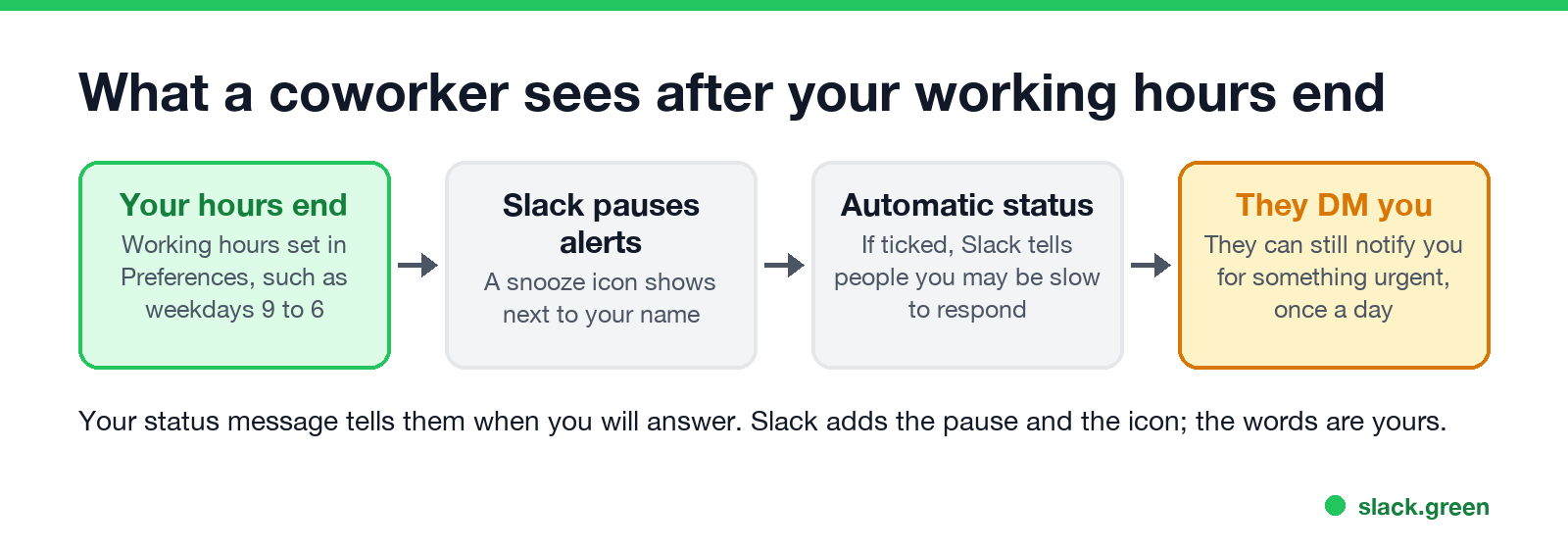
When someone sends you a DM while your notifications are paused, Slack's help center says they can override the pause to notify you about something urgent, once per day. Add people you always want to hear from to your VIP list instead.
How to set your working hours in Slack
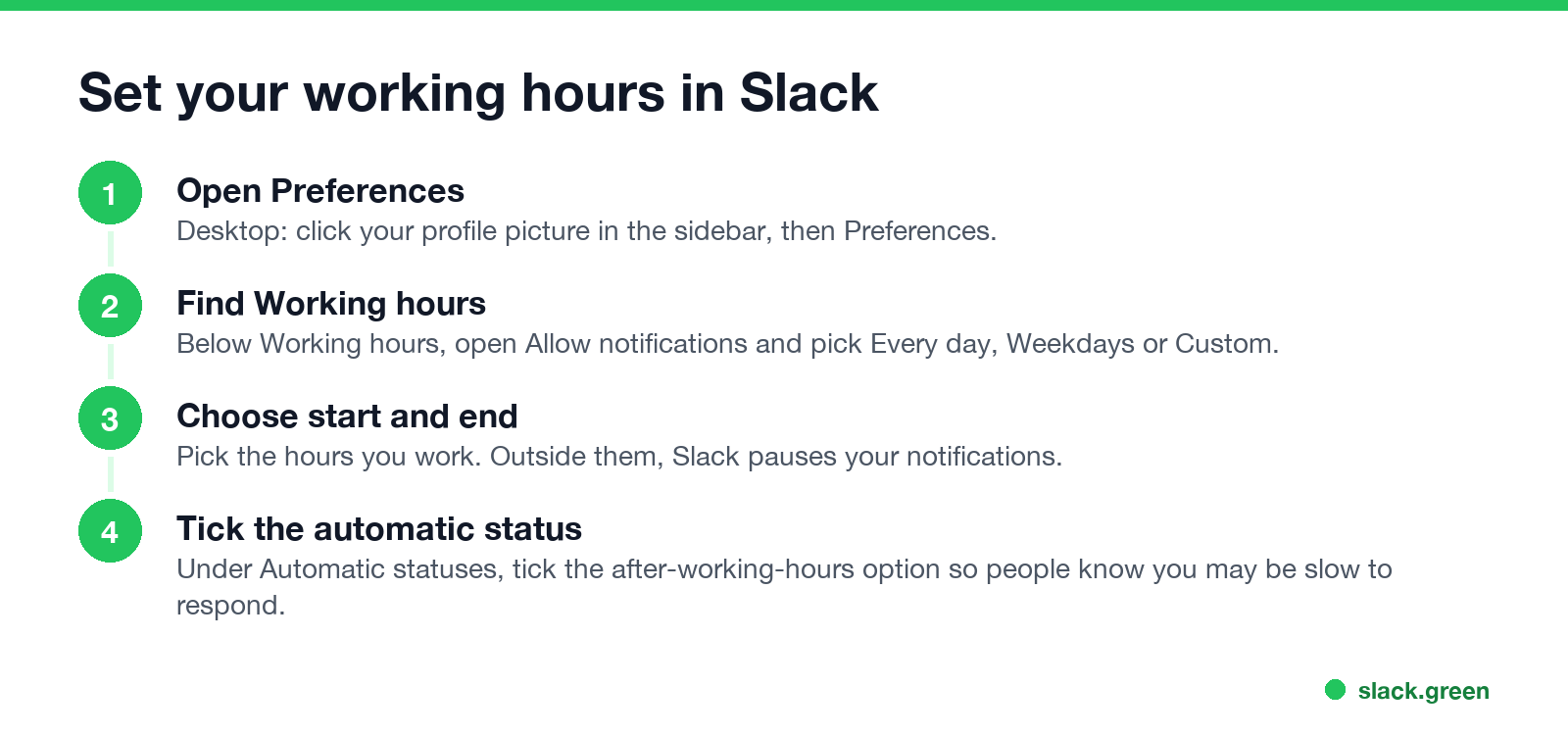
On desktop:
On mobile, tap your profile picture, tap Notifications, then Allow notifications below Notification schedule. If an admin set a default schedule for the workspace, yours overrides it. The same setting appears as the Do Not Disturb schedule in older guides; Slack Do Not Disturb covers pausing by hand and the /dnd commands.
Set your time zone first, or your hours will be off by the difference; see how to change your time zone in Slack.
After hours status examples
Never appear "away" on Slack again
Cloud-based. No downloads. Works 24/7 even when your laptop is off.
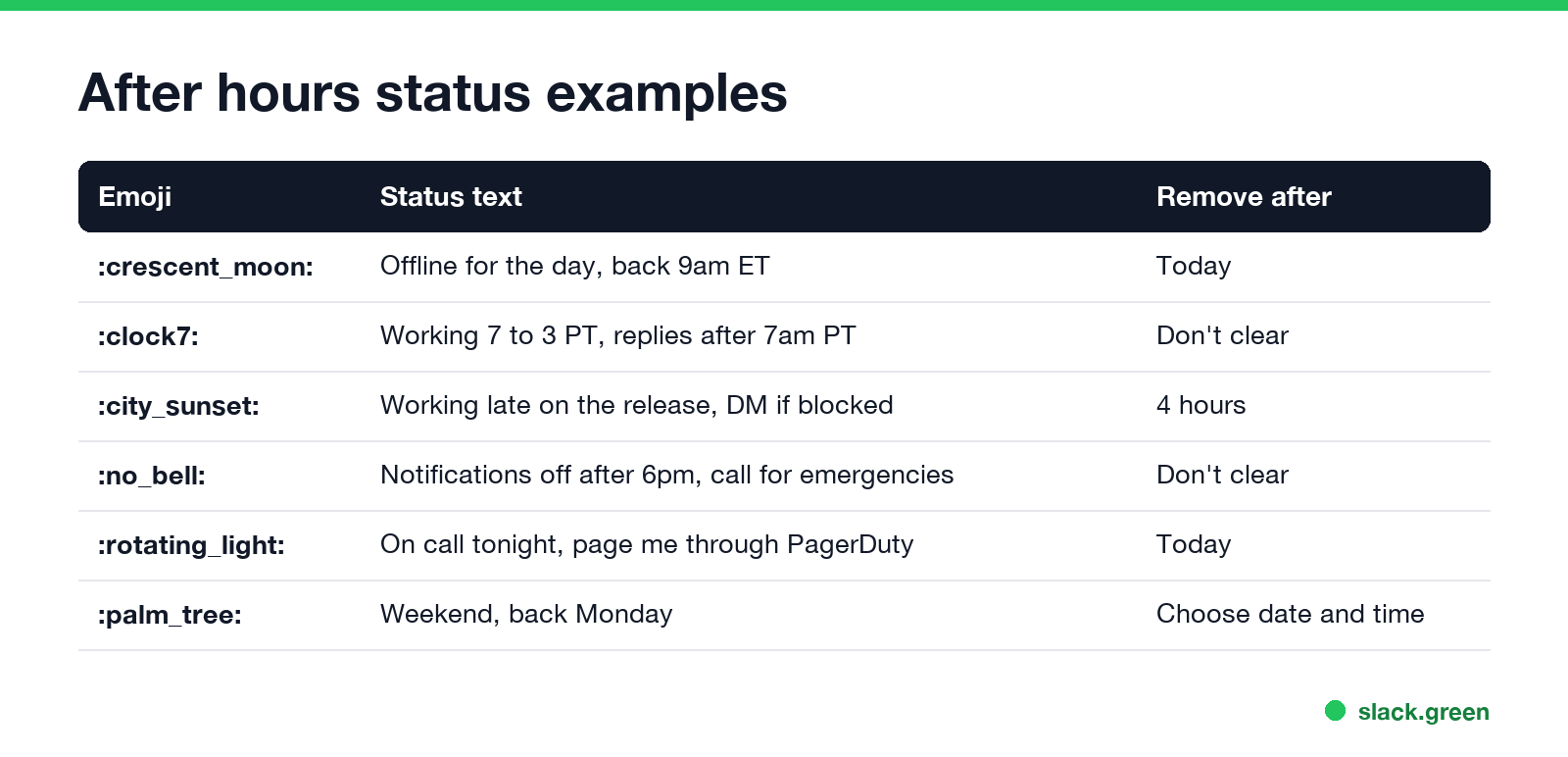
| Situation | Status | Remove after |
|---|---|---|
| Done for the day | 🌙 Offline for the day, back 9am ET | Today |
| Unusual hours | 🕖 Working 7 to 3 PT, replies after 7am PT | Don't clear |
| Working late | 🌇 Working late on the release, DM if blocked | 4 hours |
| Firm boundary | 🔕 Notifications off after 6pm, call for emergencies | Don't clear |
| On call | 🚨 On call tonight, page me through PagerDuty | Today |
| Weekend | 🌴 Weekend, back Monday | Choose date and time |
Put the time you will be back in the text, with your time zone if the team spans several. Choose Remove status after so an evening status does not sit there all of the next morning. For more wording, try the Slack status generator, and check a teammate's hours before you ping them with the Slack time zone converter.
After hours etiquette for the sender
Most after-hours friction comes from the person sending the message, not the one receiving it.
Team norms for statuses, such as what "away" means and how fast people reply, are in Slack status etiquette.
Set the same status every evening with a script
Slack can schedule up to five statuses ahead, but it cannot repeat one every day. If you want "🌙 Offline for the day" every weekday at 6pm, a short script can set it through the Web API with a user token that has the users.profile:write scope:
# pip install slack_sdk
# Run at 18:00 on weekdays, for example with cron: 0 18 * * 1-5 python after_hours.py
import os, time
from datetime import datetime, timedelta
from slack_sdk import WebClient

client = WebClient(token=os.environ["SLACK_USER_TOKEN"])  # xoxp- token with users.profile:write

tomorrow_9am = (datetime.now() + timedelta(days=1)).replace(hour=9, minute=0, second=0, microsecond=0)
client.users_profile_set(profile={
    "status_text": "Offline for the day, back 9am ET",
    "status_emoji": ":crescent_moon:",
    "status_expiration": int(tomorrow_9am.timestamp()),
})
print("status set until", tomorrow_9am)
status_expiration is a Unix timestamp; Slack clears the status at that moment, so it is gone before you start the next day. Other ways to repeat a status, such as a recurring calendar event with calendar sync, are in how to schedule a Slack status.
FAQ
Never appear "away" on Slack again
Cloud-based. No downloads. Works 24/7 even when your laptop is off.
How do I show I'm offline after hours in Slack? Set your working hours in Preferences so notifications pause outside them, and add a status such as "Offline for the day, back 9am".
Does Slack have an automatic after hours status? Yes. Under Automatic statuses in Preferences, Slack can let people know you may be slow to respond after your working hours.
Can people still message me after hours? Yes. Messages arrive, but you are not notified. A DM sender can override the pause once a day for something urgent.
What status should I use when working late? Something like "🌇 Working late on the release, DM if blocked", set to clear after a few hours.
Stop Jiggling Your Mouse.
Join hundreds of remote workers who never worry about their Slack status. Set it up once, stay green forever.
Related Articles
Slack Emoji for Approved, Perfect and Sounds Good
The Slack emoji for approved is ✅ :white_check_mark:. For perfect, use 💯 :100: or 🤌 :pinched_fingers:; for sounds good or sure, 👍 :+1: or 👌 :ok_hand:. Every code checked in Slack, what each one means to readers, custom LGTM and SGTM emoji, and a pinned legend for approval channels.
Tips for Working Across Time Zones: 10 Habits That Work
Working across time zones works when the team writes things down, keeps a short overlap window for live talk, says the zone with every time, and lets tools deliver messages in each person's working hours. Ten habits, a follow-the-sun handoff note, the Slack settings that help, and a script that shows your team's local times.
Slack Emoji for OOO, PTO and Days Off
The usual Slack emoji for OOO is 🌴 :palm_tree:, with ✈️ :airplane: for travel and 🗓️ :spiral_calendar_pad: for planned PTO. Enterprise's built-in Out of office status uses ⛔. Codes for vacation, upcoming PTO, sick days, holidays and outages, custom :ooo: and :pto: emoji, and statuses to copy.