
How to See Someone's Time Zone in Slack
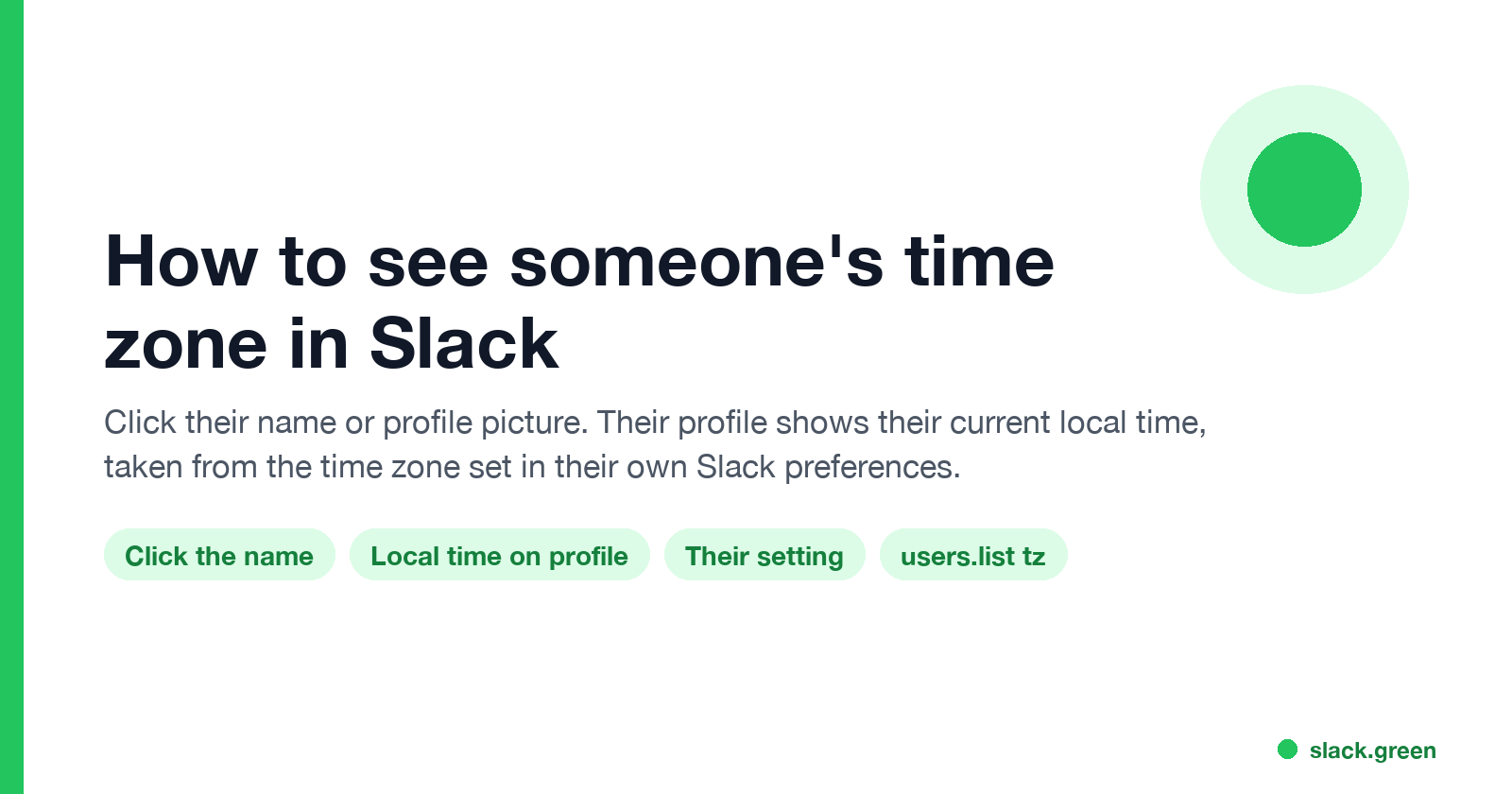
To see someone's time zone in Slack, click their name or profile picture: their profile shows their current local time. That time comes from the time zone in their own Slack preferences, so it can be wrong if they set it by hand. Desktop, mobile, a whole-team script, and how to hide yours.
To see someone's time zone in Slack, click their name or profile picture on any message. Their profile opens and shows their current local time, so you can tell at a glance whether it is 9 a.m. or midnight where they are. On the Slack mobile app, tap their name or picture to open the same profile. The time comes from the time zone in that person's own Slack preferences, which Slack sets from their device unless they chose a zone by hand.
The time zone settings here are from Slack's help article "Manage your time zone preferences", and the API fields from Slack's developer docs on the user object, both checked on 27 September.
Knowing someone's local time tells you when to message them. It does not tell you whether they are at their desk: the green dot turns away after about 10 minutes without input in the Slack window. If you are the one being read, Slack Green keeps your dot green from a server during the working hours you set.
How to see a coworker's local time in Slack
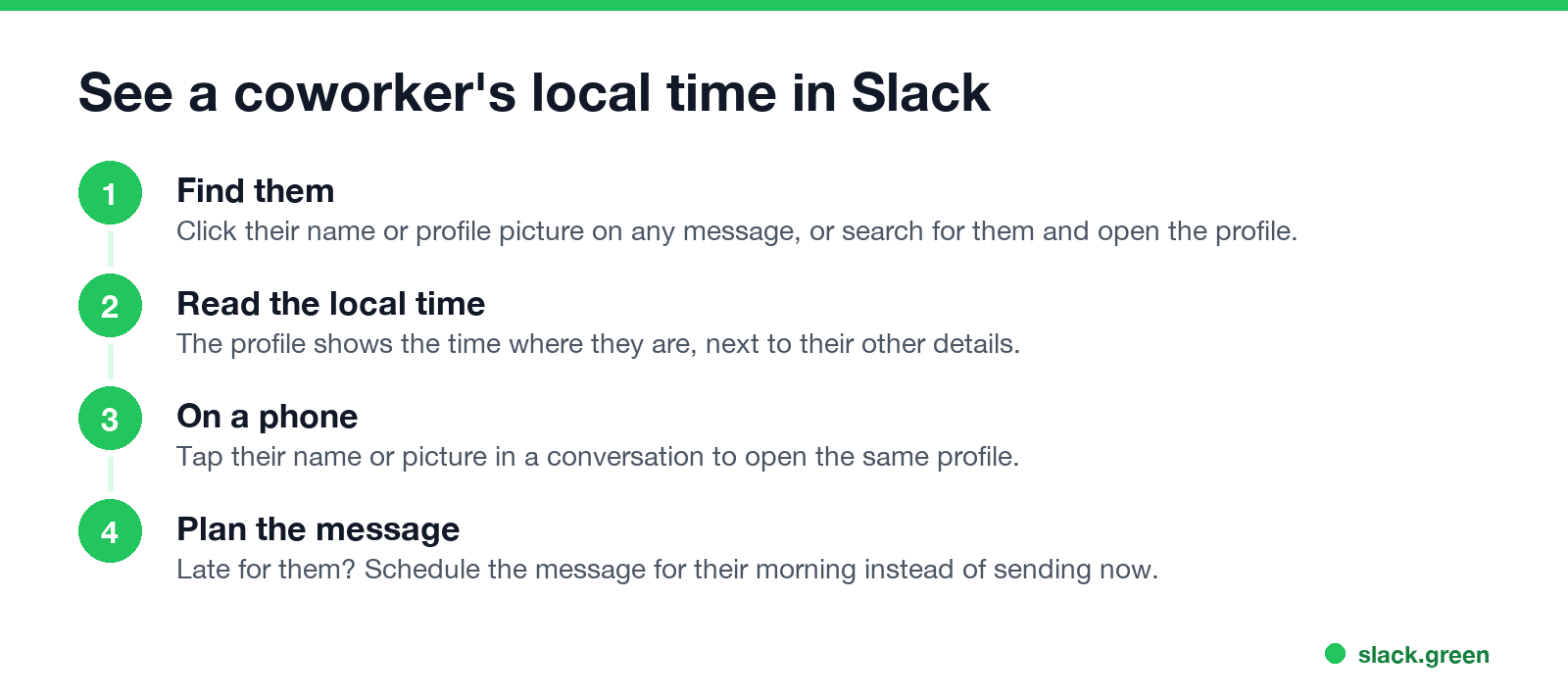
- Click the person's name or profile picture on one of their messages. If they have not posted where you are, search for their name and open the profile.
- Read the local time on the profile. It updates as their day goes on. A colored silhouette instead of a photo is Slack's default picture; see Slack default profile picture colors.
- On iPhone or Android, tap their name or picture in the conversation for the same profile.
If the time is late for them, do not send now and hope they have notifications off. Click the arrow next to the send button and schedule the message for their morning; see how to delay and schedule Slack messages.
Where Slack gets someone's local time
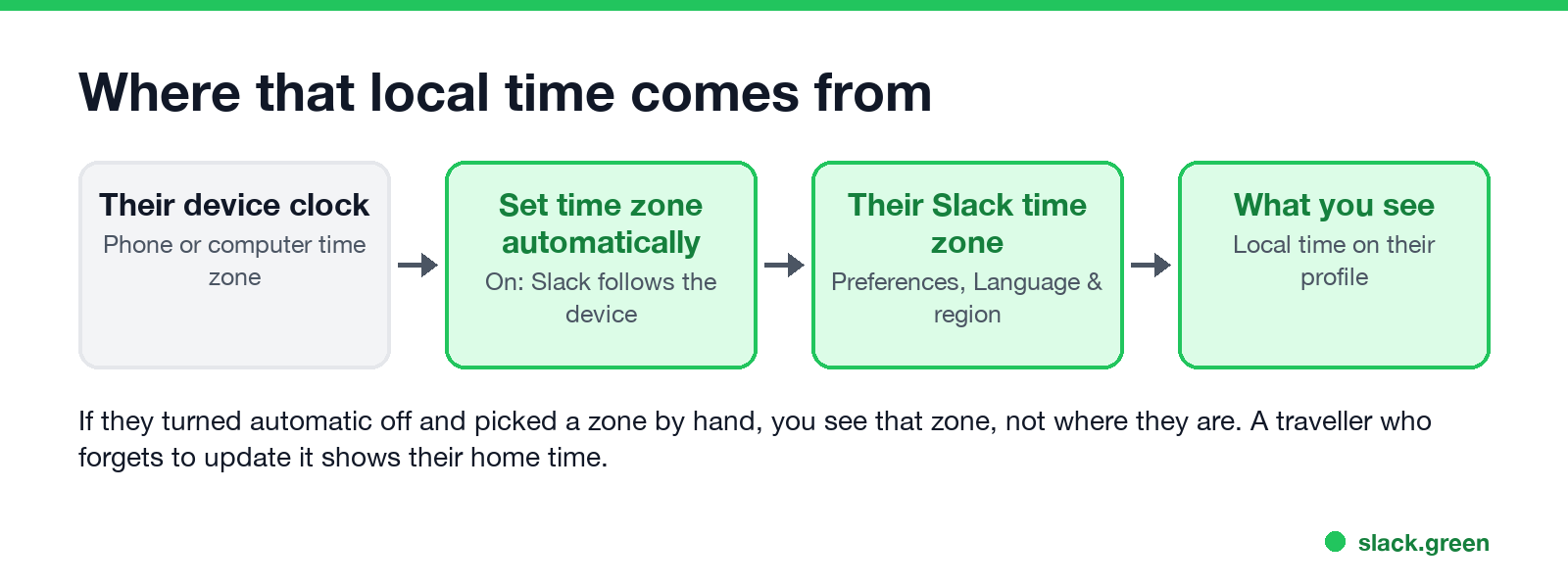
Every Slack member has a time zone in Preferences > Language & region. With Set time zone automatically ticked, Slack follows their computer or phone, so the profile time moves when they travel. With it unticked, they picked a zone from the drop-down, and you see that zone wherever they are.
So the local time on a profile is the person's Slack setting, not a location. A coworker who flew to Tokyo with automatic updates off still shows their home time. If a time looks wrong, ask: they can fix it in Preferences > Language & region, as shown in how to change your time zone in Slack.
Time zones in Slack: who sees what
Never appear "away" on Slack again
Cloud-based. No downloads. Works 24/7 even when your laptop is off.
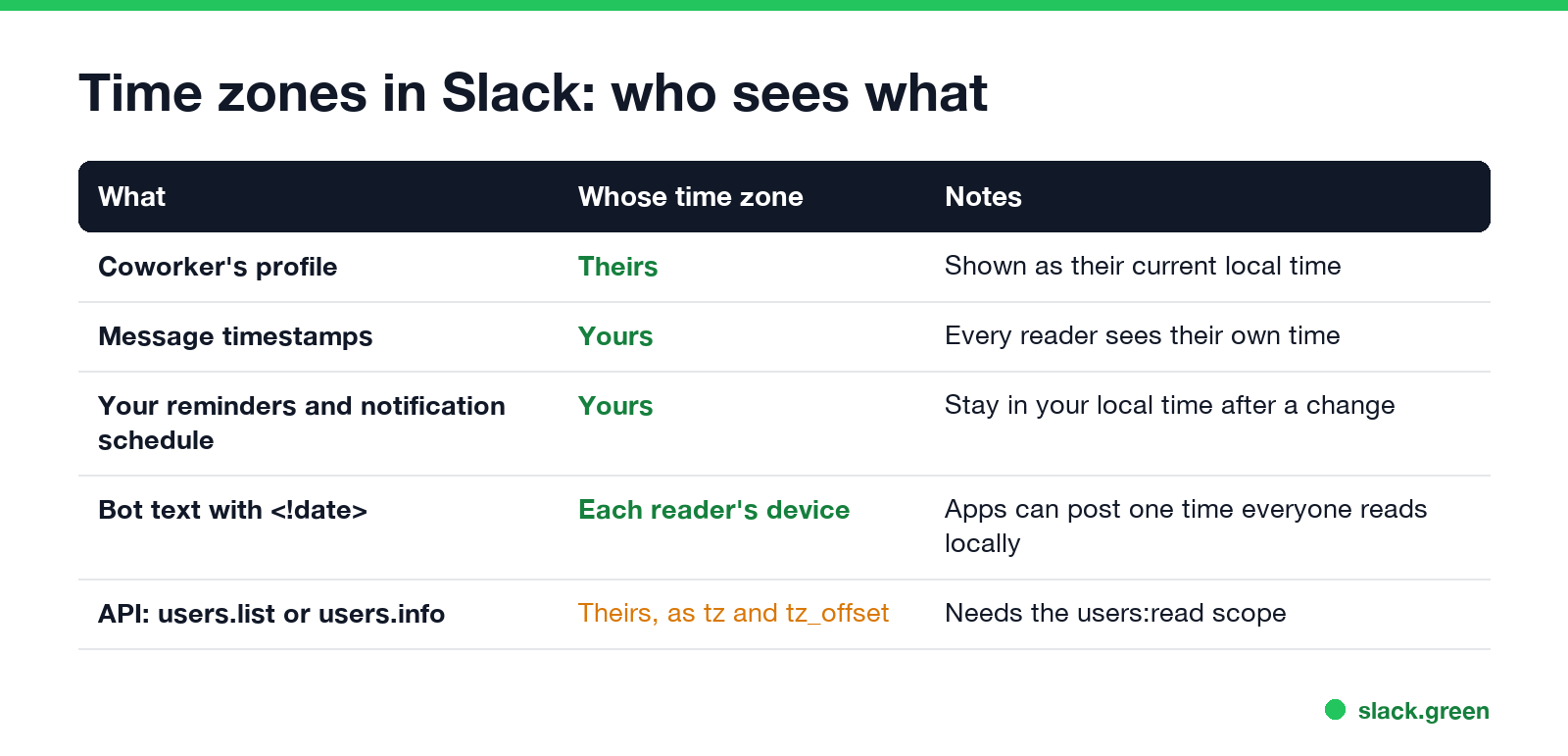
| What | Shown in whose time zone |
|---|---|
| A coworker's profile | Theirs, as their current local time |
| Message timestamps | Yours; every reader sees their own time |
| Your reminders and notification schedule | Yours, even after you change time zones |
Dates a bot posts with <!date> | Each reader's device |
Because timestamps convert for each reader, "I posted at 9:05" means 9:05 on your clock, not theirs. When you write a time in a message, add the zone, or use our Slack timezone converter to find the hours your team overlaps. Bots and workflows can post a <!date> string that each reader sees in their own time; our Slack timestamp generator builds one.
See every teammate's time zone at once
Slack has no built-in list of everyone's local time. The API has it: users.list returns each member with tz (such as Europe/London), tz_label and tz_offset in seconds from UTC. This script prints each person's current local time. It needs a bot token with the users:read scope:
import os
from datetime import datetime
from zoneinfo import ZoneInfo

import requests

token = os.environ["SLACK_BOT_TOKEN"]  # needs the users:read scope
cursor = ""
while True:
    data = requests.get(
        "https://slack.com/api/users.list",
        headers={"Authorization": f"Bearer {token}"},
        params={"limit": 200, "cursor": cursor},
        timeout=10,
    ).json()
    for user in data["members"]:
        if user.get("deleted") or user.get("is_bot") or not user.get("tz"):
            continue
        now = datetime.now(ZoneInfo(user["tz"]))
        print(f"{user['real_name']:<24} {now:%a %H:%M}  {user['tz_label']}")
    cursor = data.get("response_metadata", {}).get("next_cursor", "")
    if not cursor:
        break
On a sample of two members, the output looks like this:
Sherlock Holmes          Sun 08:39  British Summer Time
Mina Park                Sun 16:39  Korea Standard Time
For a quick check without code, add the team's cities to the Slack timezone converter; it keeps the list in your browser.
How to hide your local time in Slack
Slack shows a local time on every profile, and there is no switch to hide it. What you control is the zone it uses. On desktop, open Preferences > Language & region, untick Set time zone automatically, and pick the zone you want shown. On iPhone, Slack's help lists only the automatic toggle, so set your phone's time zone first, then turn Set Time Zone Automatically off in Slack.
Coworkers then see the time for the zone you chose. Your reminders and notification schedule follow the Slack setting too, so pick a zone you can live with. More on what else a profile gives away is in does Slack show last seen.
FAQ
Never appear "away" on Slack again
Cloud-based. No downloads. Works 24/7 even when your laptop is off.
How do I see what time it is for someone on Slack?
Click their name or profile picture. Their profile shows their current local time.
Can I see someone's time zone on Slack mobile?
Yes. Tap their name or picture in a conversation to open their profile with the local time.
Why is someone's Slack local time wrong?
Their Slack time zone is set by hand, or their device clock is wrong. They can fix it in Preferences, Language & region.
Can I see the time zones of everyone in a channel?
Not in Slack itself. The users.list and users.info API methods return each member's tz and tz_offset.
Does Slack show a coworker's location?
Not by default. It shows the local time for their time zone setting, not a city or an address. Admins can add custom profile fields, such as a location that people fill in themselves.
Stop Jiggling Your Mouse.
Join hundreds of remote workers who never worry about their Slack status. Set it up once, stay green forever.
Related Articles
Slack Status for Limited Availability: 30 Statuses to Copy
A Slack status for limited availability says you are around but slow, until when, and how to reach you if it is urgent, such as ⏳ 'Limited availability today, replies after 3 PM. Urgent: @mention me.' 30 statuses for busy days, slow replies and catching up, the emoji to use, and when to pause notifications too.
Slack Emoji for Thank You (and You're Welcome)
The usual Slack emoji for thank you are 🙏 :pray:, 🙌 :raised_hands: and ❤️ :heart:. For you're welcome, 😊 :blush: or 🤗 :hugging_face:. What each one says, which ones read wrong, and custom :ty:, :np: and :welcome: emoji your team can add in a minute.
Slack Emoji for Condolences: What to React With, and What to Say
The right Slack emoji for condolences are ❤️ :heart:, 🙏 :pray:, 🤗 :hugging_face:, 💐 :bouquet:, 🕯️ :candle: and 🕊️ :dove_of_peace:. Avoid 👍, ✅ and 👀, which read as 'noted'. Add a few words in the thread or a DM. Short condolence messages, get-well emoji, and custom 'thinking of you' emoji.