
Slack Default Profile Picture Colors, and How to Change Yours
Slack's default profile picture is a plain person silhouette in one of 14 colors, drawn light or dark: 26 images, ava_0001 to ava_0026. Slack picks one for you and has no setting to change its color. The full color list with hex codes, why yours looks the way it does, and how to replace it.
Slack's default profile picture is a plain person silhouette, a round head over rounded shoulders, on a square. It comes in 14 colors, each drawn two ways (a colored figure on a pale background, or a pale figure on a colored background), for 26 images in total. Slack assigns one to each account that has no photo. There is no setting to choose or change the color: the profile editor only has Upload Photo and Remove Photo. To change it, upload a photo, or an avatar in the color you want.
We downloaded Slack's default avatar files, ava_0001 to ava_0026 on Slack's image server, on 27 September and measured the two colors in each. File 27 and later return an error, so the set has 26. The profile steps are from Slack's help article "Upload a profile photo", checked the same day.
A new picture does not change your presence: the dot next to it still turns away after about 10 minutes without input in the Slack window. Slack Green keeps it green from a server during the hours you set.
All 26 Slack default profile picture colors
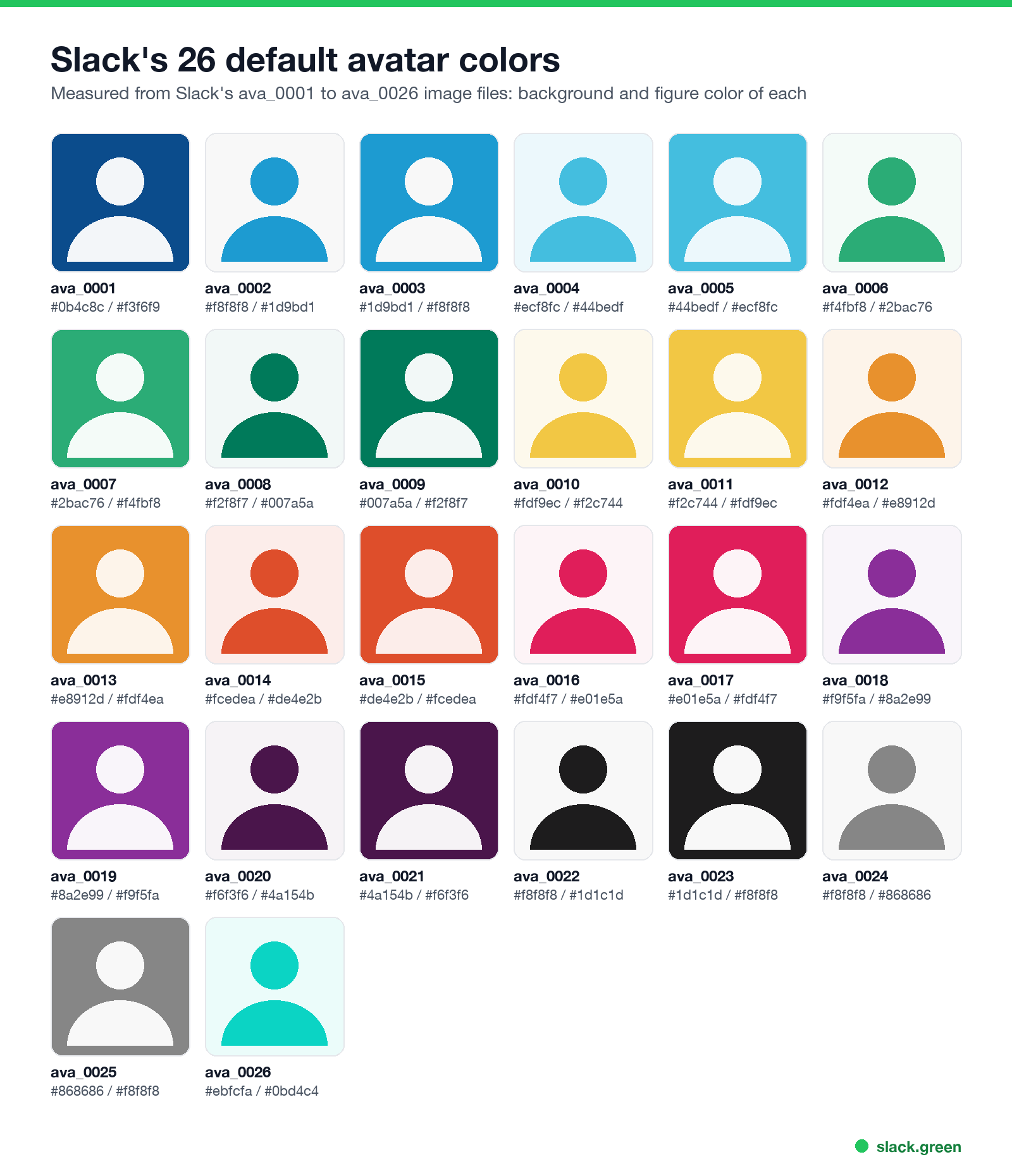
The colors are Slack's own palette: blues, greens, yellow, orange, red, pink, purple, aubergine, black, grey and teal. Most colors appear twice. Navy (#0b4c8c) only comes as a colored background, and teal (#0bd4c4) only as a colored figure.
| File | Background | Figure |
|---|---|---|
ava_0001 | #0b4c8c | #f3f6f9 |
ava_0002 | #f8f8f8 | #1d9bd1 |
ava_0003 | #1d9bd1 | #f8f8f8 |
ava_0004 | #ecf8fc | #44bedf |
ava_0005 | #44bedf | #ecf8fc |
ava_0006 | #f4fbf8 | #2bac76 |
ava_0007 | #2bac76 | #f4fbf8 |
ava_0008 | #f2f8f7 | #007a5a |
ava_0009 | #007a5a | #f2f8f7 |
ava_0010 | #fdf9ec | #f2c744 |
ava_0011 | #f2c744 | #fdf9ec |
ava_0012 | #fdf4ea | #e8912d |
ava_0013 | #e8912d | #fdf4ea |
ava_0014 | #fcedea | #de4e2b |
ava_0015 | #de4e2b | #fcedea |
ava_0016 | #fdf4f7 | #e01e5a |
ava_0017 | #e01e5a | #fdf4f7 |
ava_0018 | #f9f5fa | #8a2e99 |
ava_0019 | #8a2e99 | #f9f5fa |
ava_0020 | #f6f3f6 | #4a154b |
ava_0021 | #4a154b | #f6f3f6 |
ava_0022 | #f8f8f8 | #1d1c1d |
ava_0023 | #1d1c1d | #f8f8f8 |
ava_0024 | #f8f8f8 | #868686 |
ava_0025 | #868686 | #f8f8f8 |
ava_0026 | #ebfcfa | #0bd4c4 |
The figure above redraws each one in its measured colors so you can compare them side by side.
Can you change the color of the default Slack profile picture?
No. Slack chooses the default picture, and neither the profile editor nor Preferences has a color option. What you can do:
- • Upload a photo. The usual choice at work, and Slack's help says a clear photo helps people pick you out.
- • Upload a plain avatar in your color. If you like the silhouette look but not your color, make one in the color you want and upload it as your photo. The script below does it.
- • Ask an admin? Slack's help articles on profiles describe no workspace setting for default avatar colors either.
How to replace the default picture with your own
Never appear "away" on Slack again
Cloud-based. No downloads. Works 24/7 even when your laptop is off.
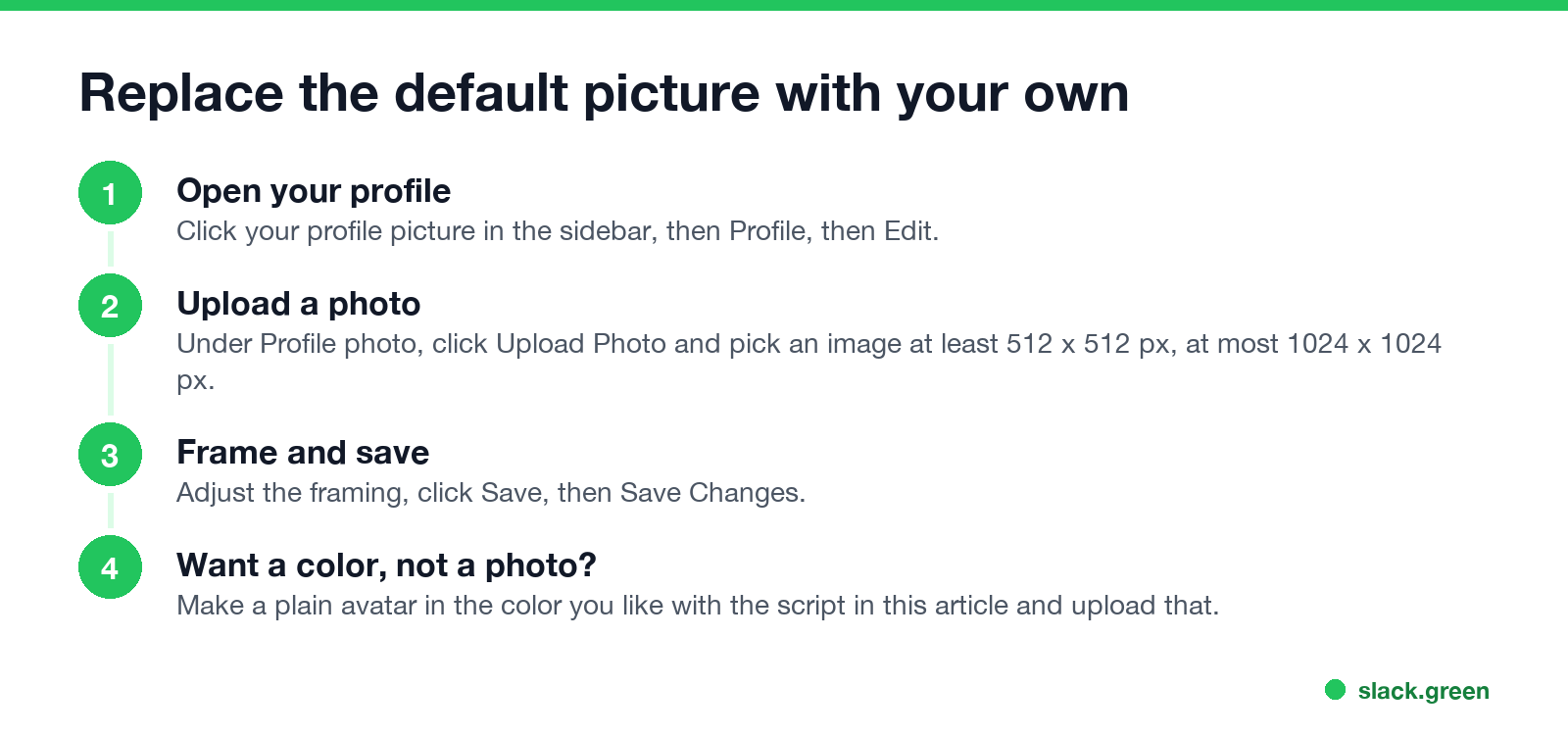
On desktop:
On iPhone or Android: tap your profile picture, View profile, Edit Profile, Edit Photo, then take or choose a photo and tap Save.
Slack's help says the picture should be at least 512 x 512 pixels and no larger than 1024 x 1024 pixels.
Make a default-style avatar in any color
This Python script draws a person silhouette like Slack's on a square in the colors you set, at 1024 x 1024 pixels. It needs Pillow (pip install pillow):
from PIL import Image, ImageDraw

BACKGROUND = "#22c55e"  # any color you like
FIGURE = "#ffffff"
SIZE = 1024  # Slack takes 512 to 1024 px

img = Image.new("RGB", (SIZE, SIZE), BACKGROUND)
draw = ImageDraw.Draw(img)
head = SIZE * 0.17
cx = SIZE / 2
draw.ellipse([cx - head, SIZE * 0.18, cx + head, SIZE * 0.18 + 2 * head], fill=FIGURE)
draw.pieslice([SIZE * 0.12, SIZE * 0.62, SIZE * 0.88, SIZE * 1.38], 180, 360, fill=FIGURE)
img.save("avatar.png")
print("saved avatar.png", img.size)
Run it, then upload avatar.png with the steps above. We ran it with our brand green, #22c55e, and got a 1024 x 1024 PNG. For a custom emoji instead of a profile picture, use our Slack emoji maker.
Why your Slack picture looks the way it does
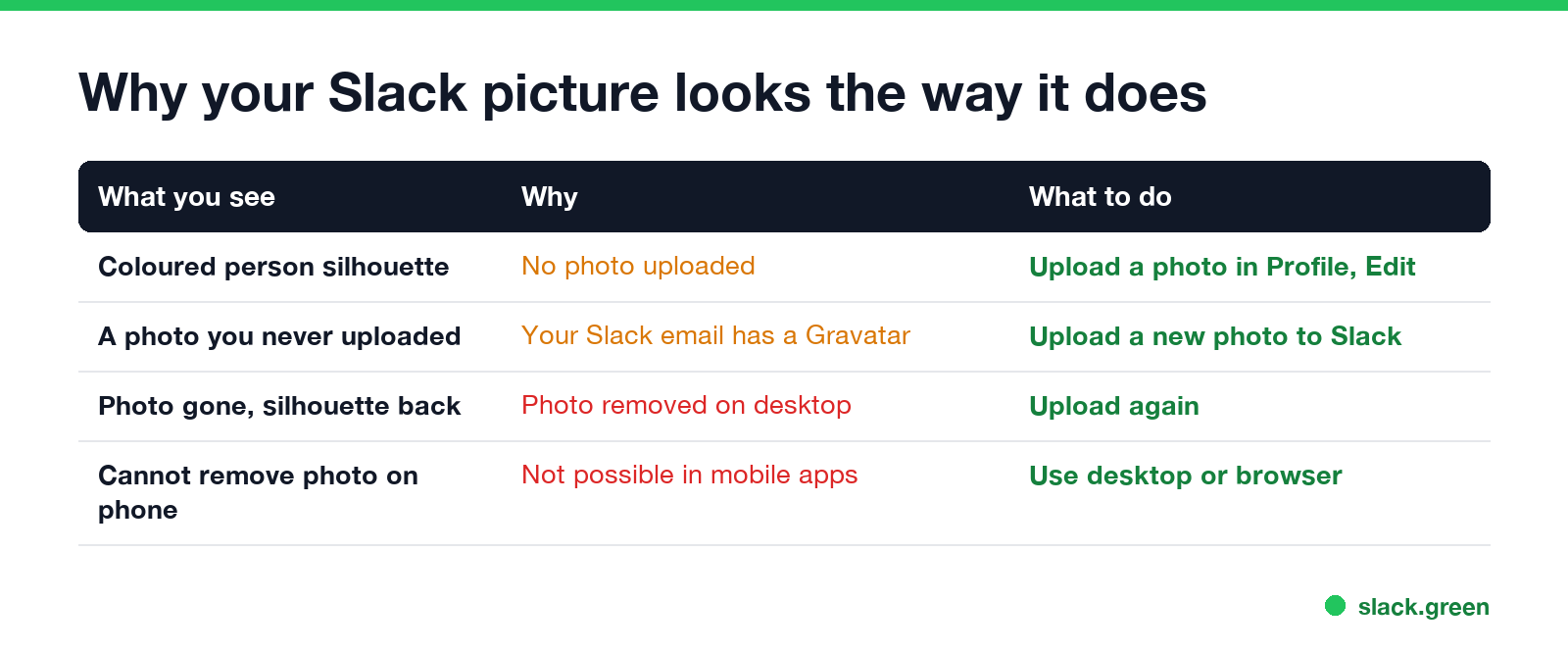
A profile picture is one of the first things coworkers see when they click your name, next to your local time and status; see does Slack notify when you view a profile. Ideas for the status next to it are in our Slack status generator.
FAQ
Never appear "away" on Slack again
Cloud-based. No downloads. Works 24/7 even when your laptop is off.
What is Slack's default profile picture?
A person silhouette on a square, in one of 14 colors, 26 images in all.
How do I change my Slack default profile picture color?
You cannot change the default. Upload a photo, or an avatar you made in the color you want.
Why is my Slack profile picture a Gravatar?
Your Slack email address has a Gravatar account. Upload a photo in Slack to replace it.
Can I remove my Slack profile picture?
Yes, on desktop or in a browser: Profile, Edit, Remove Photo. The mobile apps cannot remove it.
What size should a Slack profile picture be?
At least 512 x 512 pixels and no larger than 1024 x 1024 pixels.
Stop Jiggling Your Mouse.
Join hundreds of remote workers who never worry about their Slack status. Set it up once, stay green forever.
Related Articles
Slack Status for Limited Availability: 30 Statuses to Copy
A Slack status for limited availability says you are around but slow, until when, and how to reach you if it is urgent, such as ⏳ 'Limited availability today, replies after 3 PM. Urgent: @mention me.' 30 statuses for busy days, slow replies and catching up, the emoji to use, and when to pause notifications too.
Slack Emoji for Thank You (and You're Welcome)
The usual Slack emoji for thank you are 🙏 :pray:, 🙌 :raised_hands: and ❤️ :heart:. For you're welcome, 😊 :blush: or 🤗 :hugging_face:. What each one says, which ones read wrong, and custom :ty:, :np: and :welcome: emoji your team can add in a minute.
Slack Emoji for Condolences: What to React With, and What to Say
The right Slack emoji for condolences are ❤️ :heart:, 🙏 :pray:, 🤗 :hugging_face:, 💐 :bouquet:, 🕯️ :candle: and 🕊️ :dove_of_peace:. Avoid 👍, ✅ and 👀, which read as 'noted'. Add a few words in the thread or a DM. Short condolence messages, get-well emoji, and custom 'thinking of you' emoji.